How to create a Firebase account?
Last updated: June 10, 2026
Here's a step-by-step guide to create a Firebase account and set up your first Firebase project.
Step 1: Open Firebase Console
Visit the Firebase Console:
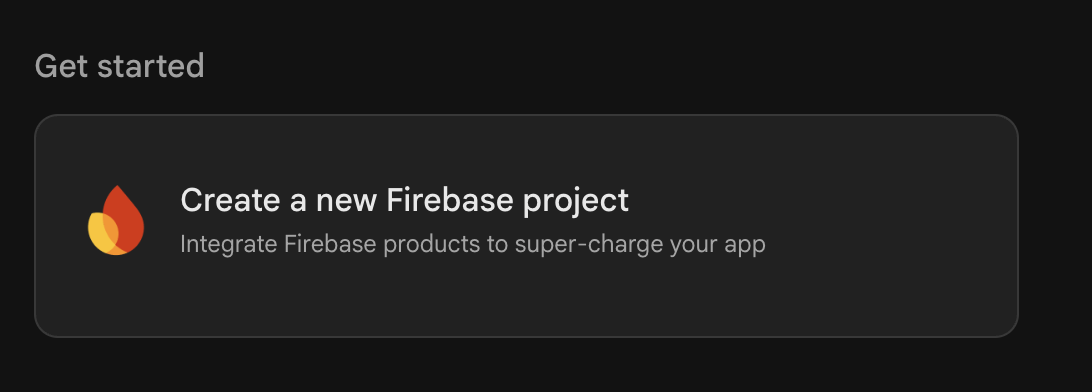
Click Get Started.
Step 2: Create a New Firebase Project
Click Create a Project.
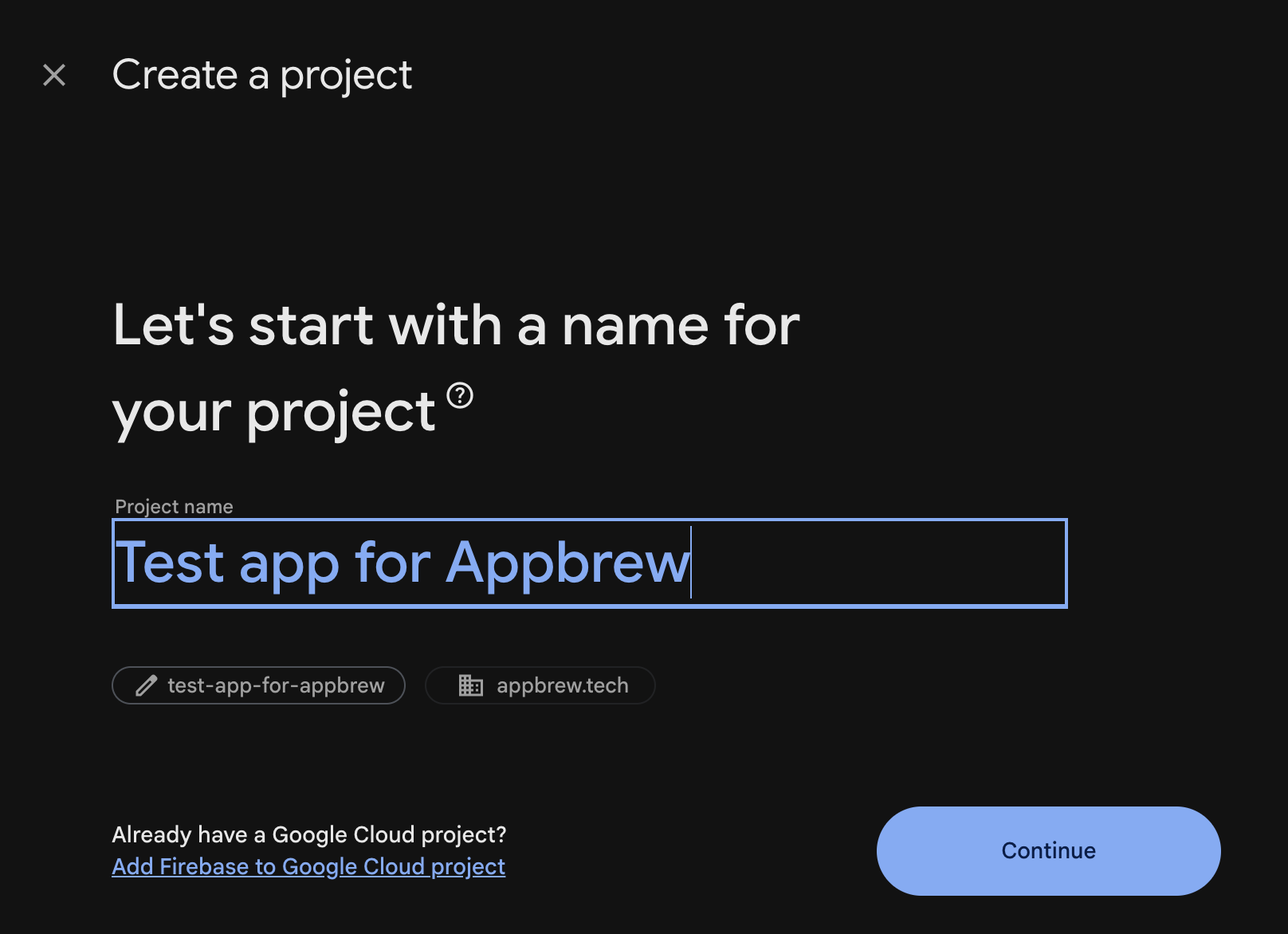
Enter your project name (e.g., Image Beauty App).
Click Continue.
Step 4: Configure Google Analytics
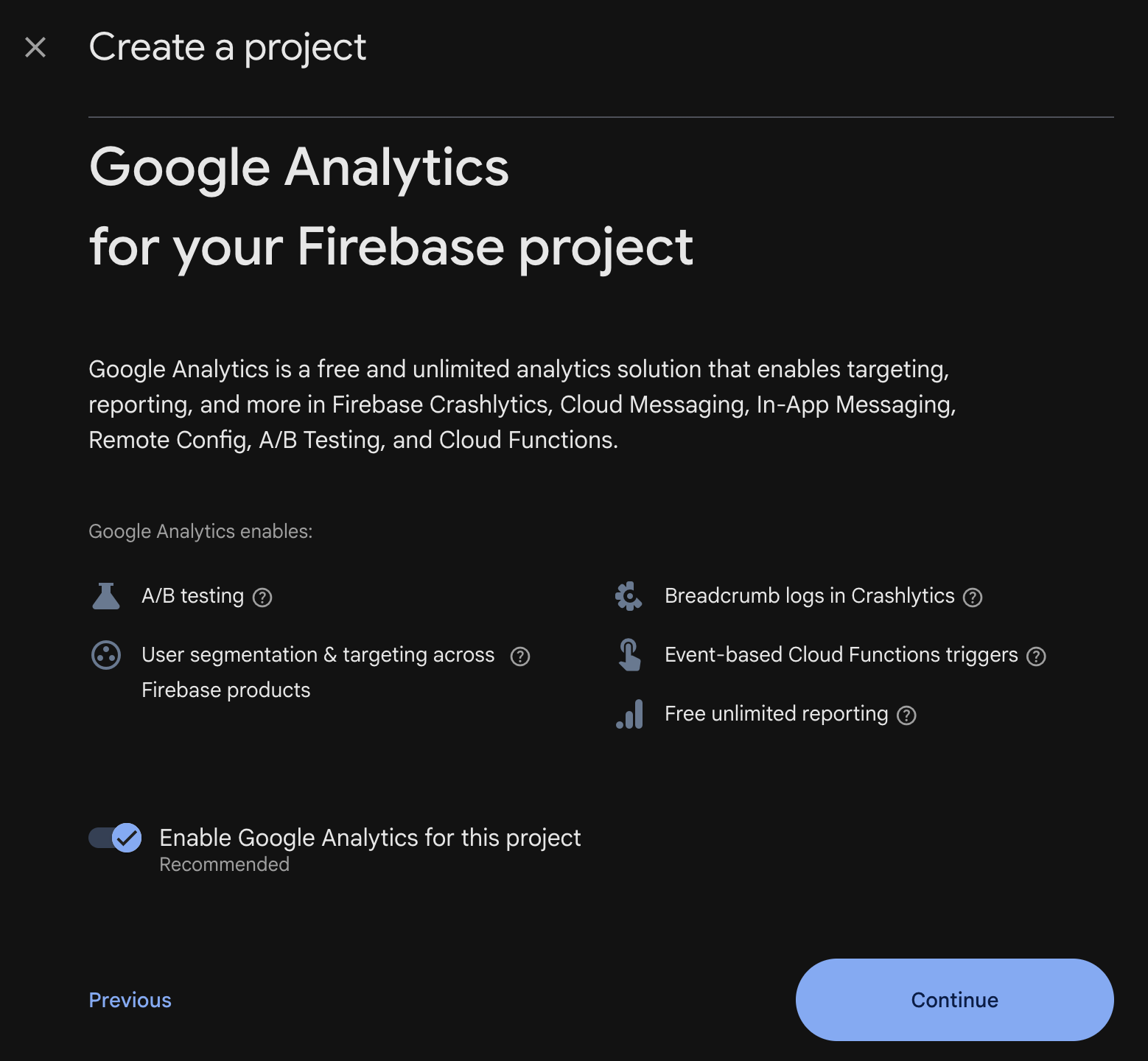
Firebase will ask whether you want Google Analytics.
For most apps:
Select Enable Google Analytics.
Click Continue.
If you're just testing Firebase, you can disable it and proceed.
Step 5: Select Analytics Account
If Analytics is enabled:
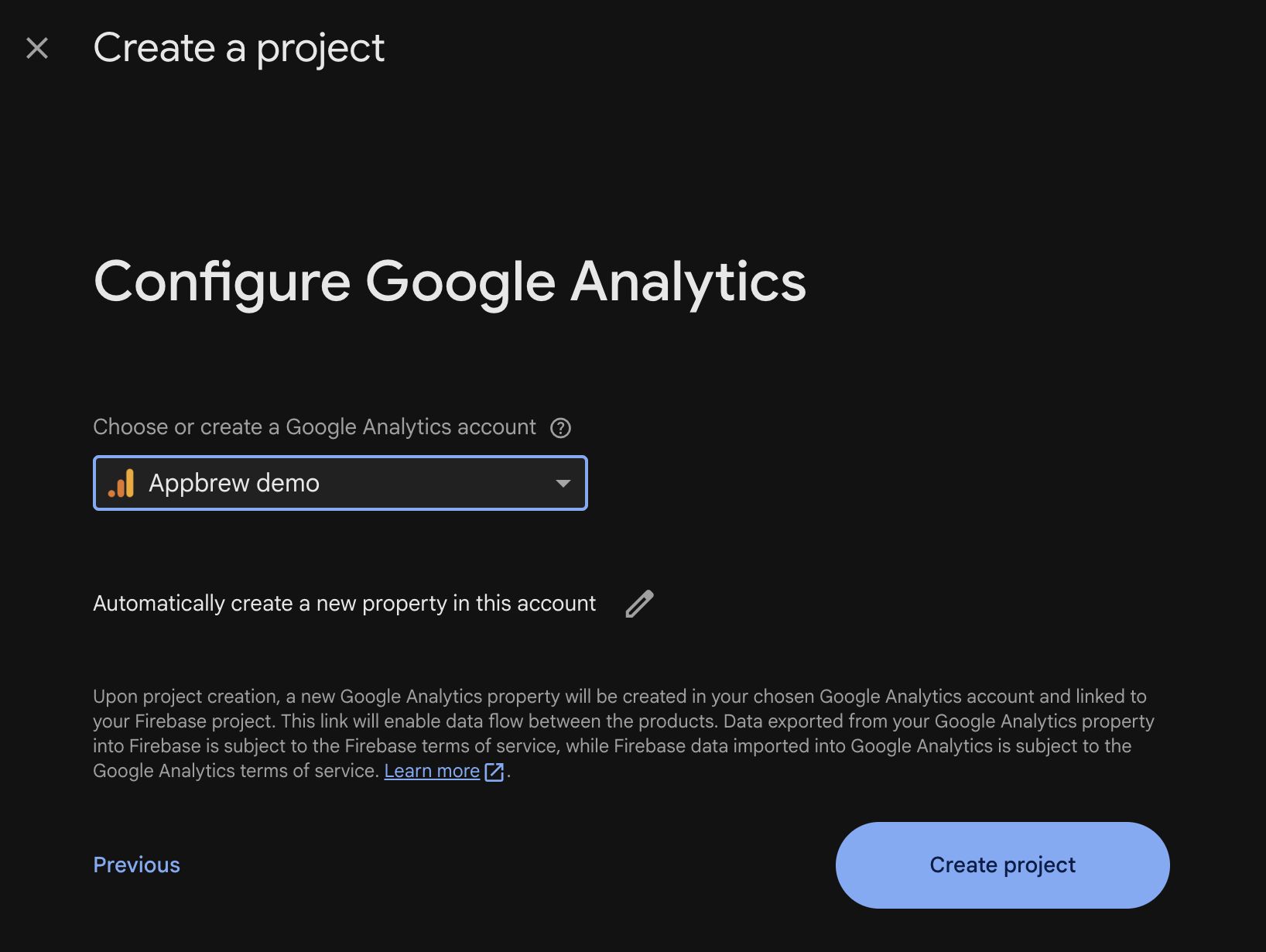
Choose an existing Analytics account or create a new one.
Accept the required terms.
Click Create Project.
Firebase will take a few moments to provision the project.
Step 6: Access Your Firebase Dashboard
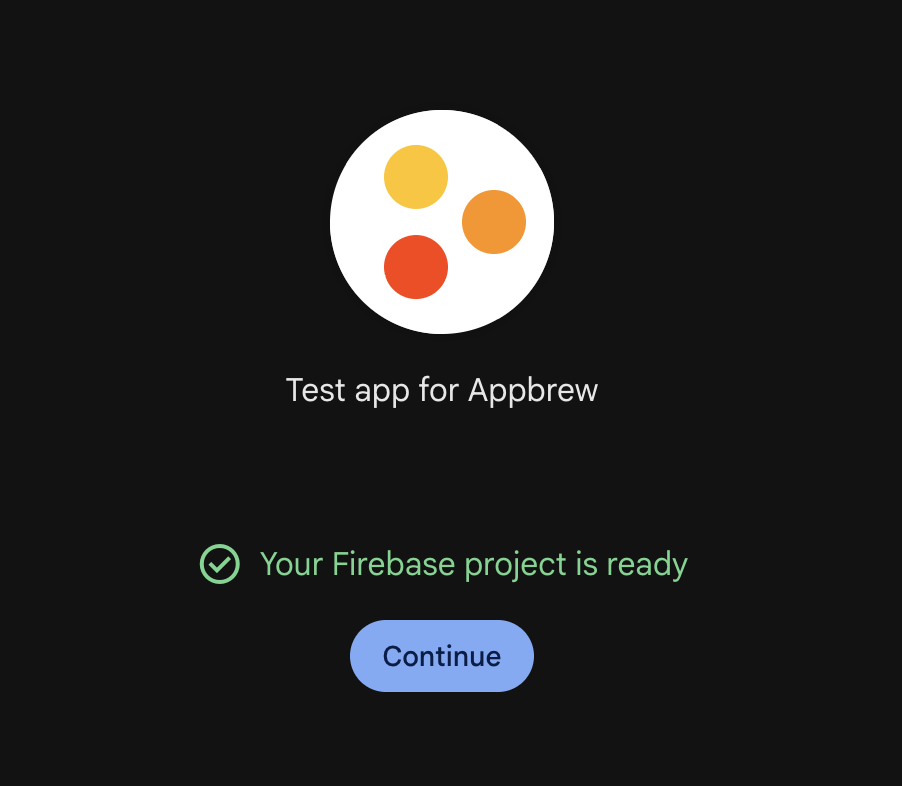
Once setup completes:
Click Continue.
You'll land on the Firebase project dashboard.
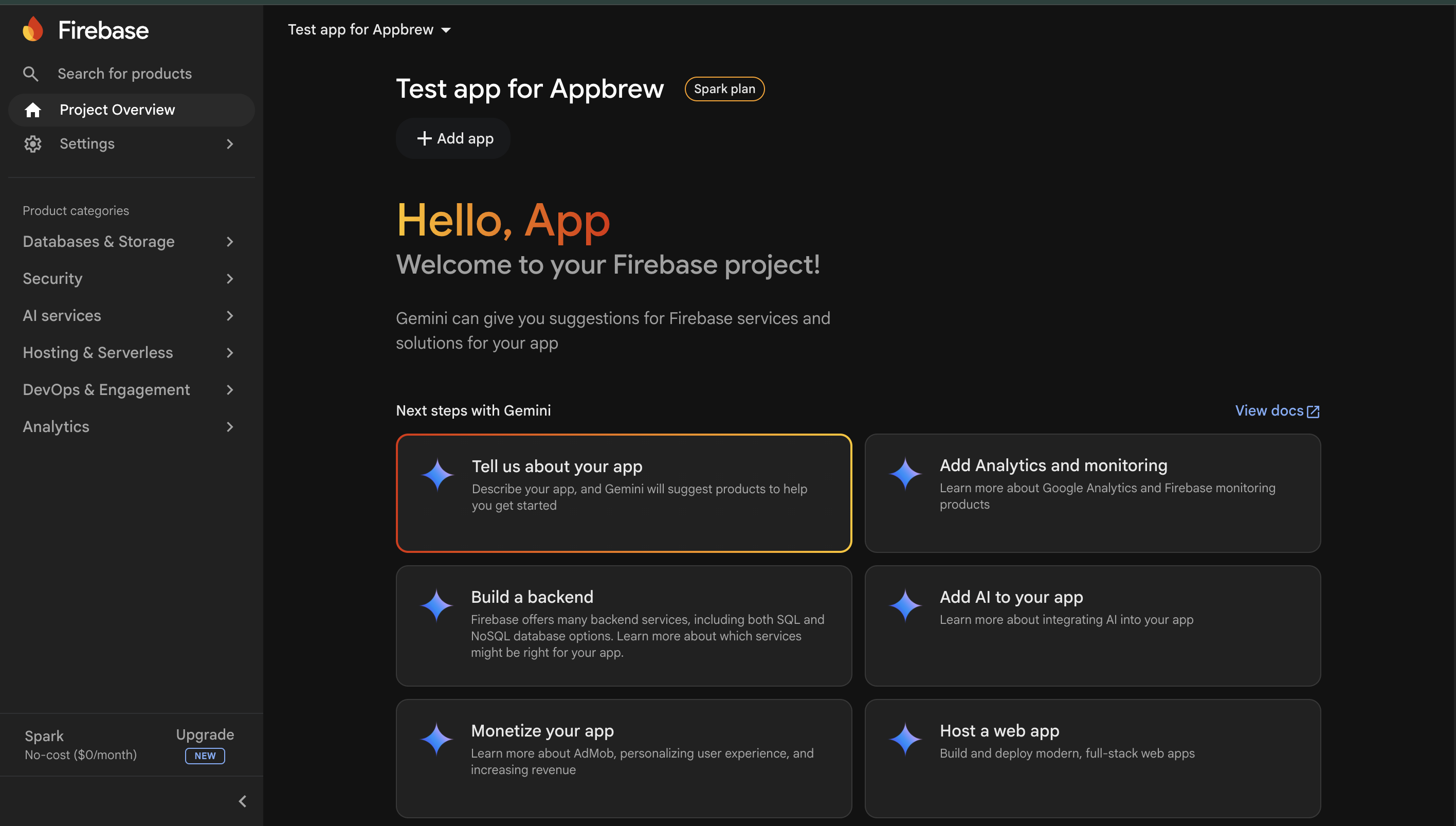
You now have:
Authentication
Firestore Database
Cloud Messaging (Push Notifications)
Storage
Analytics
available within your project.