Manage your Appbrew app using MCP
Last updated: September 22, 2026
Add Appbrew once as a connector, sign in with your Studio account, and ask about your app in plain words: analytics, themes, campaigns, releases and builds.
Connector URL (paste this wherever the app asks for a server URL):
https://mcp.appbrew.tech/mcp
You need an Appbrew Studio login with access to your store. No API key or client secret is required.
Add the connector
Menu names change between releases. If a label below doesn't match, look for Connectors or Apps in settings.
Claude (web and desktop, all plans)
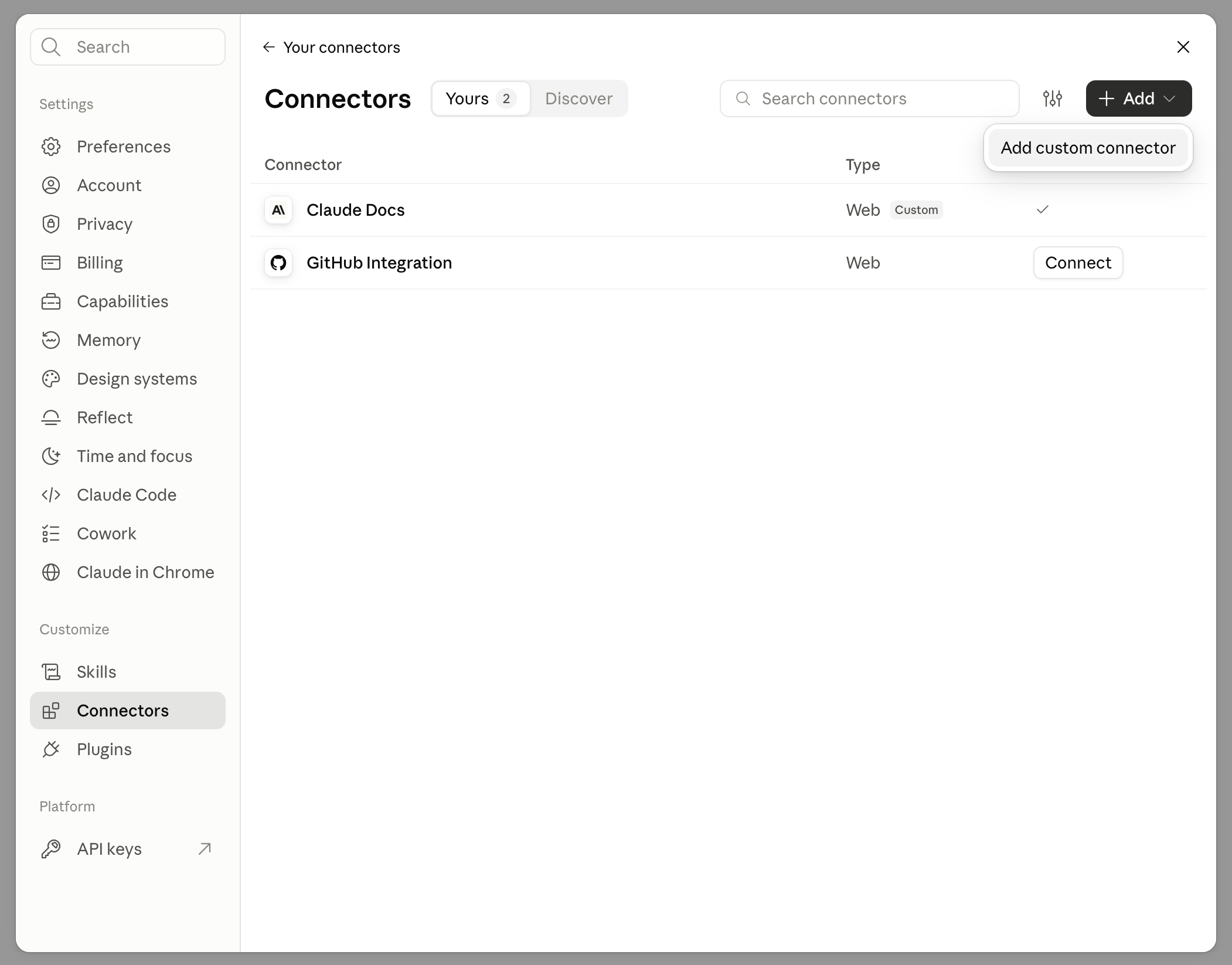
Open Customize → Connectors (older versions: Settings → Connectors).
Click +, then Add custom connector.
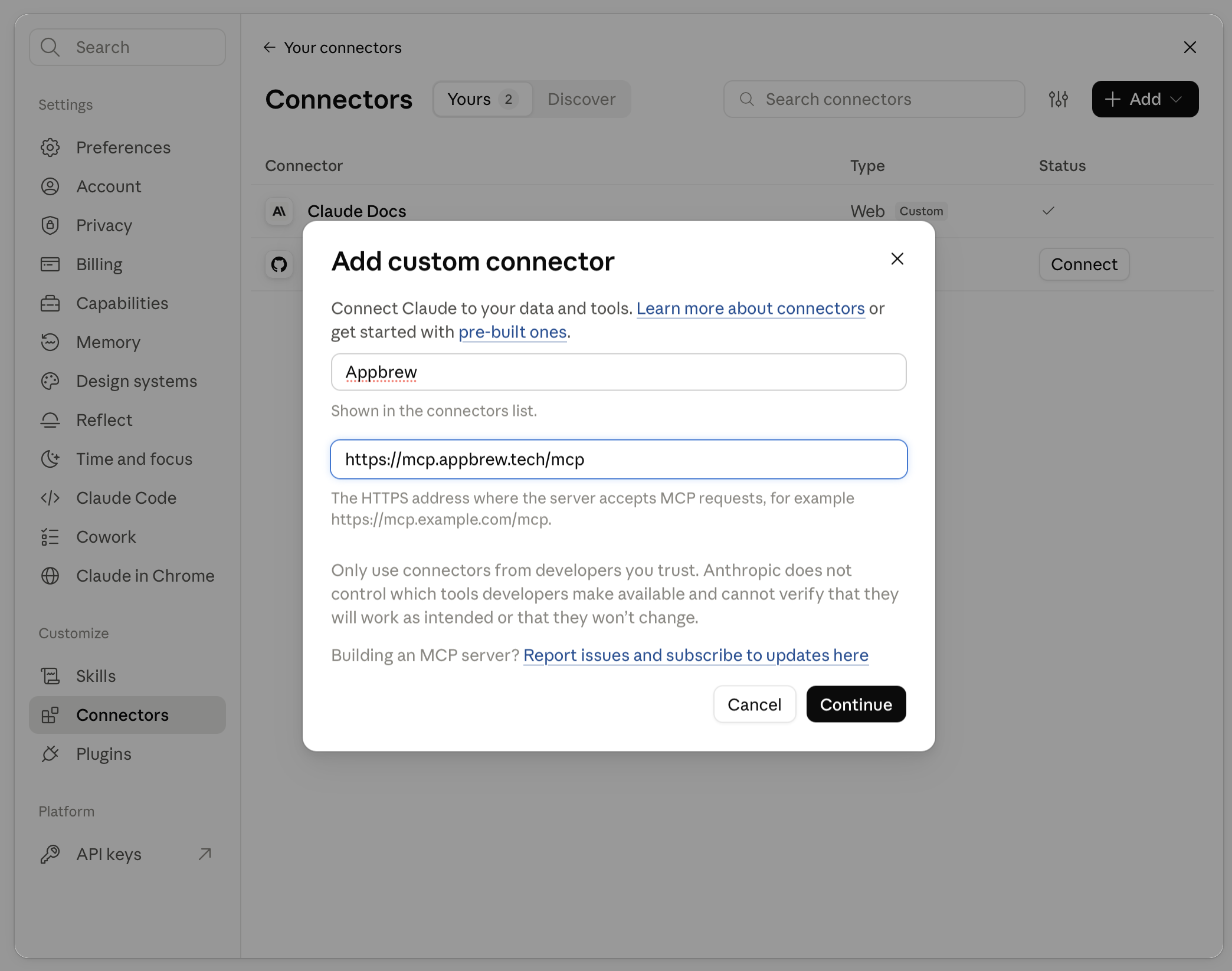
Name it Appbrew and paste the connector URL
https://mcp.appbrew.tech/mcp. Click on Continue
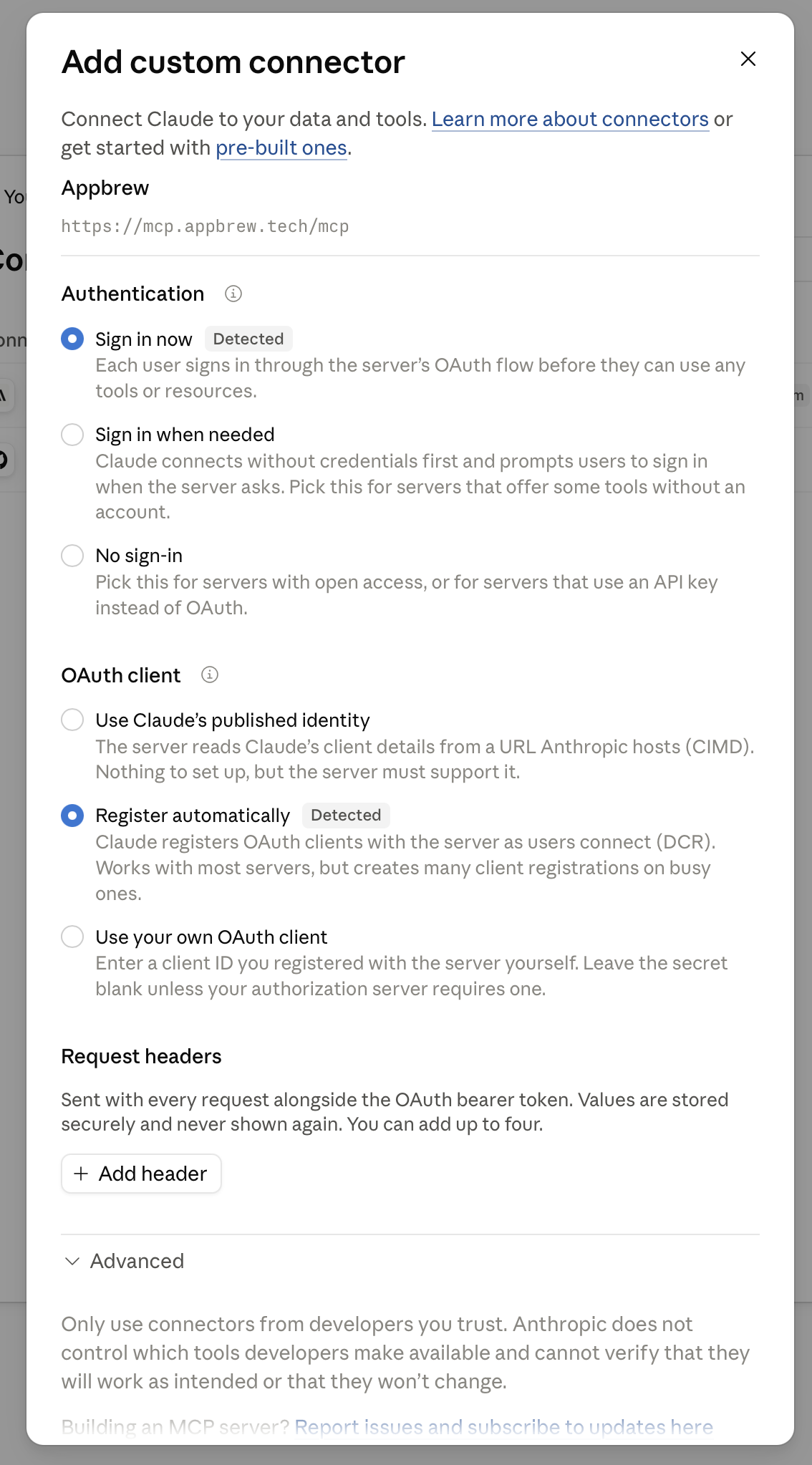
Confirm the settings
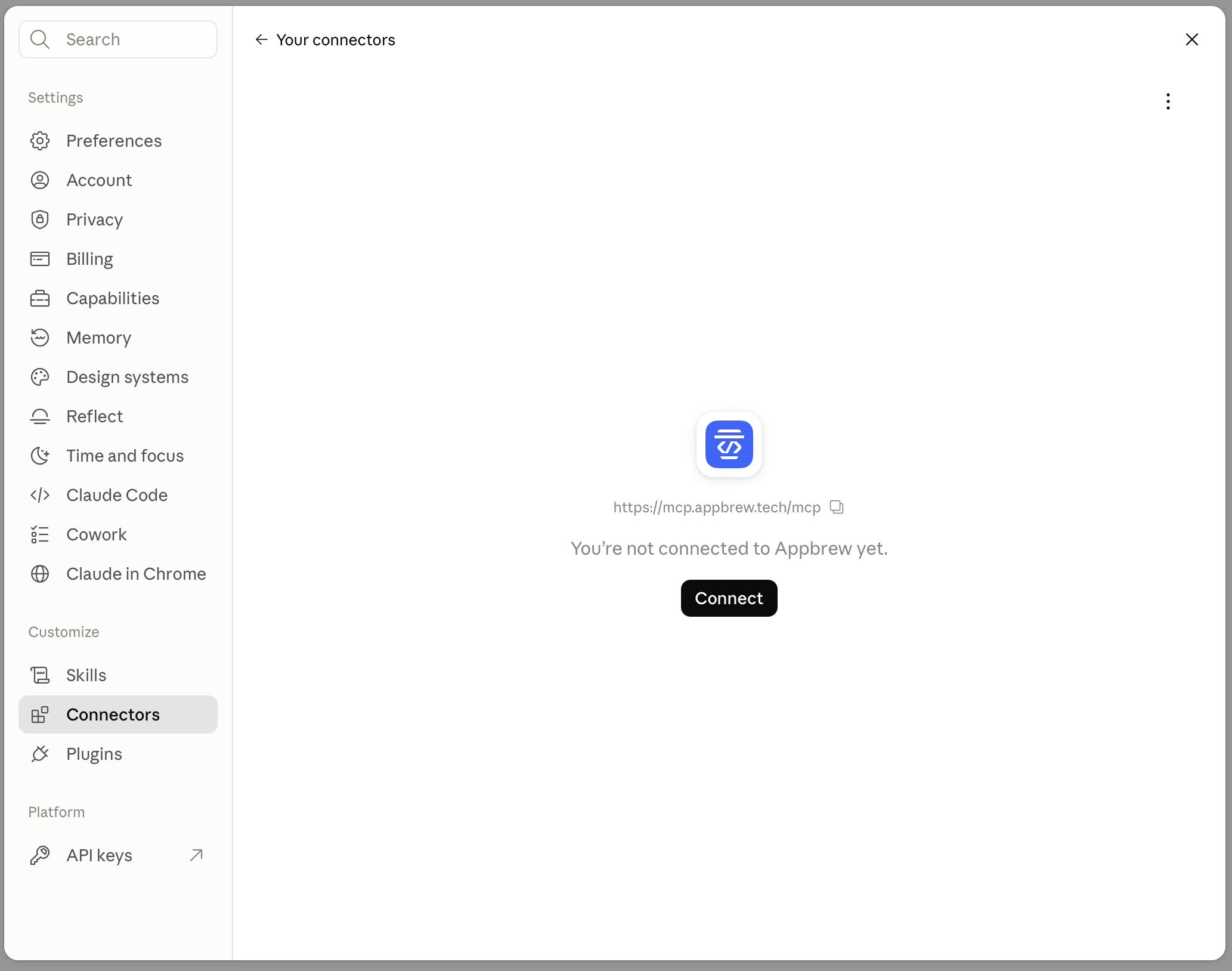
Click on Connect. A sign-in window opens .
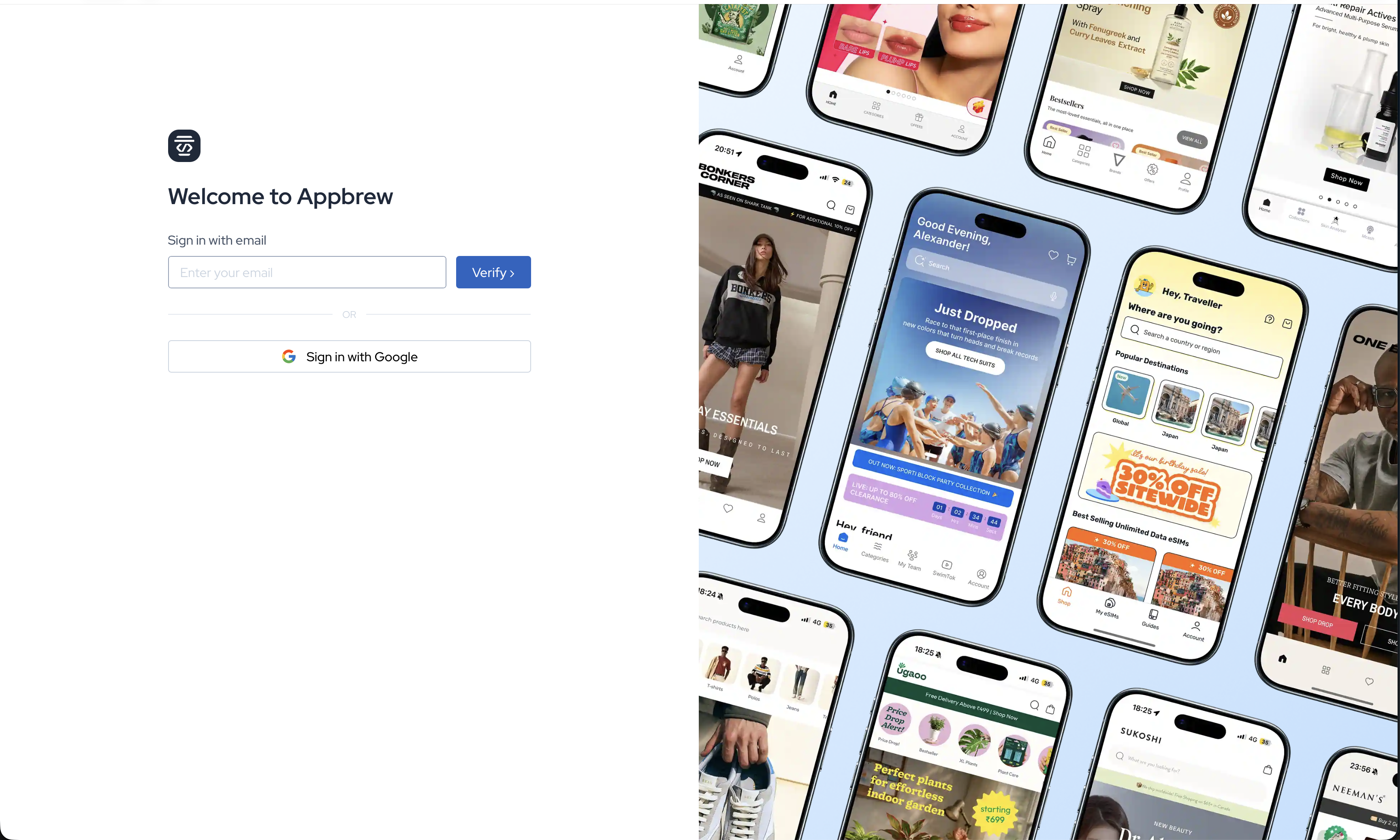
Login on Studio using either email/one time password flow or using Sign in with Google
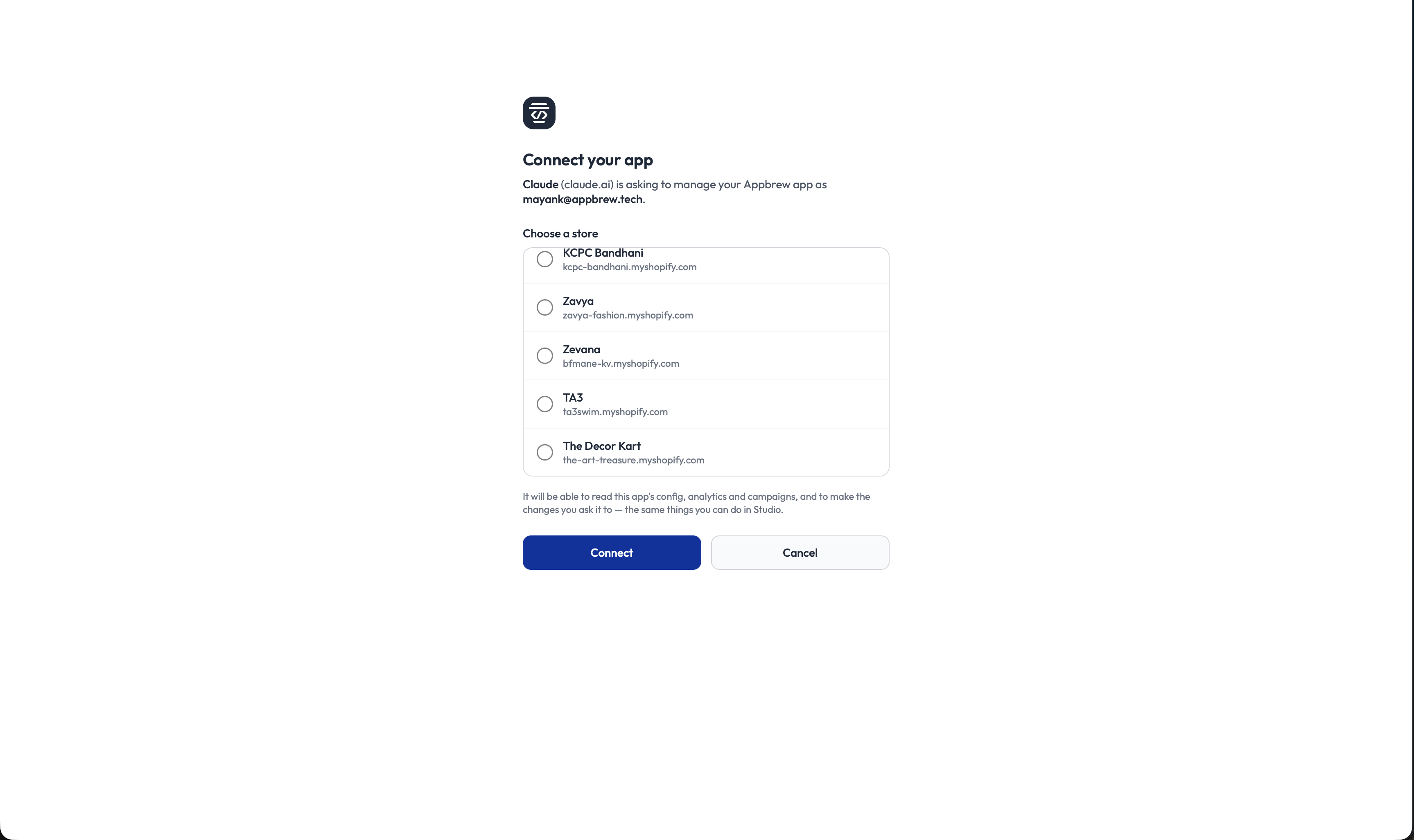
You'll see a list of stores which you're part of on Appbrew platform. Select one and confirm.
Your store should be connected now
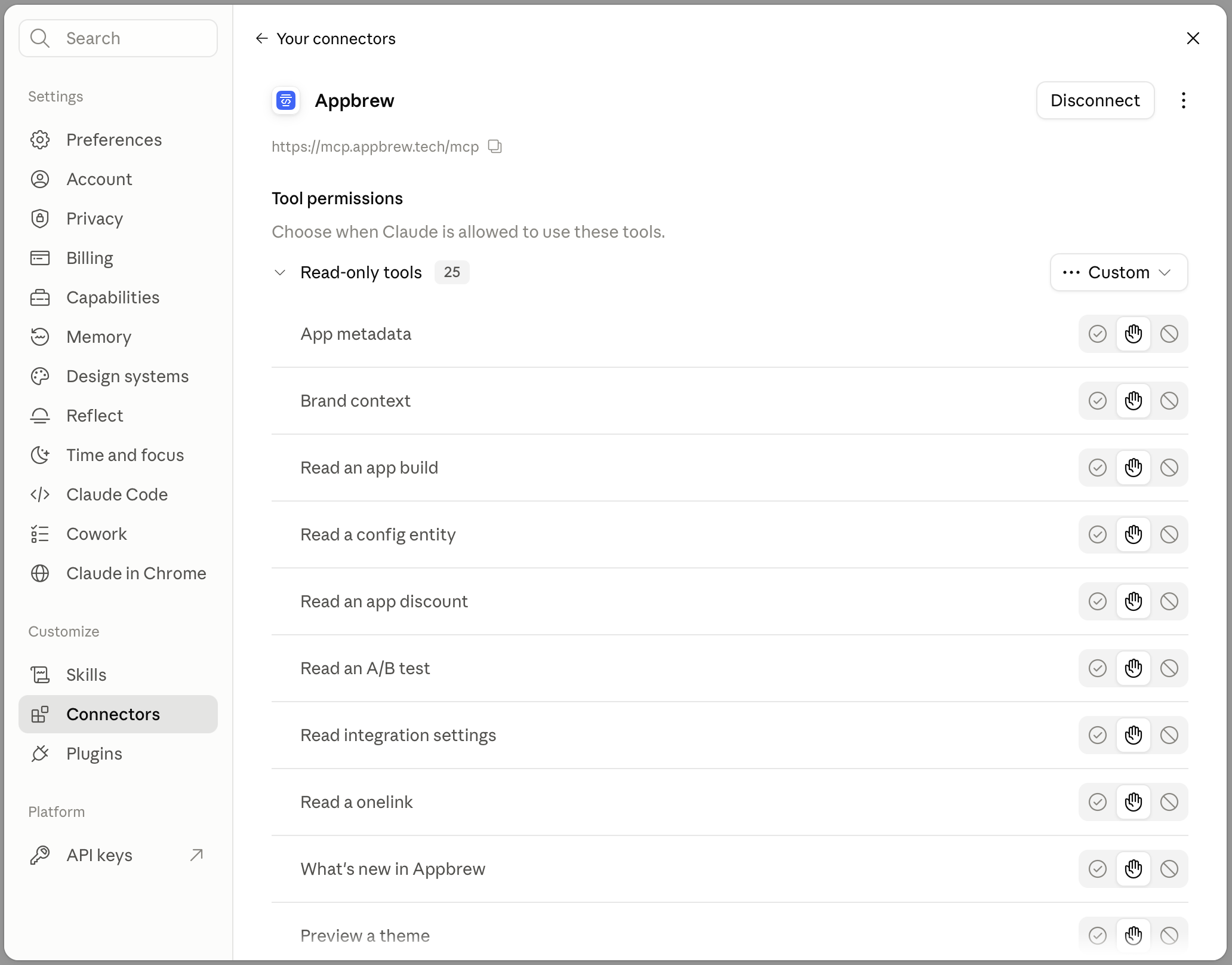
Team and Enterprise: an Owner first adds the connector under Organization settings → Connectors → Add → Custom → Web. Each person then clicks Connect and signs in with their own Studio account. Free plans allow one custom connector.
ChatGPT (web; Plus, Pro, Business, Enterprise, Edu)
Open Settings → Security an login and turn on Developer mode.
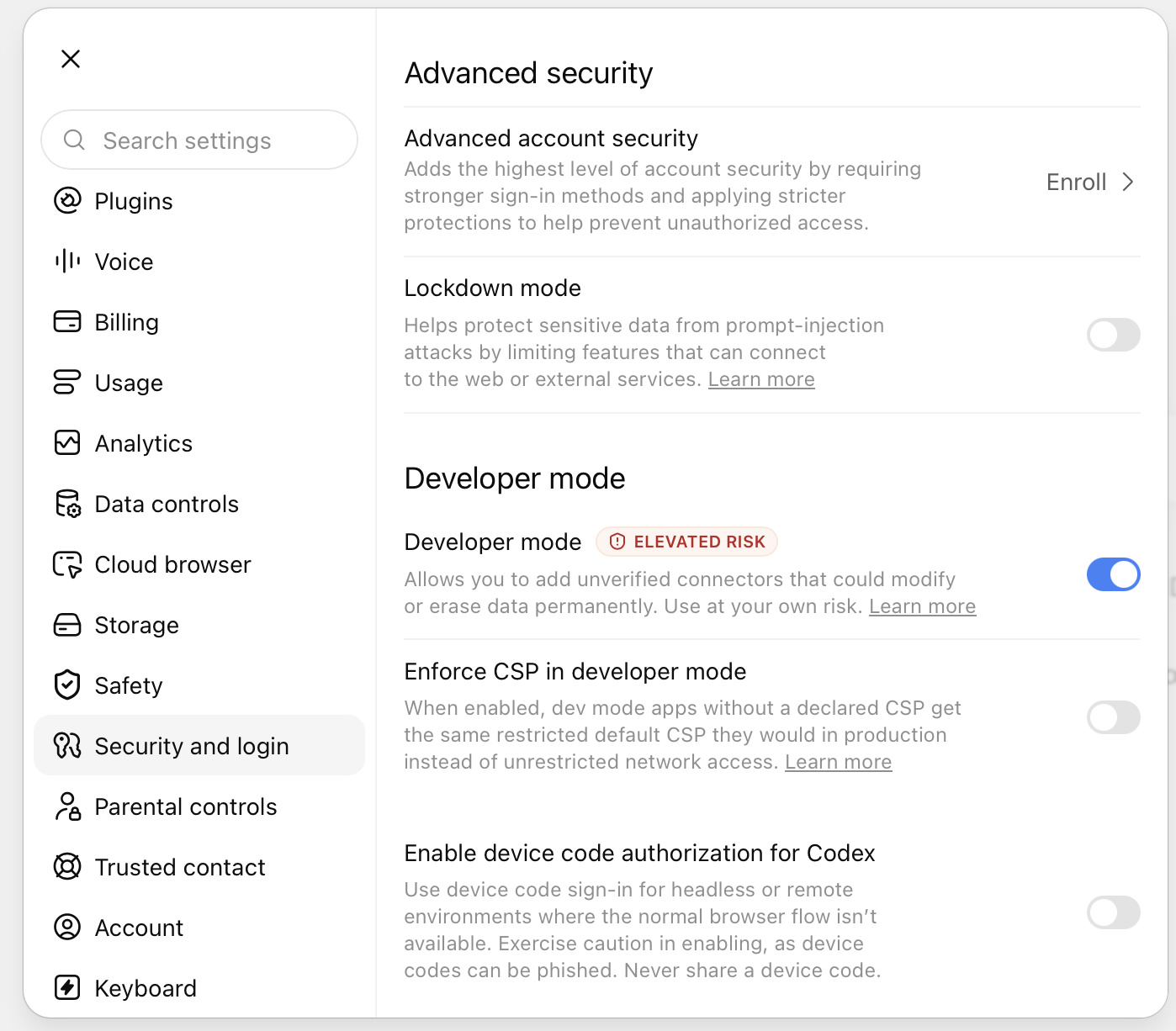
Go to Plugins and, click + to add Appbrew MCP

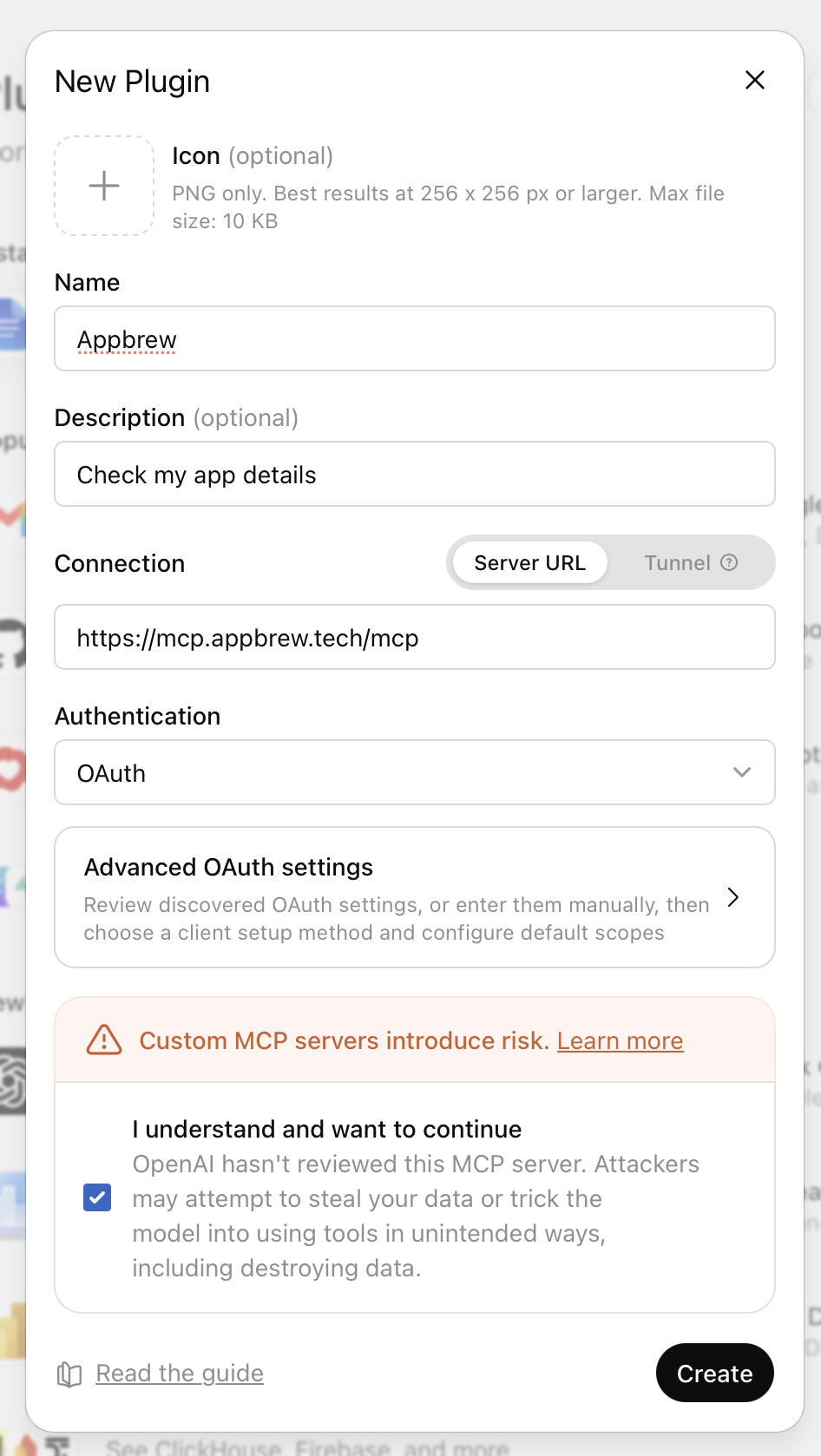
Name it Appbrew, paste the connector URL, and set Authentication to OAuth. Tick I understand and want to continue, click Create. This might take some time as OpenAI verifies the MCP server.
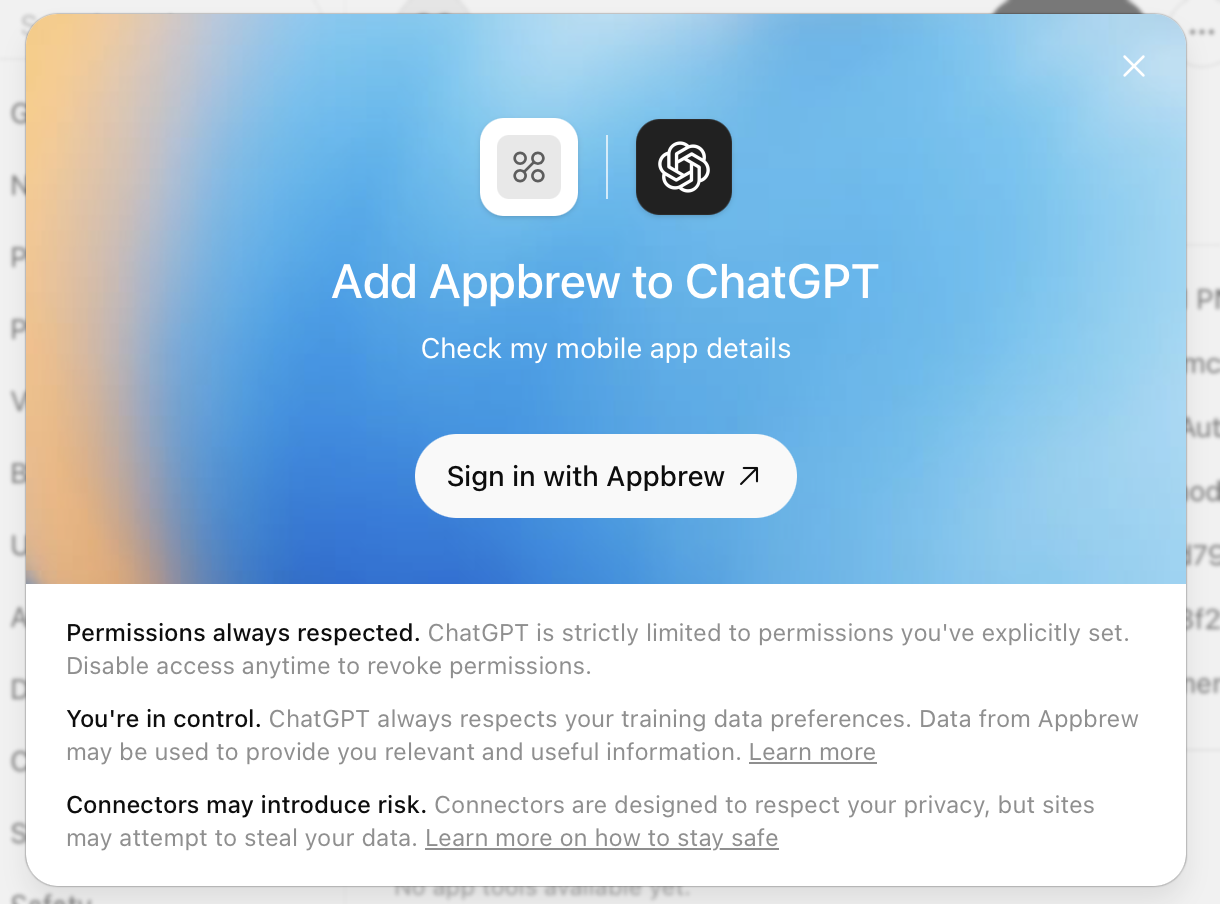
Once confirmed, click on Sign in with Appbrew to continue
Login on Studio using either email/one time password flow or using Sign in with Google
You'll see a list of stores which you're part of on Appbrew platform. Select one and confirm.
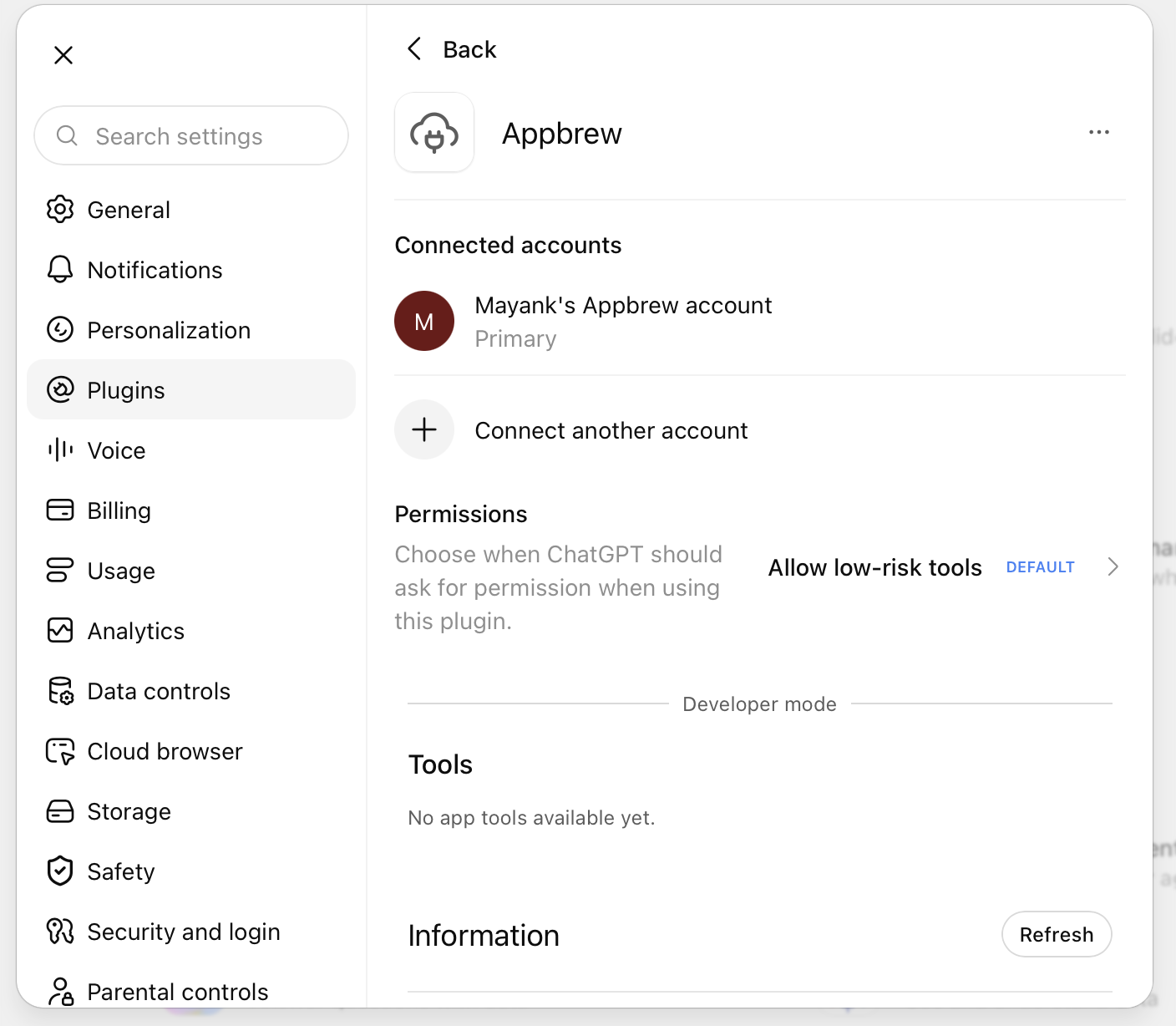
You should see the Appbrew MCP connected now
Business and Enterprise workspaces: if you don't see Developer mode, a workspace admin has to allow custom connectors under Workspace settings → Permissions & roles.
Claude Code (terminal)
Add the server:
claude mcp add --transport http appbrew <https://mcp.appbrew.tech/mcp>Start Claude Code, run
/mcp, pick appbrew and choose Authenticate. Your browser opens the same sign-in.
Sign in and pick your store
Every app goes through the same screens. You never type a password into Claude or ChatGPT; you sign in on Appbrew's own pages.
Appbrew Studio sign-in. Use Google or an email code, exactly as you do for Studio.
Connect your app. This page names the chat app that's asking and the account you signed in as. Check both.
Choose a store. A connection works with one store. If you manage several, pick the one this chat should act on.
Click Connect. You're sent back to the chat, and Appbrew's tools are ready to use.
What it can and can't do
It acts with your Studio permissions, on the one store you picked. Anything that reaches your shoppers stays in Studio.
Can:
Read analytics, A/B tests, push campaigns, discounts, deep links and integrations
Check release history, scheduled releases, and whether a new app build is ready
Create a draft theme, change its screens and settings, and send you a preview link
Merge a finished draft back into its theme
Send a test push to the accounts you name
Can't:
Edit your live theme directly: every change goes through a draft
Publish a release to shoppers
Schedule, send, edit or cancel push campaigns
Read integration secrets: settings come back masked
Touch any store other than the one you picked
Changes made through a chat show up in Studio like any other edit.
Things to ask
"How did app revenue and purchases compare this month vs last month?"
"Which push campaigns in the last 30 days had the best open rate?"
"Which A/B tests are running right now, and how is traffic split between the variants?"
"Has the new iOS build finished, and when did the last release go live?"
"Make a draft theme with a Diwali sale banner on the home screen and send me a preview link."
"Which integrations are set up, and are any missing settings?"
Staying connected
How long does the connection last?
As long as you keep using it. If it sits unused for 30 days, you'll be asked to sign in again.
It says "Your Appbrew sign-in has ended".
Your access to the store changed, for example you were removed from it. Reconnect the connector and sign in. If the store no longer appears, ask your store admin for access.
How do I switch to another store?
Disconnect Appbrew in the connector settings, connect again, and pick the other store.
A request "took too long".
Ask for less at once: a shorter date range, or fewer metrics.
ChatGPT doesn't use Appbrew.
Developer-mode apps are switched on per chat. Open + → More → Developer mode and select Appbrew again.
Sign-in finished but nothing happened.
Remove the connector, add it again with the exact URL above, and try again. If it still fails, contact Appbrew support and include the time you tried.