How to share access for Firebase account with Appbrew?
Last updated: June 10, 2026
Step 1: Open Firebase Console
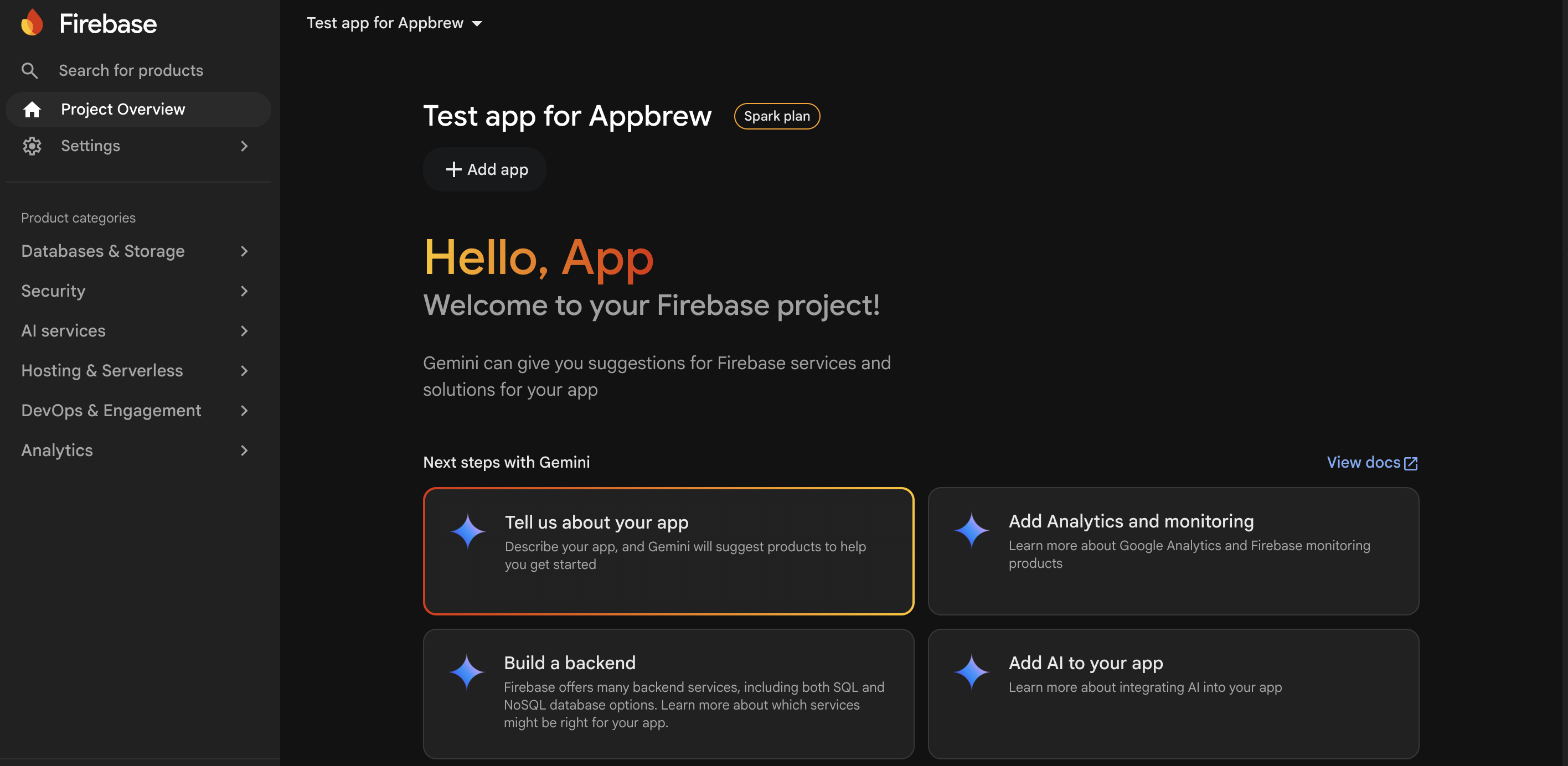
Go to the Firebase Console:
Select the Firebase project you want to share.
Step 2: Open Project Settings
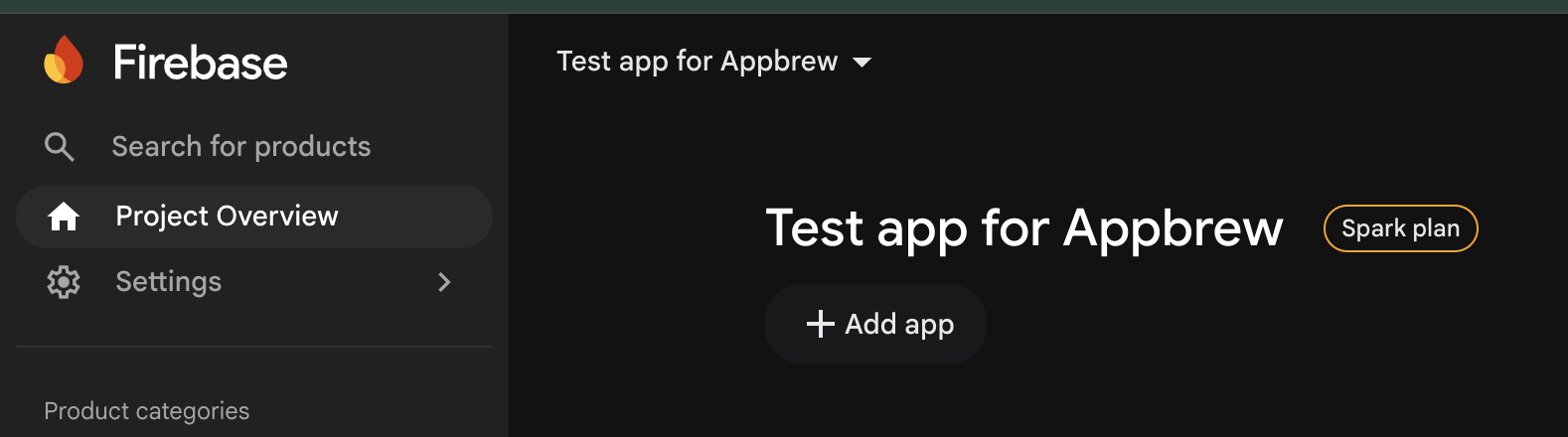
Click the ⚙ Settings icon next to Project Overview in the left sidebar.
Select Project Settings.
Step 3: Manage Users and Permissions
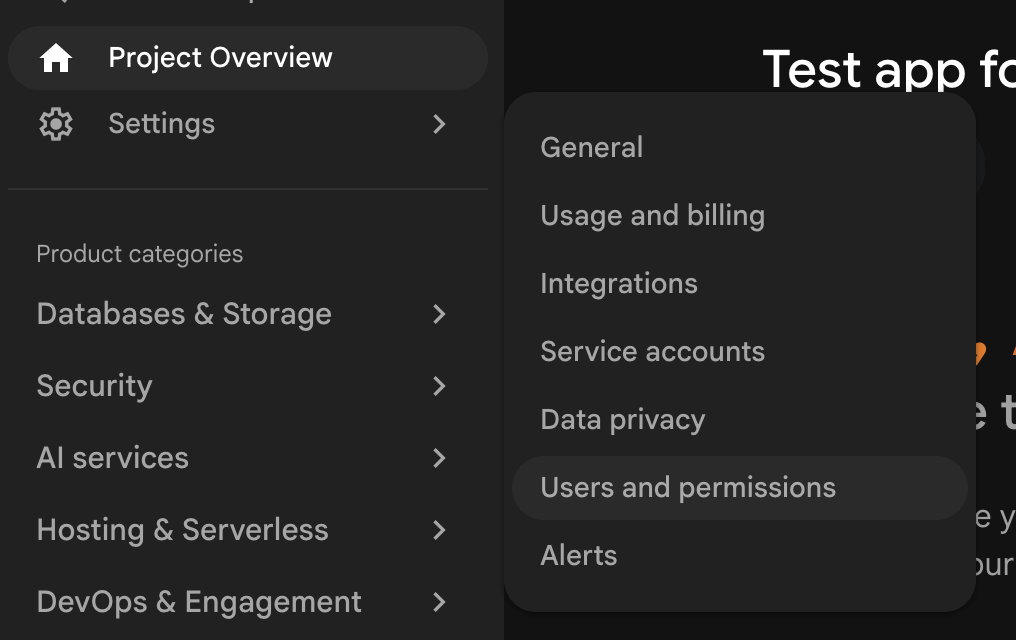
Click Users and Permissions from the top menu.
Alternatively, this redirects to the associated Google Cloud IAM page.
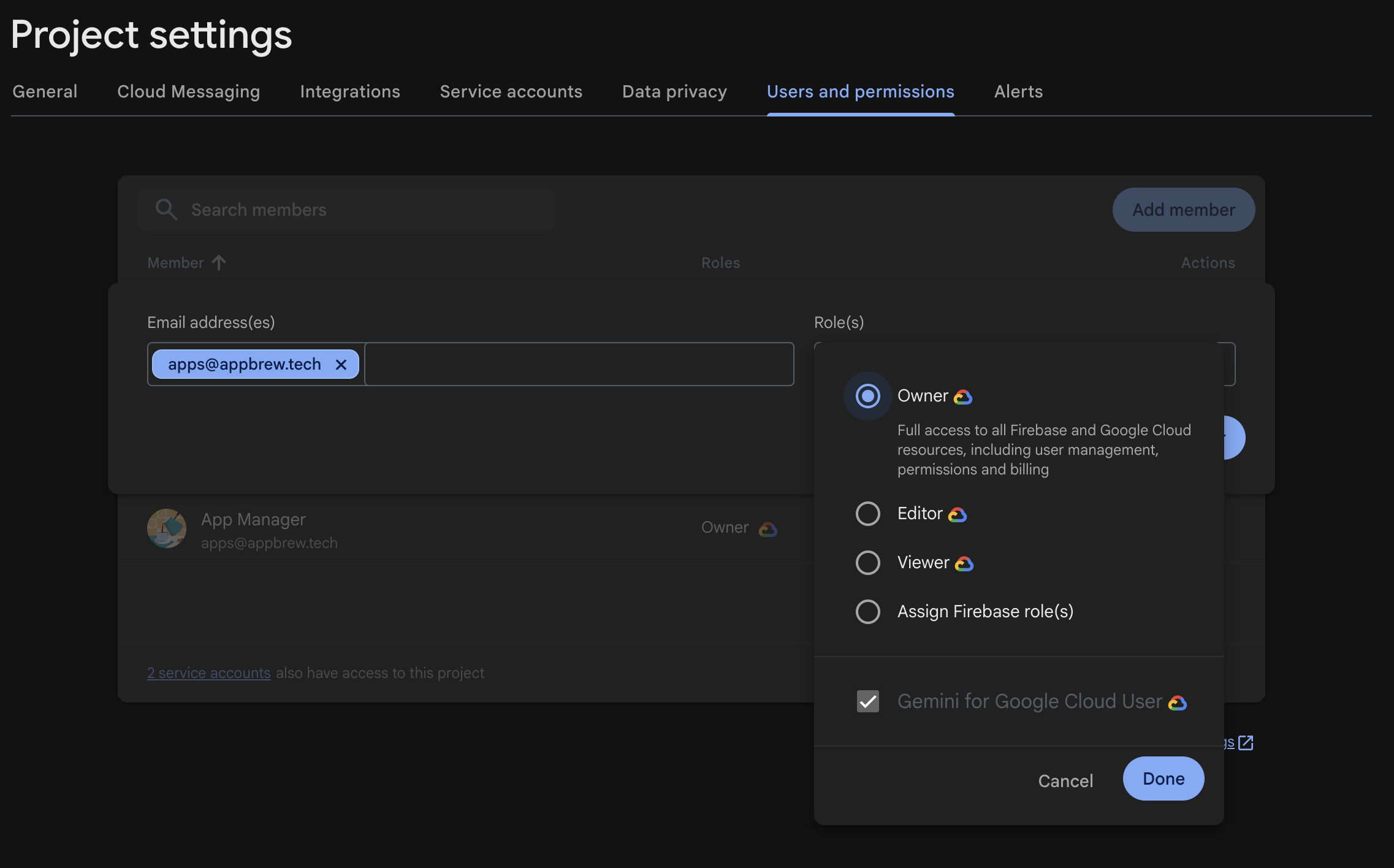
Step 4: Add Appbrew as a new user
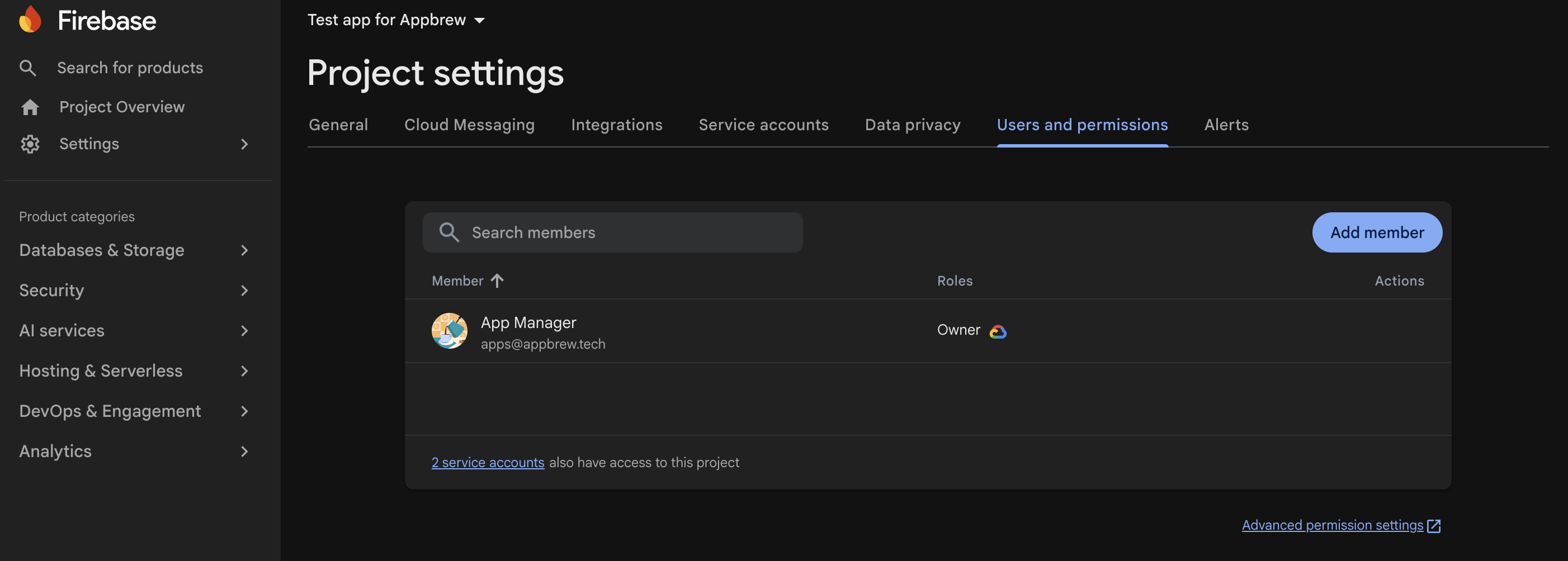
Click Add Member.
Enter the email address shared below for adding Appbrew to the platform.
apps@appbrew.techStep 5: Assign Owner Role
In the Role dropdown:
Search for Owner.
Select Basic → Owner.
Step 6: Save Changes
Click Save (or Grant Access, depending on the interface).
Appbrew will receive an invitation email and gain access immediately.