How to Enable a Video Banner for Your Application
Last updated: July 8, 2025
Enabling a Video Banner for Your Application
This document provides a step-by-step guide to enabling a video banner for your application. Follow the instructions carefully to successfully add and publish a video banner in your app interface.
Step 1
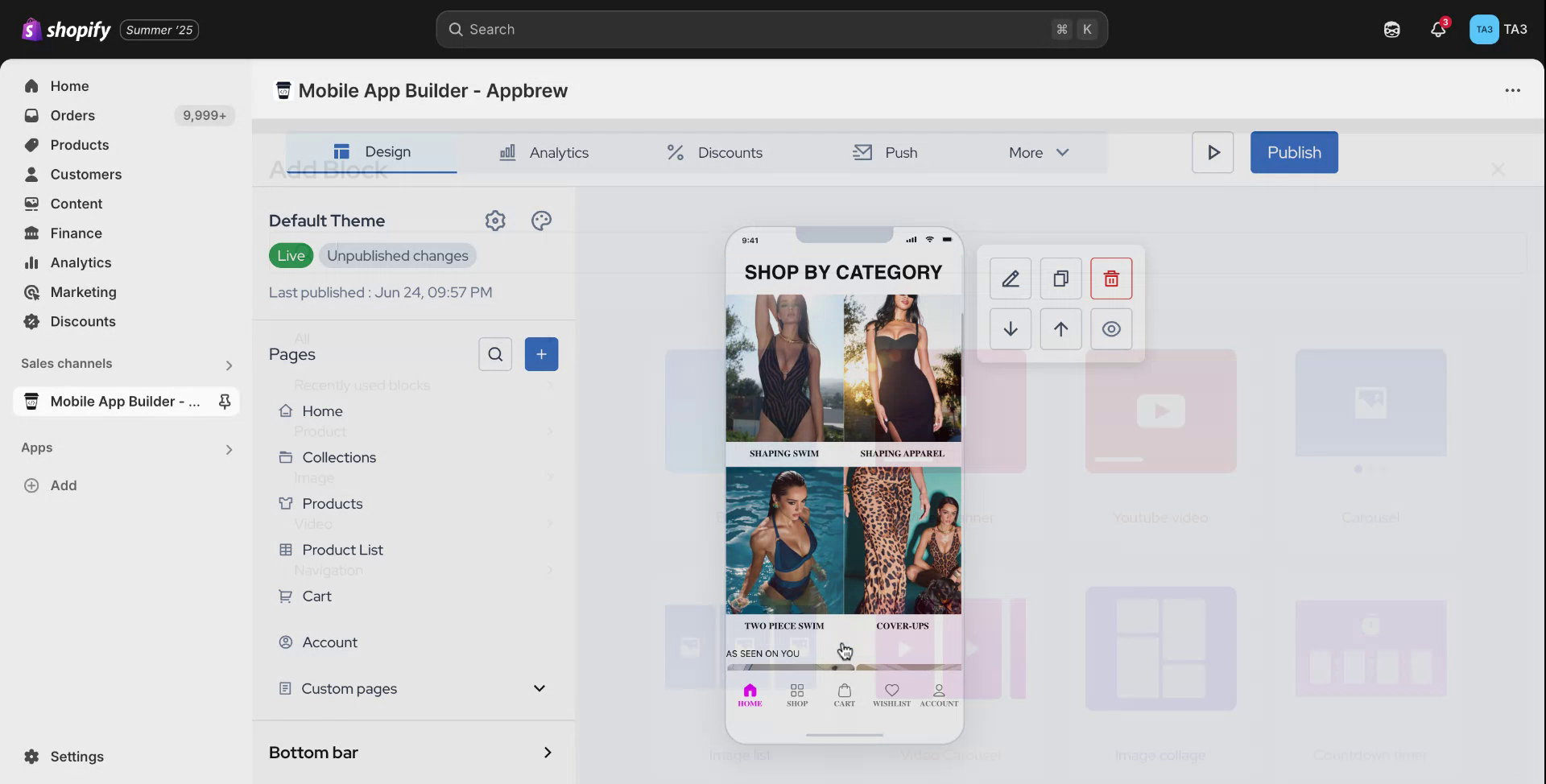
To begin enabling a video banner for your application, hover your mouse on the screen and click on the plus icon.
Step 2
Next, navigate to the video banner section and click on "Add Block." You will then see an option on the right-hand side to either upload a new video or select one from your existing files. In this example, we will select an already existing video from the files.

Step 3
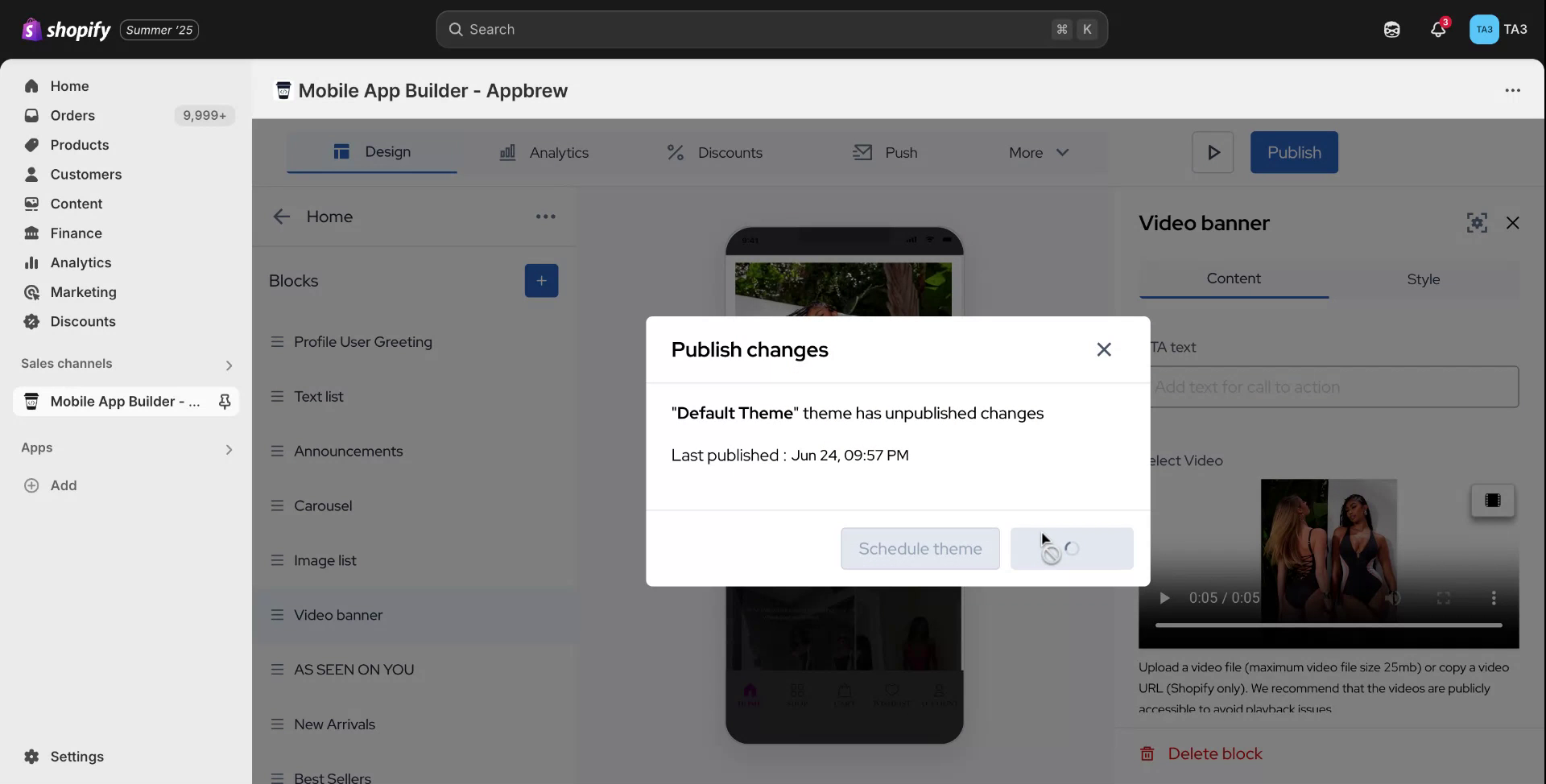
After selecting the video, preview how it appears on the right-hand side. Once you are satisfied with the appearance and link it to the page of your desire, click on "Publish." Your video will now be available in your application.