Enabling a Video Collage (for shoppable videos kinda experience)
Last updated: July 15, 2025
In this guide, you will learn how to create and enable a video collage using the video carousel block. Follow these straightforward steps to set up your video display efficiently, ensuring a professional outcome.
Step 1
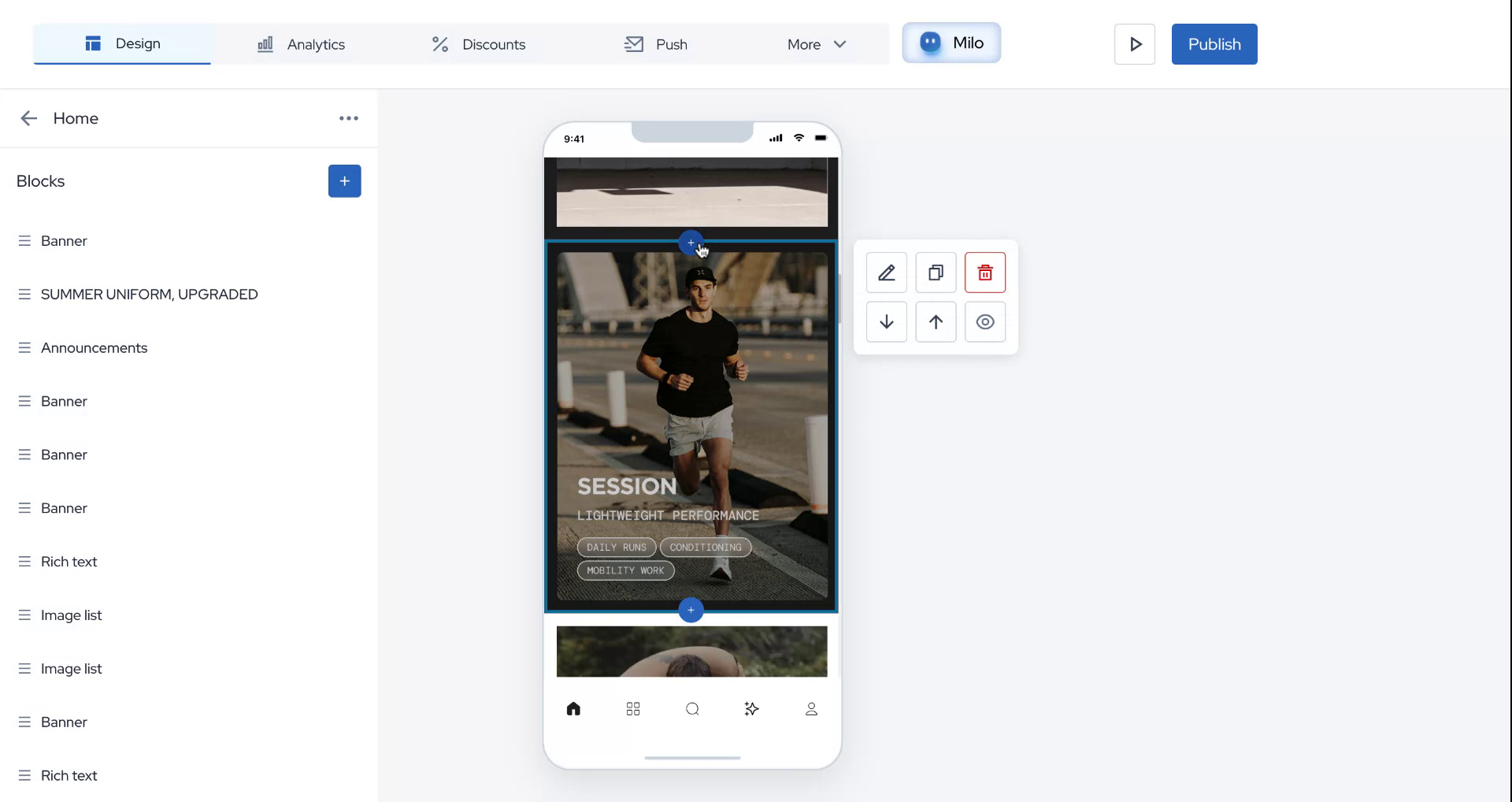
Begin by hovering your mouse over any of the image blocks. Click on the plus icon to initiate the video collage.
Step 2
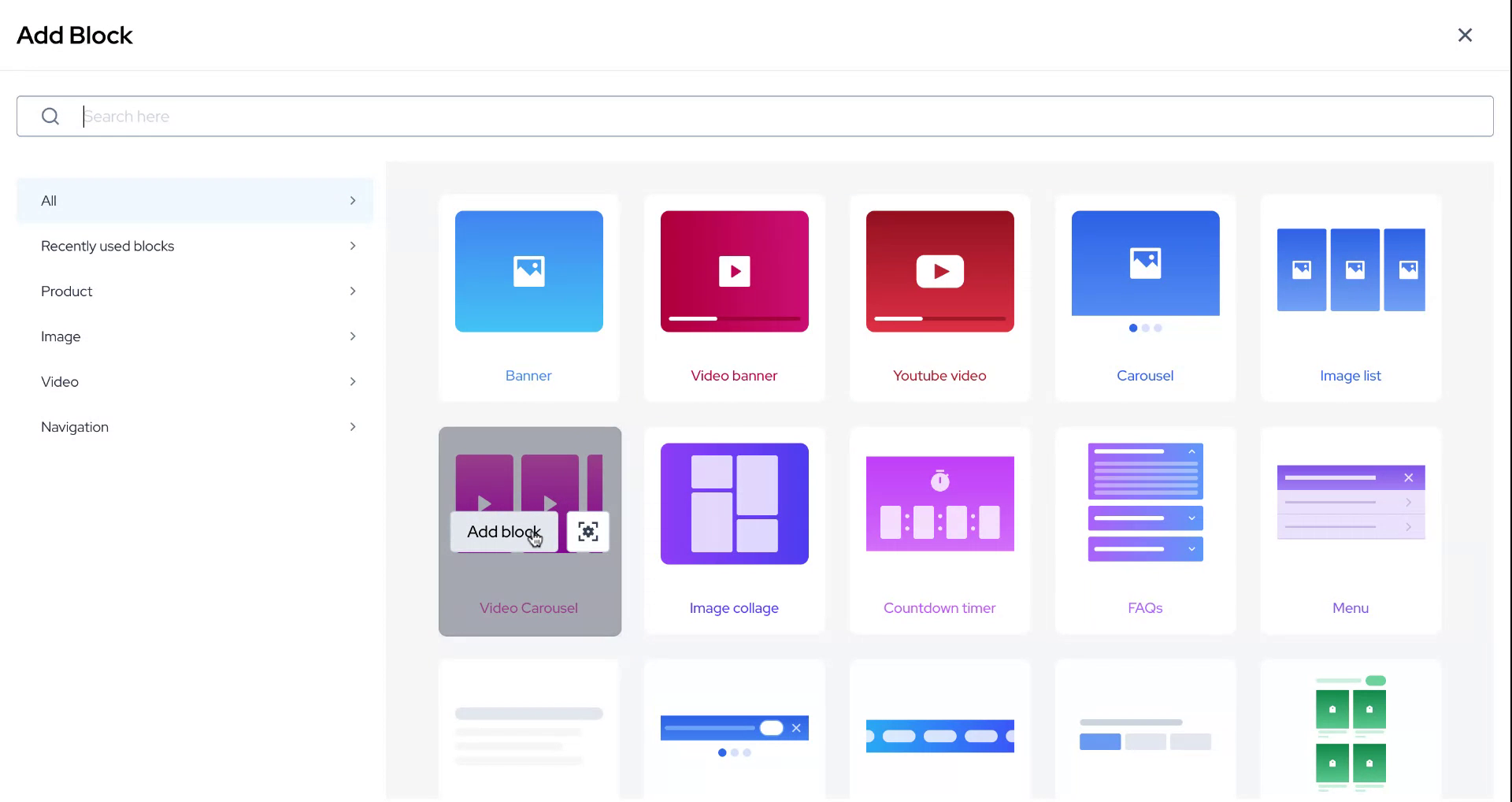
Proceed to search for the video carousel block. Once located, click on "Add Block."
Step 3
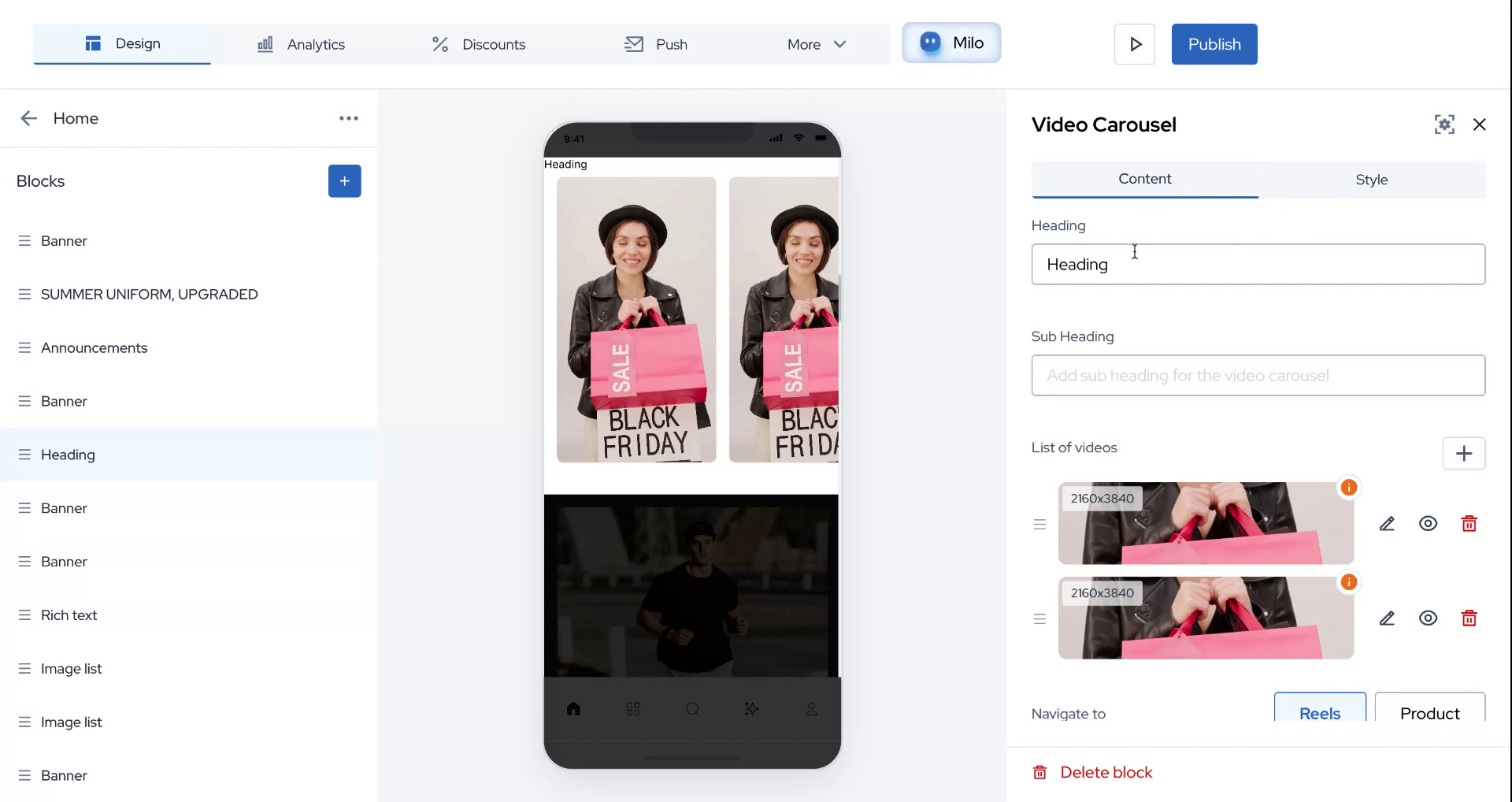
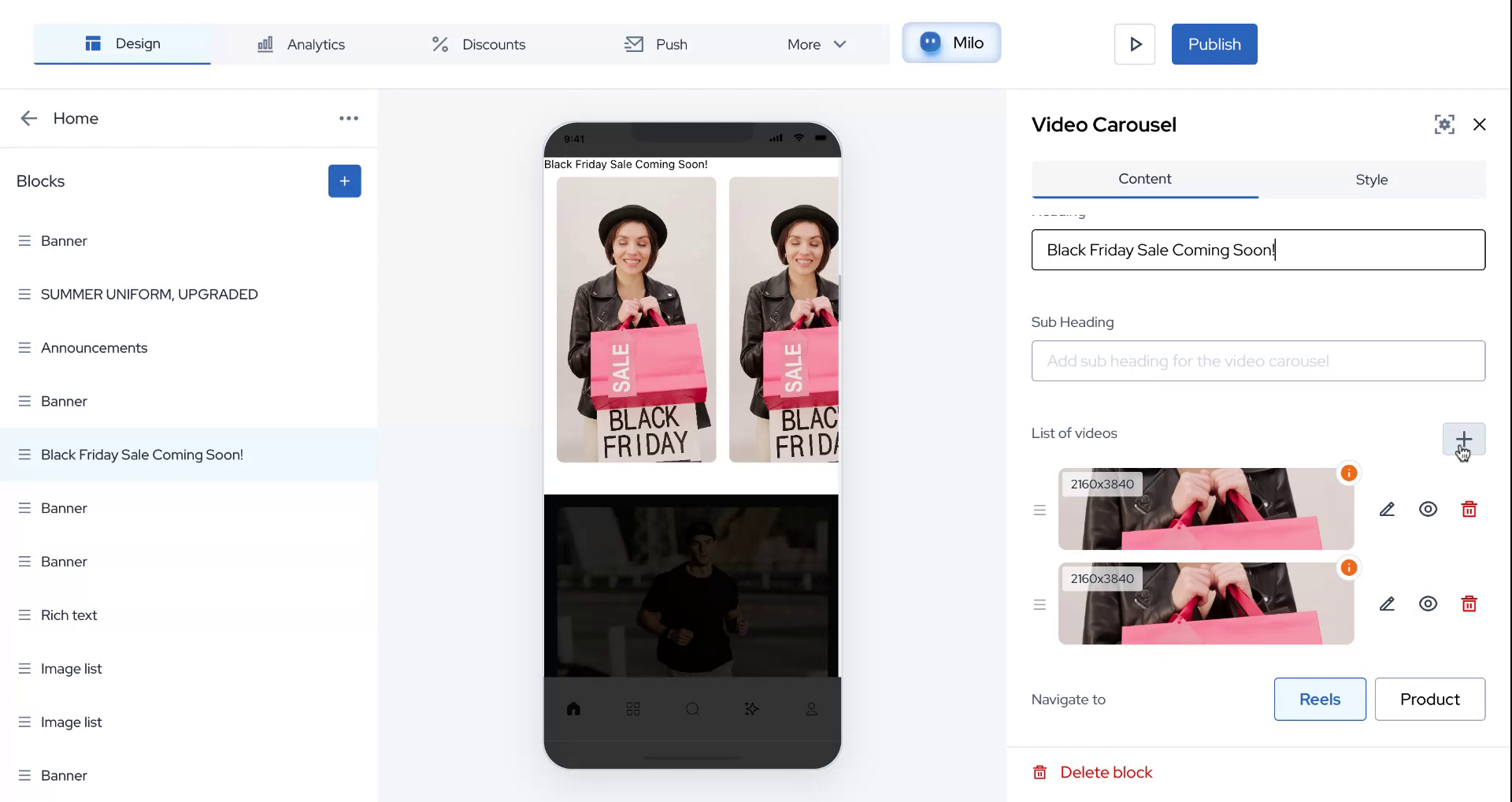
You will now focus on two key aspects: content and styling. Start with the content by setting the heading to "Black Friday Sale Coming Soon," leaving the subheading empty.
Step 4
Observe the pre-existing list of videos. To add new videos, click on the plus icon and select the relevant icon to proceed.
Step 5
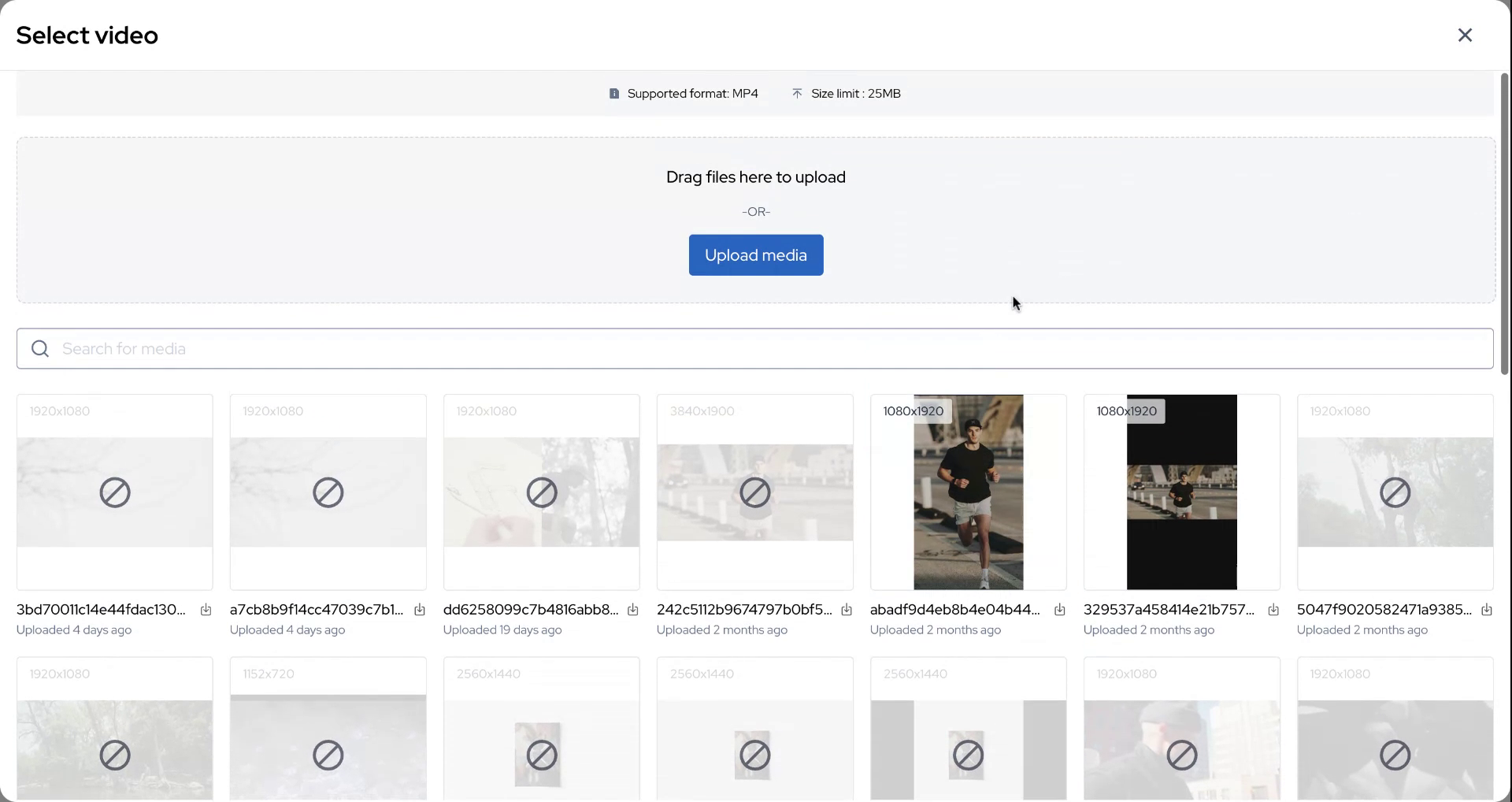
Select the desired videos to include in your collage. The system indicates which parts of the video appear as images or as videos. Once decided, click on the option you wish to add.
Step 6
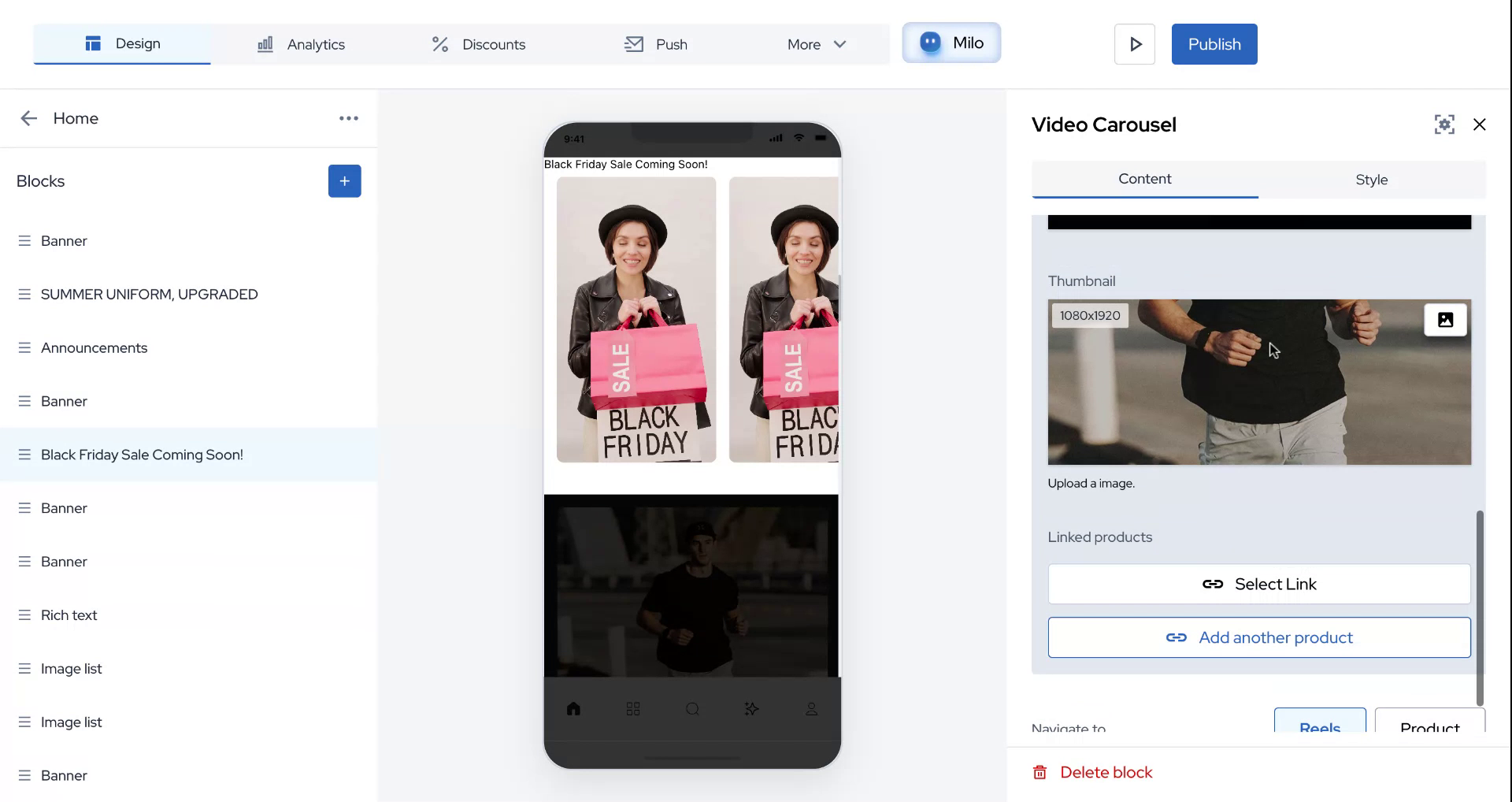
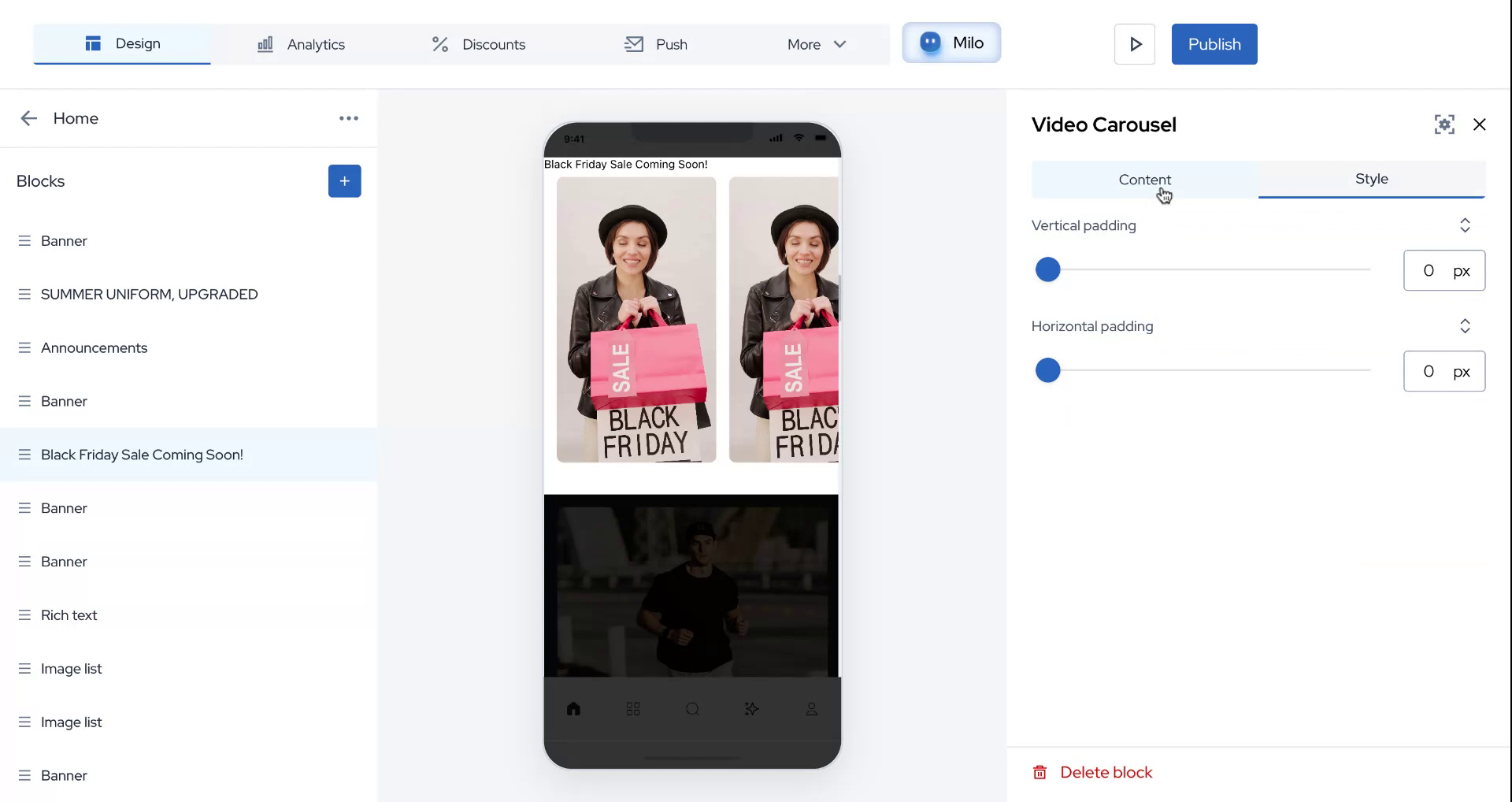
After adding the videos, you have the option to link a product or redirect users to a specific page. Additionally, you can navigate between reels and products and adjust the padding to your preference for styling.
Step 7
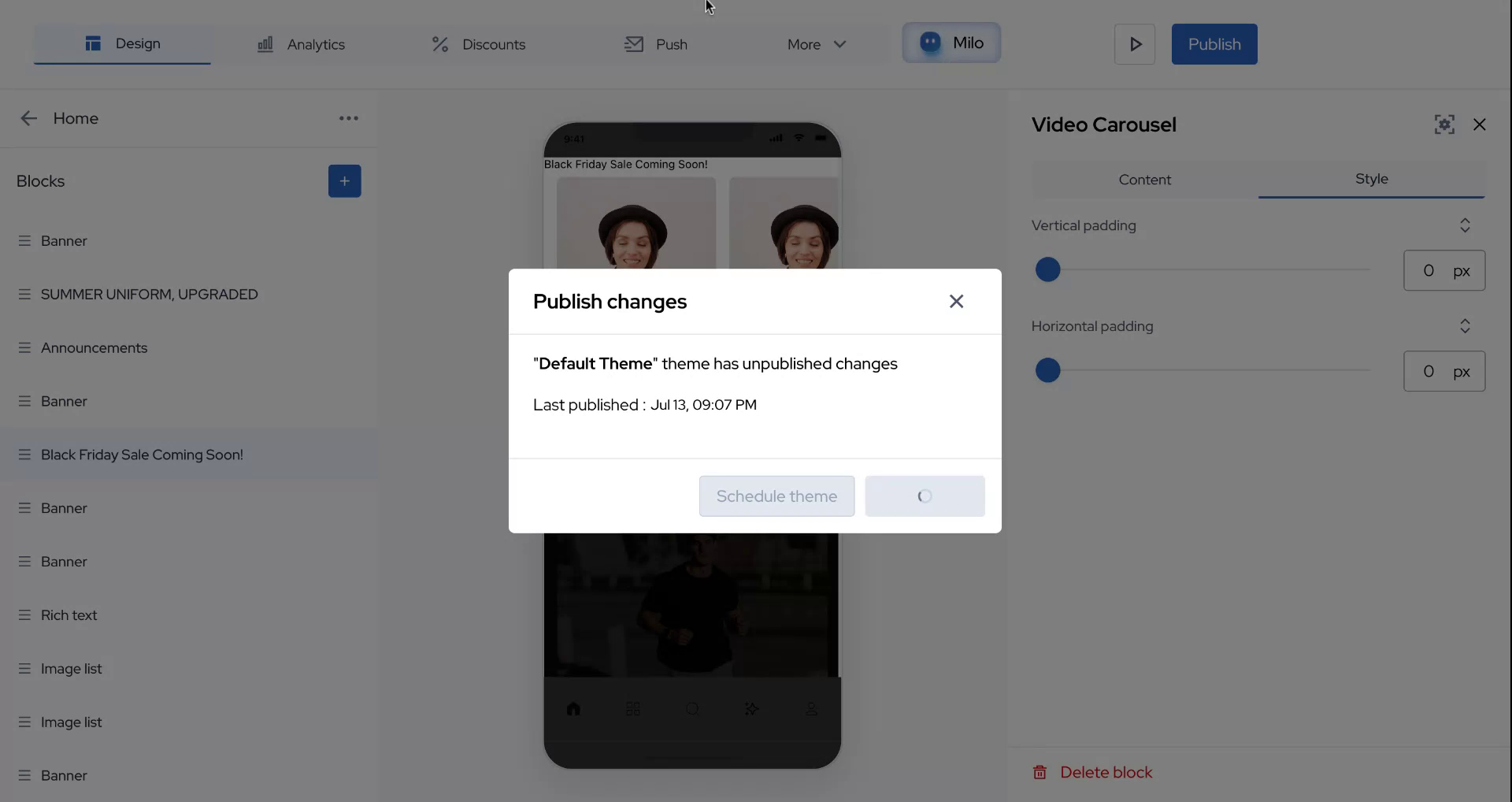
Finally, click on "Publish" to apply and view your changes live.
Step 8
We hope this information was helpful. Thank you for your attention.