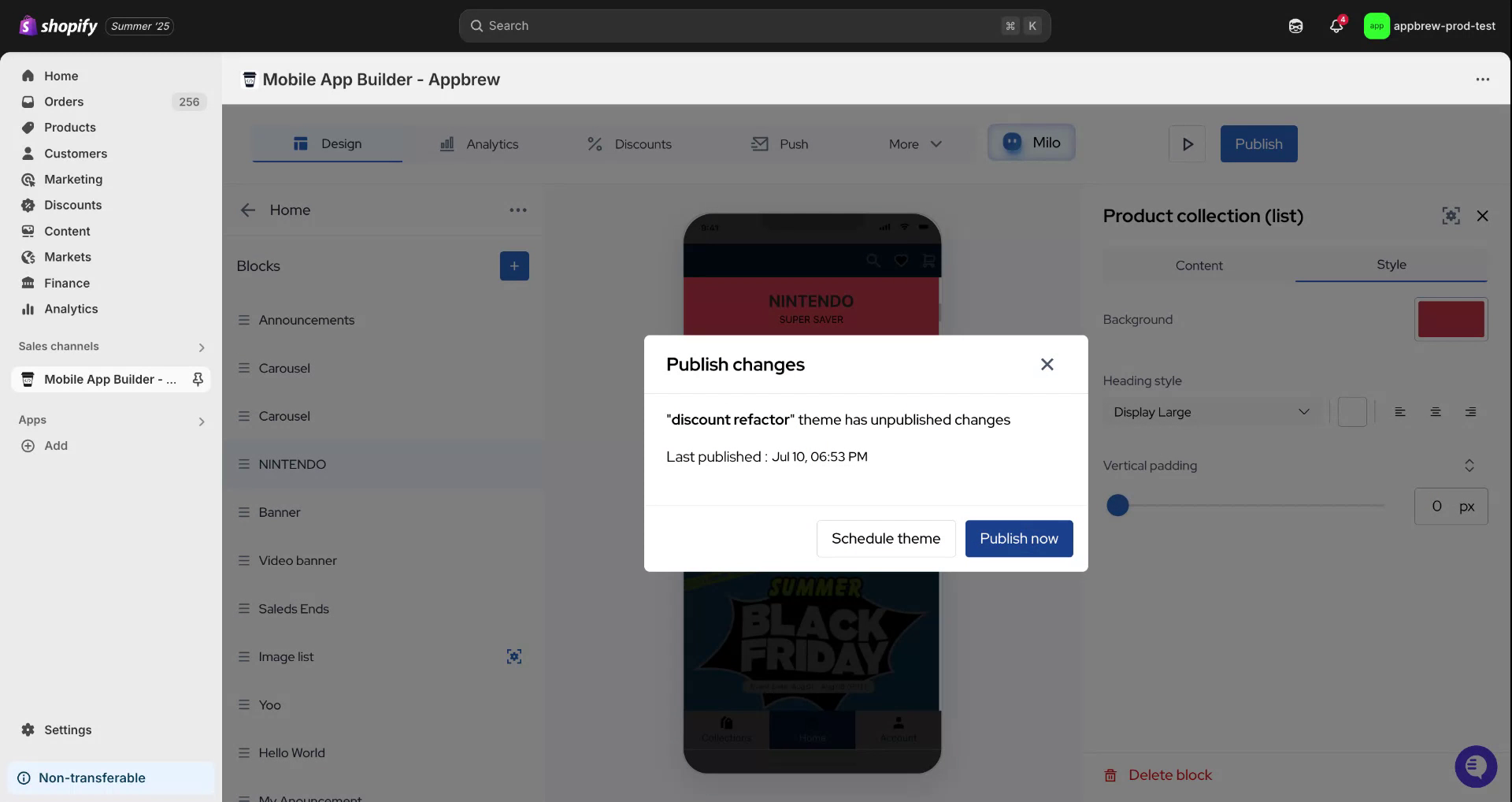
Creating a Product List
Last updated: July 15, 2025
This document provides a step-by-step process for creating a product list in your application. It guides you through adding a new product list block, editing collections, and customizing the display and styling options to suit your preferences.
Step 1
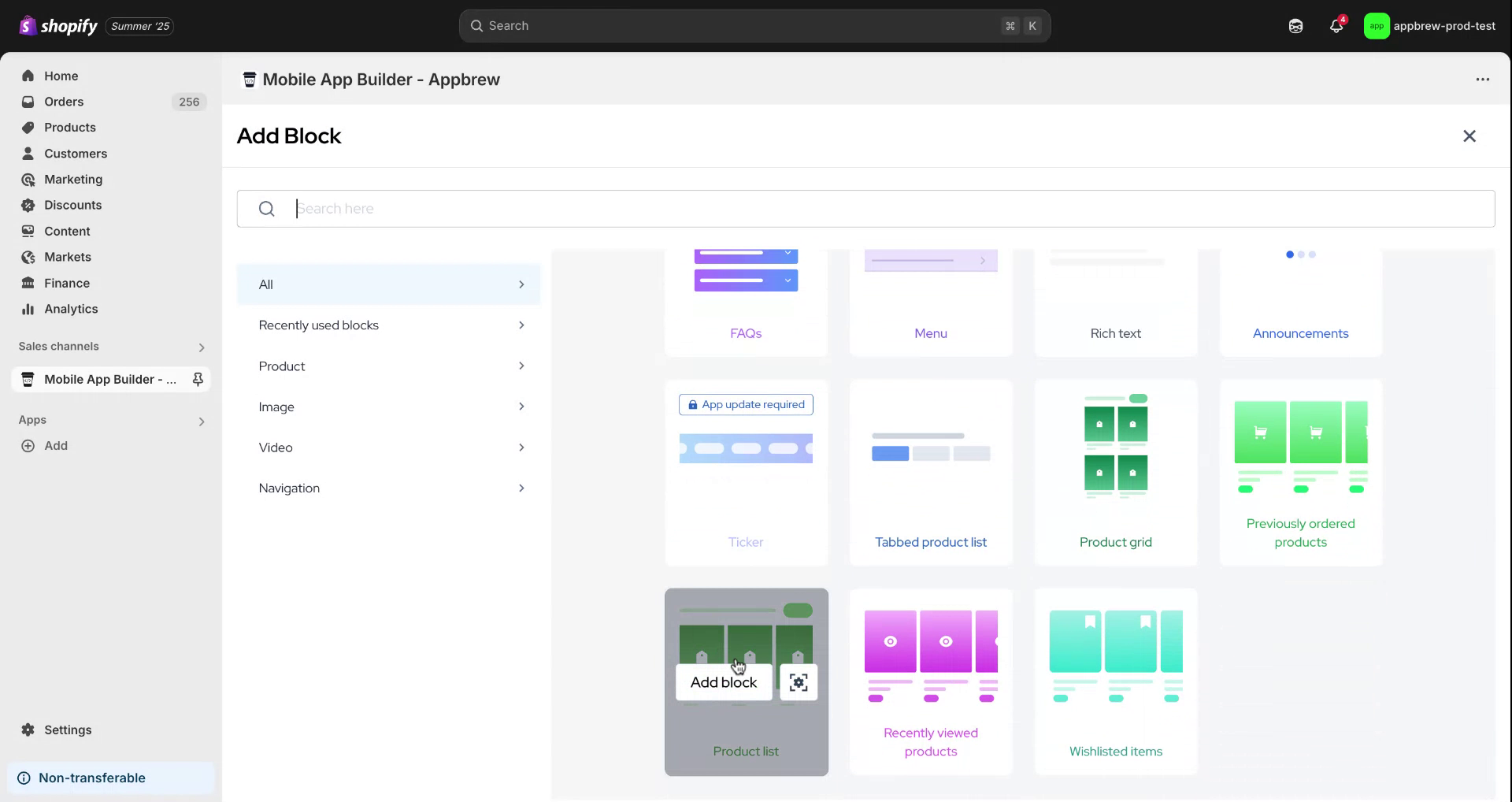
Start by hovering over the block where you wish to add your product list. Click on the plus icon and then scroll down to locate the product list option.
Step 2
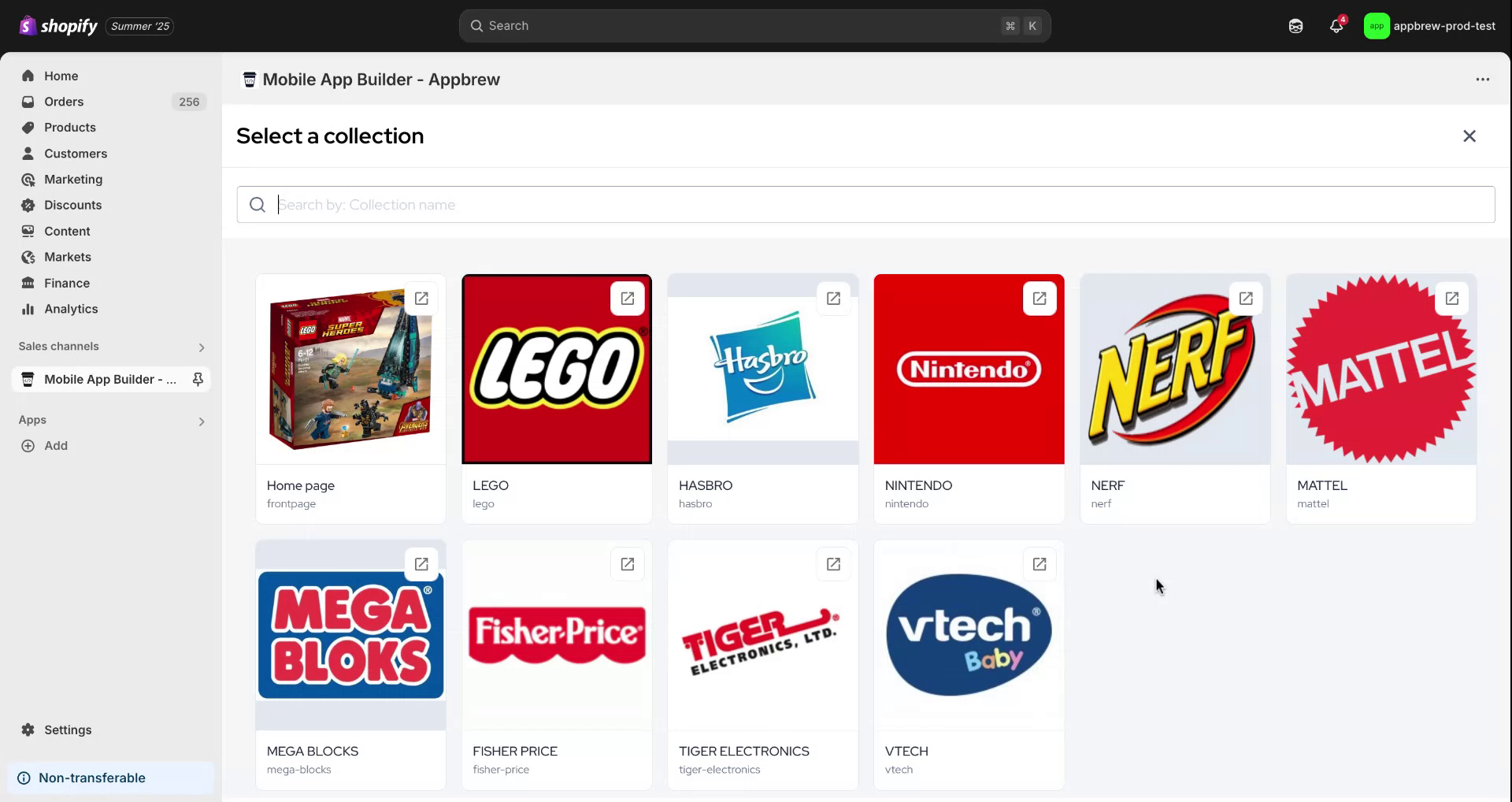
Proceed by clicking on "Add Block." This will display an example of the collection you wish to add. To modify the collection, click on "Edit" and select your preferred collection.
Step 3
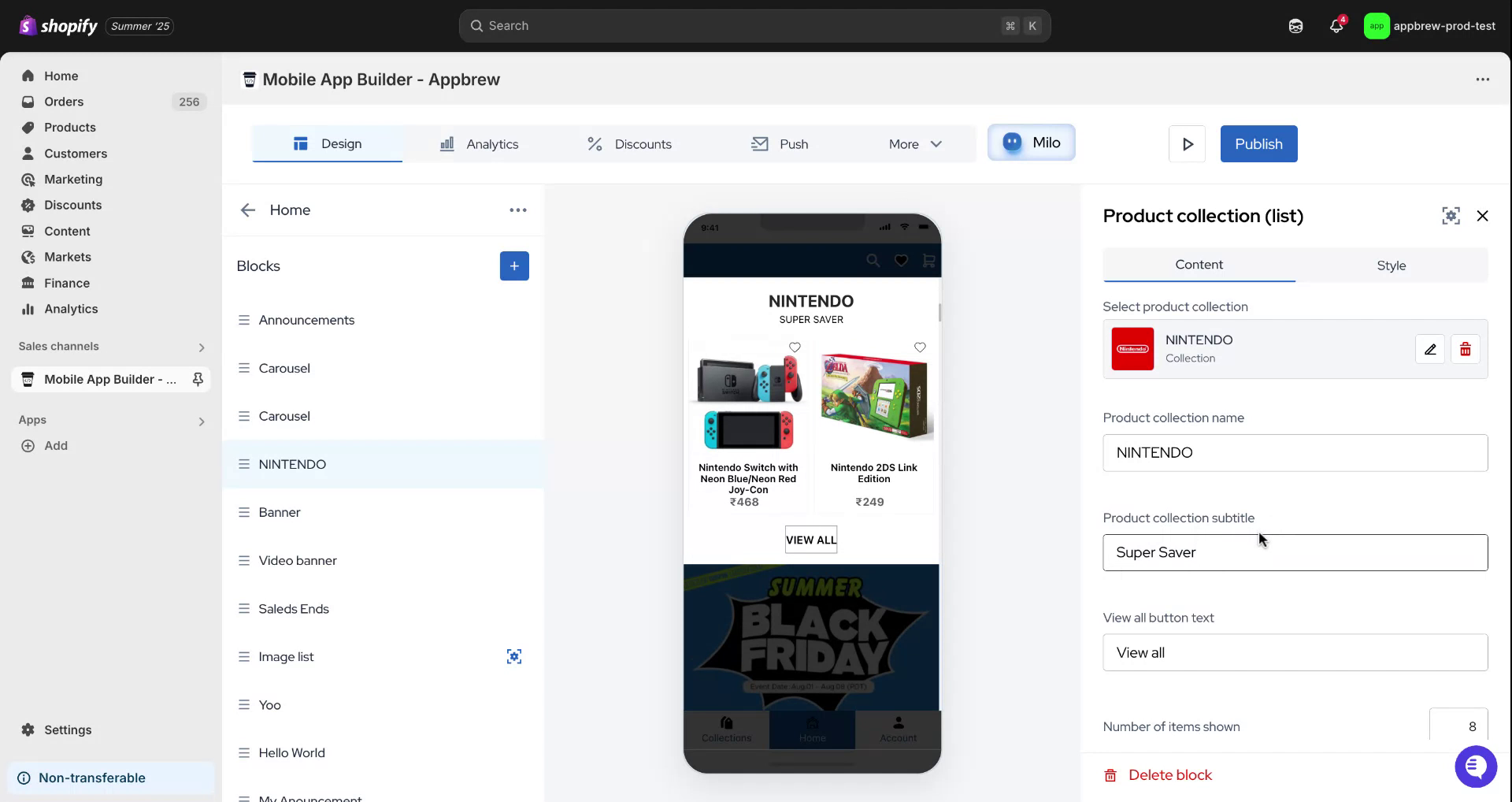
For demonstration purposes, select the Nintendo collection. Afterward, you will have the option to select a subtitle for the product collection. In this example, choose "Super Saver."
Step 4
You will also have the option to customize your call-to-action button and determine the number of items to display. Once finished, click on "Style" to choose how you want it to appear. In this example, select a random color to see the outcome.
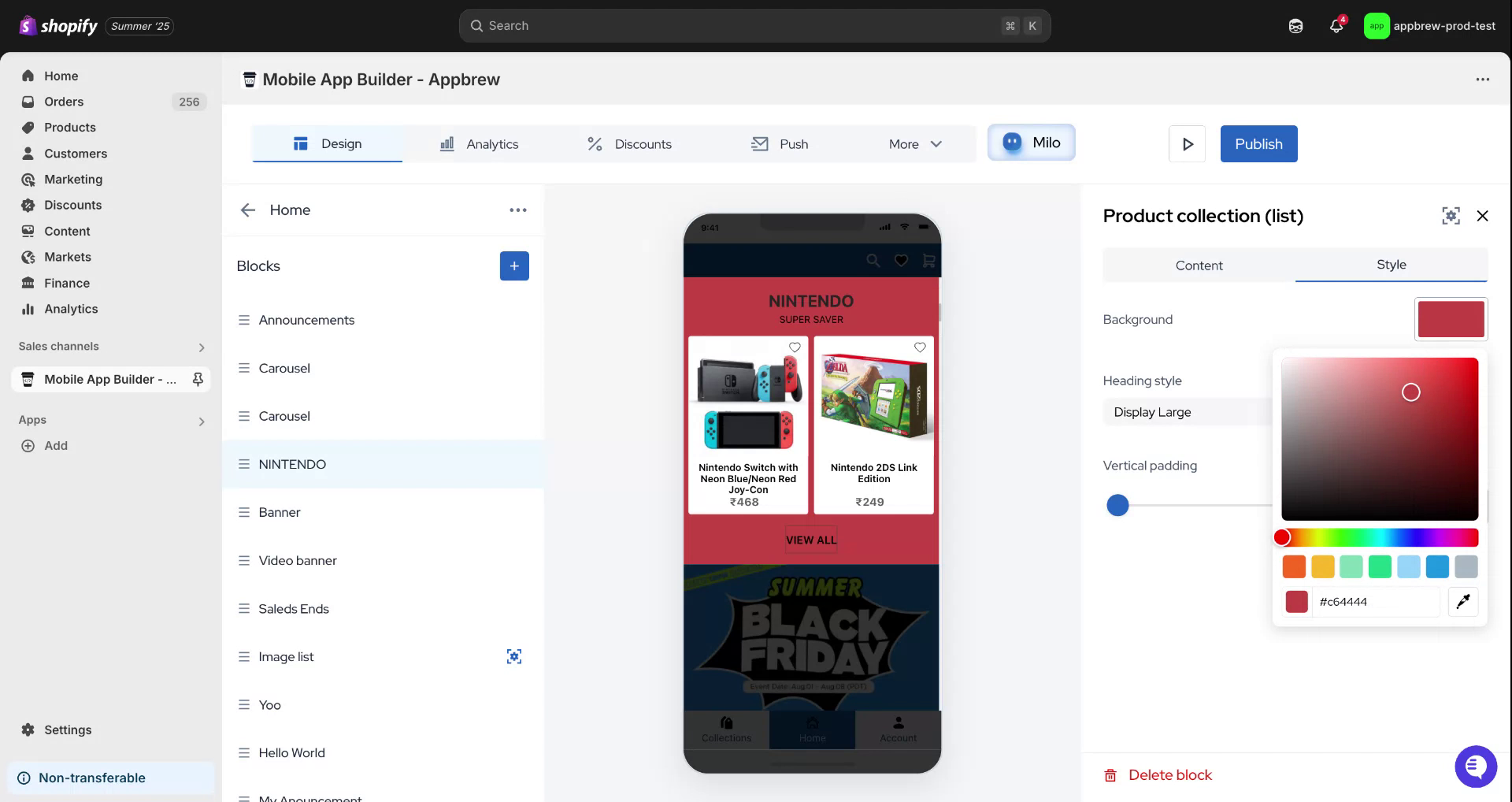
Step 5
After completing all the customizations, click on "Publish" to finalize and display your product list. Thank you for following along.