How to enable Image list block for app?
Last updated: July 8, 2025
Enabling Image List in Your Application
This document provides detailed instructions on how to enable an image list within your application. By following these steps, you will learn how to add, configure, and style image blocks, ensuring a seamless integration into your desired collection page.
Step 1
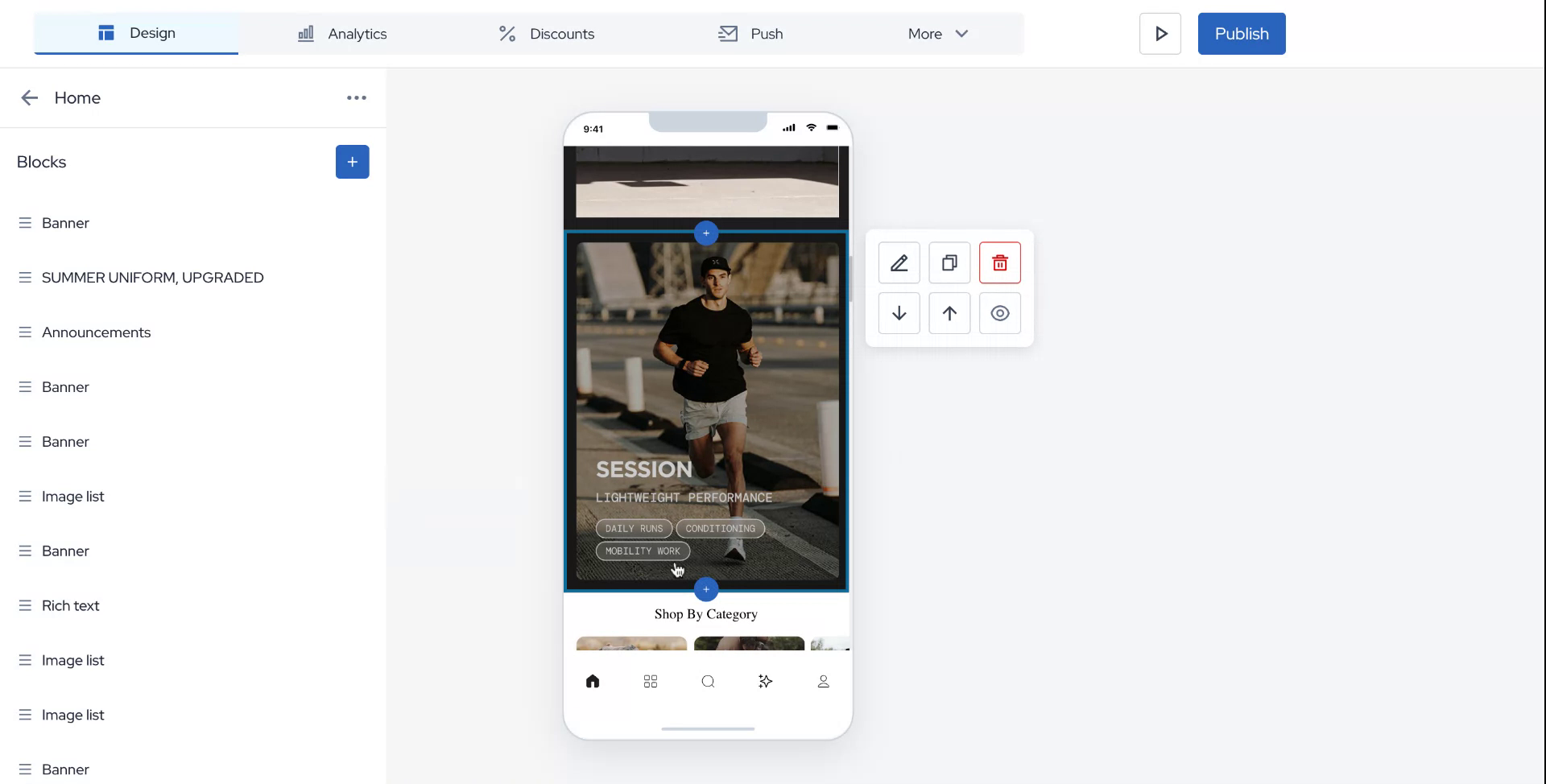
To begin, locate the plus icon within your application. Hold on to the plus icon and search for the image list block.
Step 2
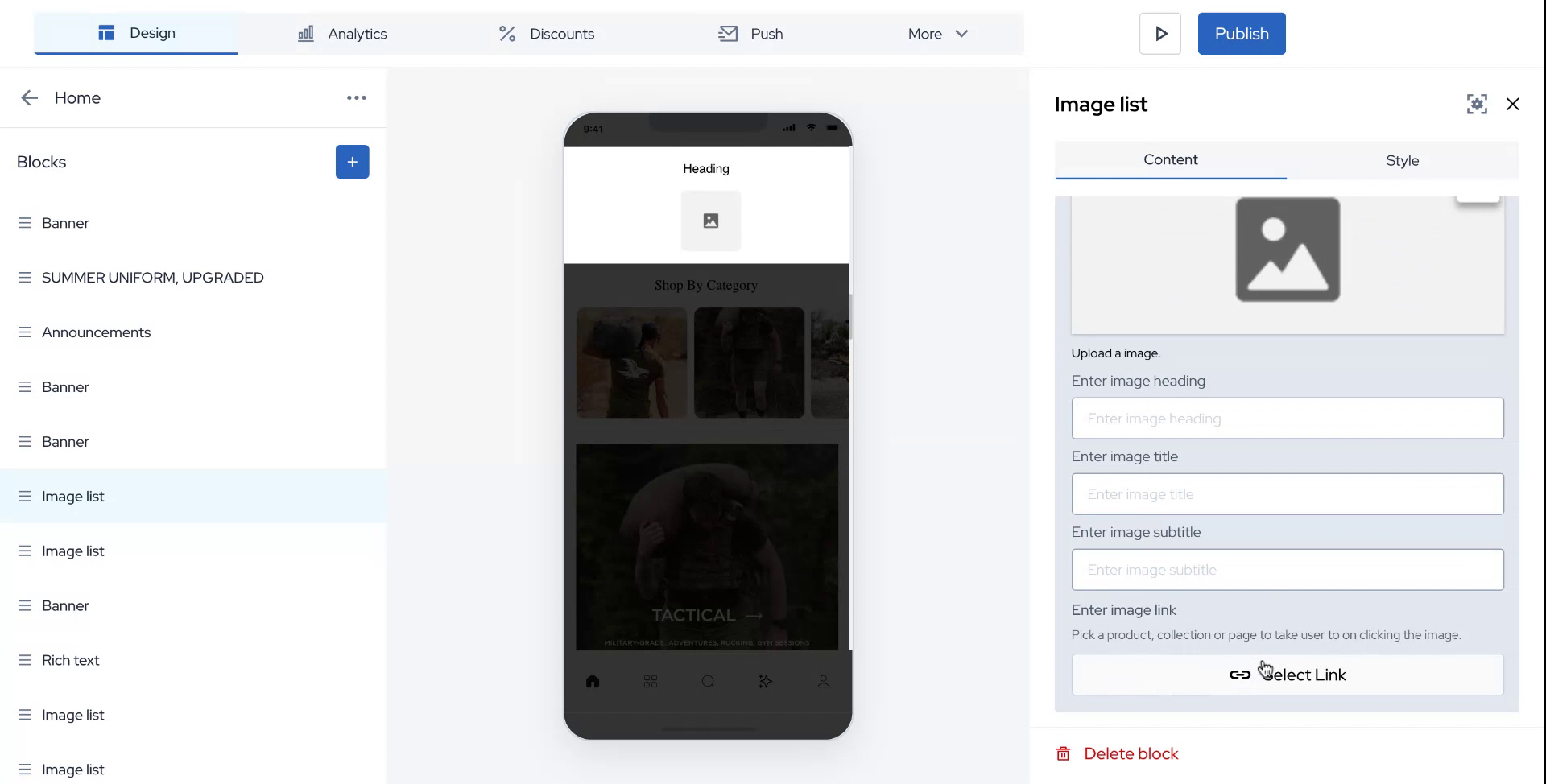
After finding the block, click on "Add Block." On the right-hand side, you will have the option to either add a new image or use an existing one, with the capability to link the page to your desired collection.

Step 3
In this example, I will demonstrate how an uploaded section appears.
Step 4
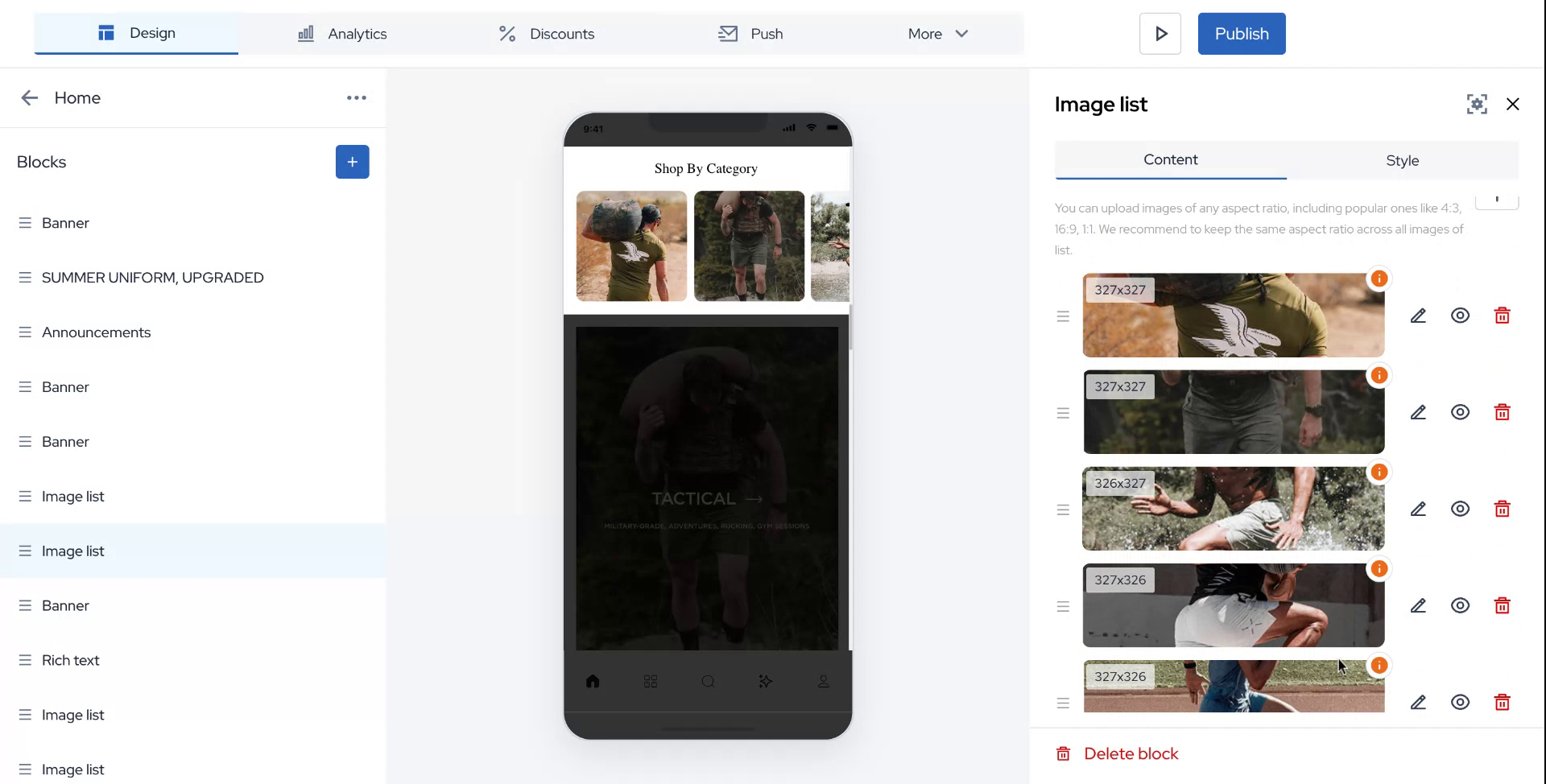
Upon accessing the image list, you will notice several images available for linking to a collection page of your choice.
Step 5
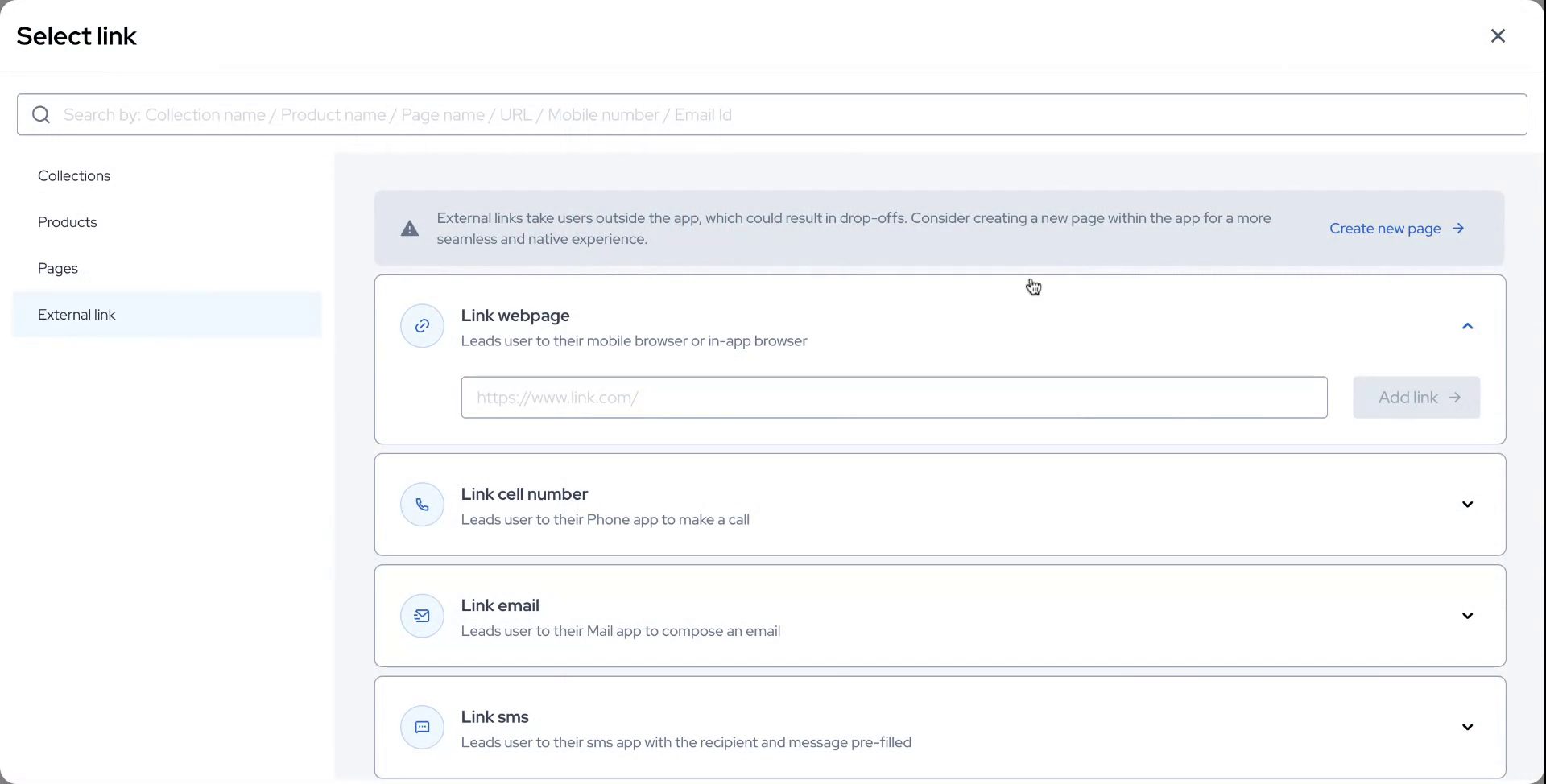
In this demonstration, we will link the images to the "All Product" page.
Step 6
After successfully linking the product and marking the task as complete, you have the option to customize the styling of the block.

Step 7
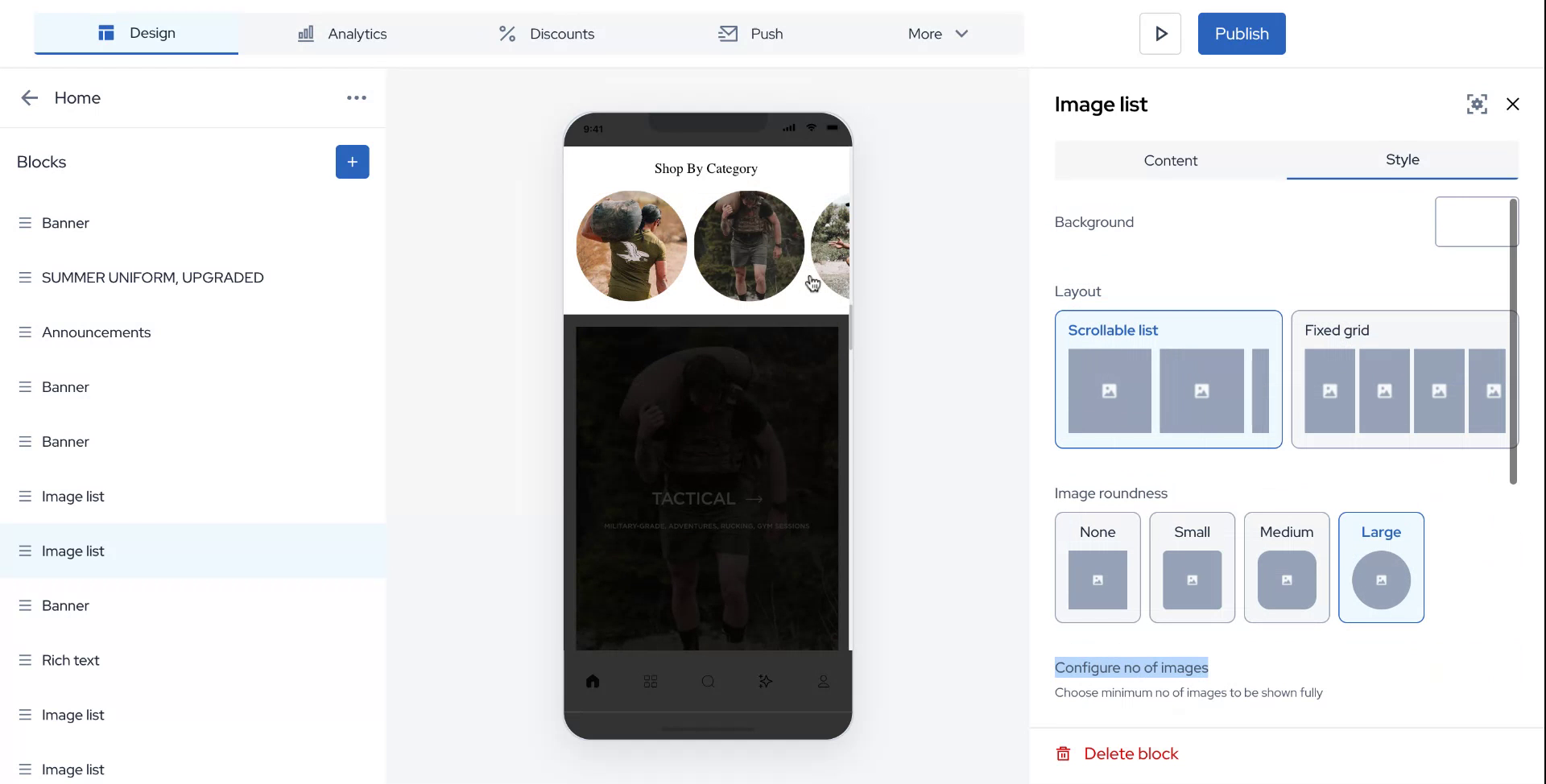
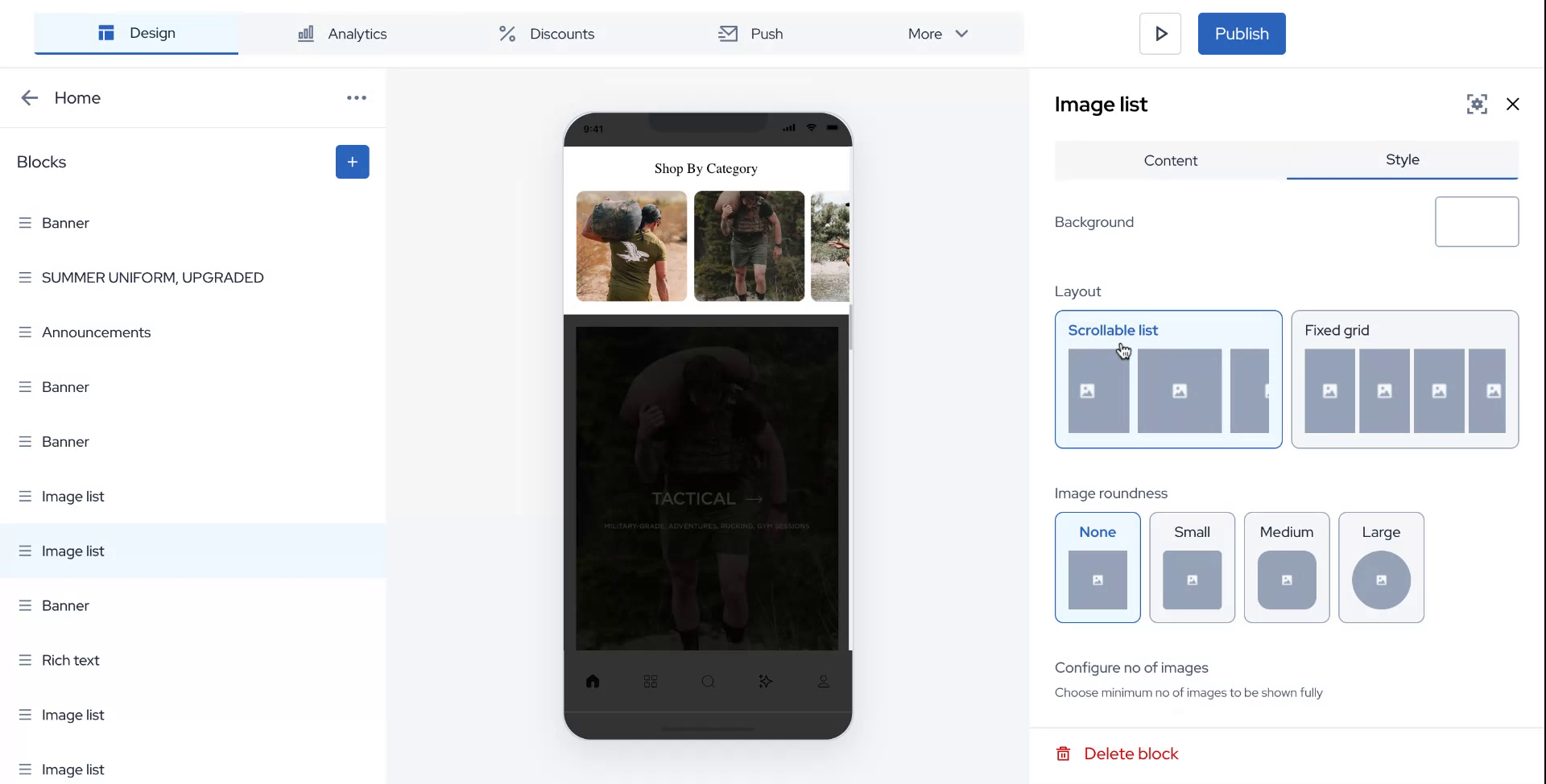
Decide whether you would like the list to be scrollable or to appear as a fixed grid.
Step 8
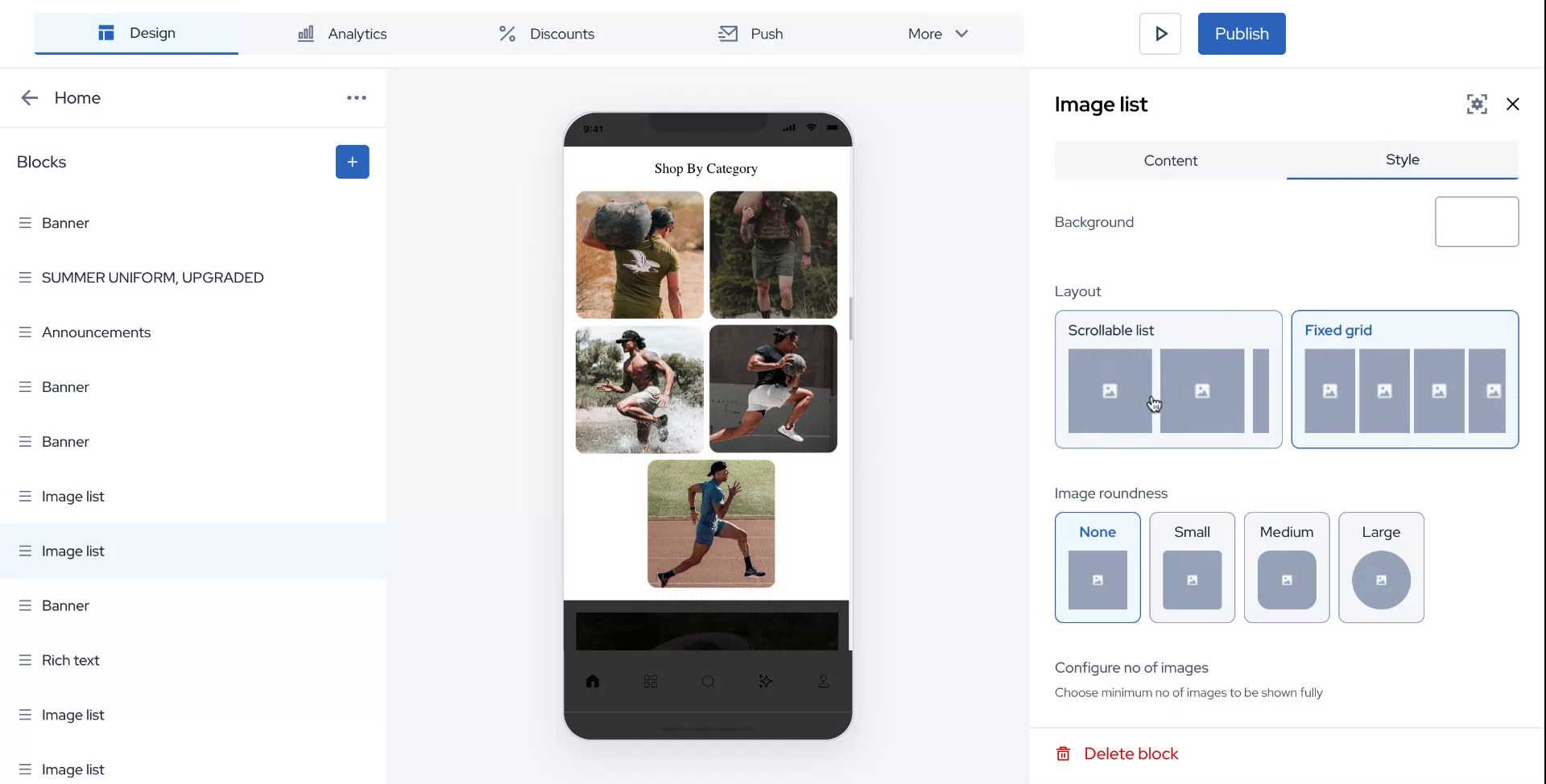
You can also adjust the roundness of the images.
Step 9
Choose from options such as none, small, medium, or large for image roundness.

Step 10
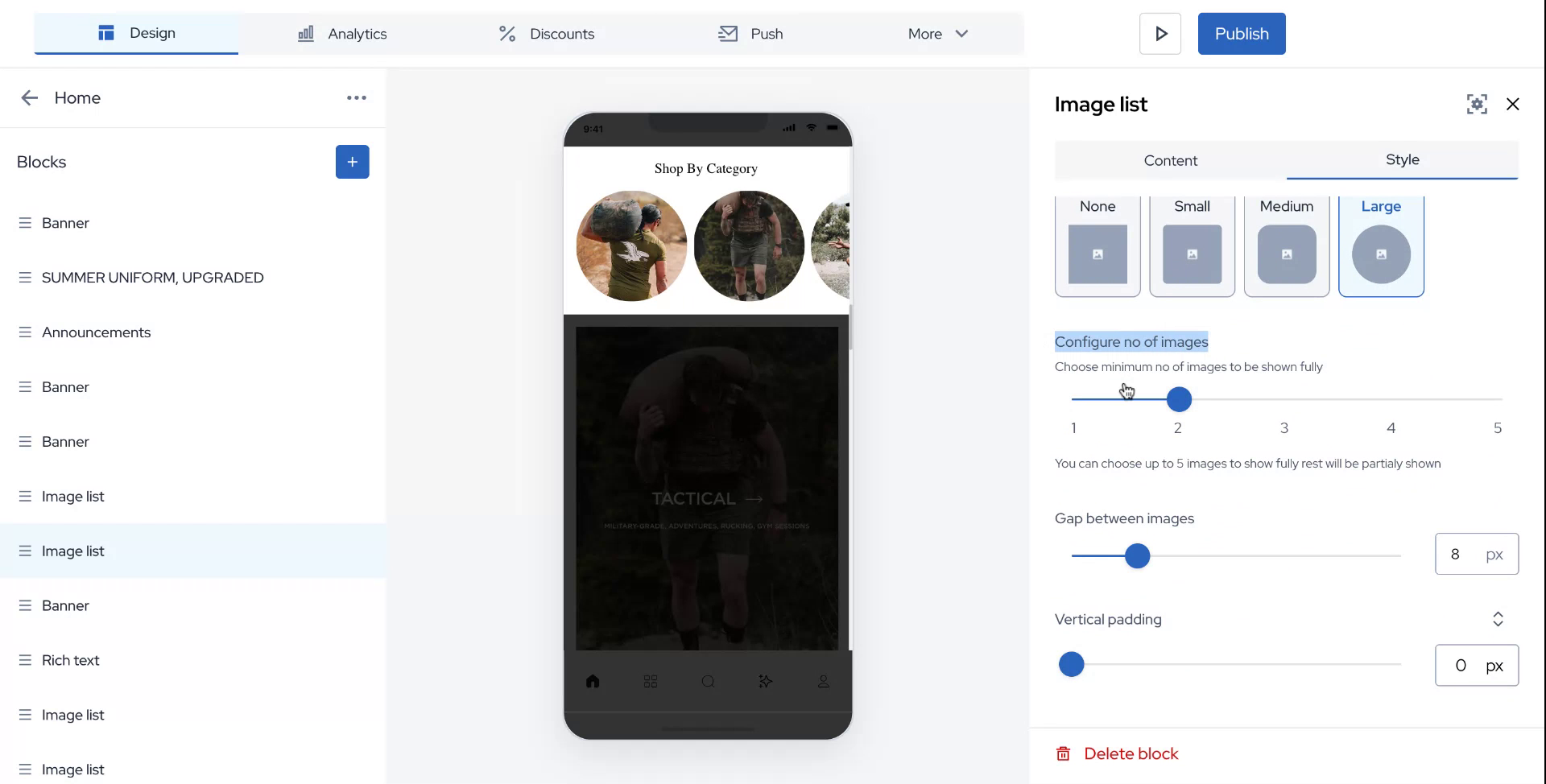
Additionally, modify the configuration of the image according to your preferences.

Step 11
Decide whether to display one image per block or multiple images per block. This choice is entirely up to you.
Step 12
Once you have configured everything to meet your requirements, click on "Publish." Congratulations, you have successfully enabled the image list!