Enabling a Carousel Banner
Last updated: July 15, 2025
In this process, you will learn how to enable and customize a carousel banner for your platform. The steps guide you through adding a carousel block, selecting images, and personalizing the banner with different options such as headings, slide content, autoplay features, and background colors.
Step 1
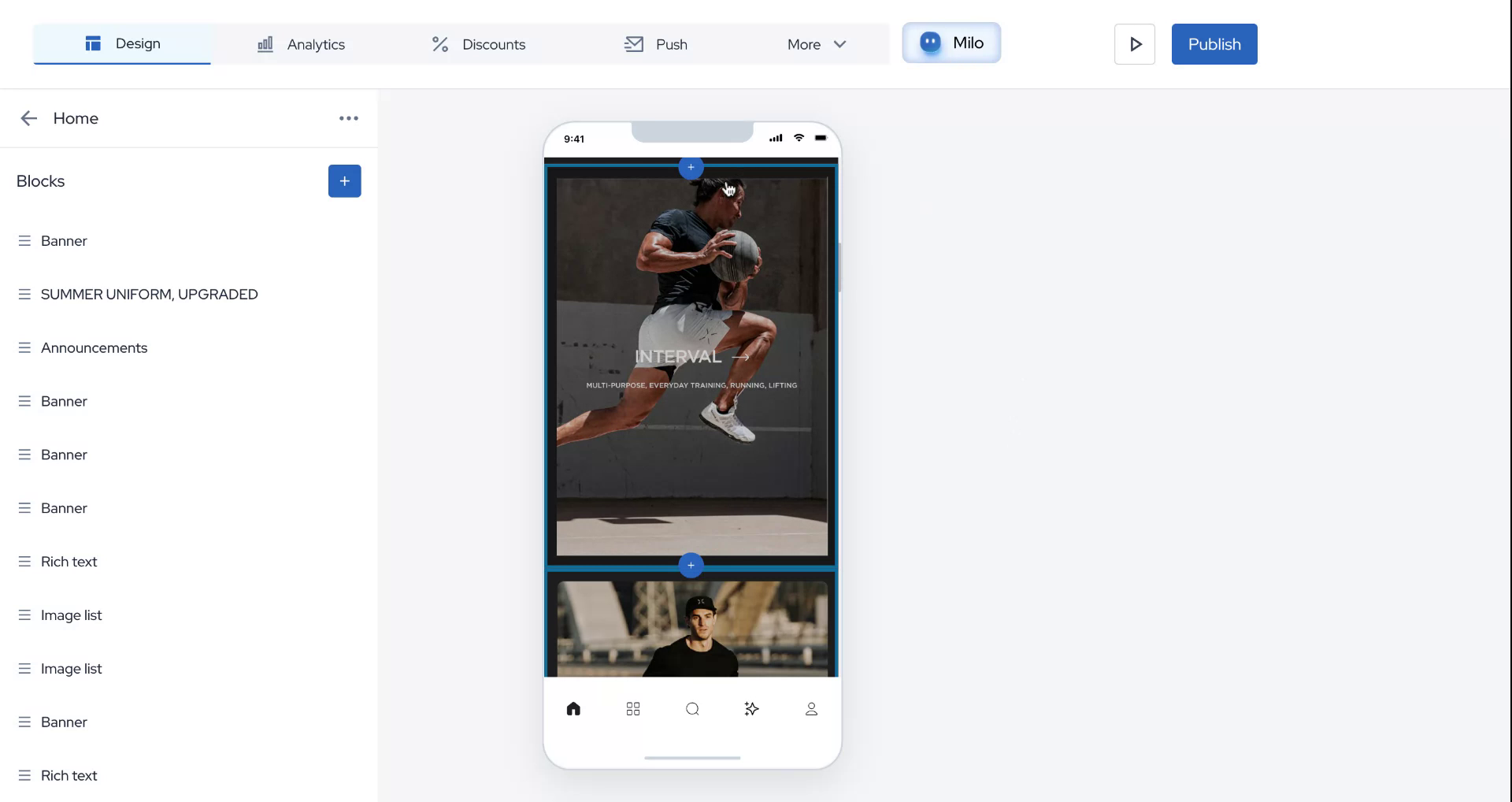
Hover your mouse over any block and click on the plus icon to enable a carousel banner.
Step 2
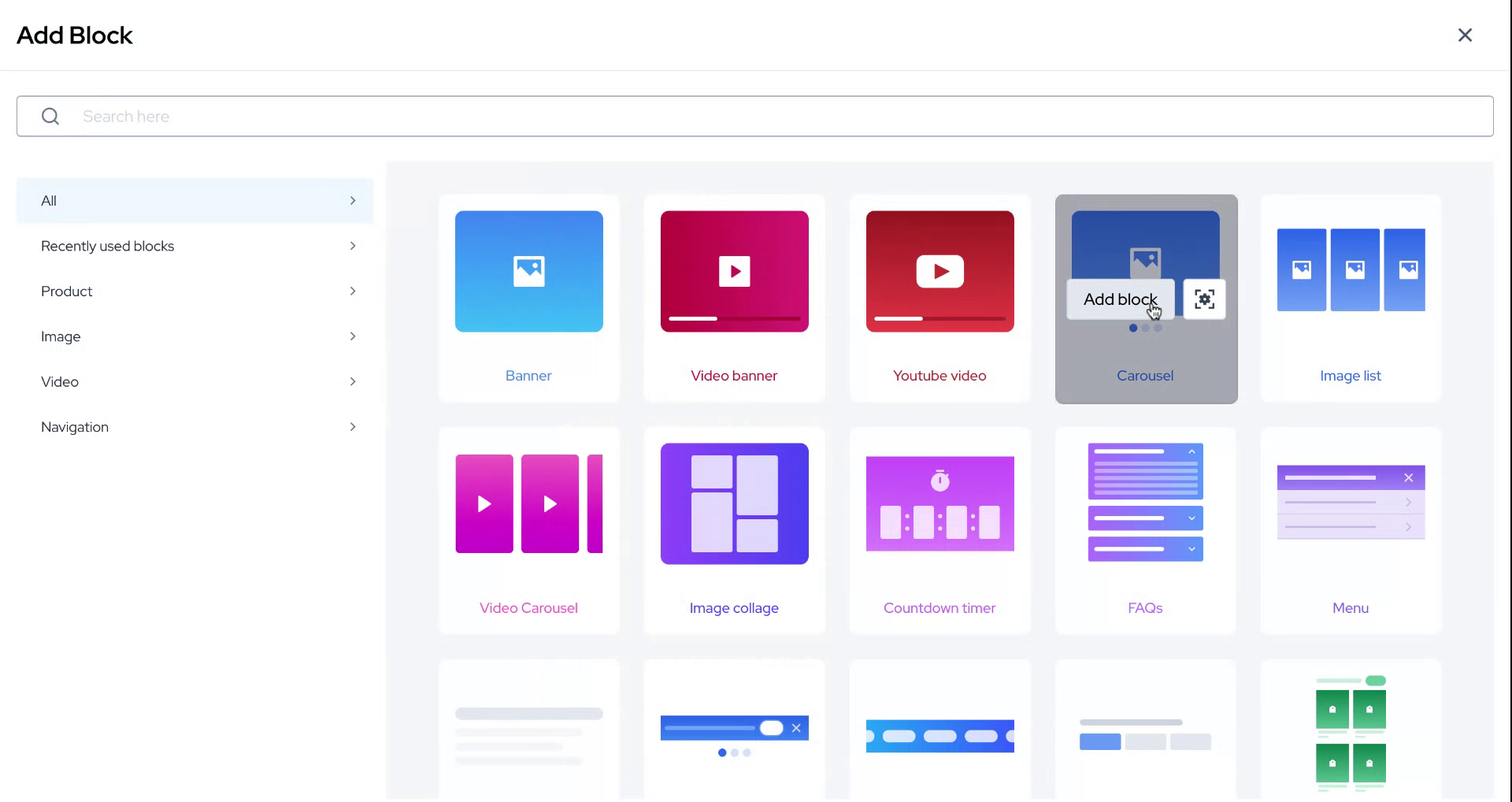
Search for the Carousel option and click on "Add Block."
Step 3
Select a heading from the options provided. For this demonstration, we'll use "Black Friday Sale Coming Soon" as our heading.
Step 4
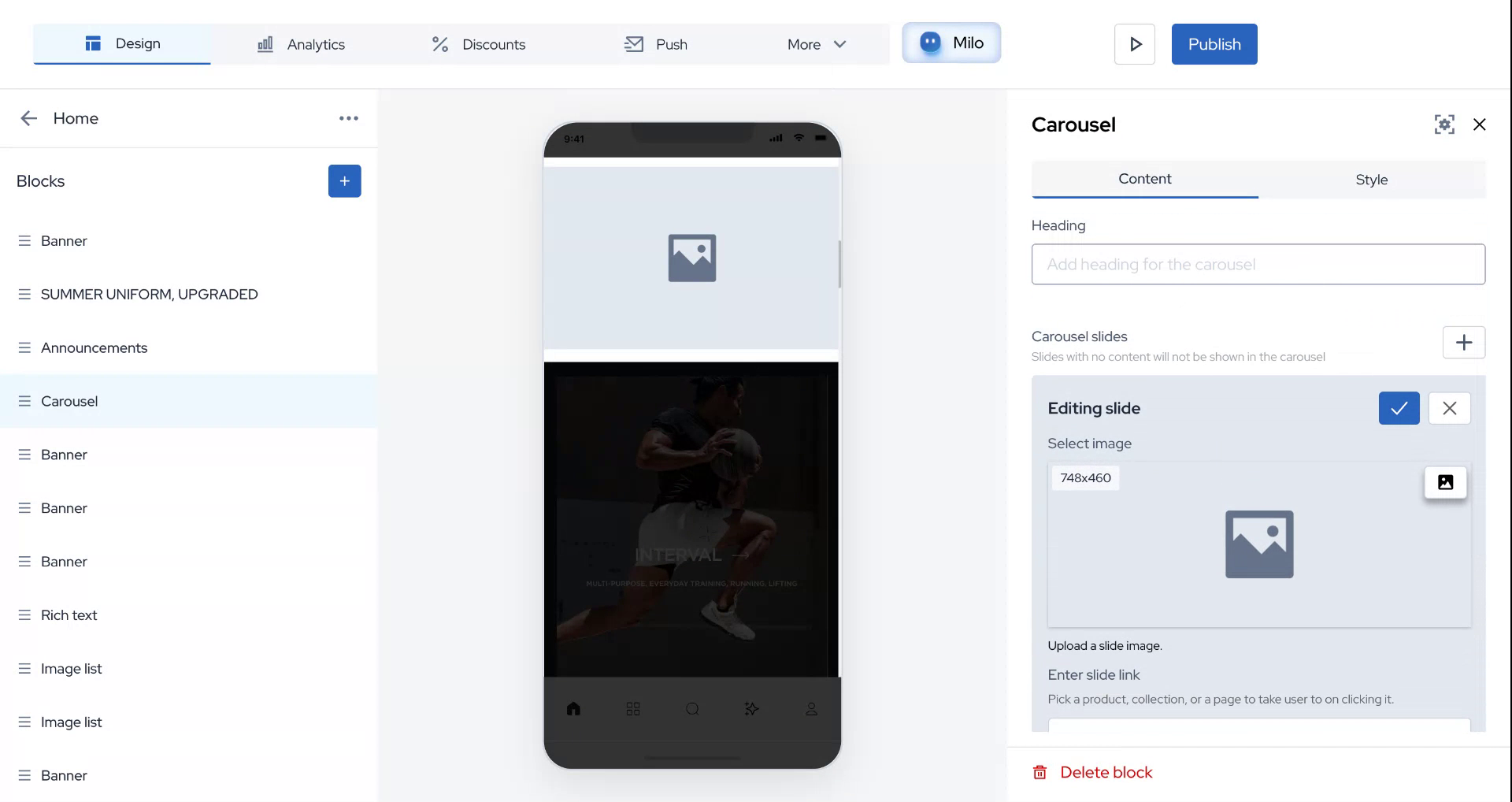
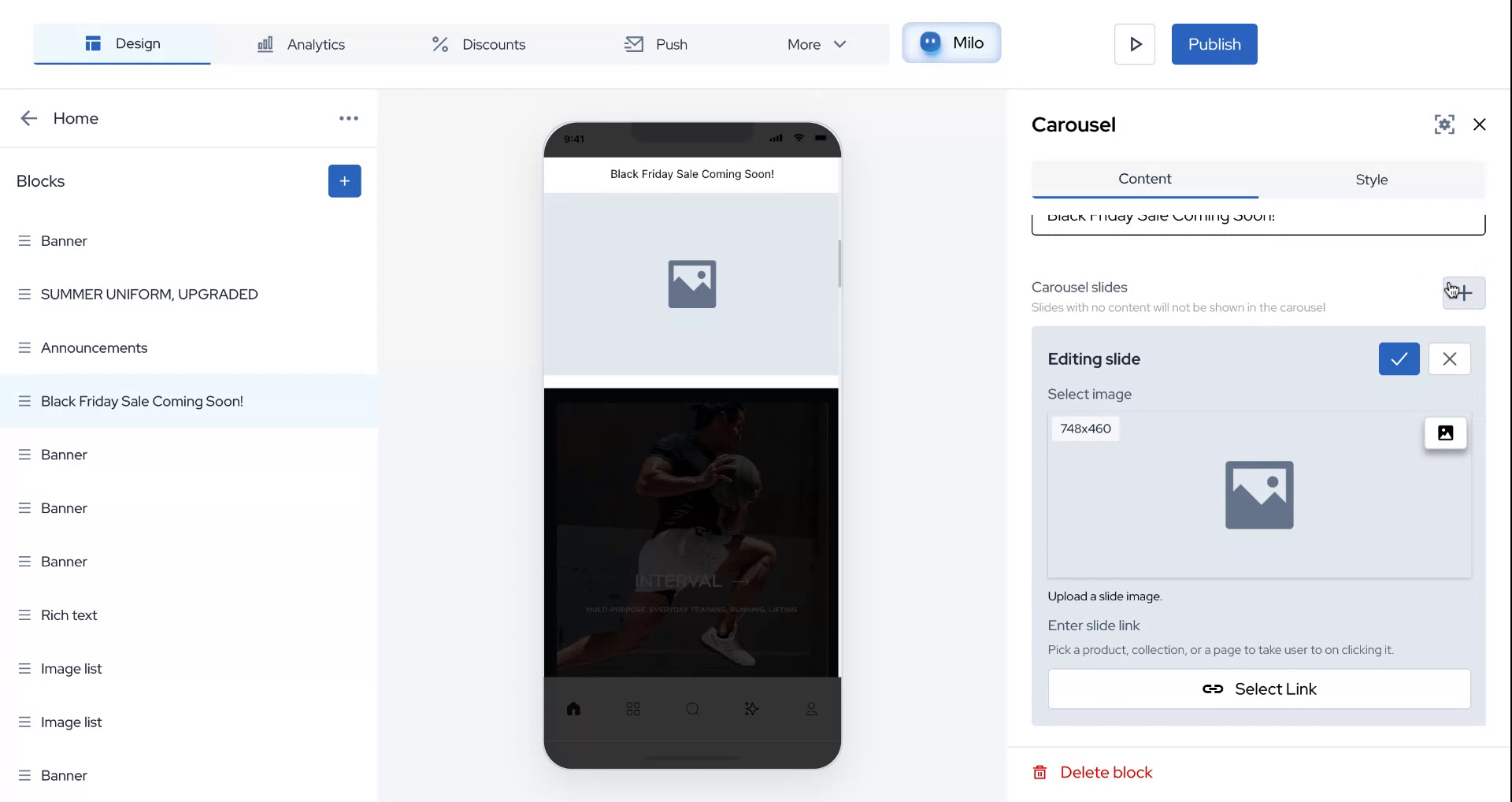
You can add any number of carousel slides. For this demo, we'll add two slides.
Step 5
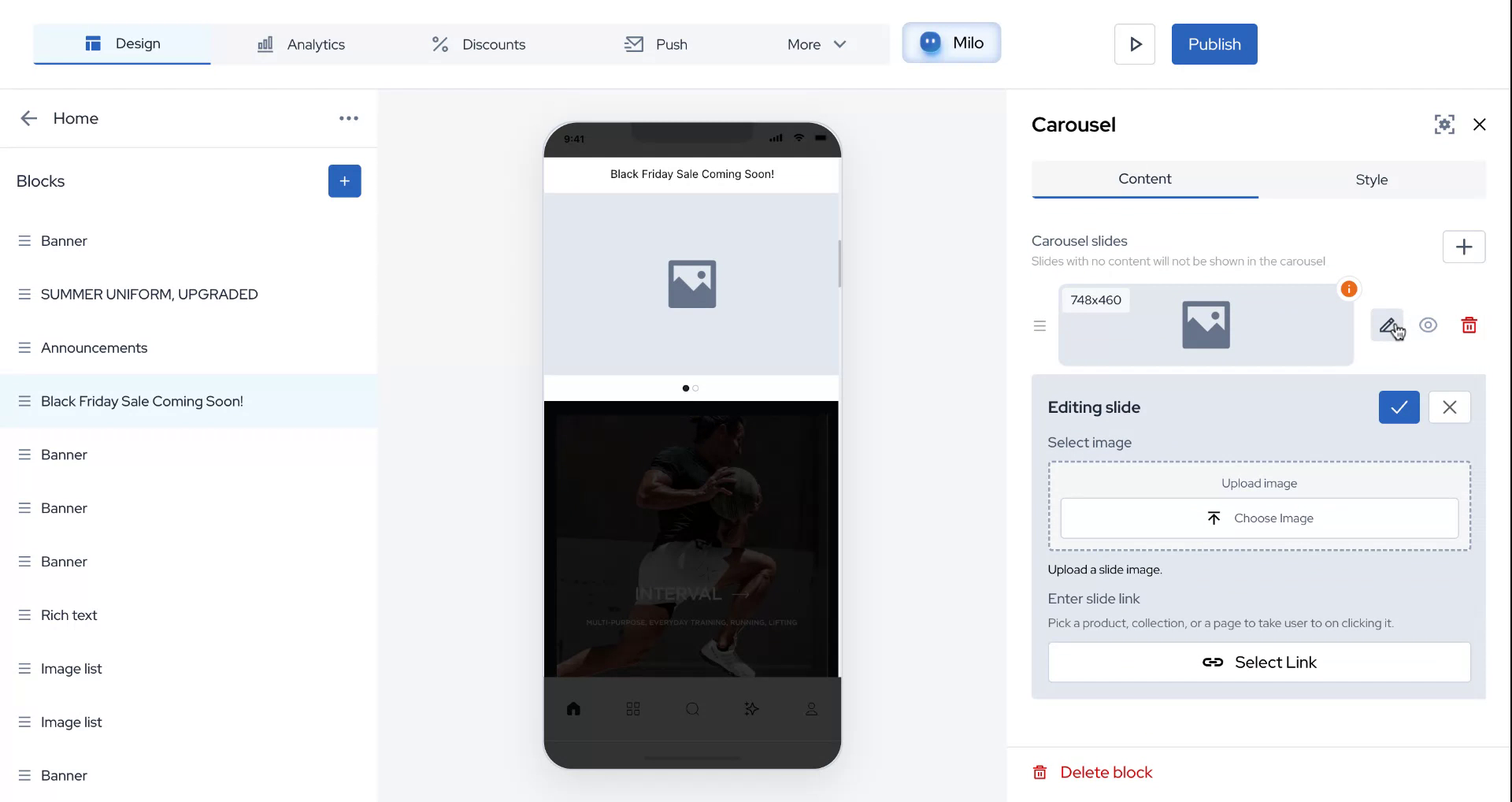
Click on "Edit" to add an image of your choice.
Step 6
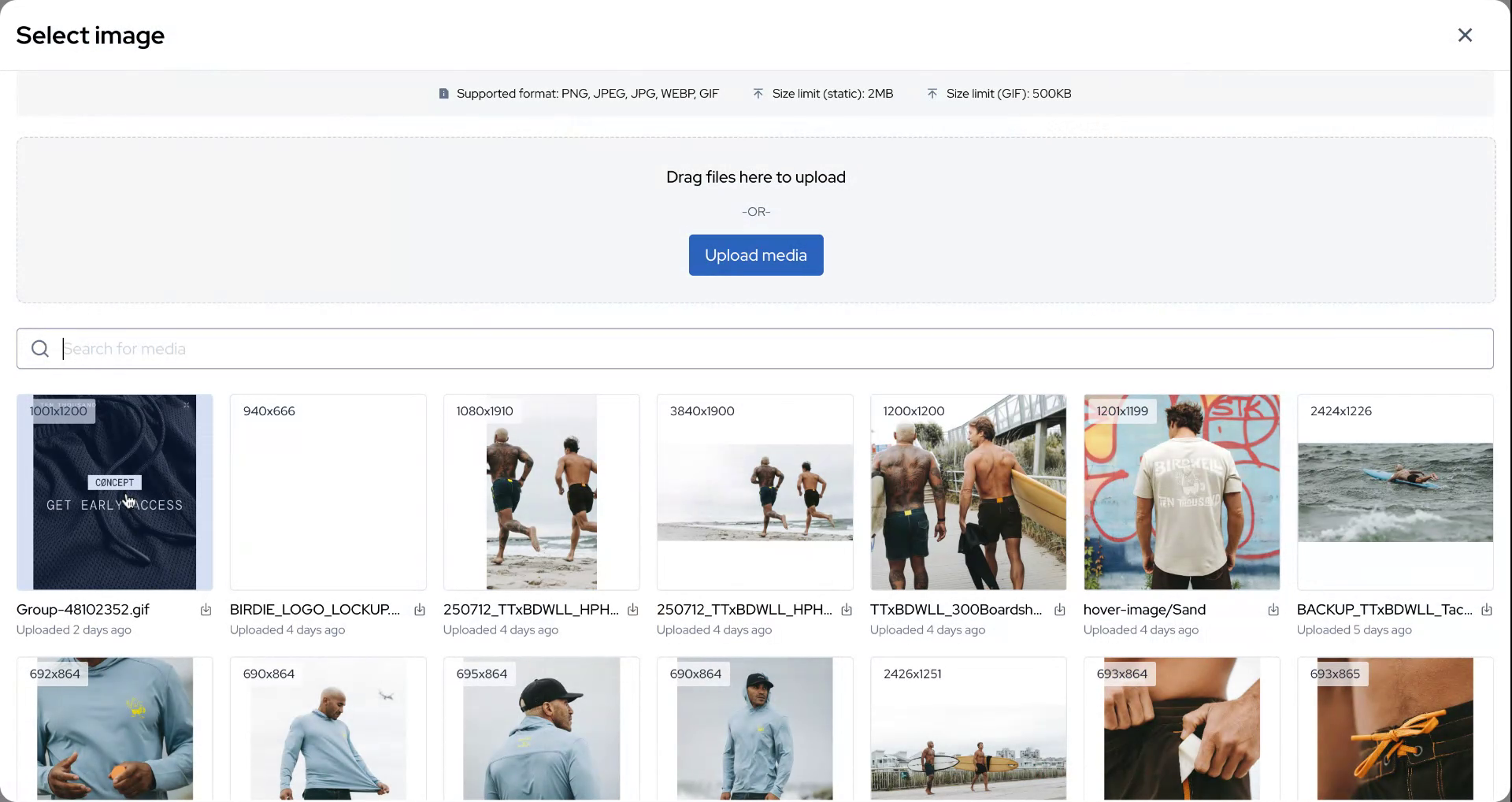
Select the image you want to use.
Step 7
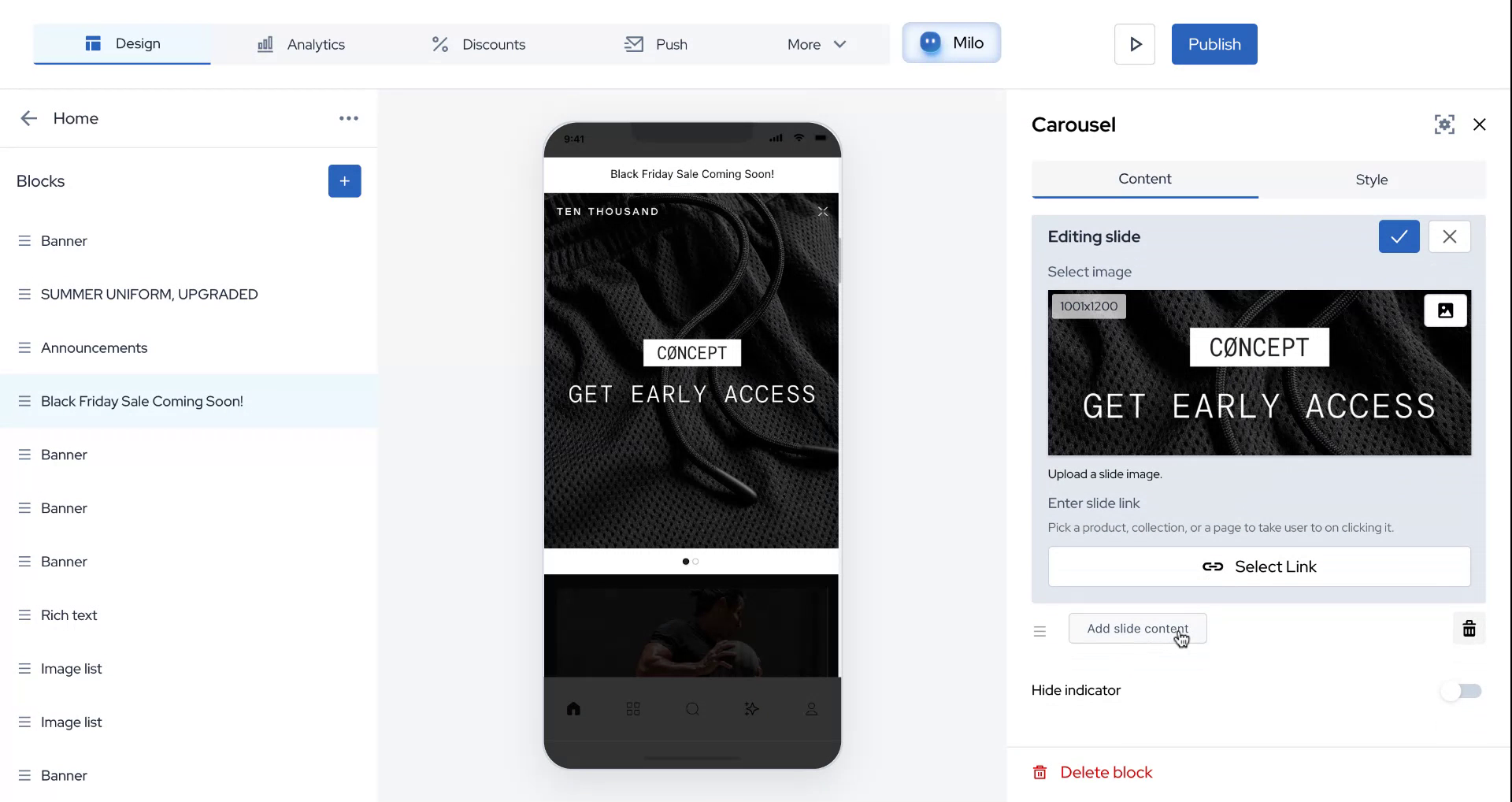
After adding the first image, proceed to add content to the other slide.
Step 8
Click on "Add Content" to continue.
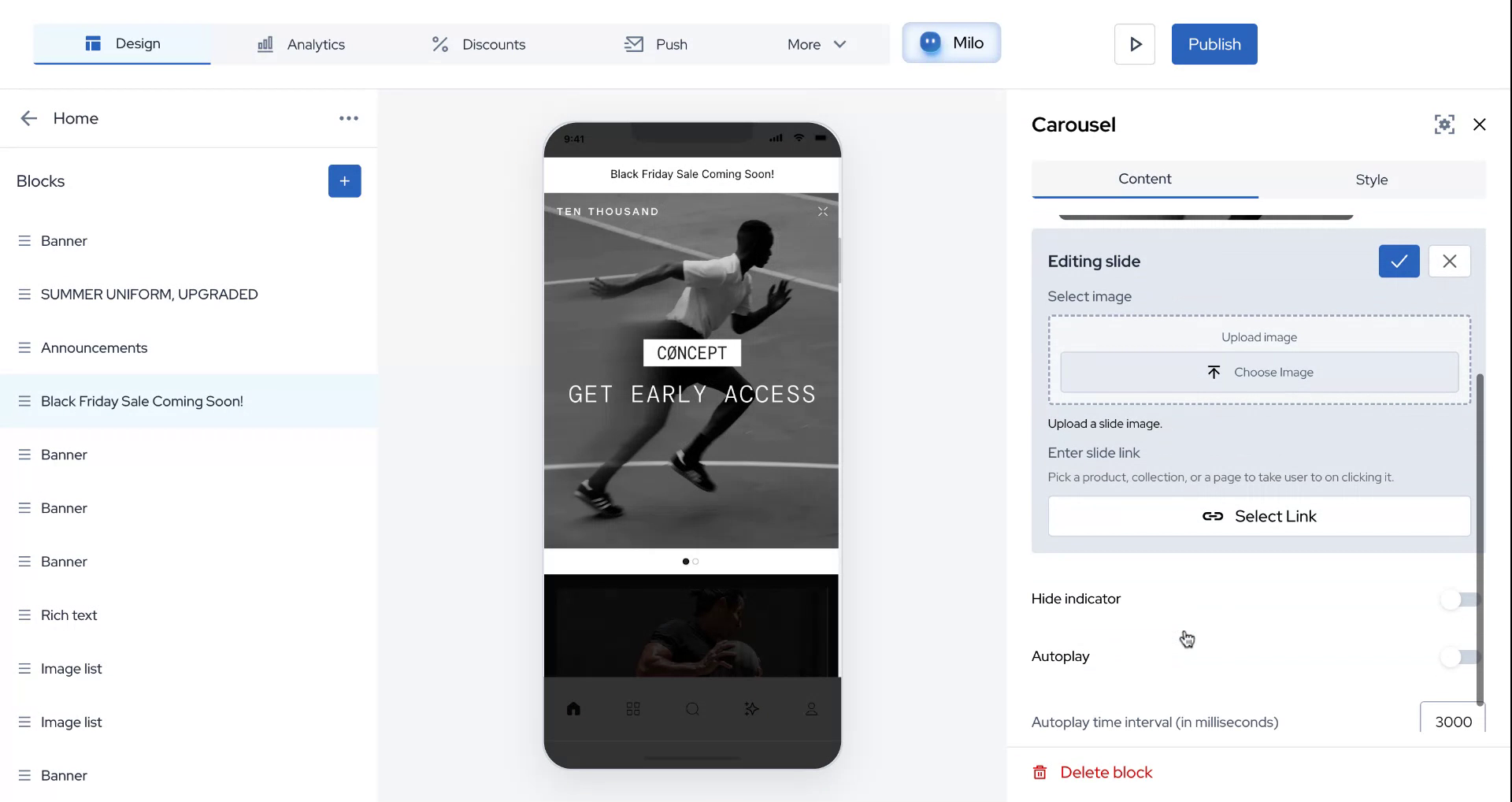
Step 9
Choose the image for the second slide.
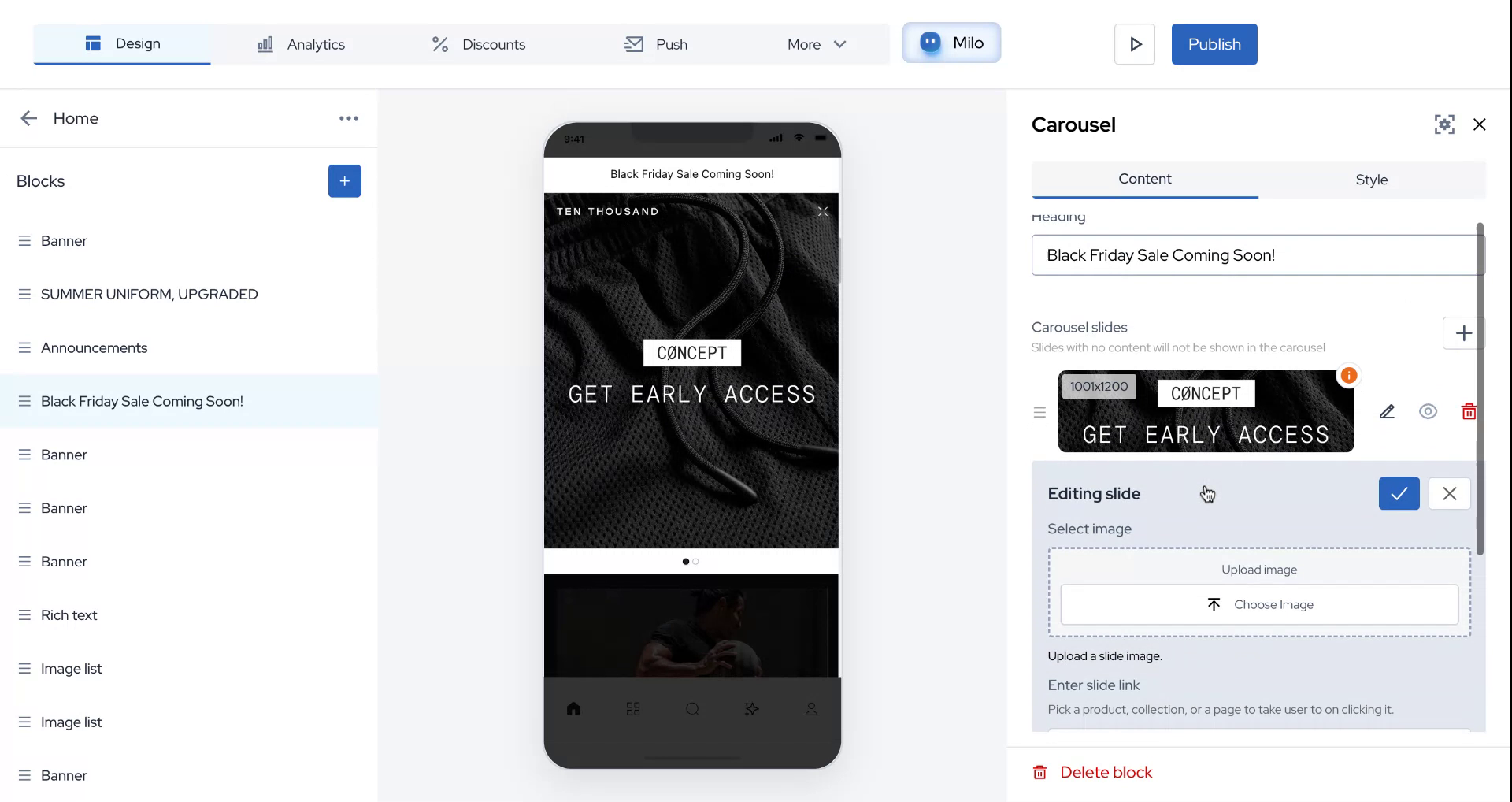
Step 10
Explore the autoplay options for carousels and set the time interval for swapping images.
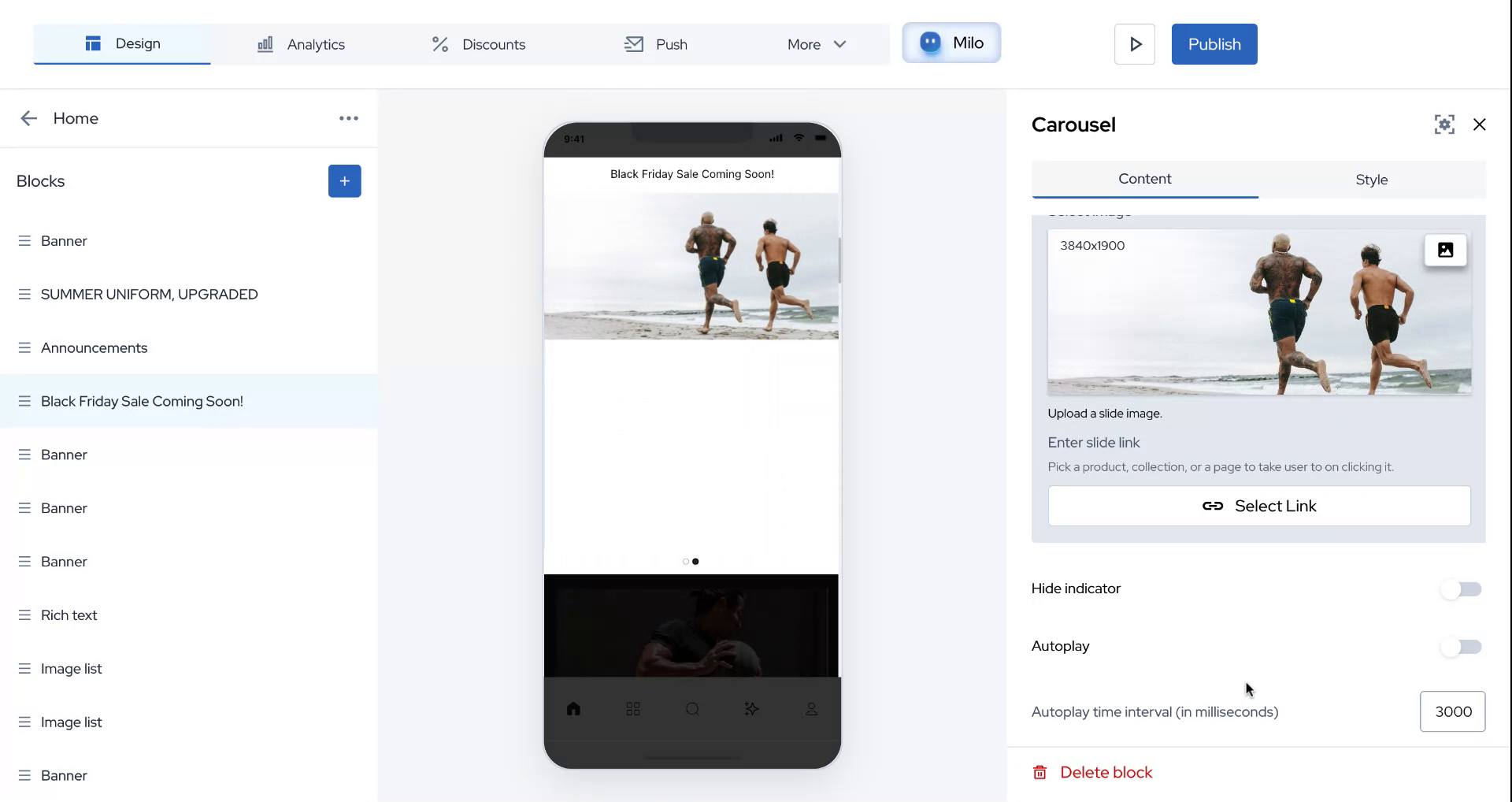
Step 11
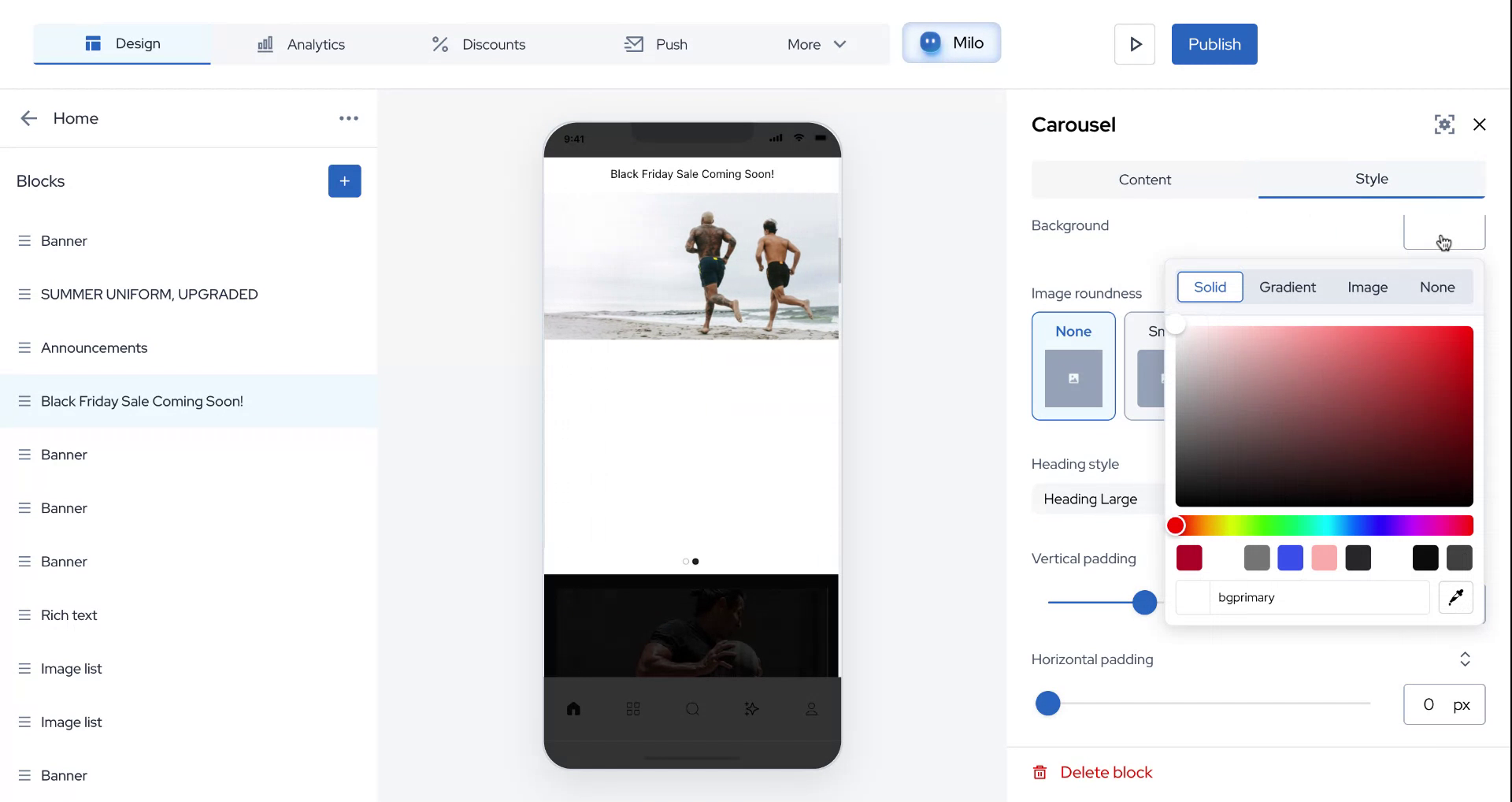
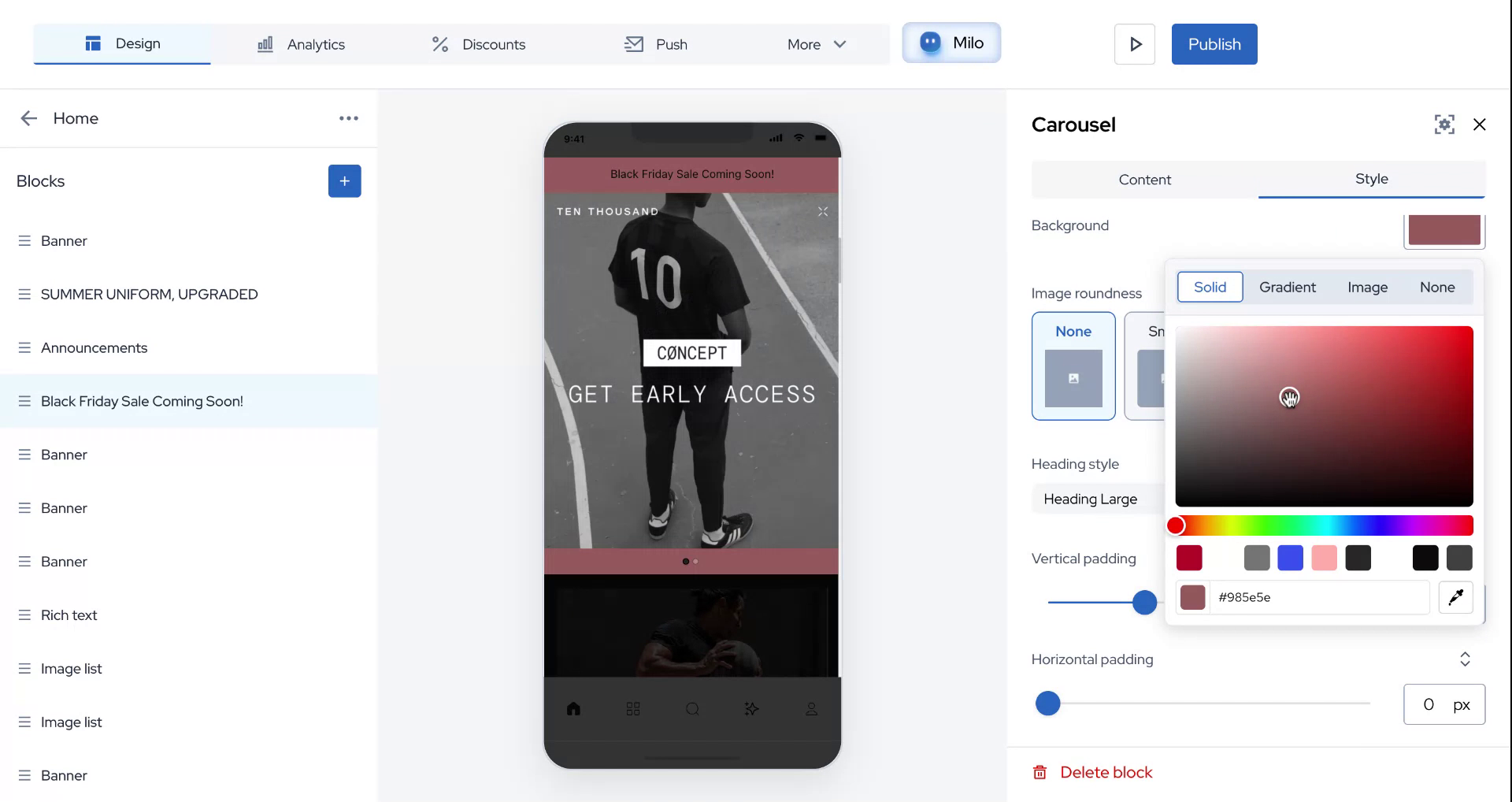
Select a background color for your carousels.
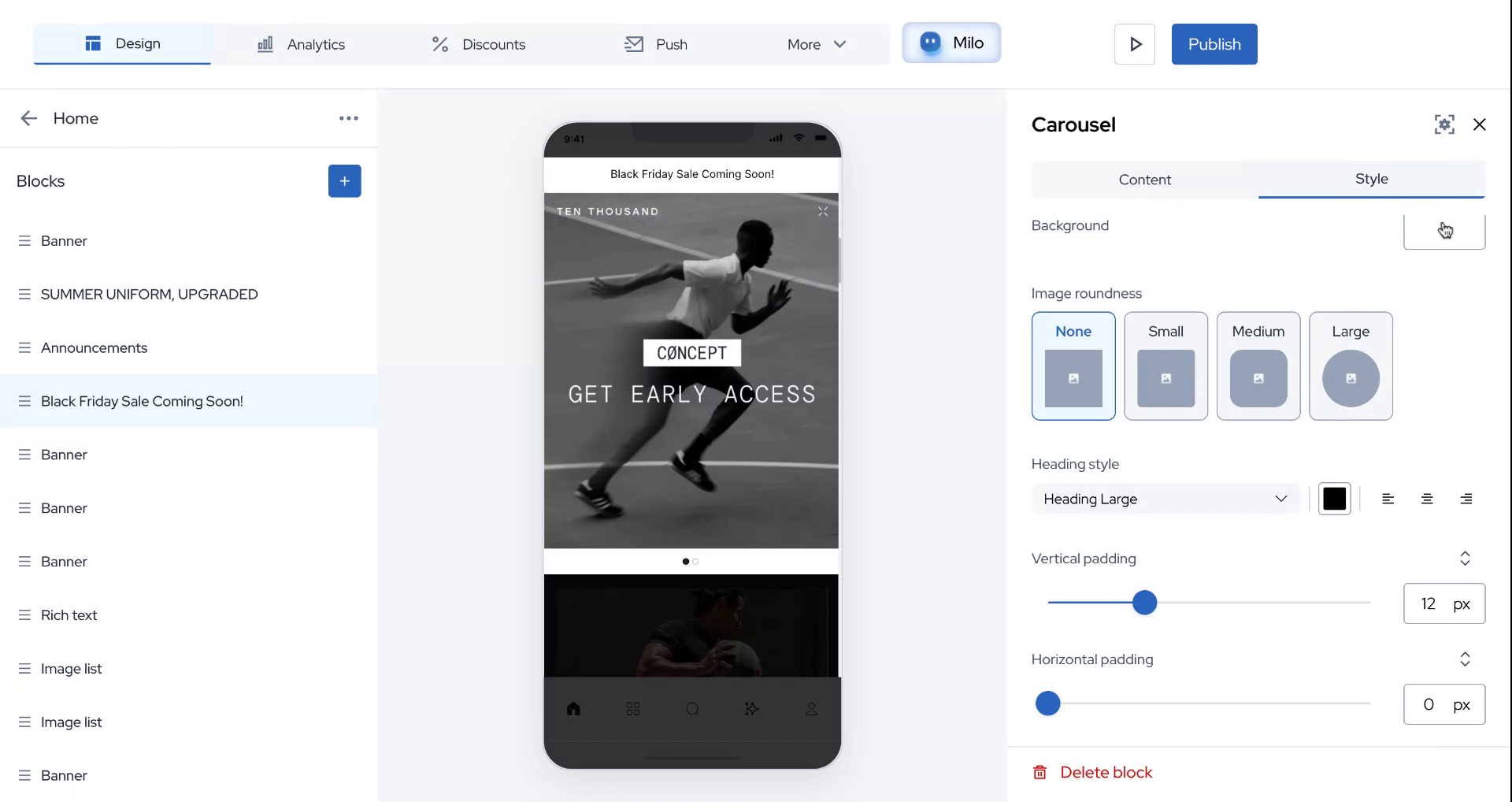
Step 12
Choose a background image that complements your carousel.
Step 13
Ensure everything looks satisfactory.
Step 14
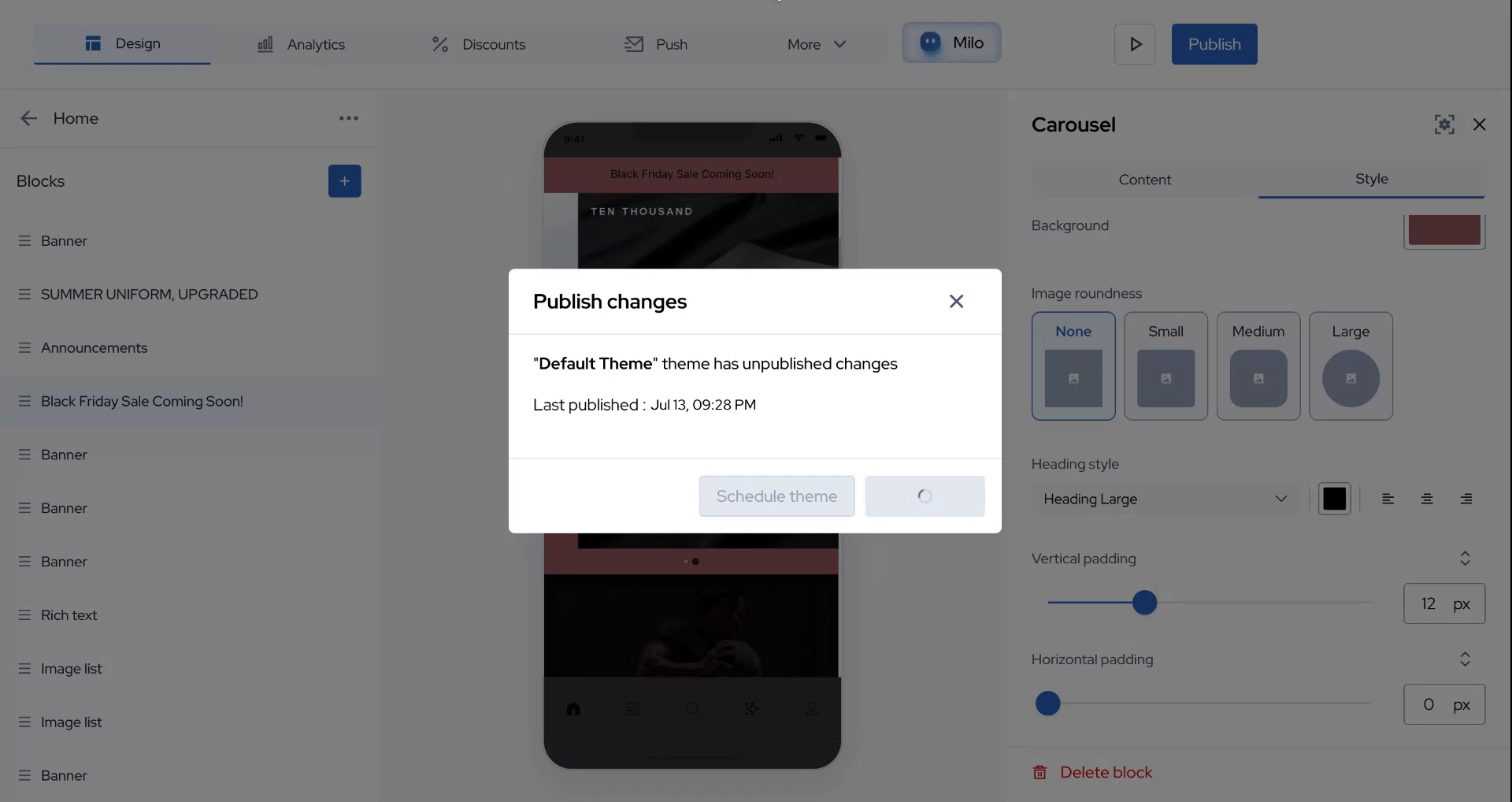
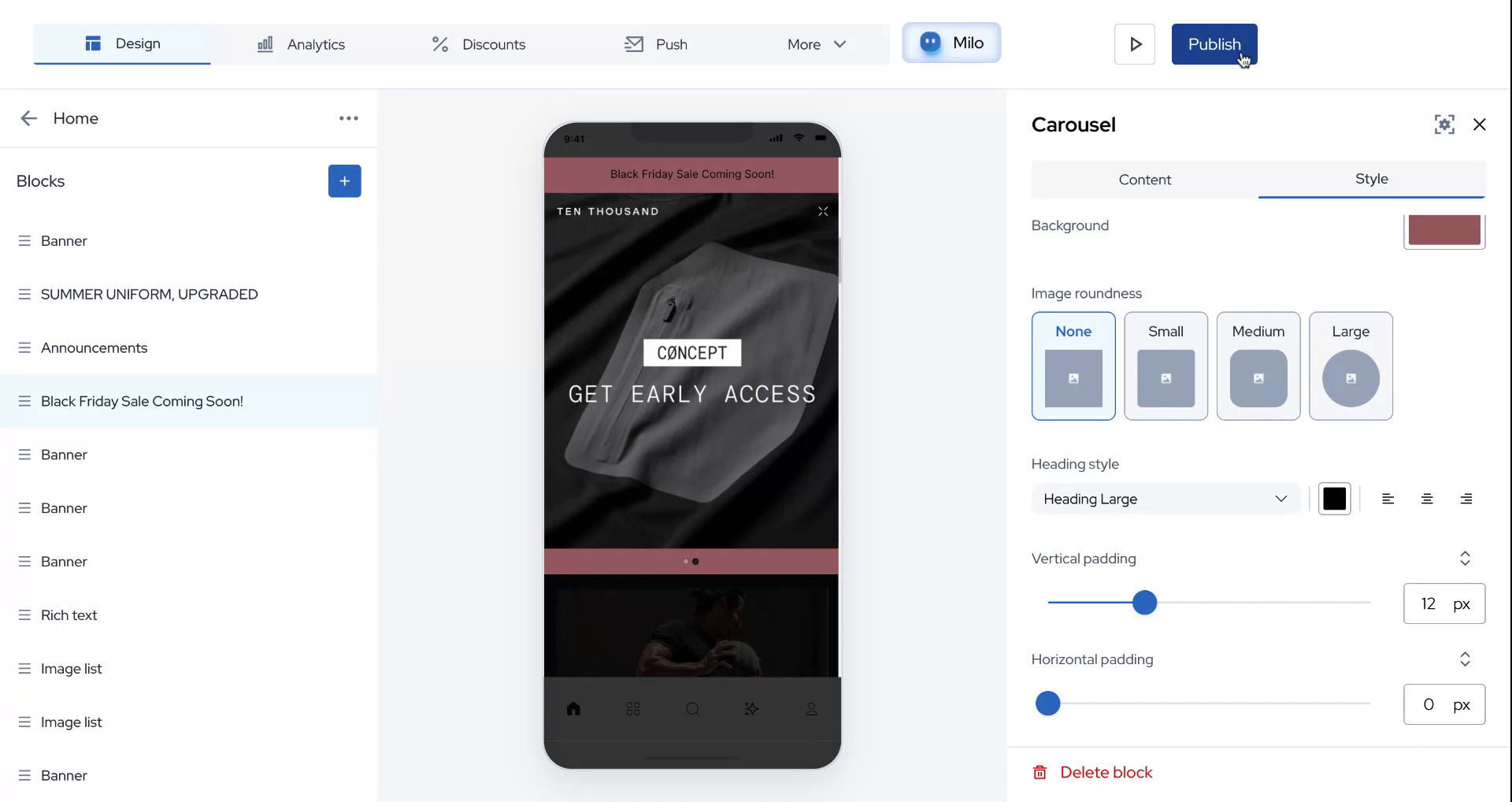
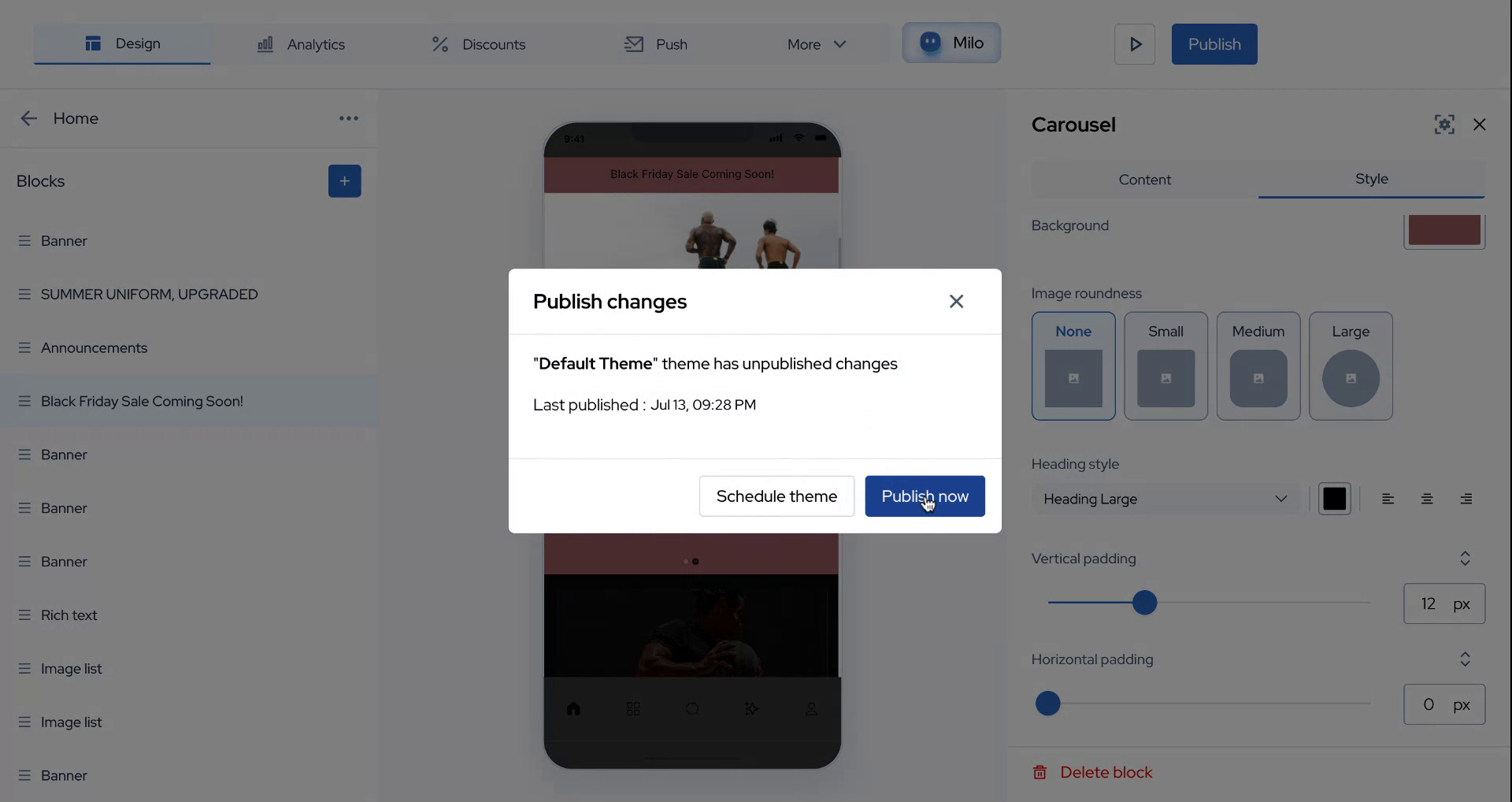
When you're happy with the content and settings, click on "Publish" to make the changes live.
Step 15
We hope this information was helpful.
Step 16
Thank you for watching.