Enabling Rich Text Features
Last updated: July 13, 2025
In this process, we will guide you through the steps to enable and customize rich text features in your document. This will involve selecting fonts, adjusting text styles, choosing background colors, and ultimately publishing your changes. Follow the steps below to enhance your text presentation effortlessly.
Step 1
To enable rich text, hover your mouse over any block where you wish to present rich text. Once you've identified the block, look for the rich text option.

Step 2
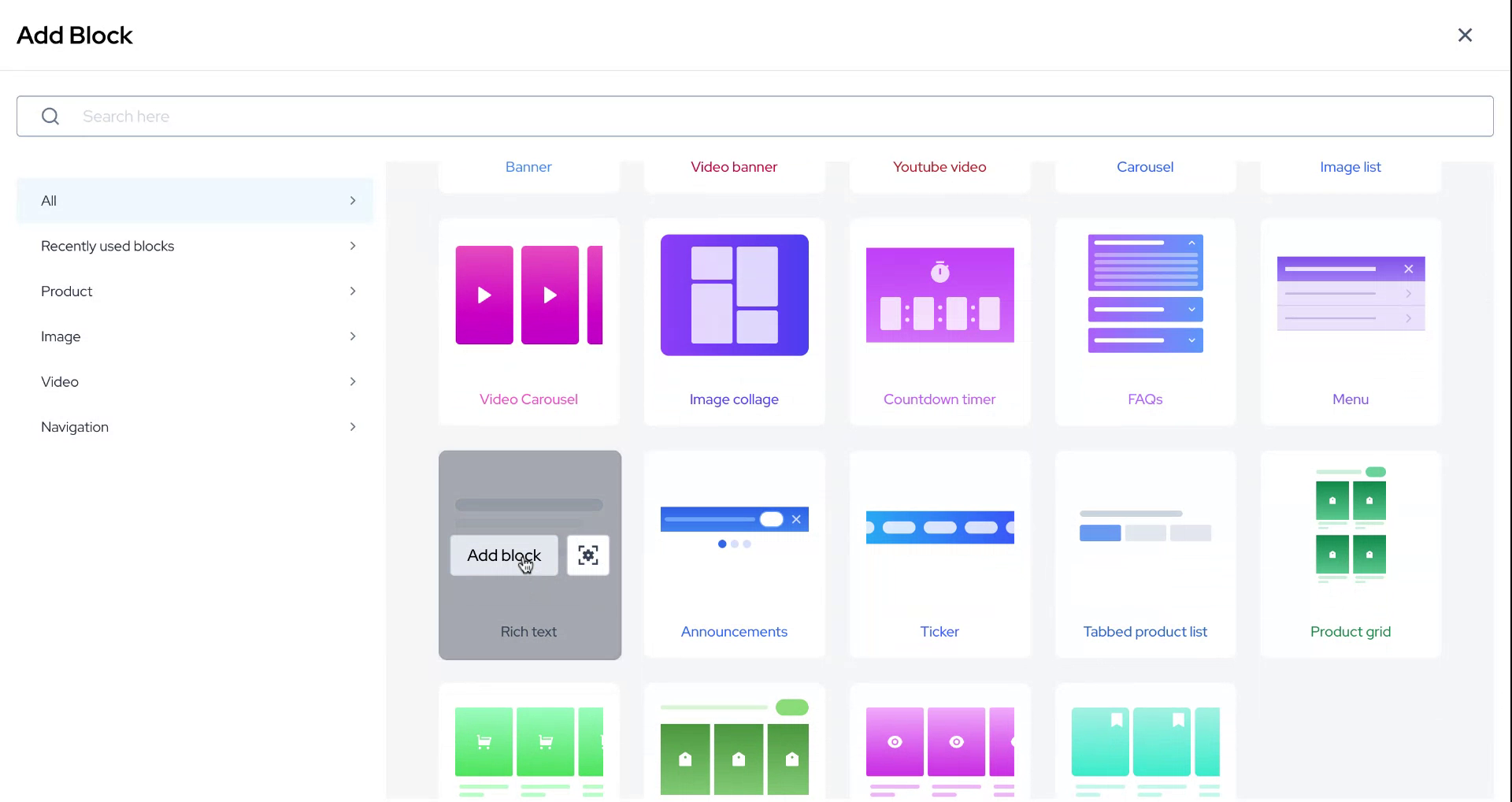
After locating the rich text option, click on the "Add Block" button.
Step 3
Upon clicking "Add Block," a menu of options will appear. For this demonstration, select "Black Friday Sale Coming Soon." After selection, you can choose to apply italics or underline to the text.

Step 4
Adjust the text justification according to where you want the rich text to appear.

Step 5
Select the desired font size from the available options.

Step 6
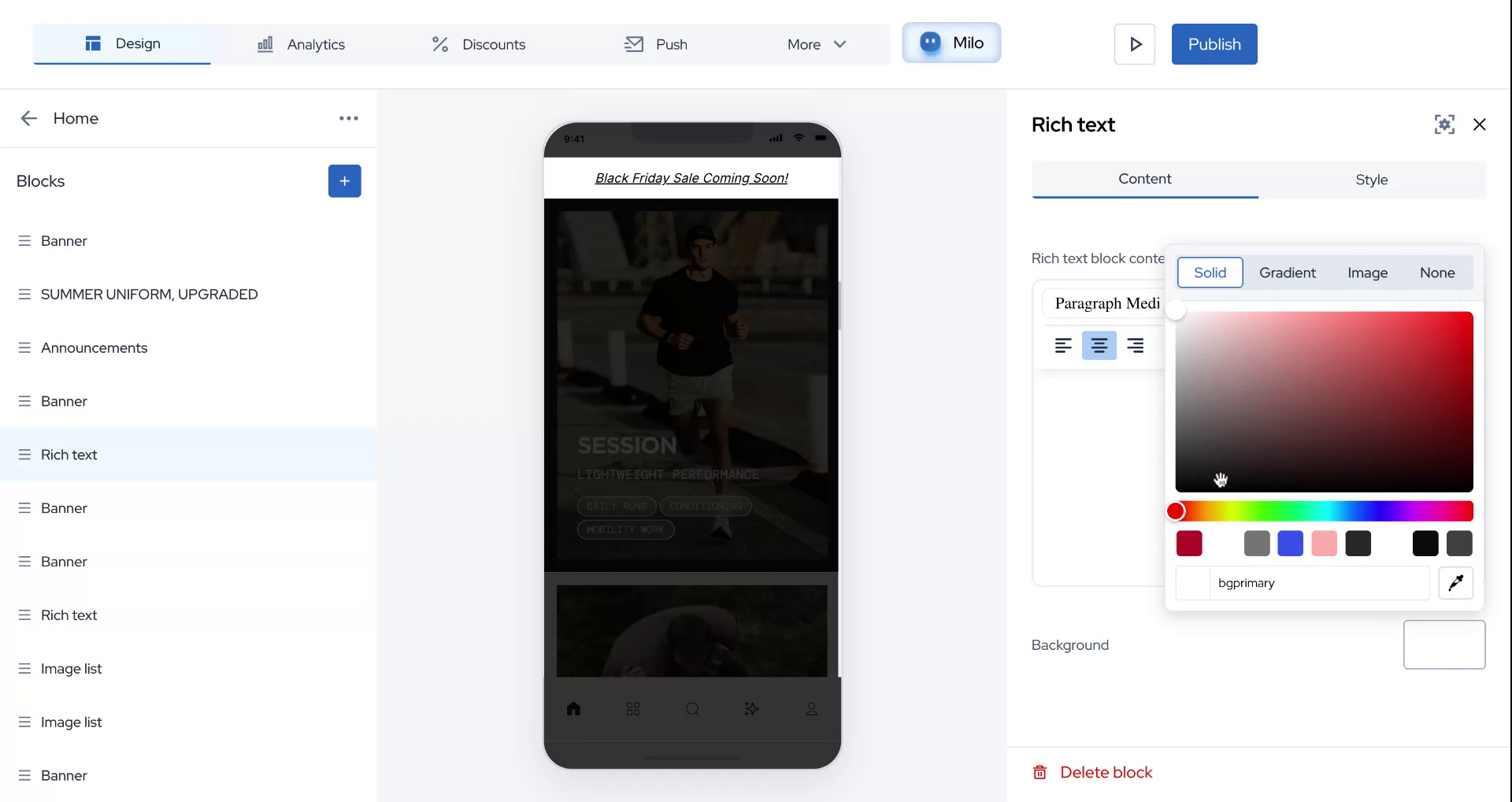
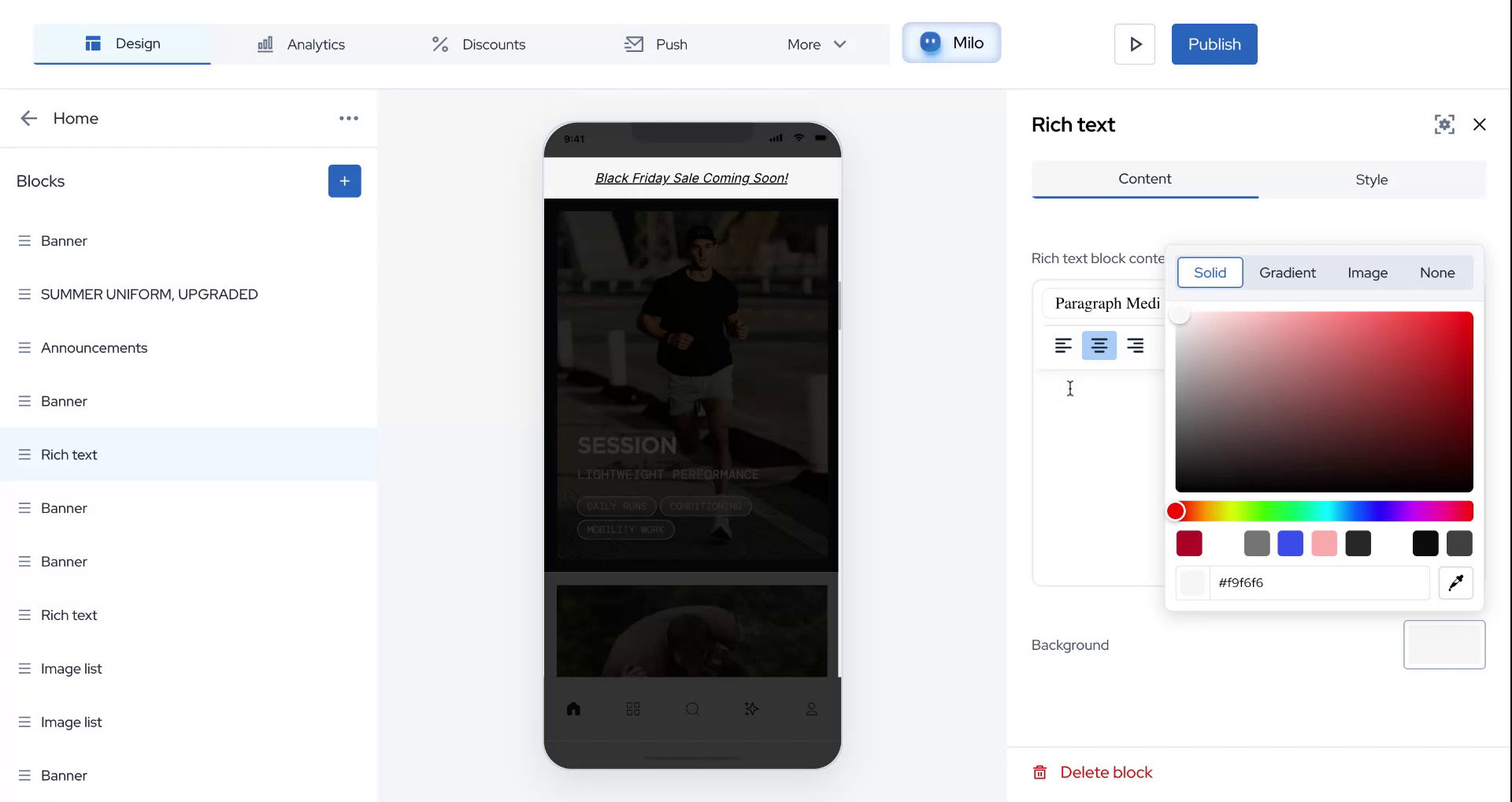
Once you have configured the text, you can select a background color.

Step 7
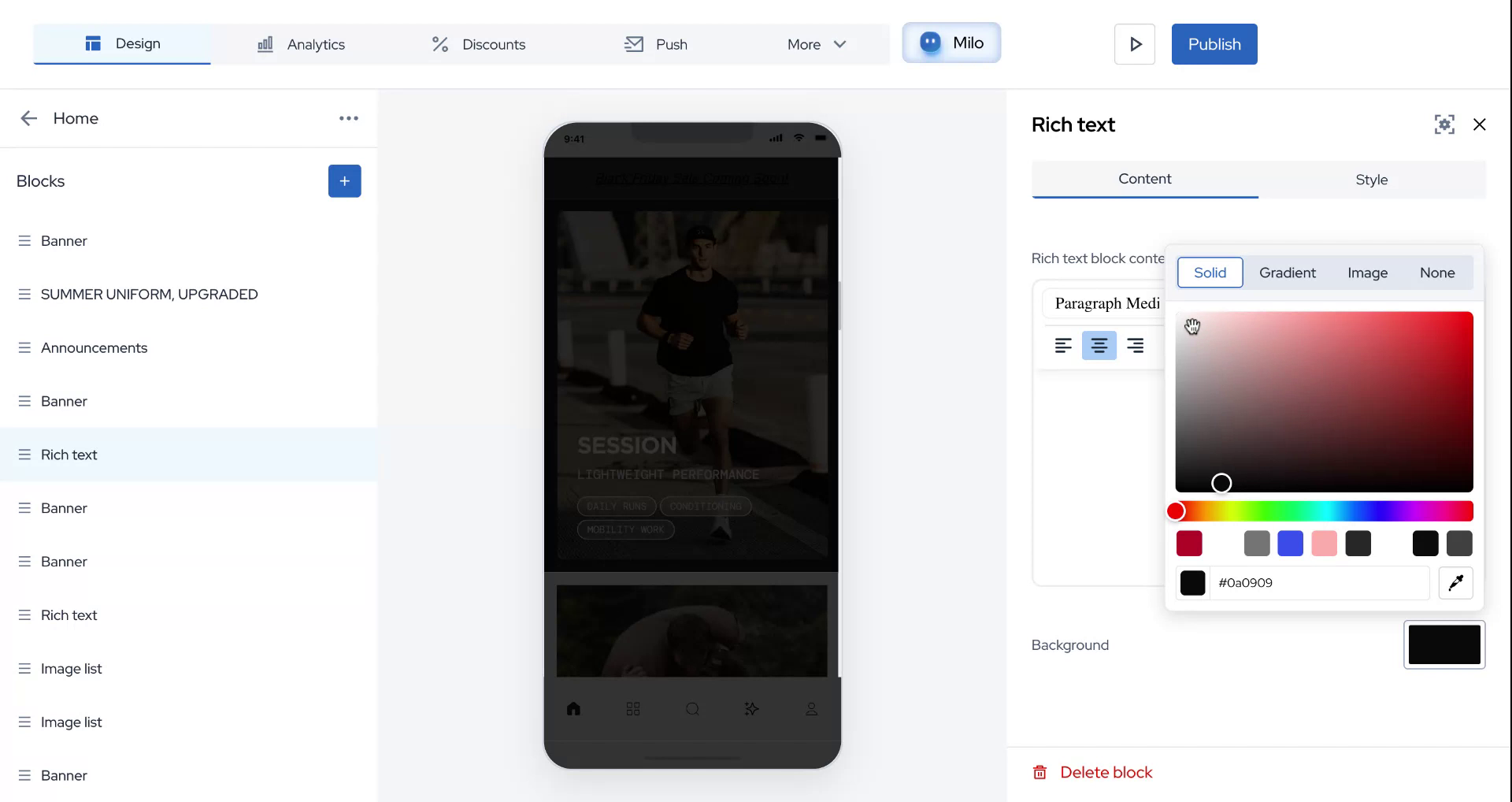
For this demonstration, opt for a dark background that matches the theme.
Step 8
If the background looks unappealing, simply change it by clicking to select a different color.
Step 9
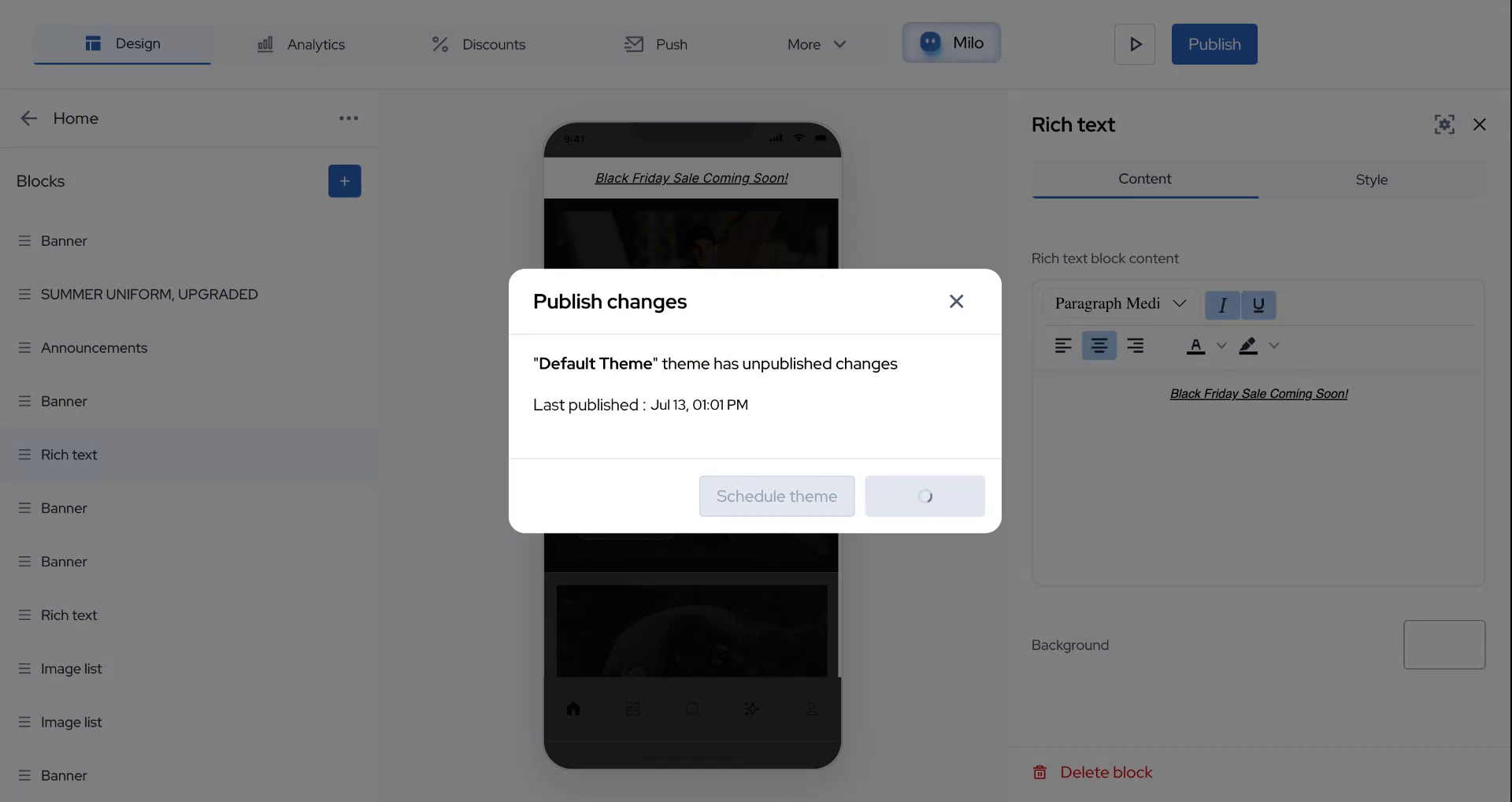
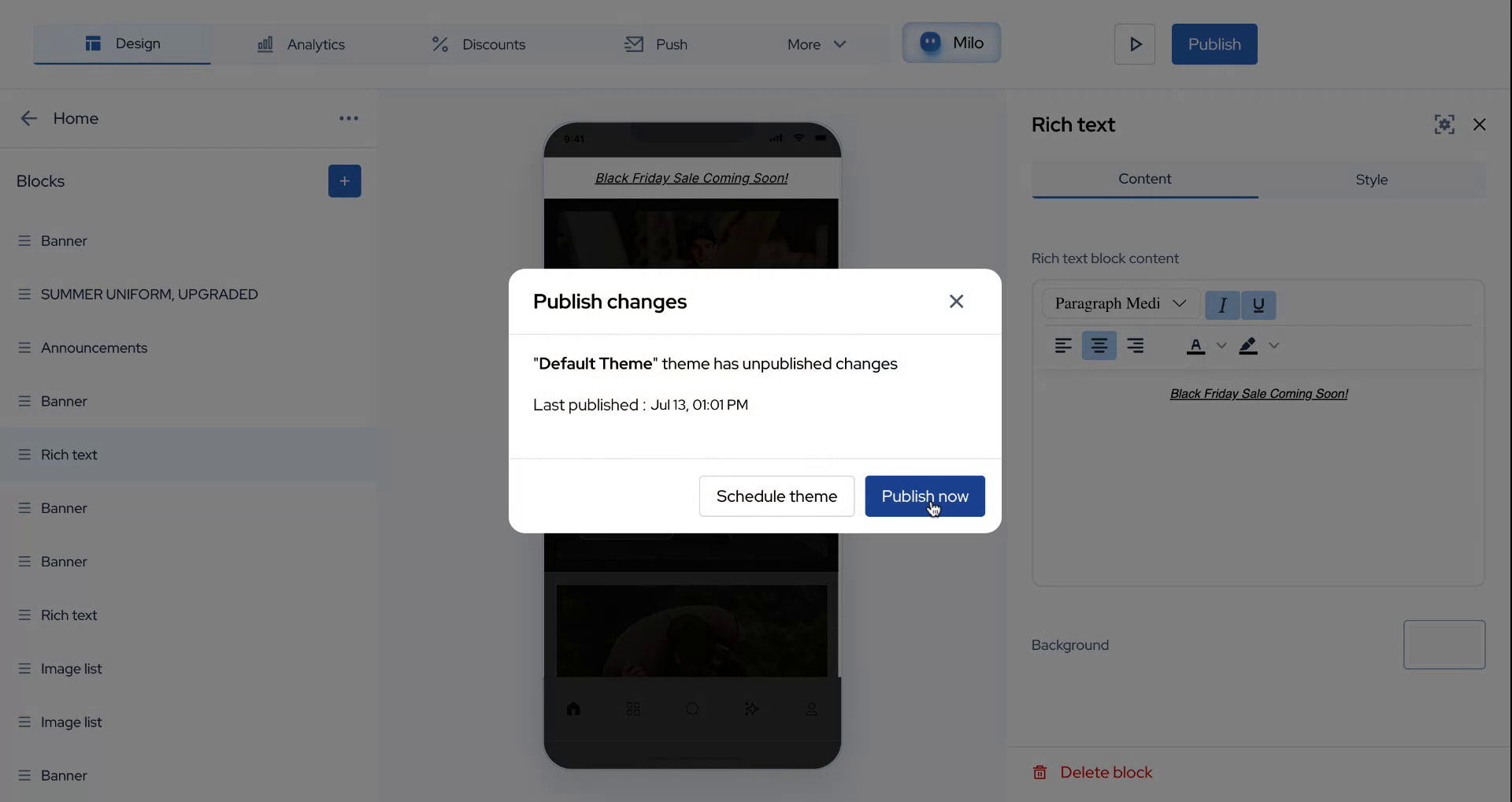
After finalizing your choices, click on "Publish" to apply the changes live.
Step 10
We hope this guide was helpful in enabling rich text features.
Step 11
Thank you for your attention and for following along.