Enabling a Countdown Timer
Last updated: July 13, 2025
This guide provides step-by-step instructions to enable and customize a countdown timer on your platform. Follow these steps to seamlessly integrate a countdown timer, adjust its settings, and personalize its appearance to suit your needs.
Step 1
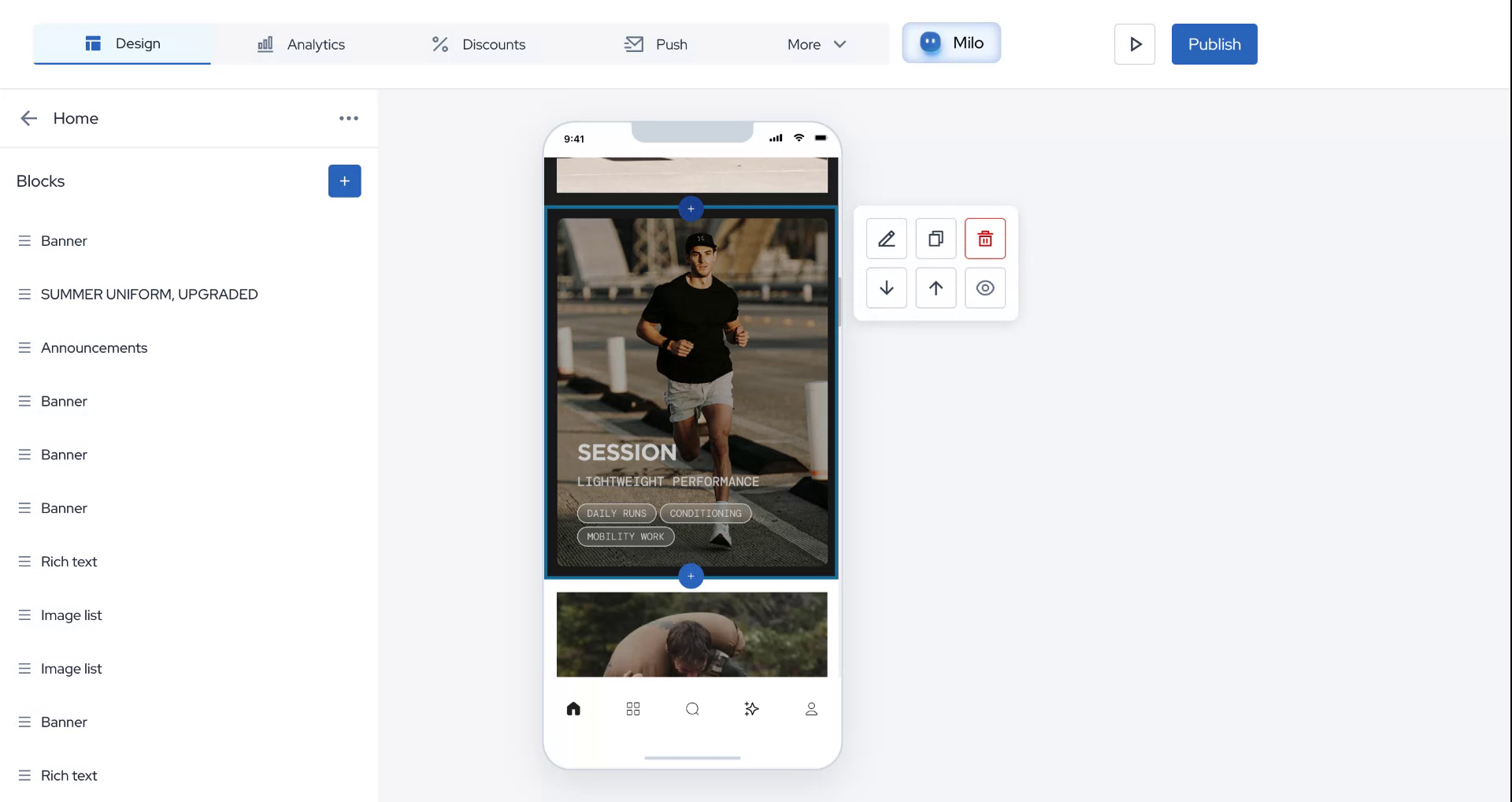
To enable a countdown timer, hover your mouse over the block where you wish to add it. Once positioned, click on the plus icon and search for "countdown timer."
Step 2
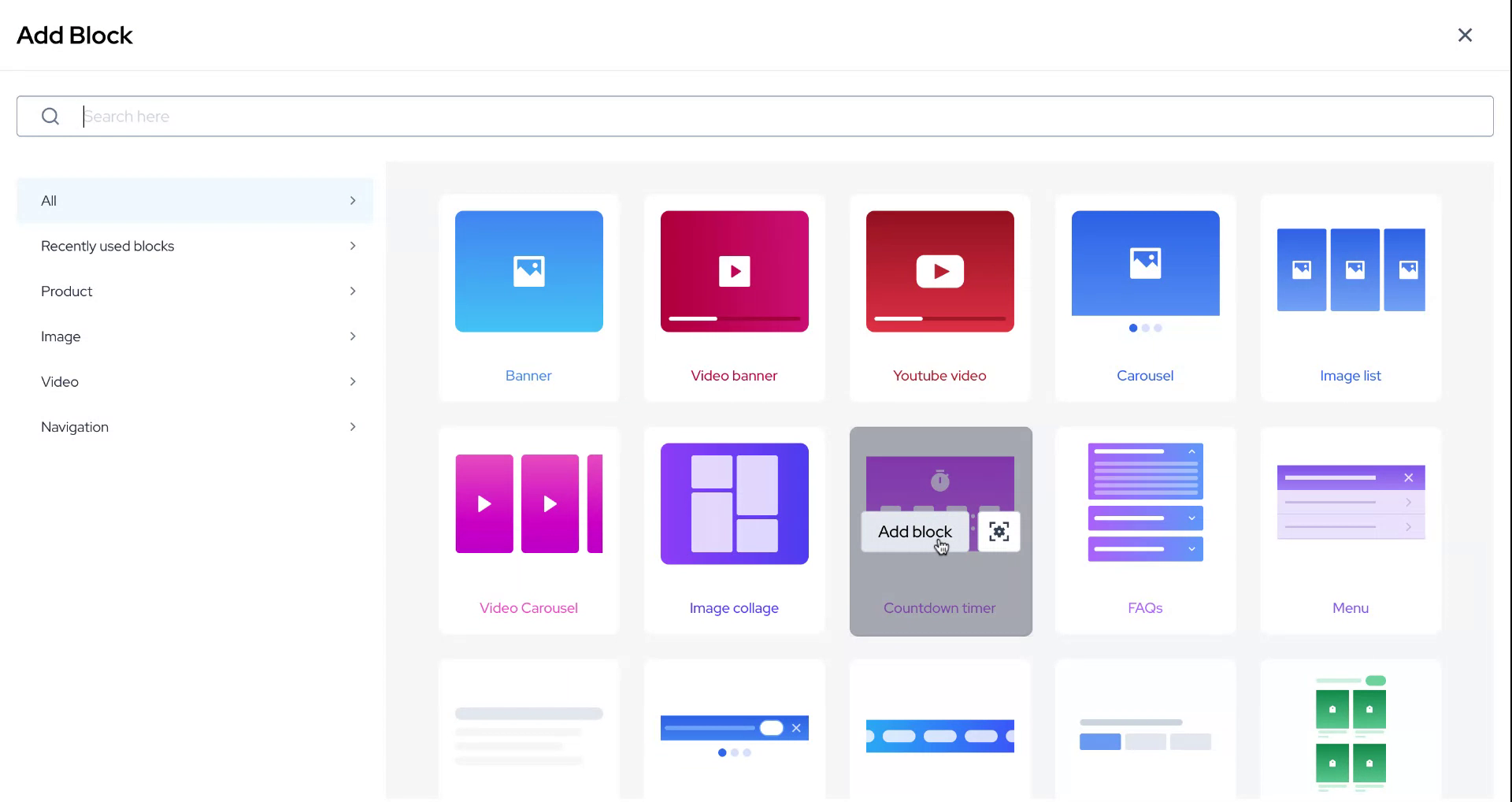
After locating the countdown timer, click on "Add Block."
Step 3
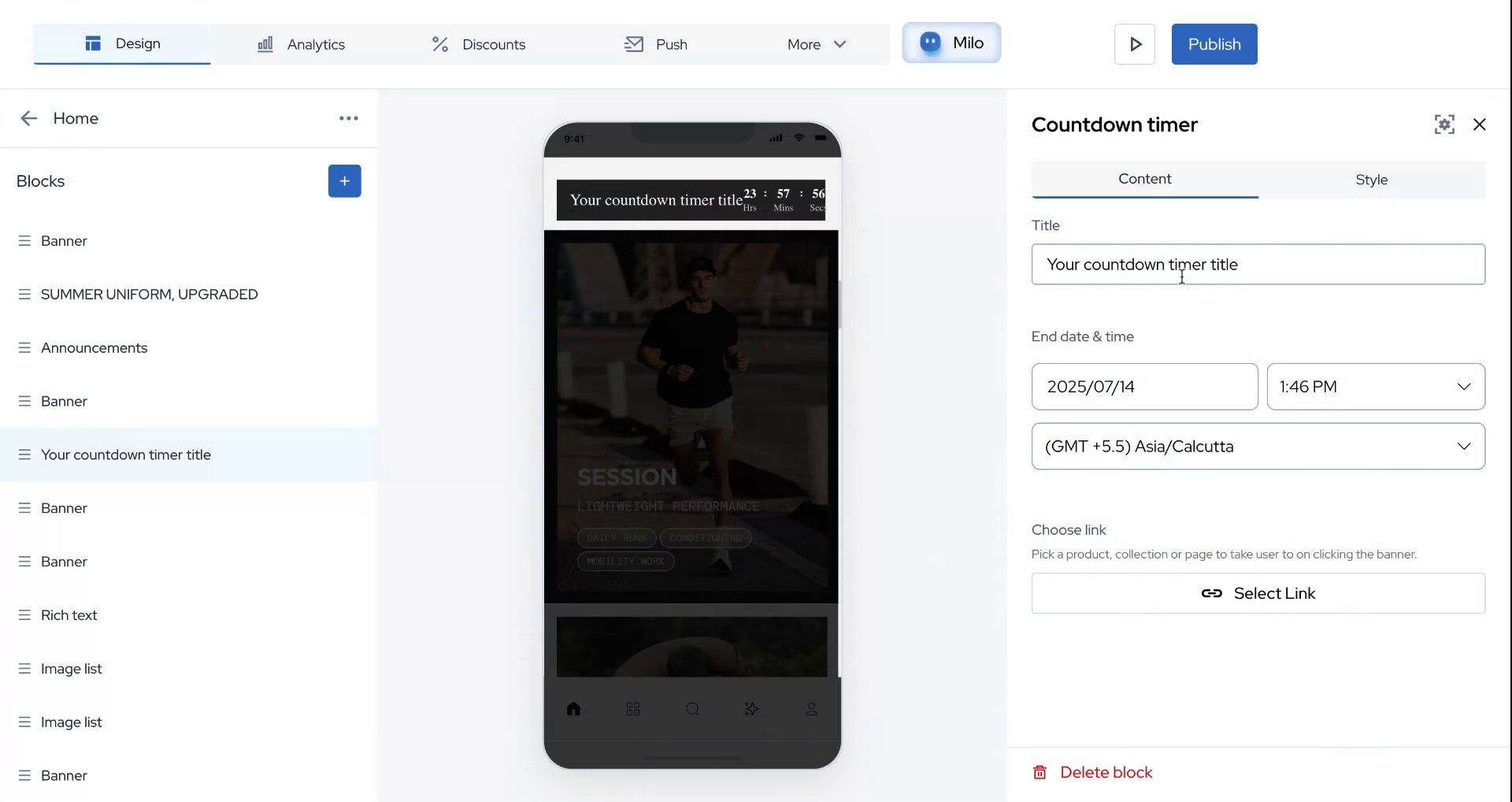
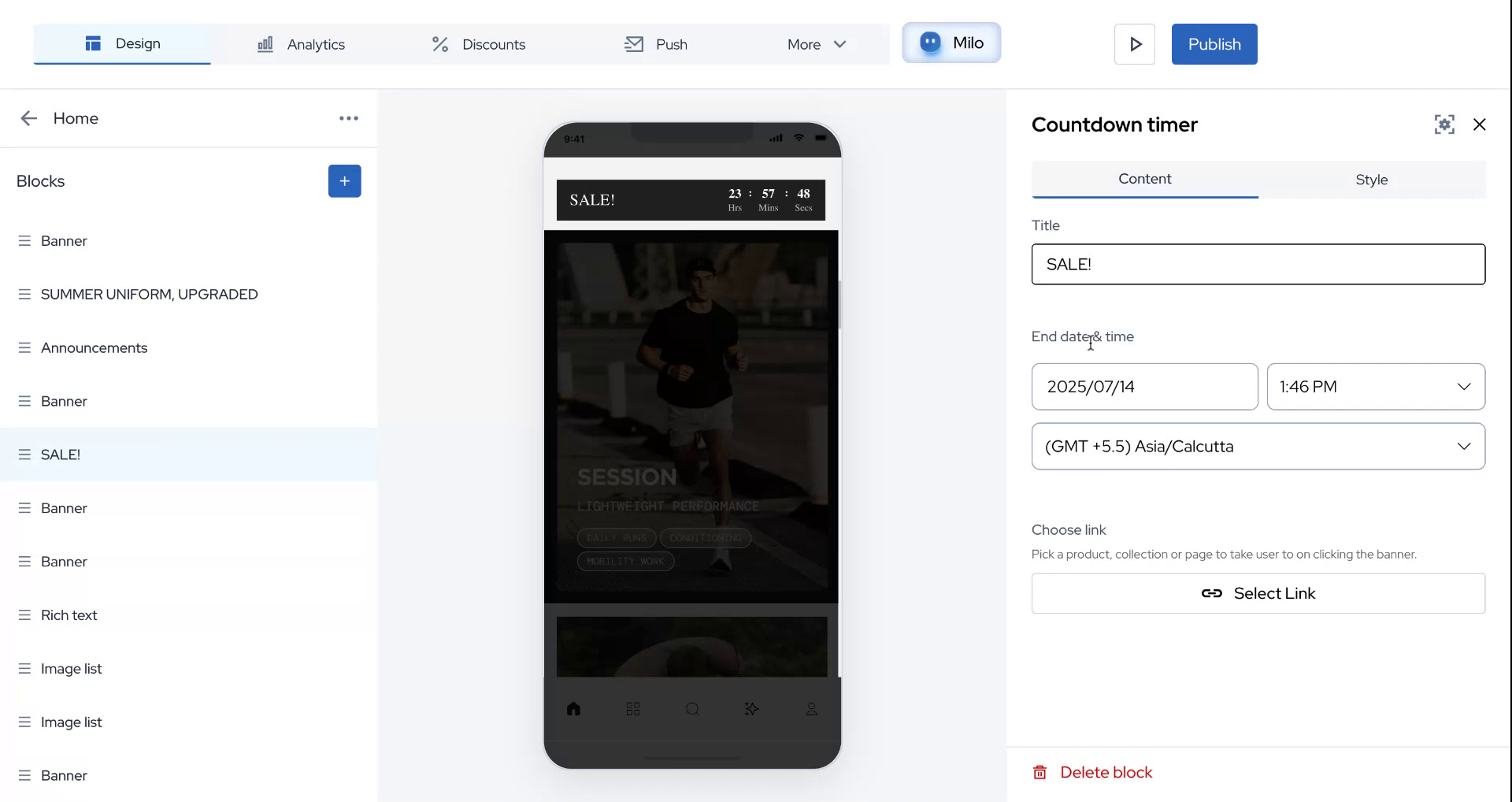
You will now have various options to customize. Begin by changing the title of your countdown timer.
Step 4
For demonstration purposes, select "Sale" as the title. Then, proceed to choose the desired end date and time.
Step 5
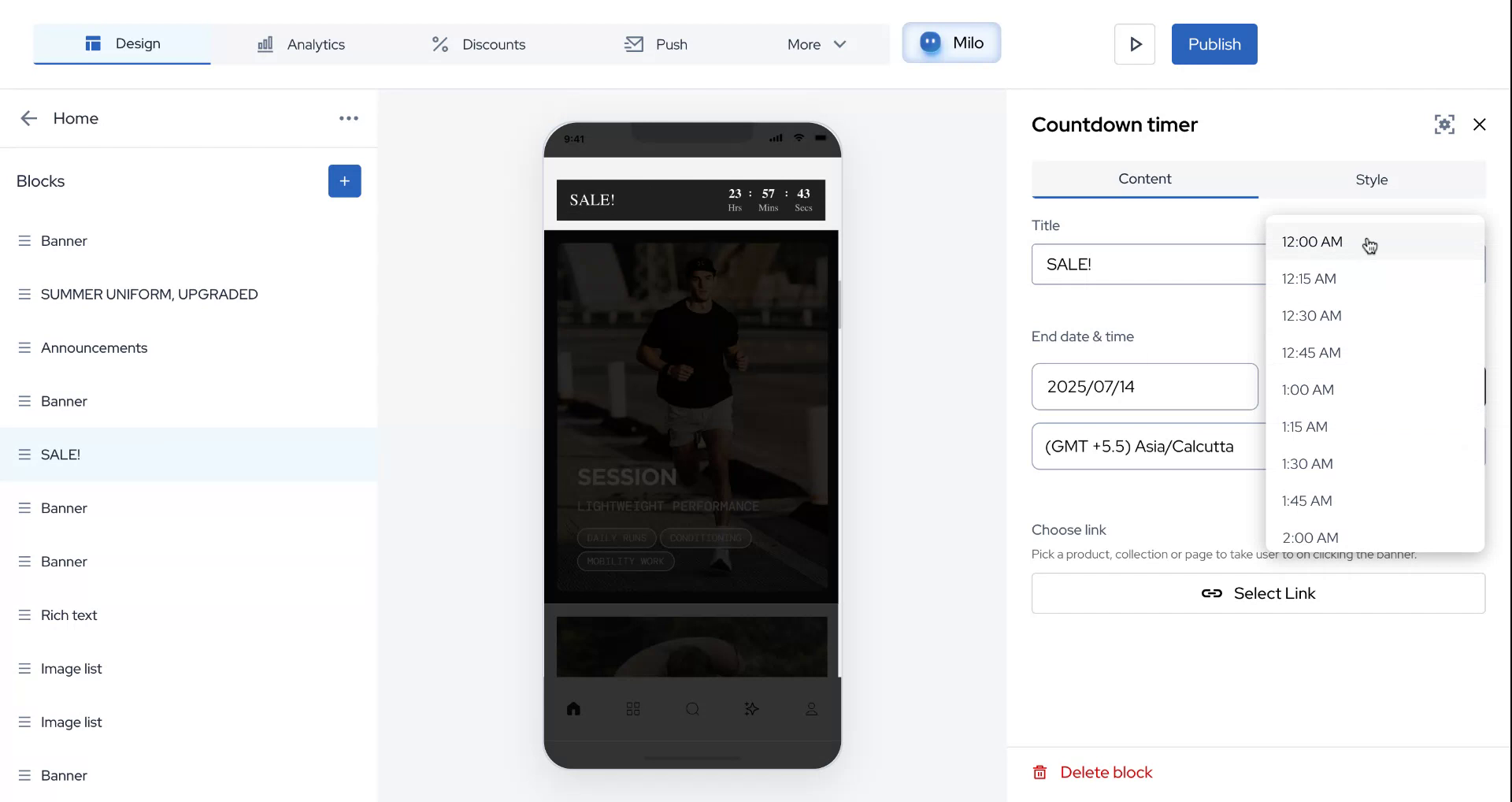
Select a specific time, such as 12:00 AM, for the countdown to conclude.
Step 6
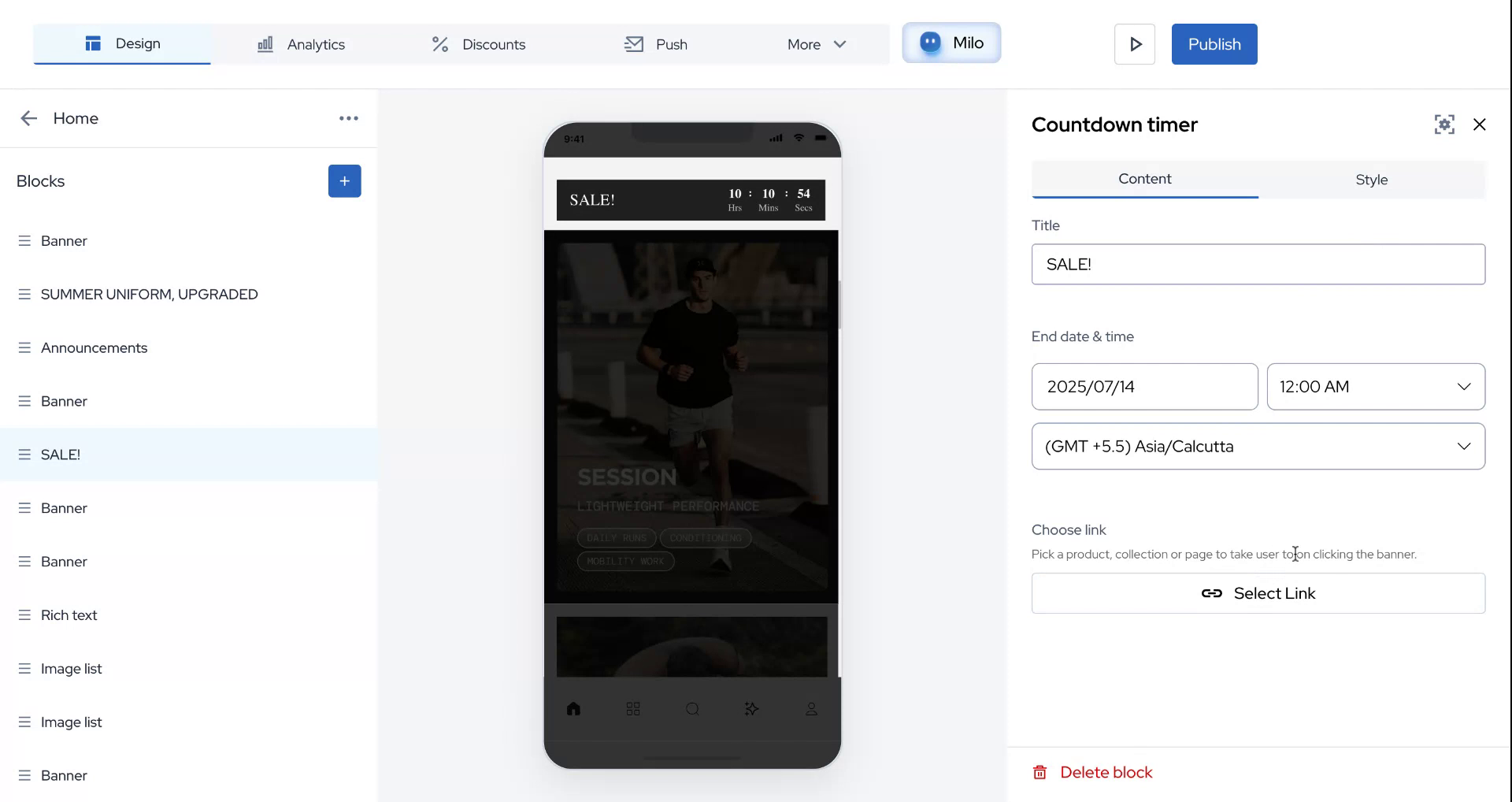
Optionally, add a link where users will be redirected upon clicking the timer.
Step 7
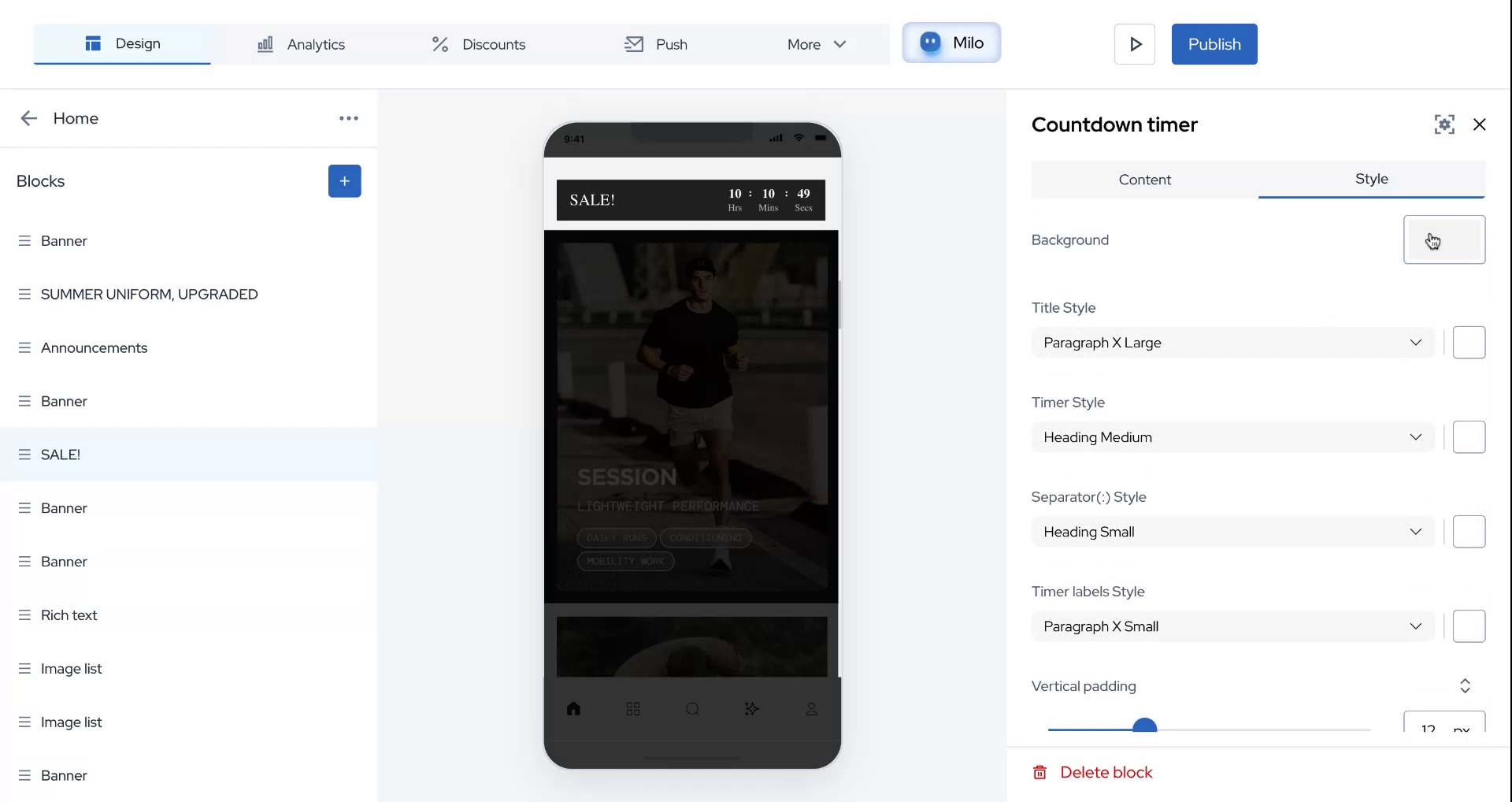
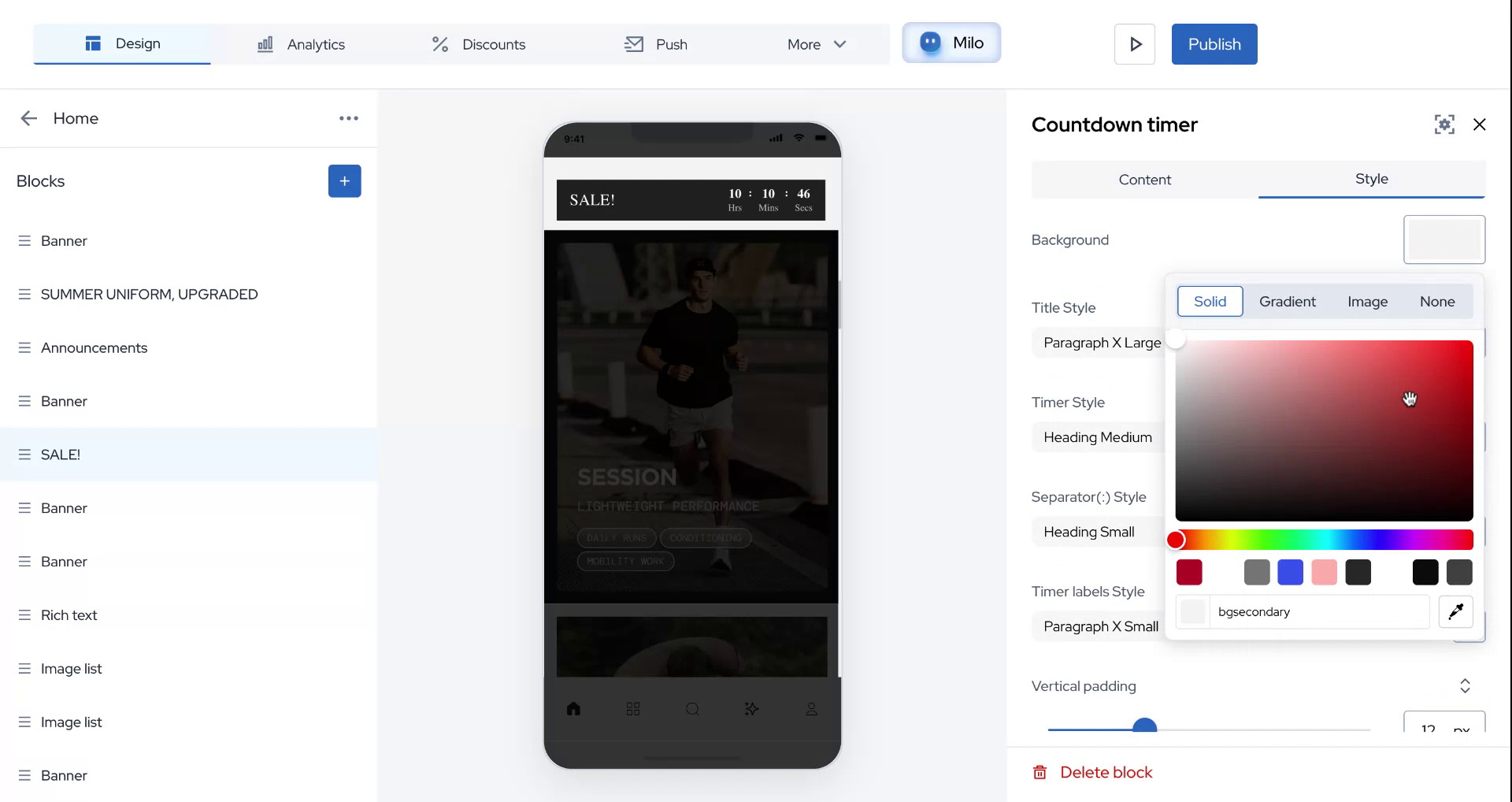
You can further customize by changing the background and styling of the timer to your liking.
Step 8
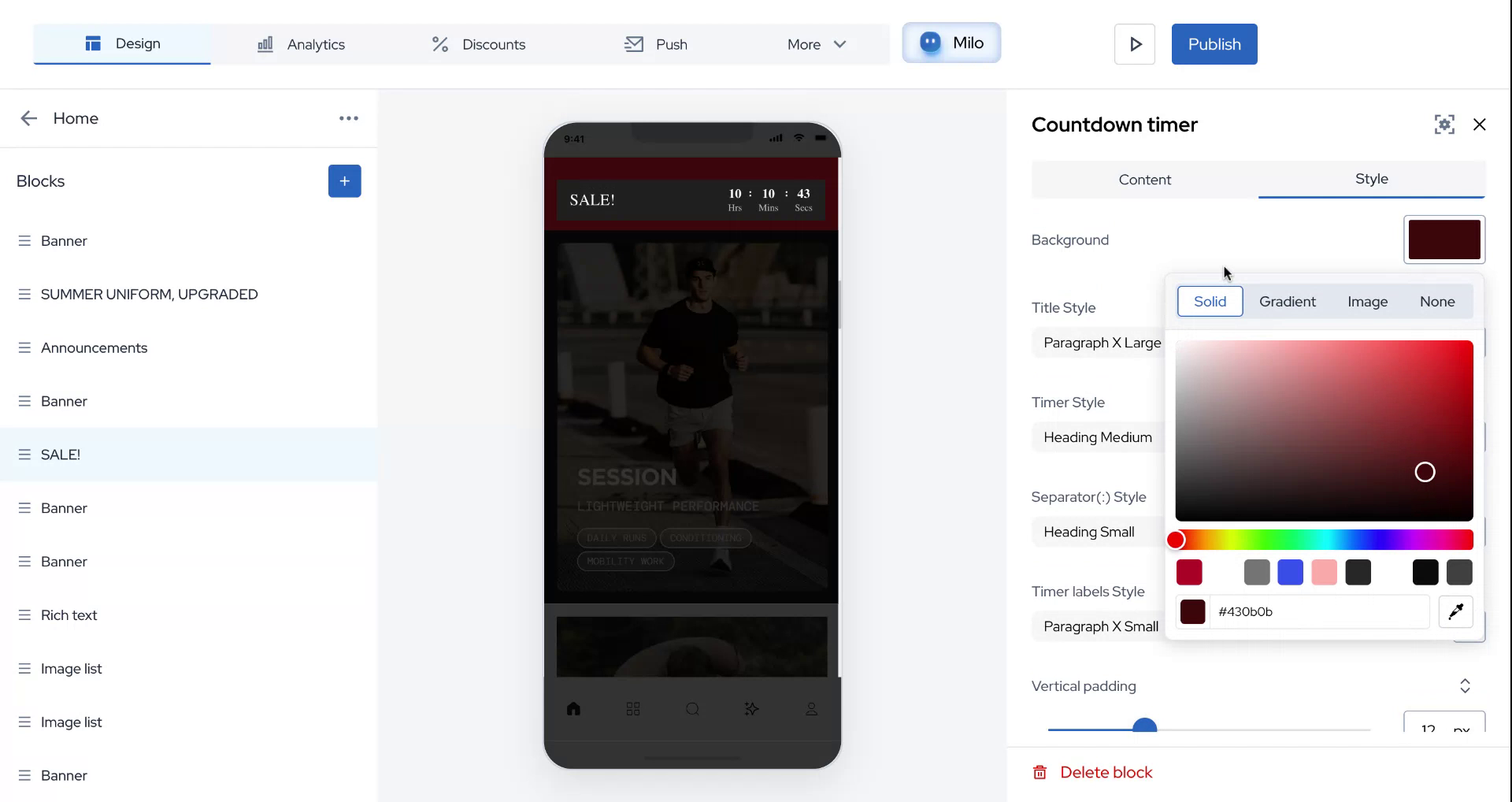
For this example, choose a random color for the background.
Step 9
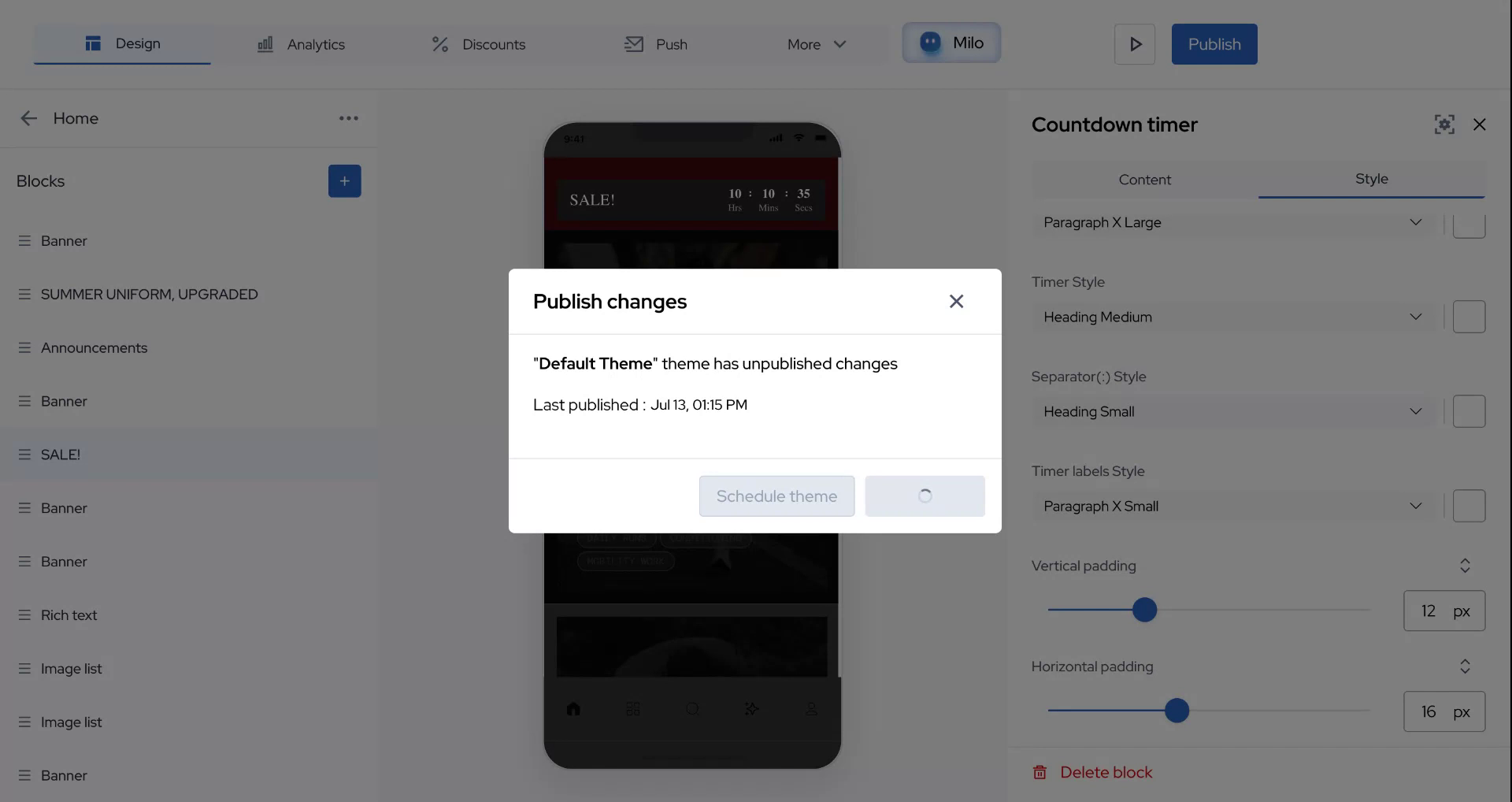
After selecting your preferred color, simply click on "Publish" to finalize the countdown timer.
Step 10
We hope this information was helpful. Thank you for following along.