Enabling Tabbed Product List
Last updated: July 13, 2025
In this process, you will learn how to enable and customize a tabbed product list in your application. The procedure involves adding a block, selecting collections, and customizing the appearance and content of your tabbed product list. Follow the steps below to successfully complete the task.
Step 1
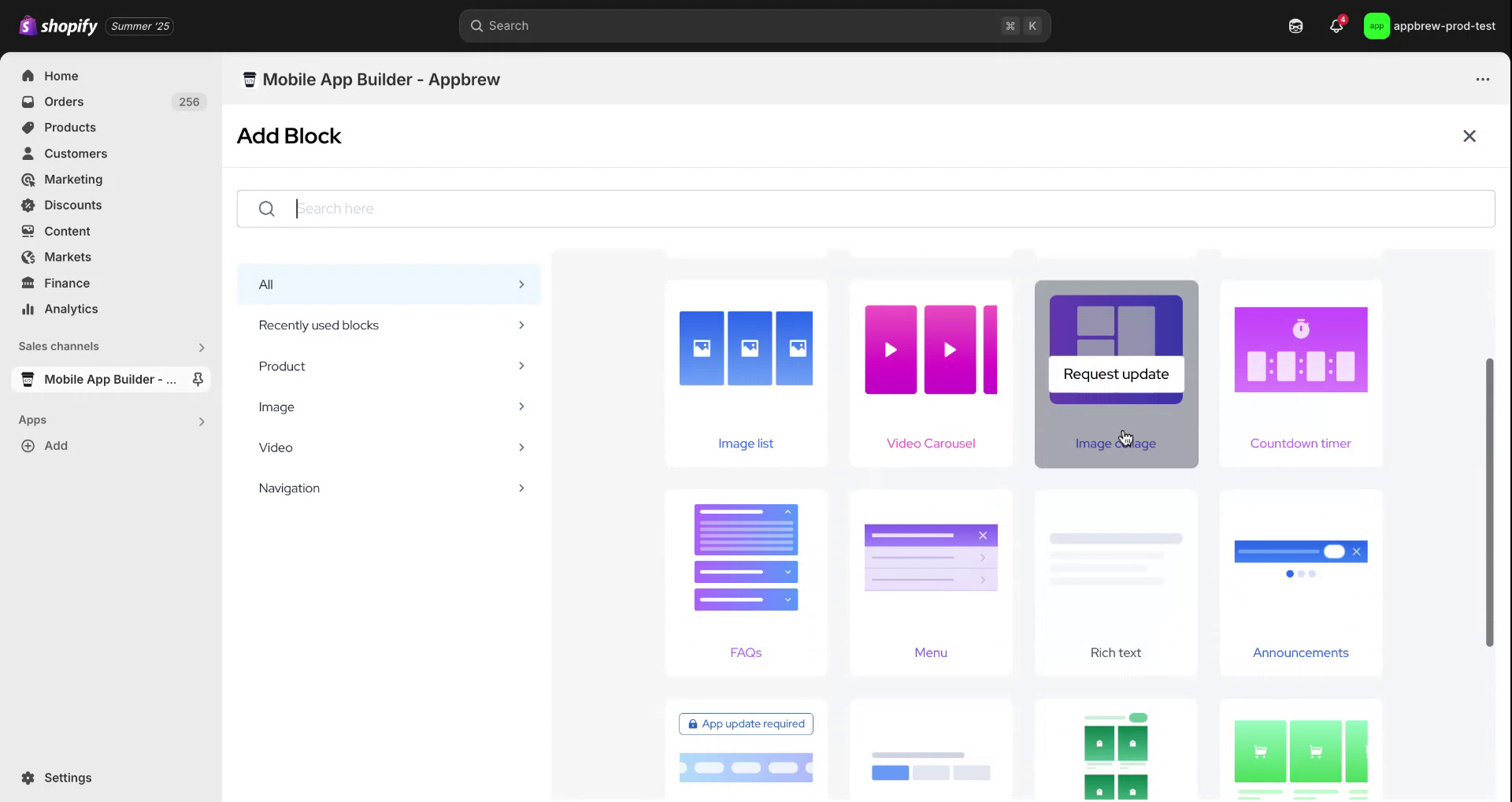
To enable the tabbed product list, hover your mouse over the app interface and click on the plus icon. After that, scroll down to locate the "Tabbed Product List."
Step 2
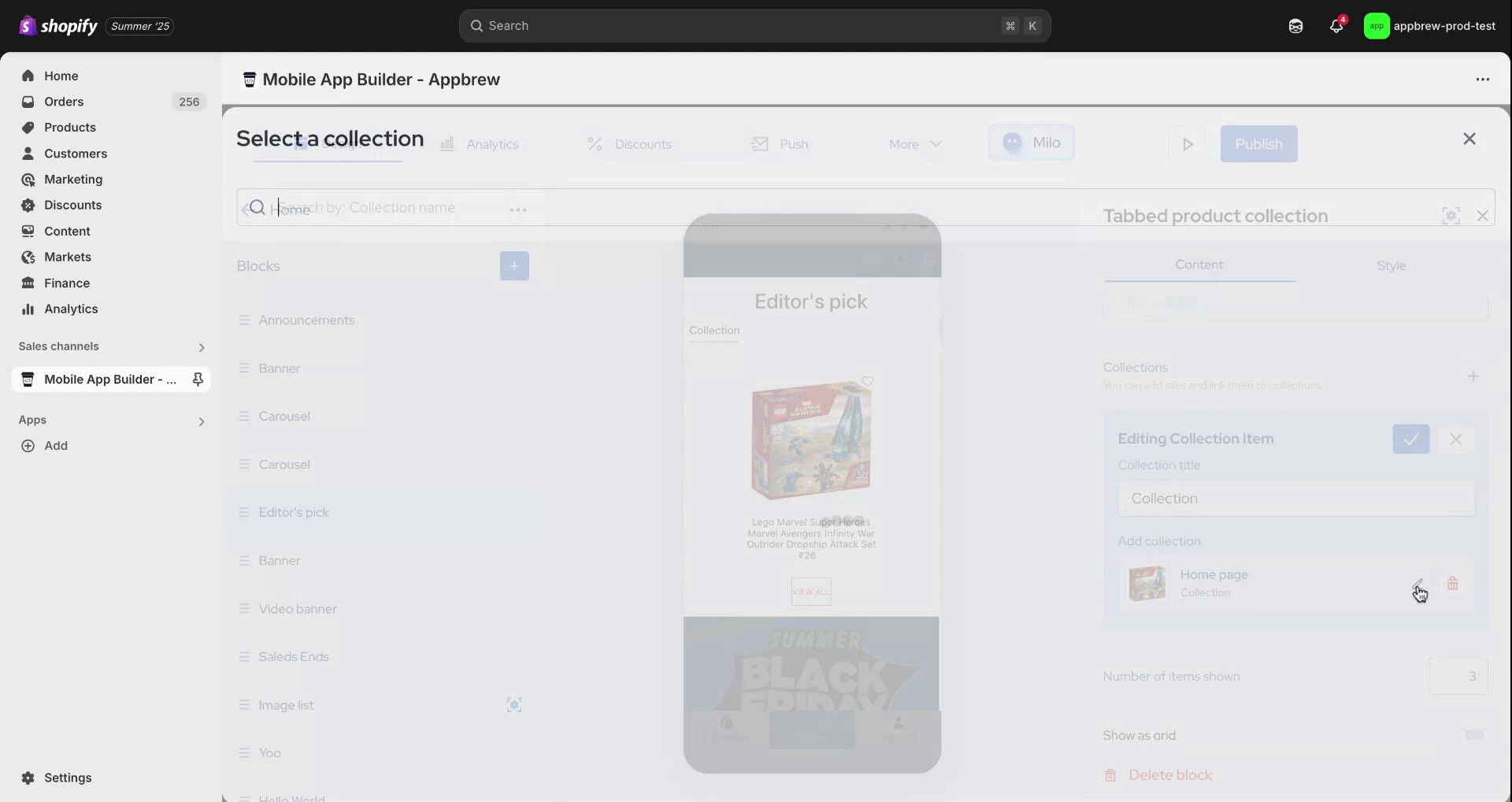
Once located, click on "Add Block." The system will automatically fetch one collection from your database. To modify this collection, click on the "Edit" option.
Step 3
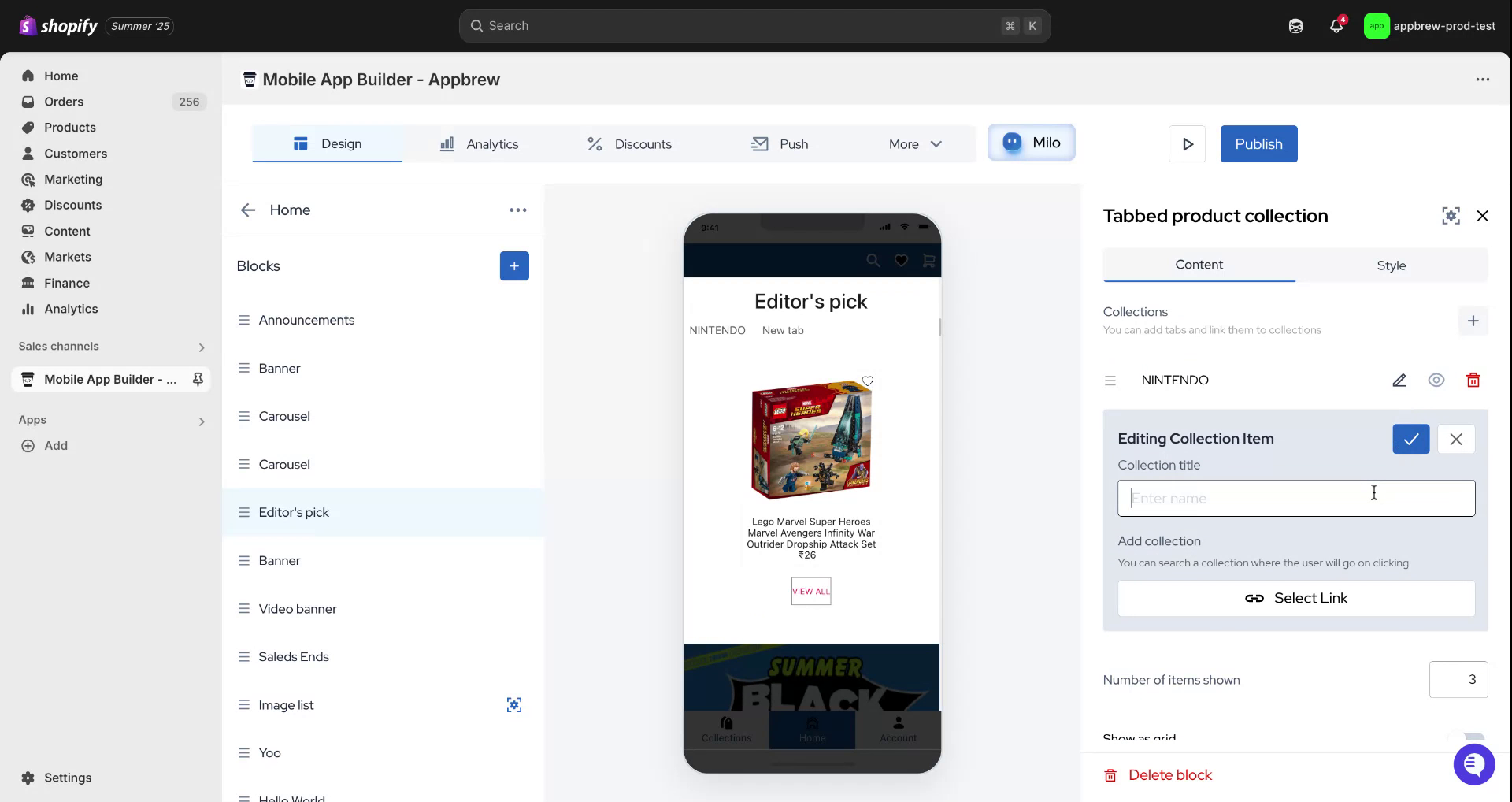
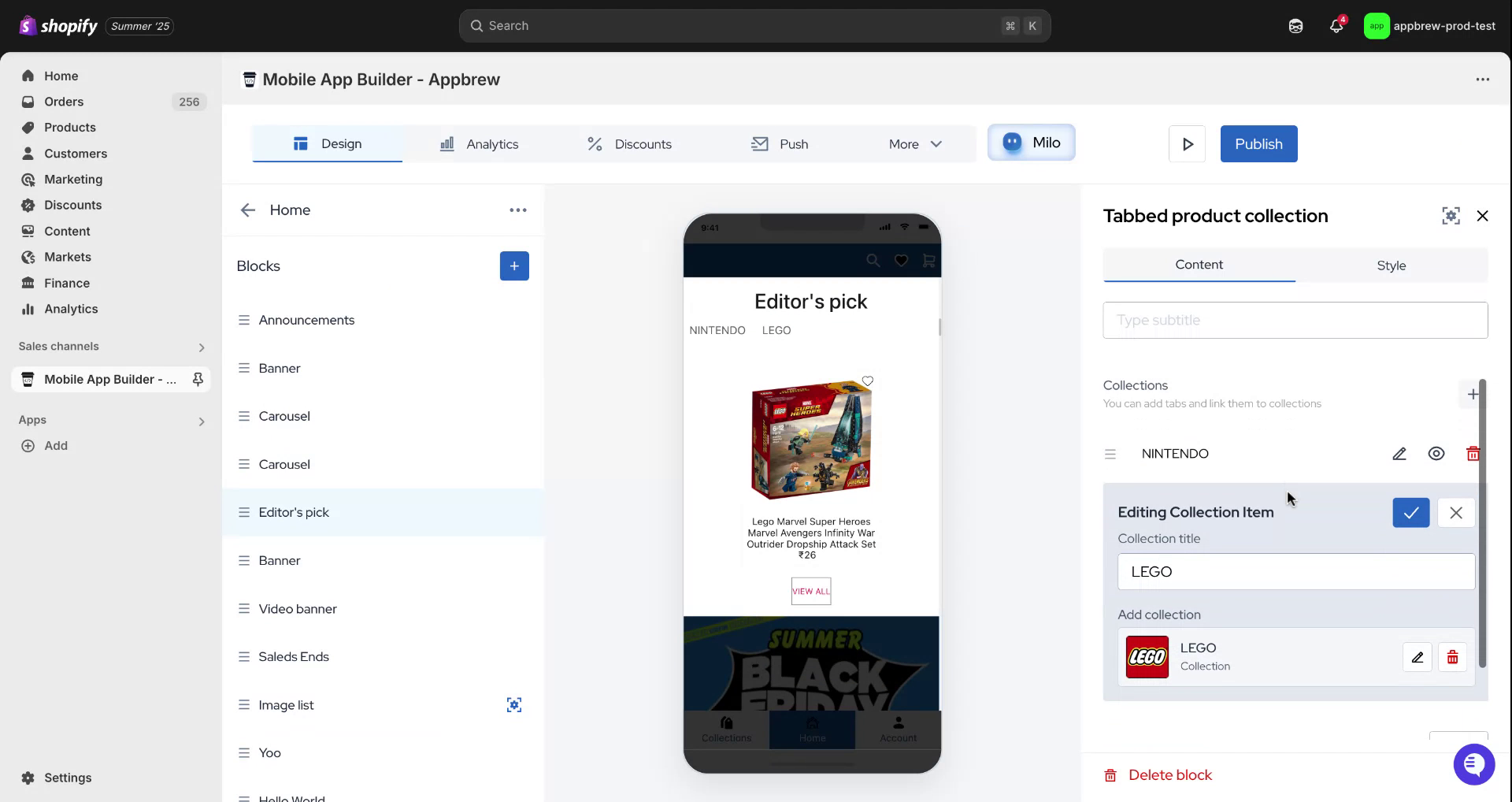
For this example, select the "Nintendo" collection. You can also add multiple collections by clicking on the plus icon and assigning a name to each new collection.
Step 4
Assign the name "New" to your collection, and add a new collection with its respective redirection link, such as "Lego." You can also change the title and subtitle names as desired.
Step 5
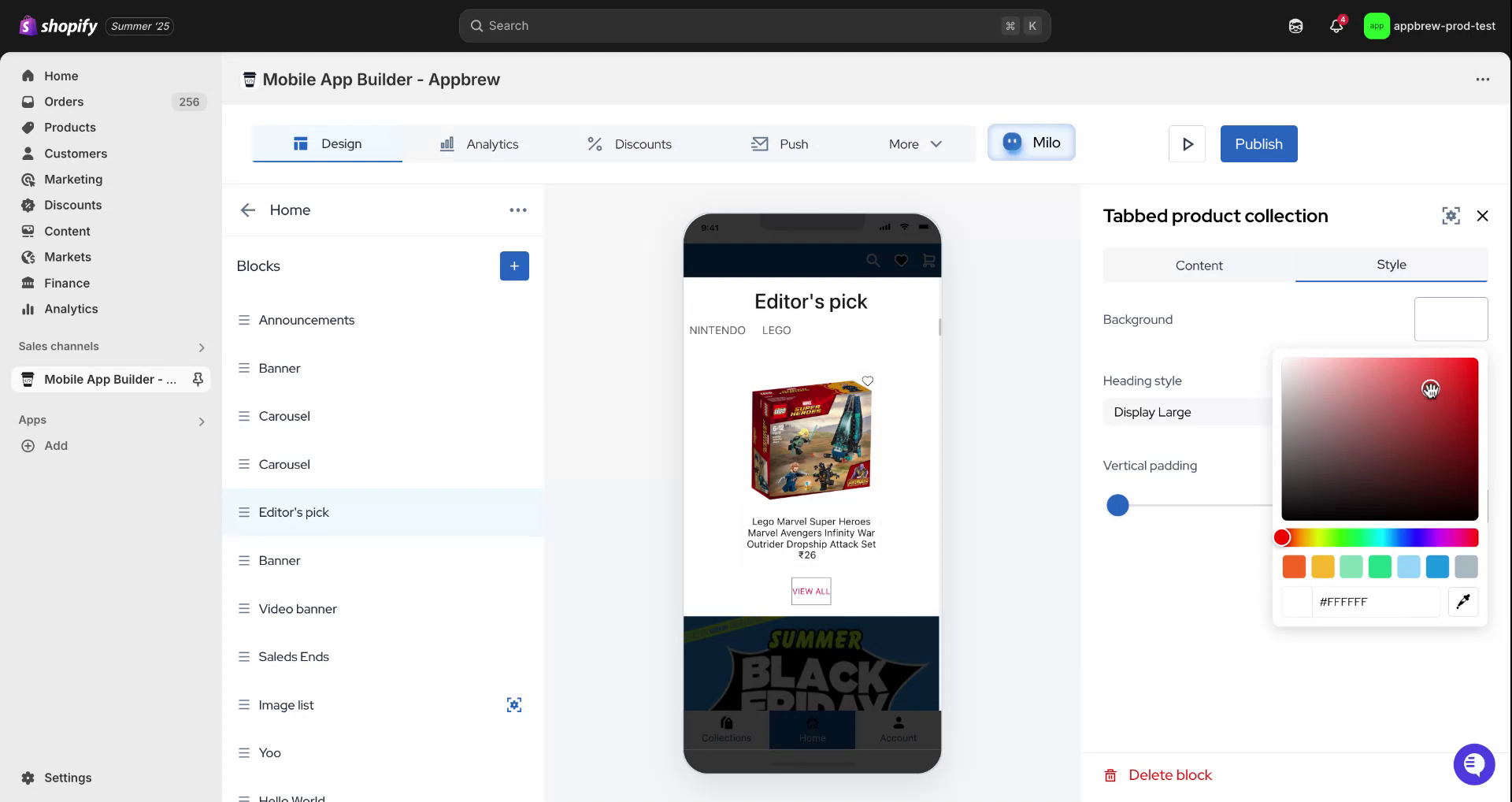
An option is available to specify the number of items displayed on the horizontal screen. Once configured, navigate to "Style" to change the background color. Choose any color for this demonstration.
Step 6
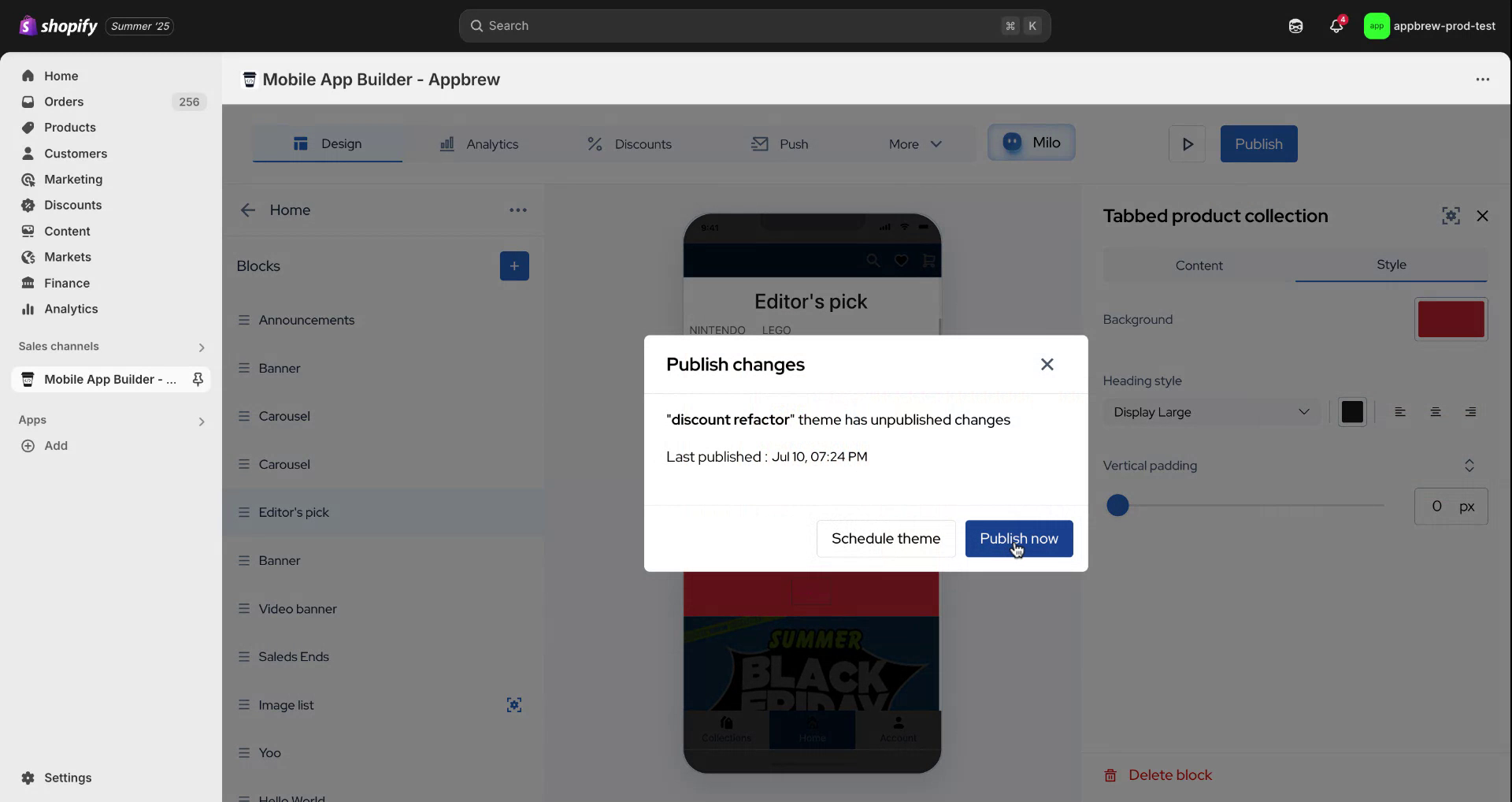
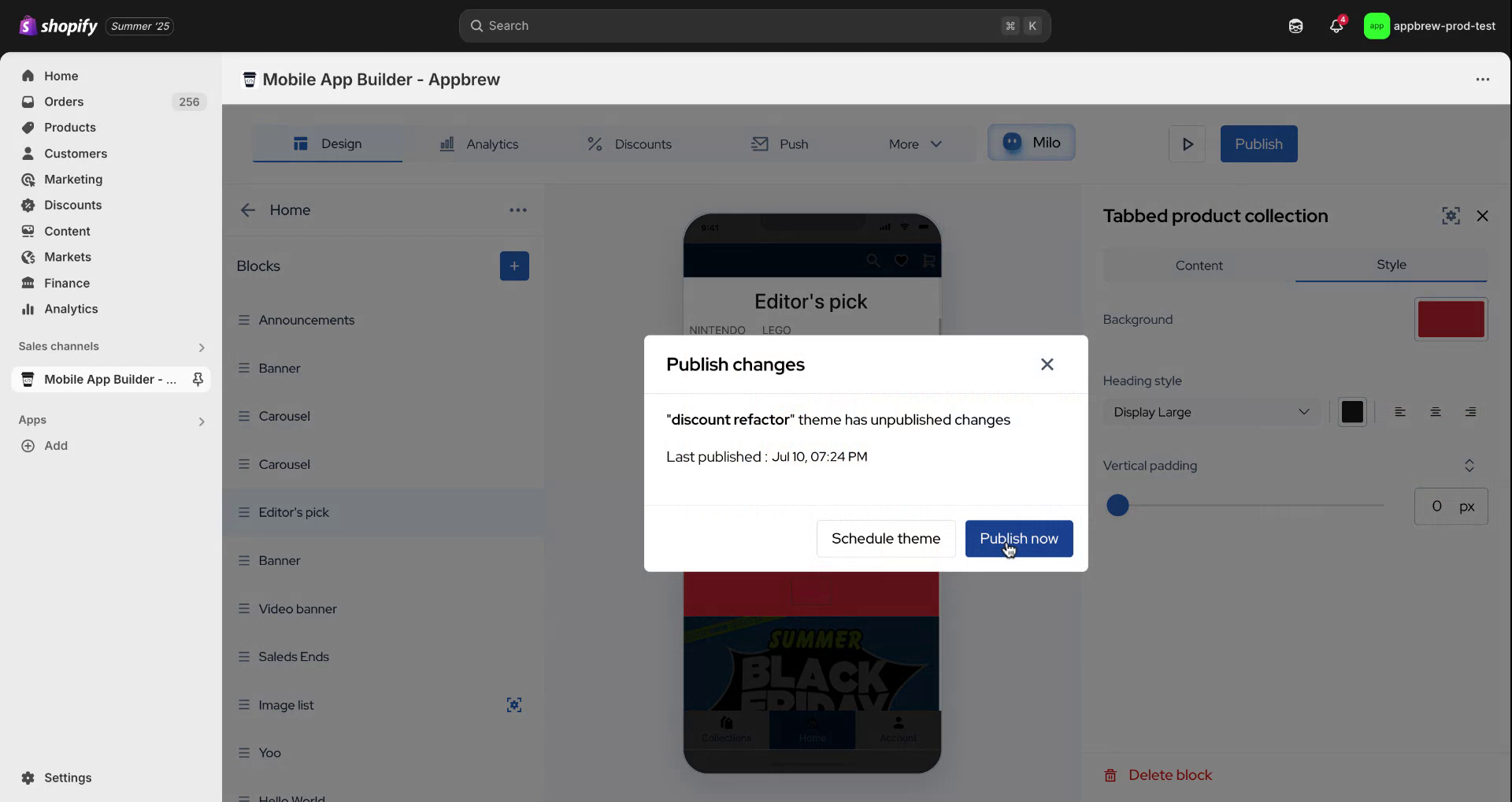
Once satisfied with the appearance, click "Publish" to make your changes live. This completes the process.
Step 7
Thank you for following along with this process.