Cart goals
Last updated: June 15, 2026
Overview
Cart Goals is a conversion optimisation tool in AppBrew Studio that encourages customers to reach specific spending or quantity thresholds in exchange for rewards. By displaying a visual progress indicator directly in the cart, brands can nudge customers to add more items to their order — driving higher Average Order Value (AOV) and unlocking discounts or incentives along the way.
What It Does
Cart Goals lets brands configure reward-based milestones that appear as an interactive progress block in the cart. Brands can choose between two block types:
Single Goal Progress — Displays one milestone at a time with a simple progress indicator, ideal for a single threshold-based reward
Multi-Goal Progress — Displays multiple milestones in sequence, allowing brands to stack up to 5 goals and reward customers at different spending levels
Both block types support two unlock conditions — Cart Amount (based on spend) or Cart Quantity (based on number of items) — and are fully customisable in terms of layout, icons, and messaging across each goal state.
⚠ Important: Cart Goals controls the design and messaging only. To ensure rewards are automatically applied at checkout, you must set up matching discounts in the Discounts tab. Navigate to Discounts and configure the corresponding discount rules to match each goal you have set up.
How to Set It Up
Single Goal Progress Block
Navigate to the cart page — Go to the design page in Studio and select the cart page from the page list.
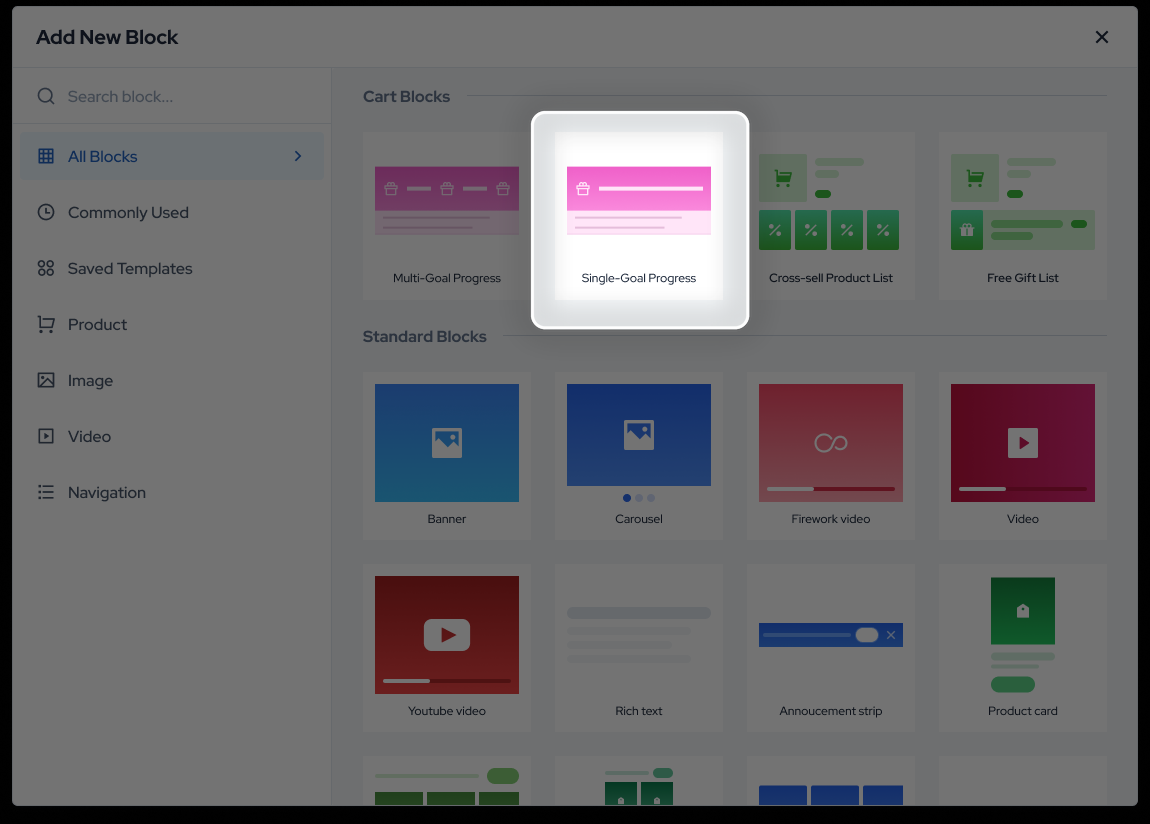
Add the block — Click Add Block and search for or select Single Goal Progress from the block library.
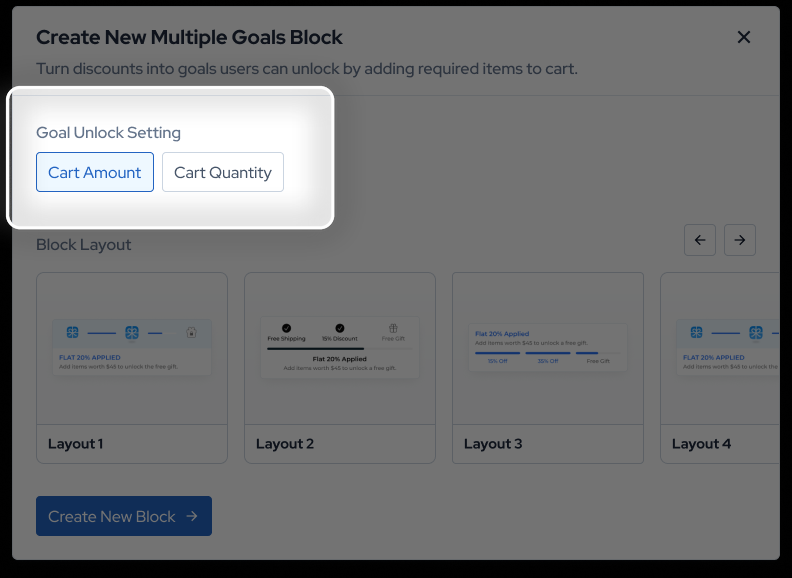
Select your goal unlock condition — Choose either Cart Amount (triggers based on spend value) or Cart Quantity (triggers based on number of items in cart).
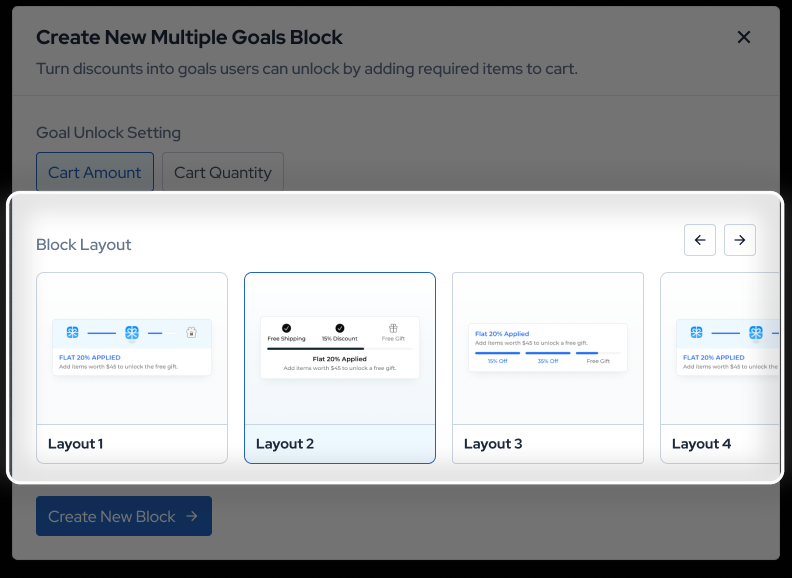
Choose a layout — Select one of the 3 available layout options. Each layout presents the progress indicator in a different visual style — pick the one that best suits your cart design.
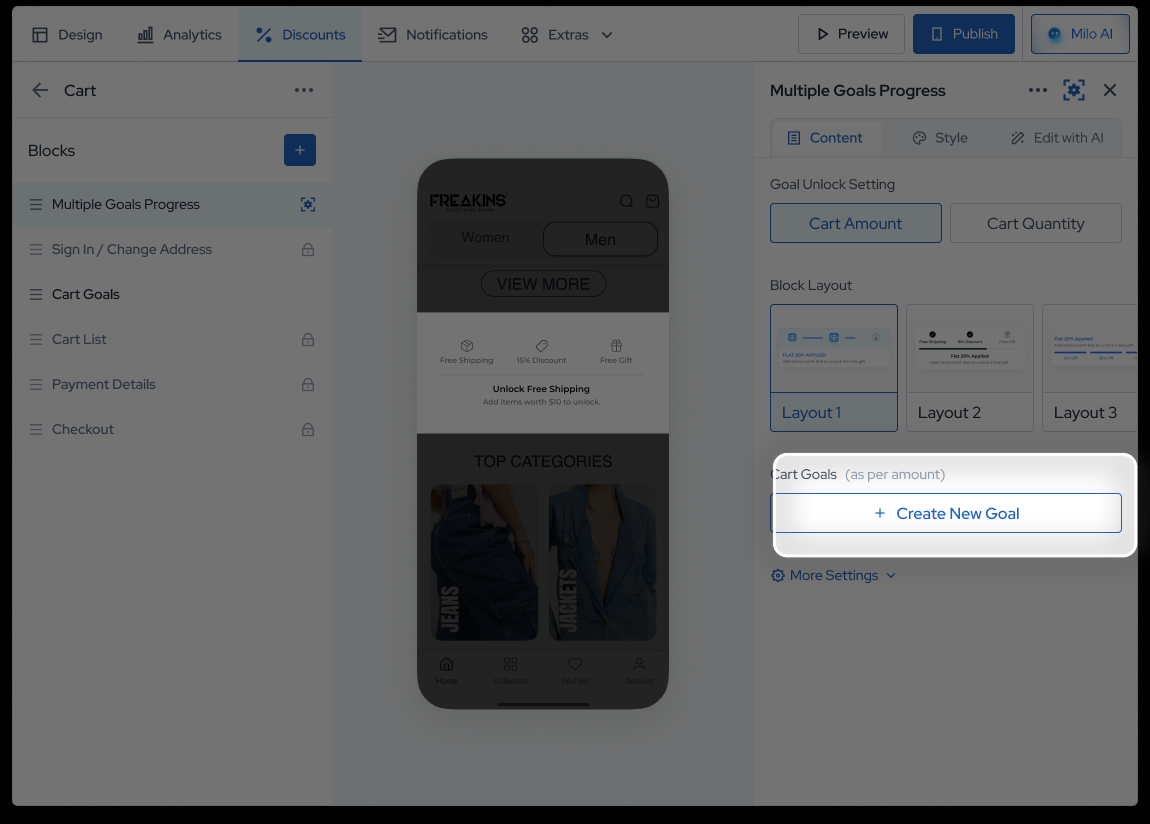
Create a new goal — Click + Create New Goal in the right panel to open the goal setup screen.
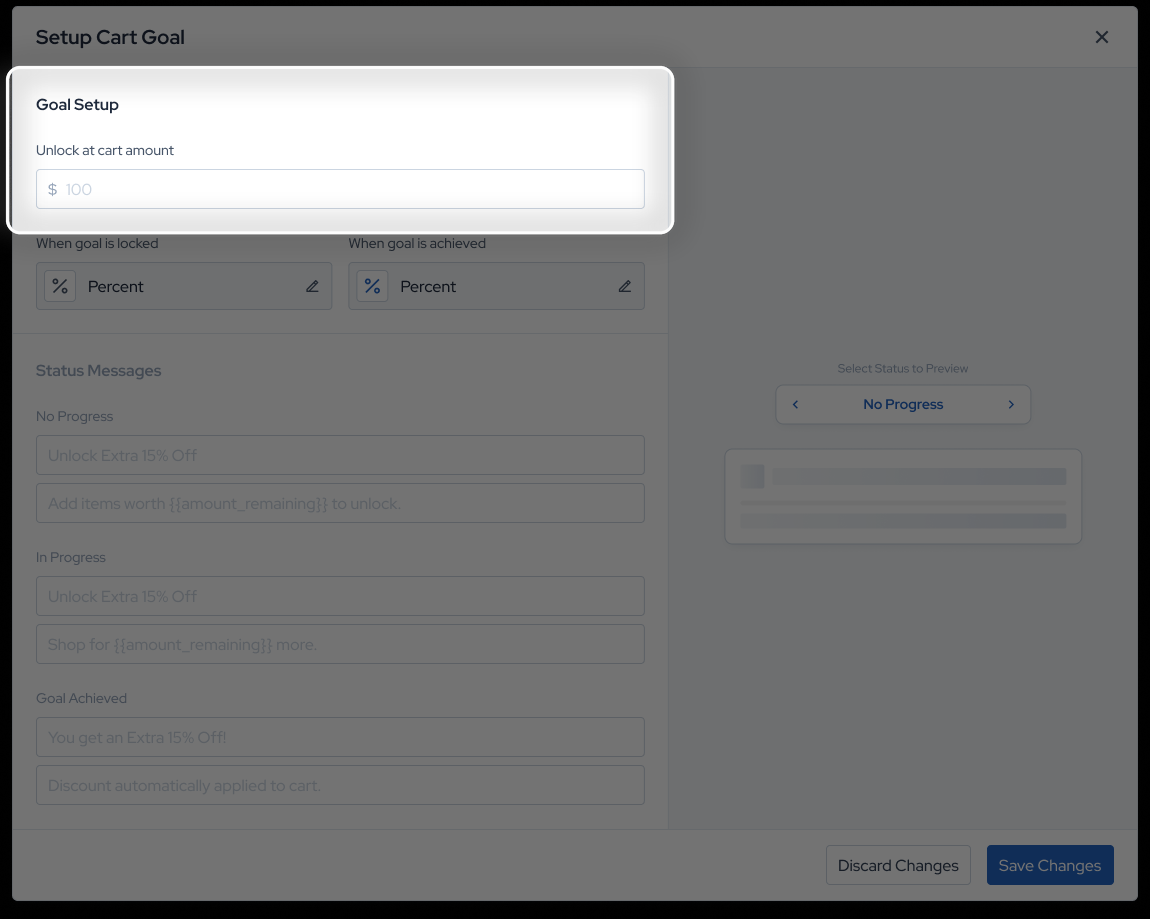
Set the unlock threshold — Enter the cart amount or quantity value at which this goal should be unlocked.
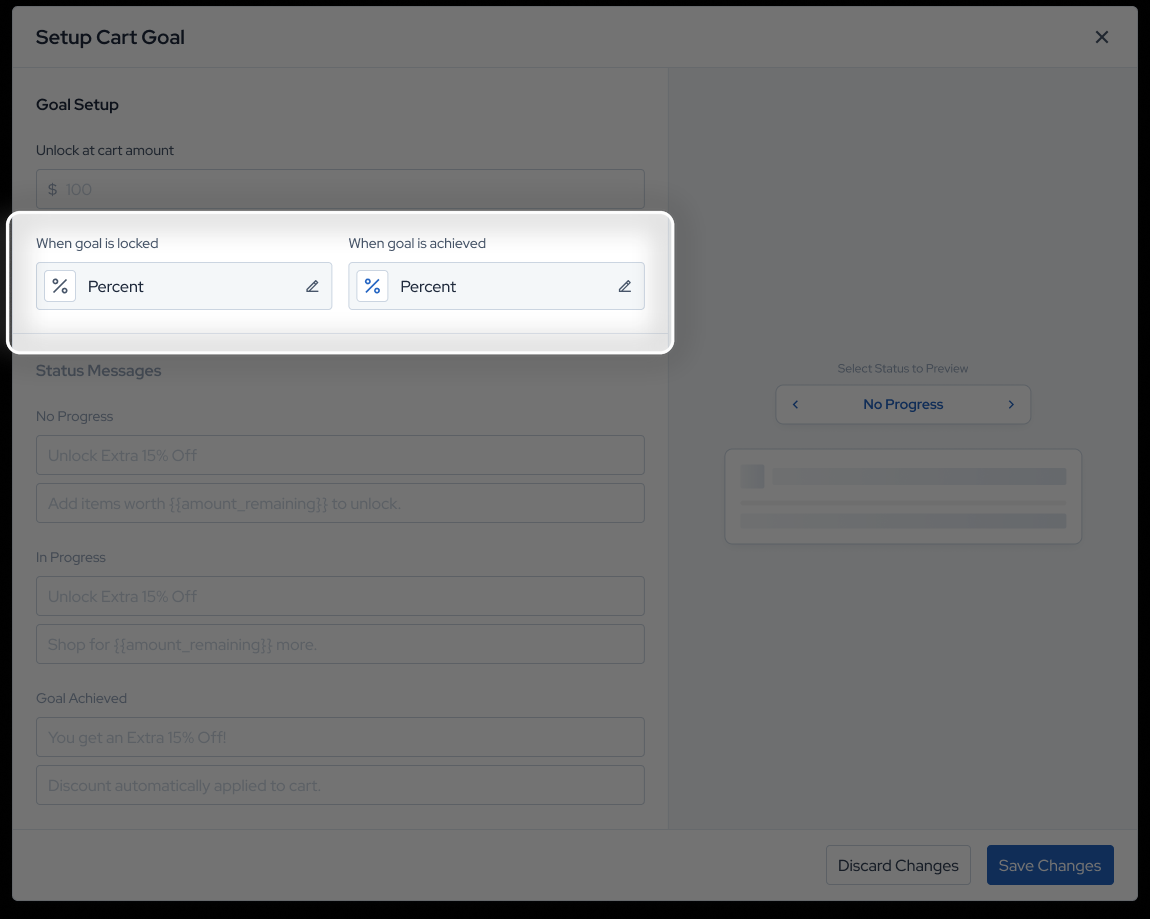
Configure the progress bar icon — The default icon is pre-selected (Goal-Discount-Filled). You can edit it or proceed with the default.
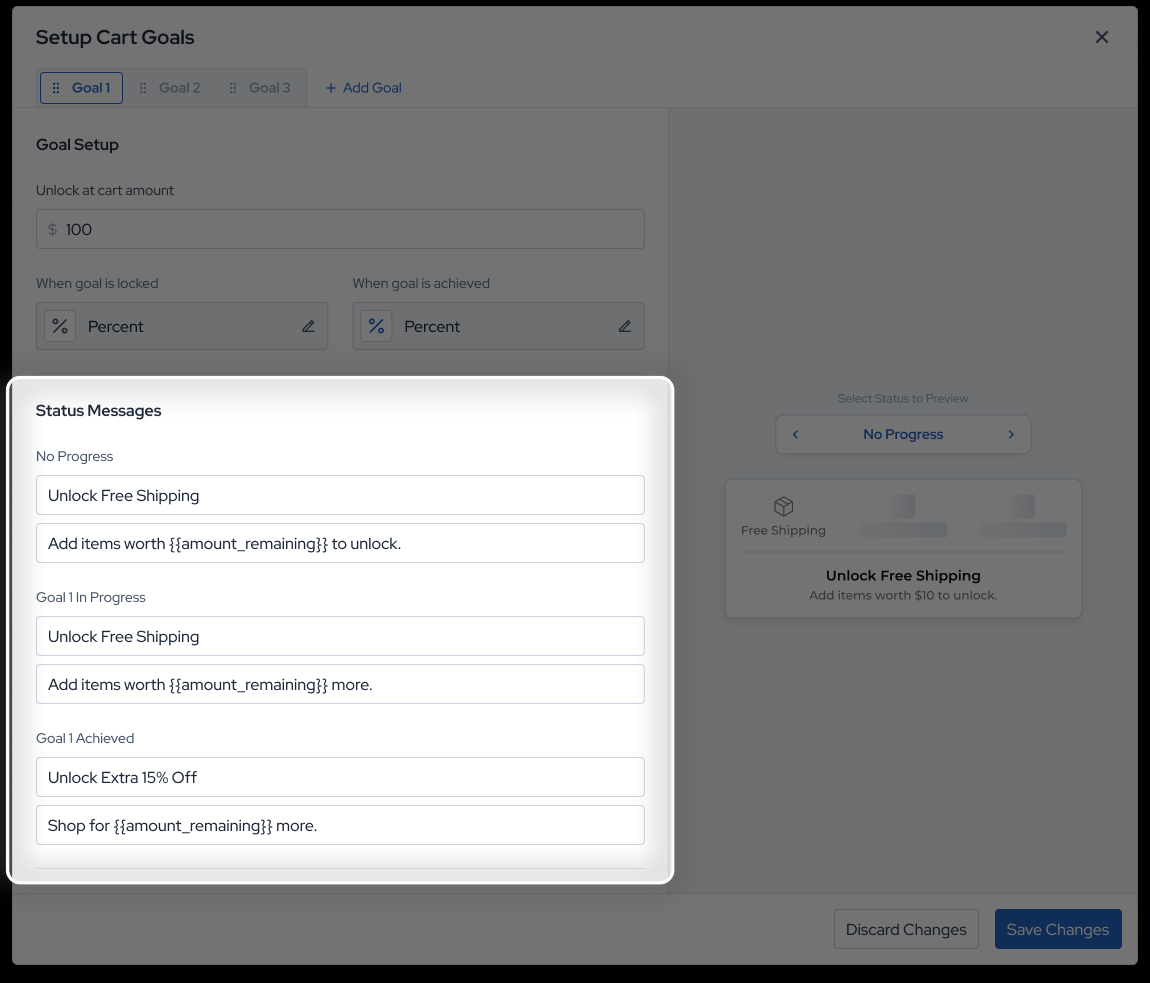
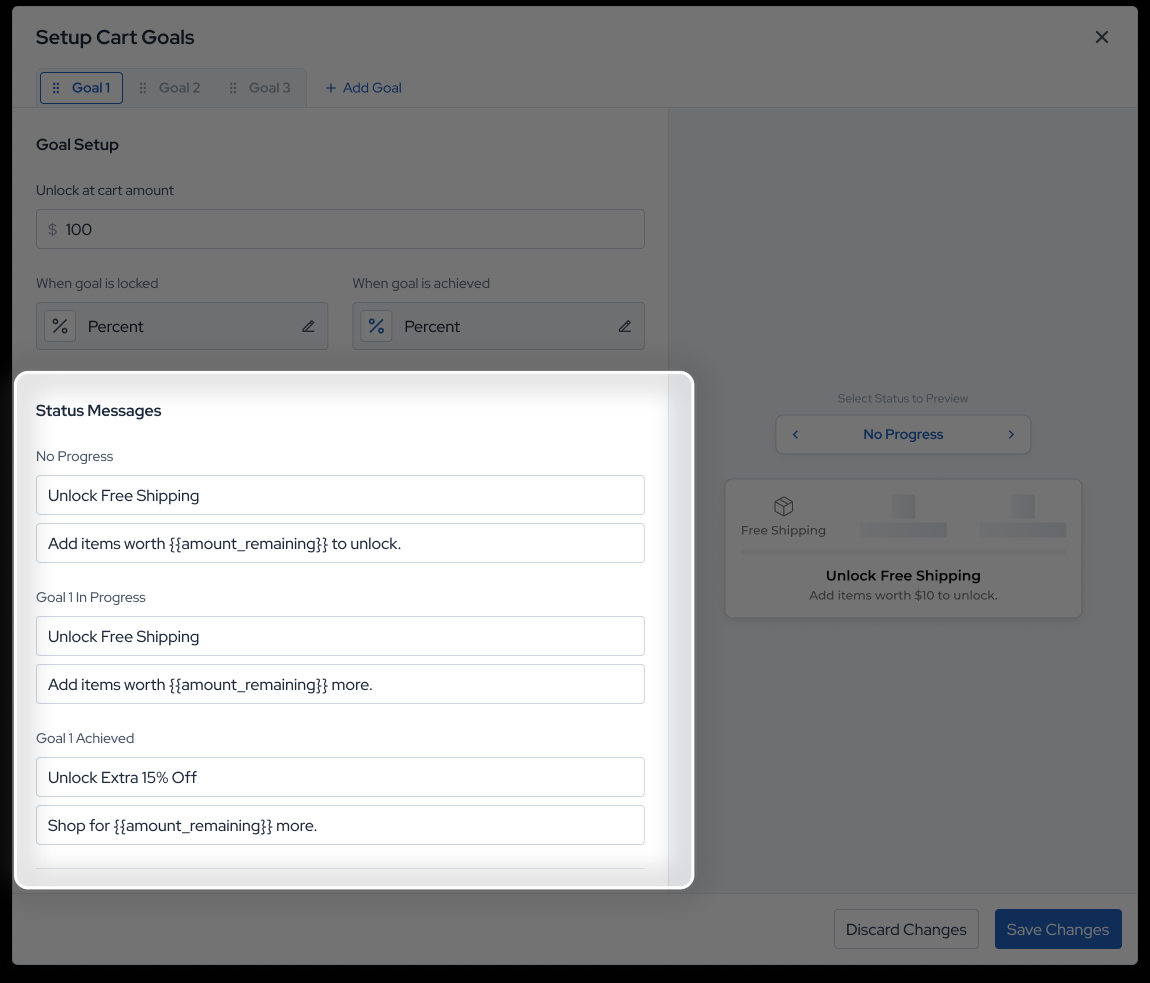
Add status messages — Set the title and subtext for each of the three goal states:
No Progress — Message shown when the customer hasn't started working towards the goal (e.g. Unlock Extra Savings / Add {{goalDiffFormatted}} more to unlock.)
In Progress — Message shown when the customer is partway to the goal (e.g. Almost There! / Shop for {{goalDiffFormatted}} more to unlock.)
Goal Achieved — Message shown when the customer has reached the goal threshold
Save — Click Save Changes to apply the goal to your cart.
Multi-Goal Progress Block
Navigate to the cart page — Go to the design page in Studio and select the cart page from the page list.
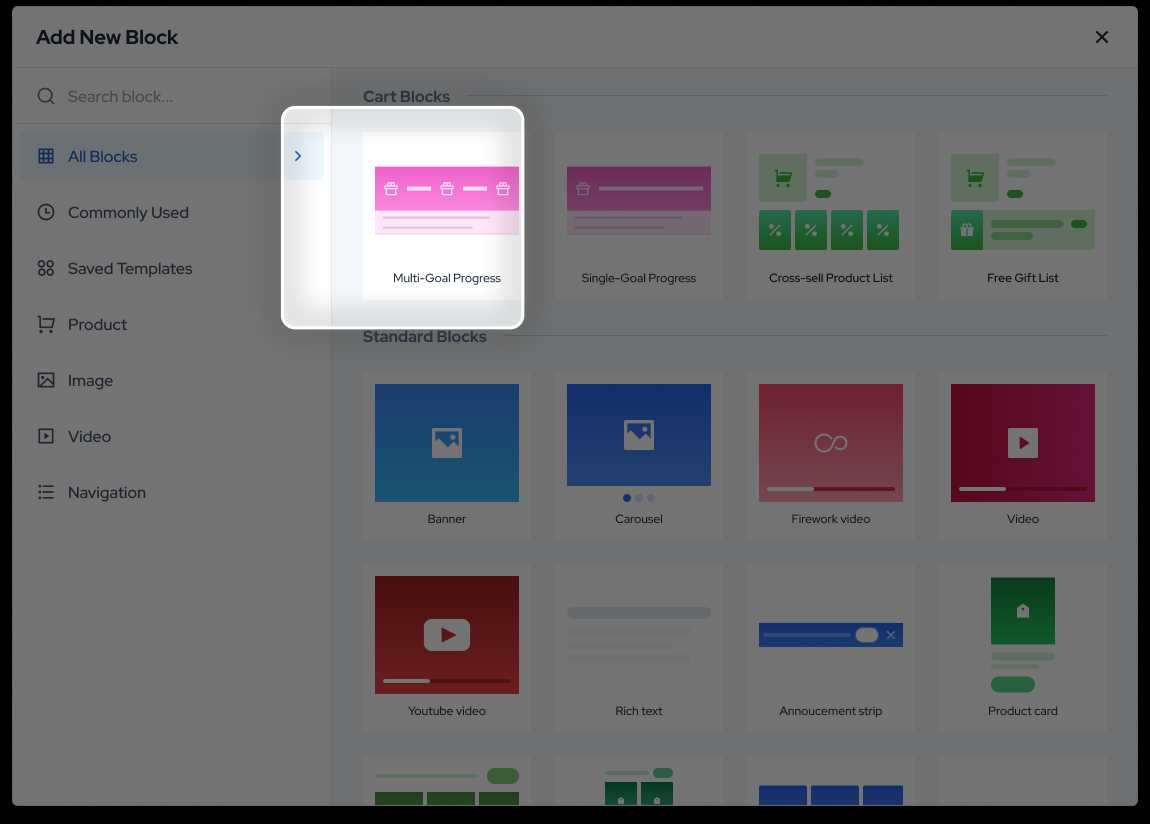
Add the block — Click Add Block and search for or select Multi-Goal Progress from the block library.
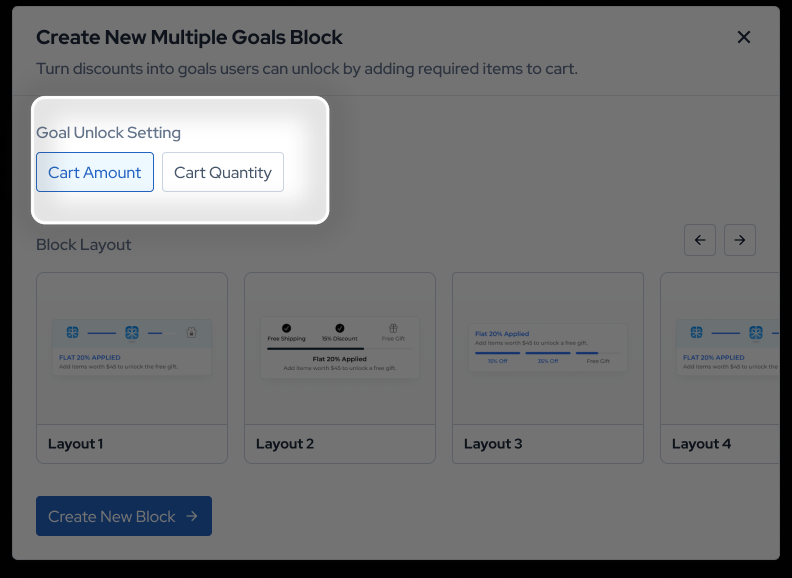
Select your goal unlock condition — Choose either Cart Amount or Cart Quantity.
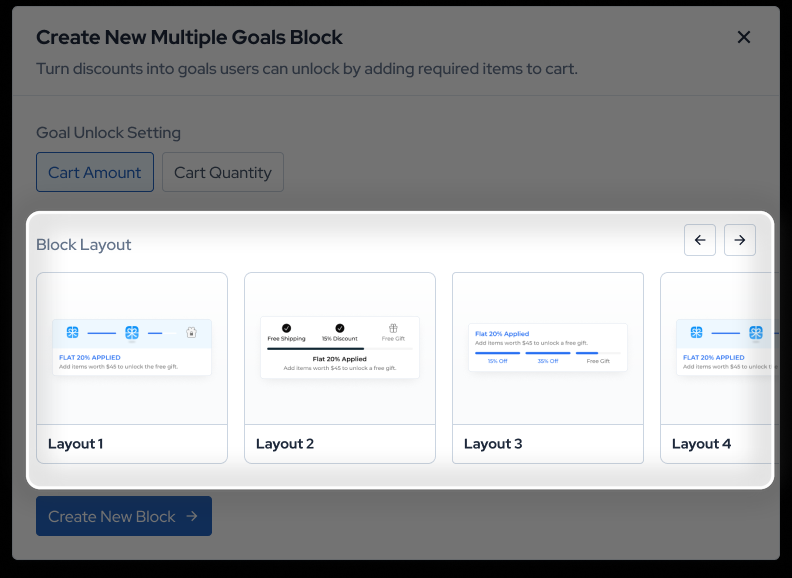
Choose a layout — Select one of the 6 available layout options. Layouts vary in how they visually represent multiple milestones — from icon rows to step indicators and progress bars.
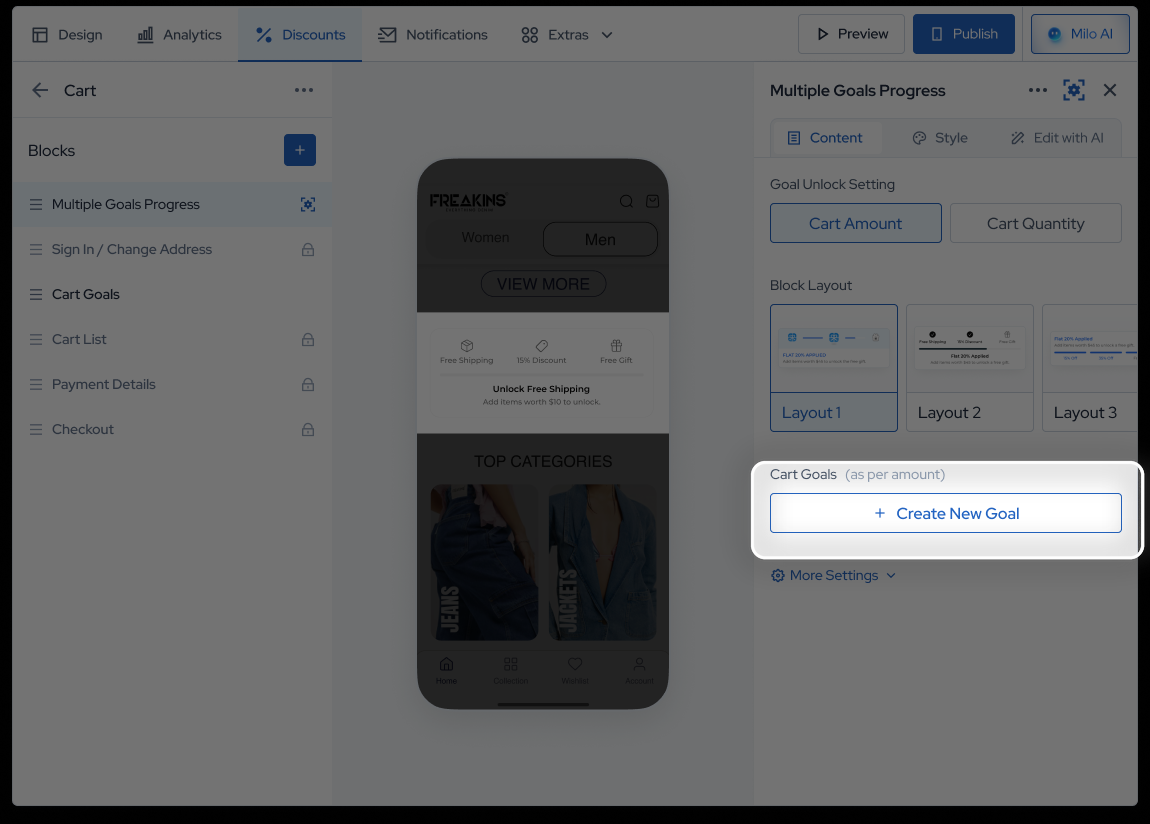
Create your goals — Click + Create New Goal in the right panel. You can create up to 5 goals. Use the Goal 1, Goal 2, Goal 3... tabs at the top to switch between goals and configure each one individually.
For each goal, set the following based on the selected layout:
Goal Title — A short label for the goal (e.g. 10% Off)
Unlock threshold — The cart amount or quantity required to unlock this goal
Goal locked icon — The icon shown before the goal is achieved (default: Goal-Discount)
Goal achieved icon — The icon shown once the goal is unlocked (default: Goal-Discount-Filled)
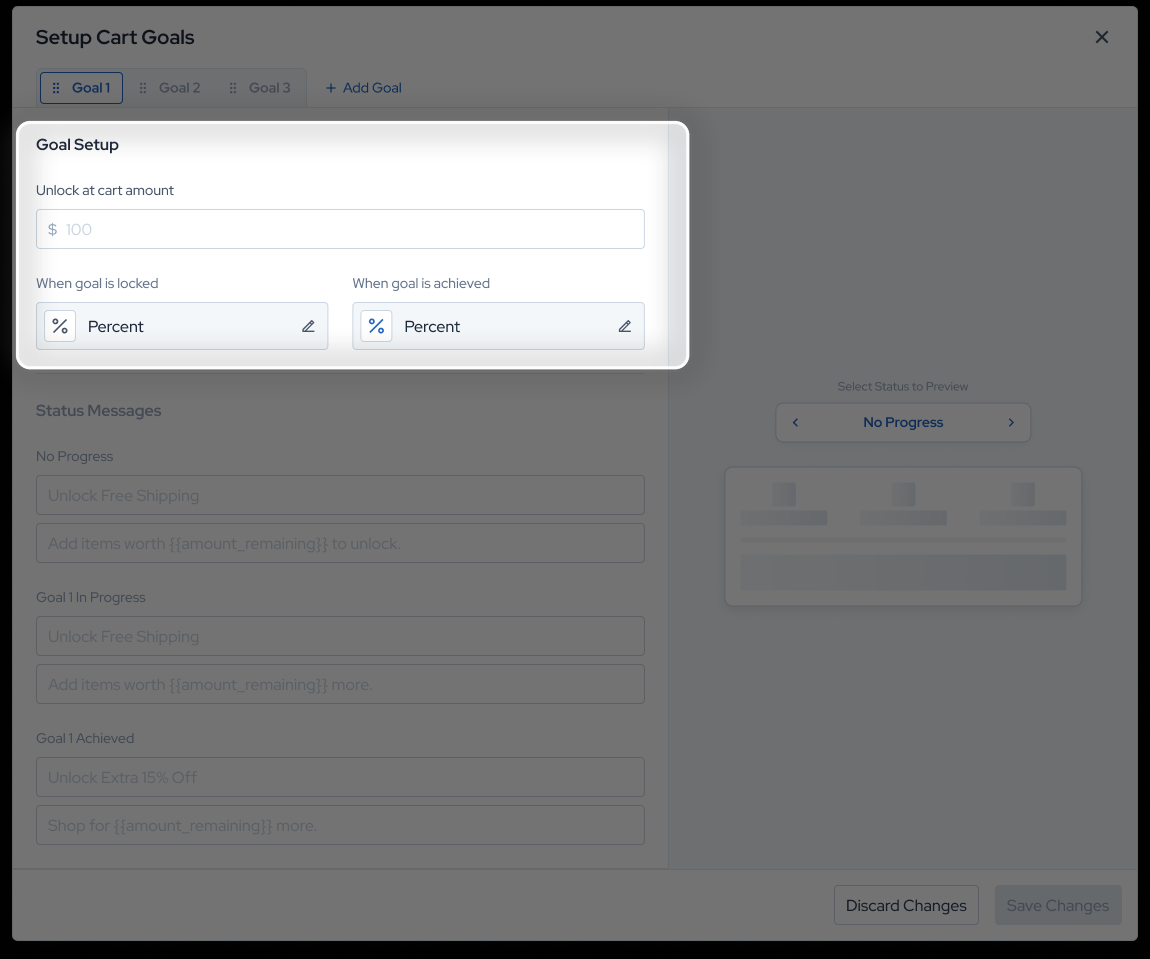
Add status messages per goal — For each goal, set the heading and subtext for the relevant states. These can be customised per goal using the tab navigation.
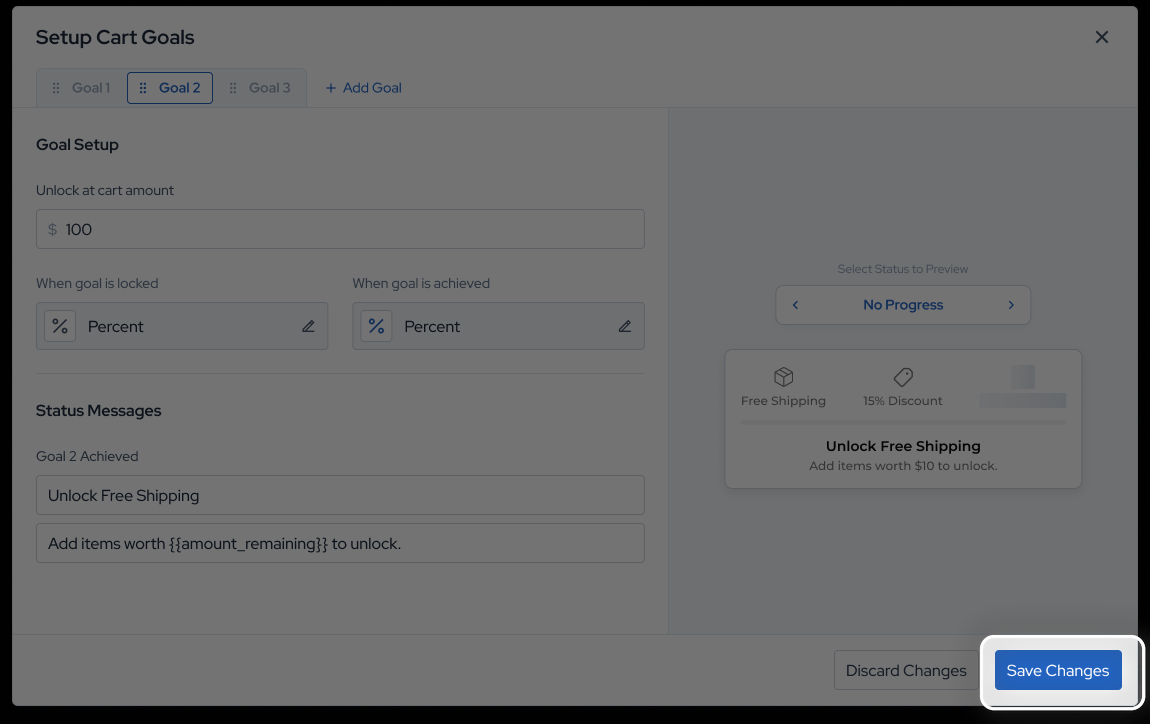
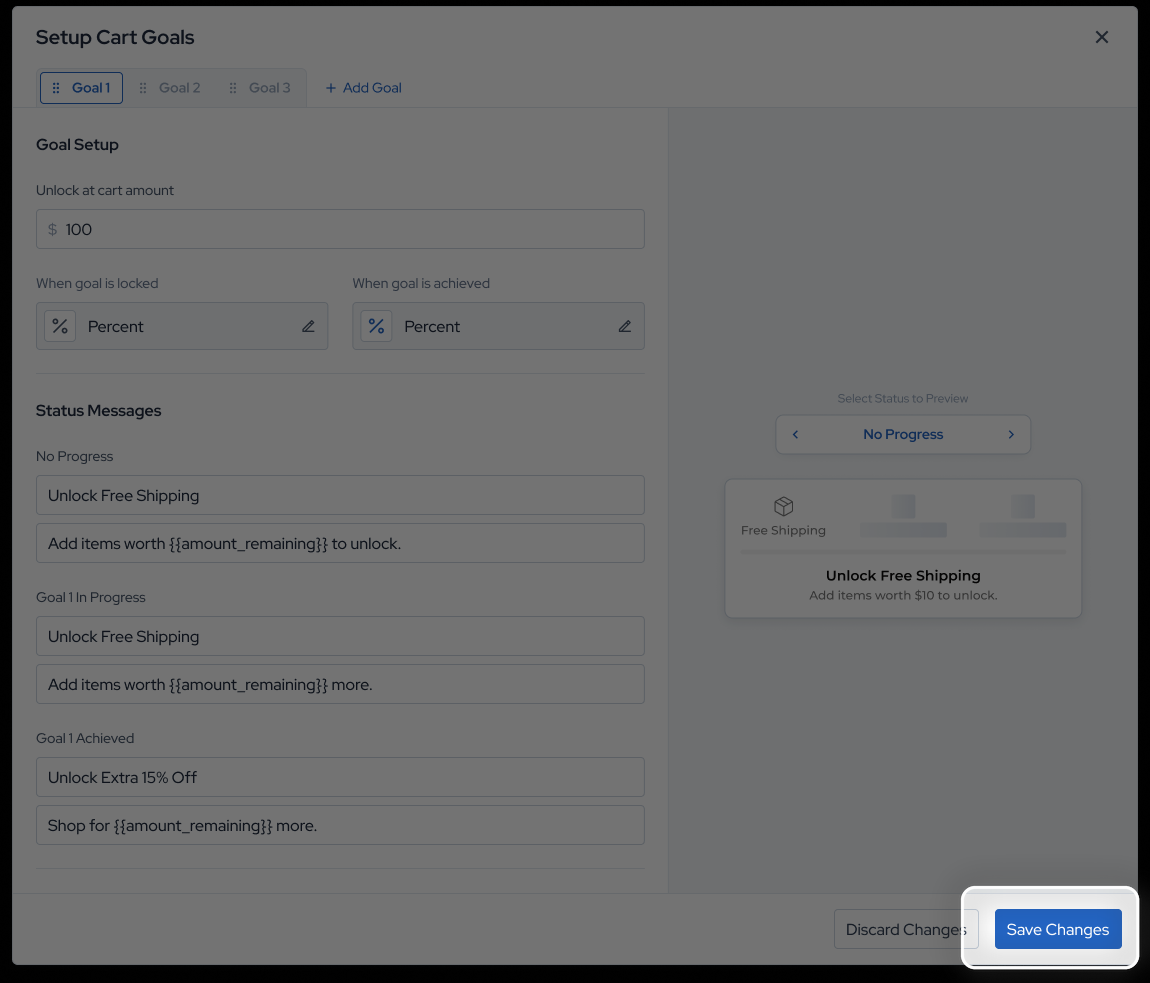
Save — Click Save Changes to apply.
Excluding Products from Cart Goals
To prevent specific products from counting towards cart goals, navigate to More Settings in the right panel and select the relevant product tags under Exclude products with tags. Any products carrying those tags will be excluded from the goal calculation.
Common Use Cases
Fashion & Apparel
Tiered Order Discounts — Use a multi-goal block to unlock increasing amounts off the total order at different spend thresholds (e.g. 10% off at ₹500, 20% off at ₹1000), rewarding customers who spend more in a single session.
Buy More, Get More — Set a cart quantity goal that triggers a Buy X Get Y offer, such as buying 2 items to get a third at 50% off — encouraging customers to complete a look or outfit.
Beauty & Personal Care
Free Gift with Purchase — Set a spend-based cart goal that unlocks a free product or sample once a customer's cart hits a target value — a highly effective incentive for customers who are close to the threshold.
Skincare Bundle Discount — Use a cart quantity goal to unlock a bundle discount when a customer adds a set number of products, encouraging them to complete a routine rather than buying a single item.
Health & Wellness
Supplement Bundle Discount — Set a quantity-based goal that unlocks a bundle discount when customers add a minimum number of units to their cart, driving higher per-order volume on repeat-purchase products.
Amount Off for Larger Orders — Use a spend-based cart goal to unlock an amount off the total order for customers who cross a set threshold, incentivising customers to stock up rather than buy in small quantities.
General Commerce
Minimum Order Discount — Use a single cart goal to communicate a minimum spend required to unlock an amount off the order, reducing cart abandonment at checkout and nudging customers to add one more item.
Free Gift on First App Order — Set a cart goal that unlocks a free gift with purchase for customers who meet the spend threshold, making the first app order experience memorable and driving long-term retention.
FAQs
What is the difference between Single Goal and Multi-Goal Progress blocks?
The Single Goal block displays one reward milestone at a time with a simple progress indicator. The Multi-Goal block allows you to set up to 5 milestones in sequence, rewarding customers at different spend or quantity thresholds within the same cart session.
Do Cart Goals automatically apply discounts at checkout?
No. Cart Goals controls the design and messaging only. You must set up matching discounts in the Discounts tab to ensure the rewards are automatically applied at checkout when a customer reaches a goal.
What is the difference between Cart Amount and Cart Quantity unlock conditions?
Cart Amount triggers goals based on the total spend value in the cart. Cart Quantity triggers goals based on the number of items added. Choose based on whether you want to incentivise higher spend or more product quantity.
How many goals can I create in a Multi-Goal block?
You can create up to 5 goals in a single Multi-Goal Progress block. Each goal is configured separately and can have its own threshold, icons, and status messages.
Can I customise the messages shown at each stage of a goal?
Yes. For both block types, you can set a custom heading and subtext for each goal state — No Progress, In Progress, and Goal Achieved. These messages support dynamic variables to show the customer how much more they need to spend.
Can I exclude certain products from counting towards cart goals?
Yes. Navigate to More Settings in the right panel and select the product tags you want to exclude. Products carrying those tags will not be counted towards the goal calculation.
How many layout options are available?
The Single Goal block offers 3 layout options. The Multi-Goal block offers 6 layout options, covering different visual styles for displaying multiple milestones.
Can I customise the icons shown in the progress block?
Yes. Both block types allow you to change the goal icons — including the locked state icon and the achieved state icon — either by selecting from the available options or uploading your own.