Third party checkout on app - FAQs
Last updated: March 23, 2026
FAQ1: How do I add a Shopify checkout button for international users? (apps using third party checkout)
Context
International customers may face issues entering their phone numbers during GoKwik or any other third party checkout, which can impact their ability to place orders. To provide a better checkout experience for international users, you can add an additional Shopify checkout button that redirects them directly to the native Shopify checkout process.
Answer
You can enable an "International Order" button through your GoKwik dashboard (or the respective third party dashboard) that will redirect international customers to the native Shopify checkout. This button will appear below the current GoKwik checkout button.
To set this up:
Contact GoKwik Merchant Care through your GoKwik Dashboard at https://dashboard.gokwik.co/login OR simply reach the support team out over email.
Request to enable the international checkout button for your store
Specify that you want the button placed at the checkout level
The GoKwik team will implement the button and notify you when the changes are live
Important limitations:
The button position cannot be customized - it will appear in a fixed location below the GoKwik checkout button
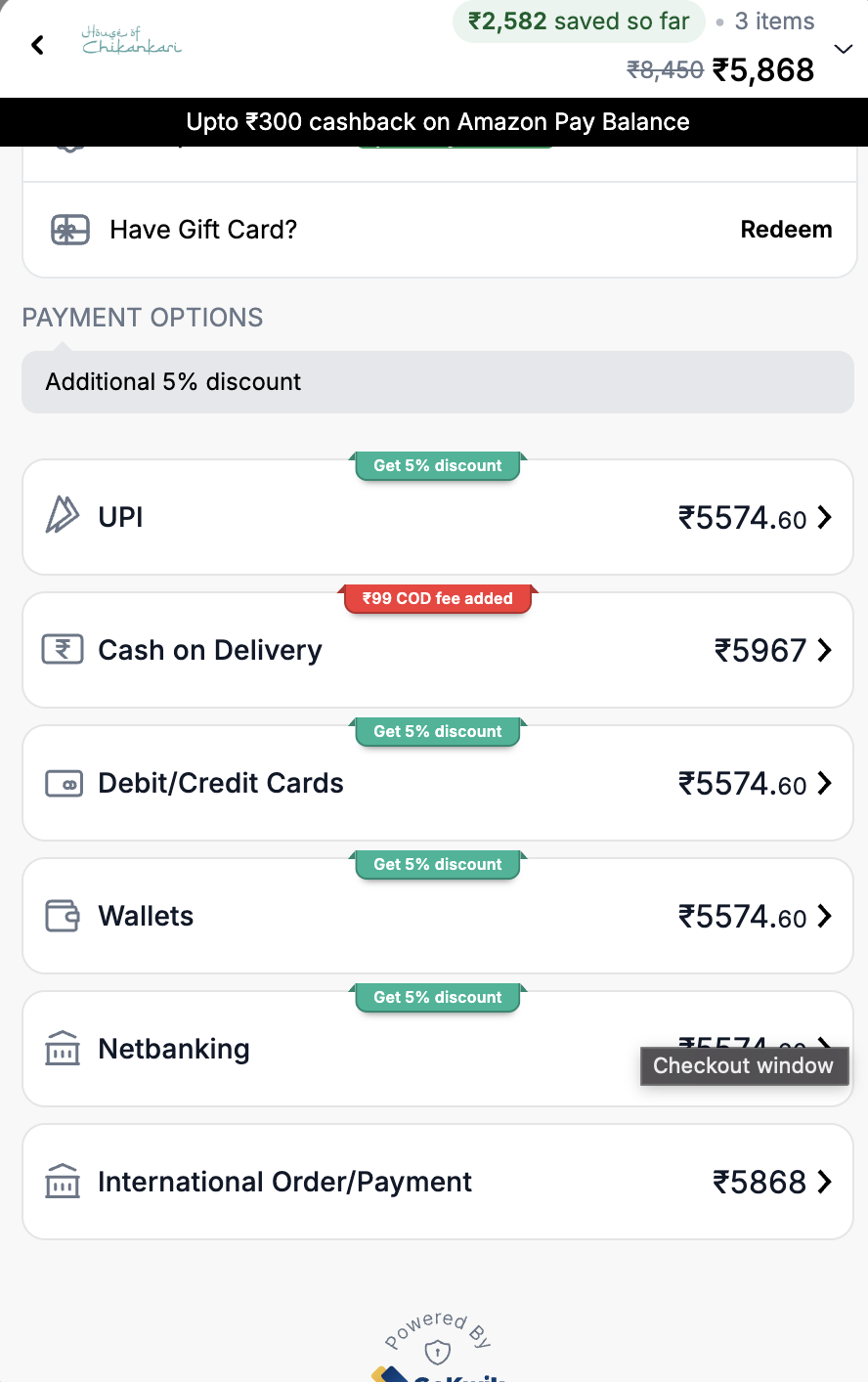
For mobile app users: This feature works at the checkout level within the app's WebView, but cart-level redirection is not currently supported in mobile apps
Once enabled, international customers will be able to click the "International Order" button and complete their purchase using Shopify's native checkout, which should resolve phone number entry issues.
FAQ2 : Can I use coupon codes with loyalty points when using GoKwik / any other third party checkout on app?
Context
When using GoKwik as your checkout provider, you may want to enable coupon codes to work alongside loyalty points redemption. This is a common request during sales or promotional periods when customers want to stack discounts.
Answer
Unfortunately, when your app uses GoKwik checkout (a third-party service), coupon codes and loyalty points cannot be configured directly through the AppBrew dashboard. Since GoKwik handles the checkout process, all discounts and offers need to be configured directly in the GoKwik dashboard itself.
However, you can still inform customers about available coupon codes by displaying this information within your app:
Add promotional messaging to your cart page or other relevant pages
Use AppBrew blocks like announcement bars or ticker blocks to highlight the coupon
Include messaging such as "Apply 5% off at checkout — use code EXTRA5OFF"
To enable the actual coupon functionality with loyalty points, you'll need to configure this directly in your GoKwik dashboard settings.
FAQ3: Why is my checkout page loading slowly in the mobile app?
Context
You may notice delays when users click the checkout button and navigate to the payment page in your mobile app. This can affect the user experience and potentially impact conversion rates. Understanding the factors that influence checkout loading times can help you better manage expectations and troubleshoot performance issues.
Answer
Checkout pages in mobile apps typically load within 3-5 seconds under normal conditions. The checkout functionality uses a webview to display your Shopify checkout OR any third party checkout, which means the app has limited control over the loading speed.
Several factors can affect checkout loading times:
Device performance: Lower-end devices may experience slower loading times
Network conditions: Poor internet connectivity can significantly impact loading speed
Third-party payment providers: Additional payment solutions integrated into your checkout (like GoKwik payments) may add processing time
Shopify checkout complexity: The content and scripts on your checkout page affect loading speed
To investigate checkout performance issues:
Test the checkout flow on multiple devices with good network connectivity
Check your Google Analytics 4 (GA4) for detailed checkout performance data
Contact your payment provider if you're using third-party payment solutions
Review your Shopify checkout configuration for any unnecessary elements
Since the checkout loads in a webview, detailed performance metrics are not available directly from the app platform. You'll need to use your analytics tools to gather comprehensive data about checkout completion rates and loading times.
If you continue experiencing unusually long loading times (over 10 seconds consistently), consider reaching out to support with specific device models, network conditions, and screen recordings to help identify potential issues.