Order Summary
Last updated: August 11, 2025
Overview
The Order Summary is a critical component of the cart and checkout experience. It gives your customers a clear, transparent view of what they’re about to purchase — prices, quantities, discounts, taxes, and special requirements (like prescriptions).
Think of it as the last-mile marketing touchpoint — the final assurance a customer needs to feel confident before clicking “Checkout.”
🎯 Primary Objectives
Build Trust
Clear MRP vs. final price
Tax-inclusive pricing
Visible coupon and shipping info
Encourage Completion
Shows full value breakdown, reducing friction or doubts.
Reinforces savings through visuals (strikethrough pricing, tags).
Enable Informed Decision-Making
Prescription notices, shipping calculation info, and order content preview.
Prevents confusion that can cause cart abandonment.
Highlight Offers or Upsell Opportunities
Integrate with loyalty programs, show upsell messages, or trigger bundle incentives.
Customer Guide
Getting Started
Where It Lives:
Typically displayed right login/address block in the cart page or as a summary block during checkout.
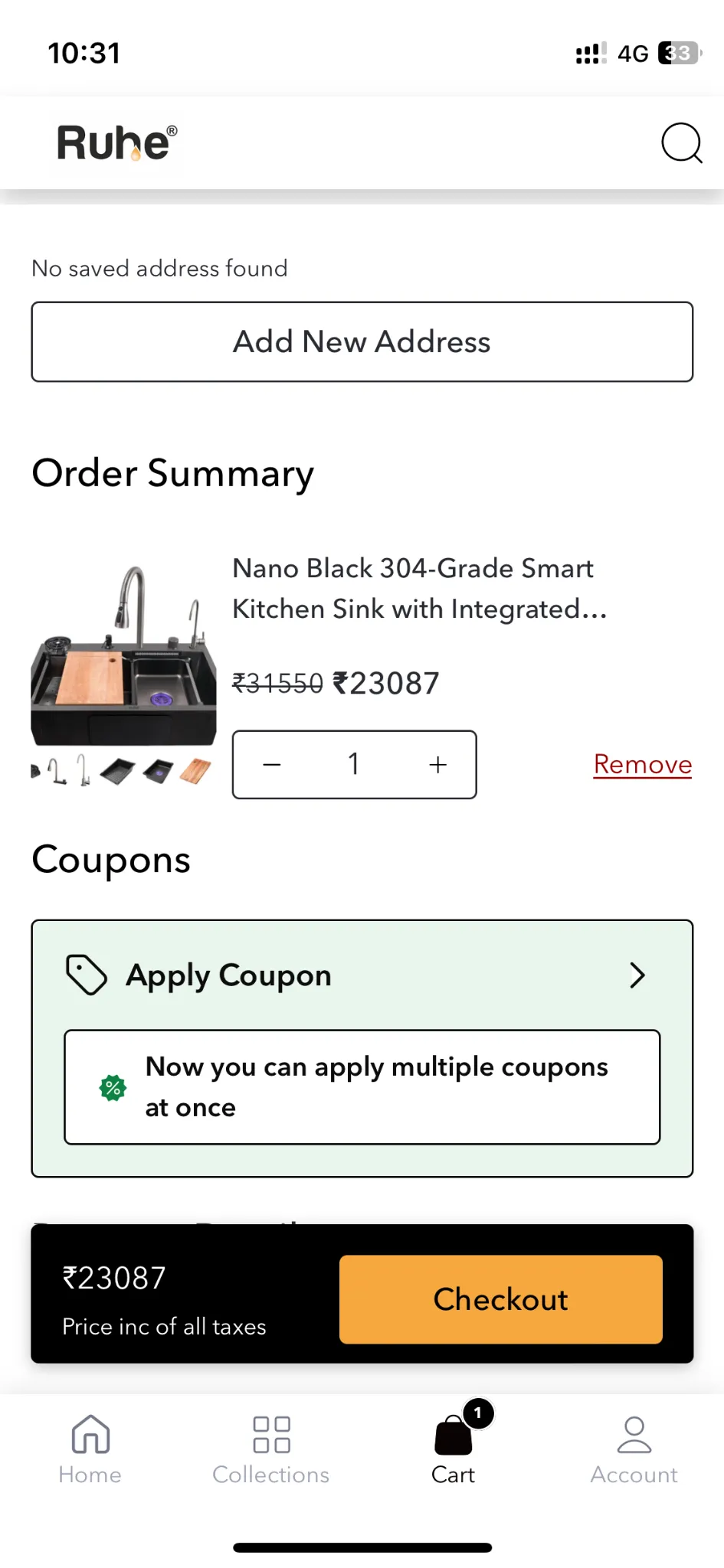
What It Includes:
ElementDescription | |
✅ Product Summary | Image, name, variation, and quantity controls |
💰 Pricing | MRP + discounted price (strikethrough MRP) |
🎟 Applied discount | Option to show applied automatic discount |
🏷 Discount Indicators | Clearly show how much was saved |
FAQ & Troubleshooting
Q1. Why isn’t the final price showing tax breakdown?
Solution: Add a static note — “Price includes all applicable taxes.” Most users don’t need itemized tax unless it’s B2B.
Q2. The prescription alert is ignored — users try to checkout without uploading.
Solution: Use red alert blocks and disable checkout until the prescription is uploaded (UX enforcement).
Q3. Why is the final price different from the product price I saw earlier?
Solution: Likely due to applied discounts or coupons. Appbrew supports dynamic pricing updates in the order summary, so the UI reflects actual pricing after any rules (e.g., tiered offers, bundle deals).
Q4. Shipping shows as ₹0 but changes later.
Solution: Use placeholder text — “Shipping calculated at checkout based on delivery location.”
Q5. How can I increase trust from this screen?
Use icons (lock, tax, delivery truck).
Q6. Is the Order Summary block helping or hurting conversion?
Use Appbrew Analytics or plug in GA/Firebase to track drop-offs at this screen. You can A/B test versions of this block using Appbrew’s visual editor.
Q6. Where are users dropping off — before or after seeing this summary?
Appbrew allows screen-level event tracking and funnel analysis. Set up event triggers at
Order Summary ViewandCheckout Button Tap.
Q7. Does the block update in real-time when quantity or coupons change?
Yes. Appbrew supports reactive state management. Cart object updates trigger re-render of the Order Summary.
Q8. Do we show estimated delivery alongside the item?
No, currently we don’t show EDD on line items within order summary on the cart page.