How to enable a single image banner?
Last updated: July 8, 2025
Enabling a Single Image Banner for Your App
This document provides a detailed process for enabling a single image banner for your application using a Content Management System (CMS). Follow these steps to seamlessly upload and link an image to the desired section of your app.
Step 1
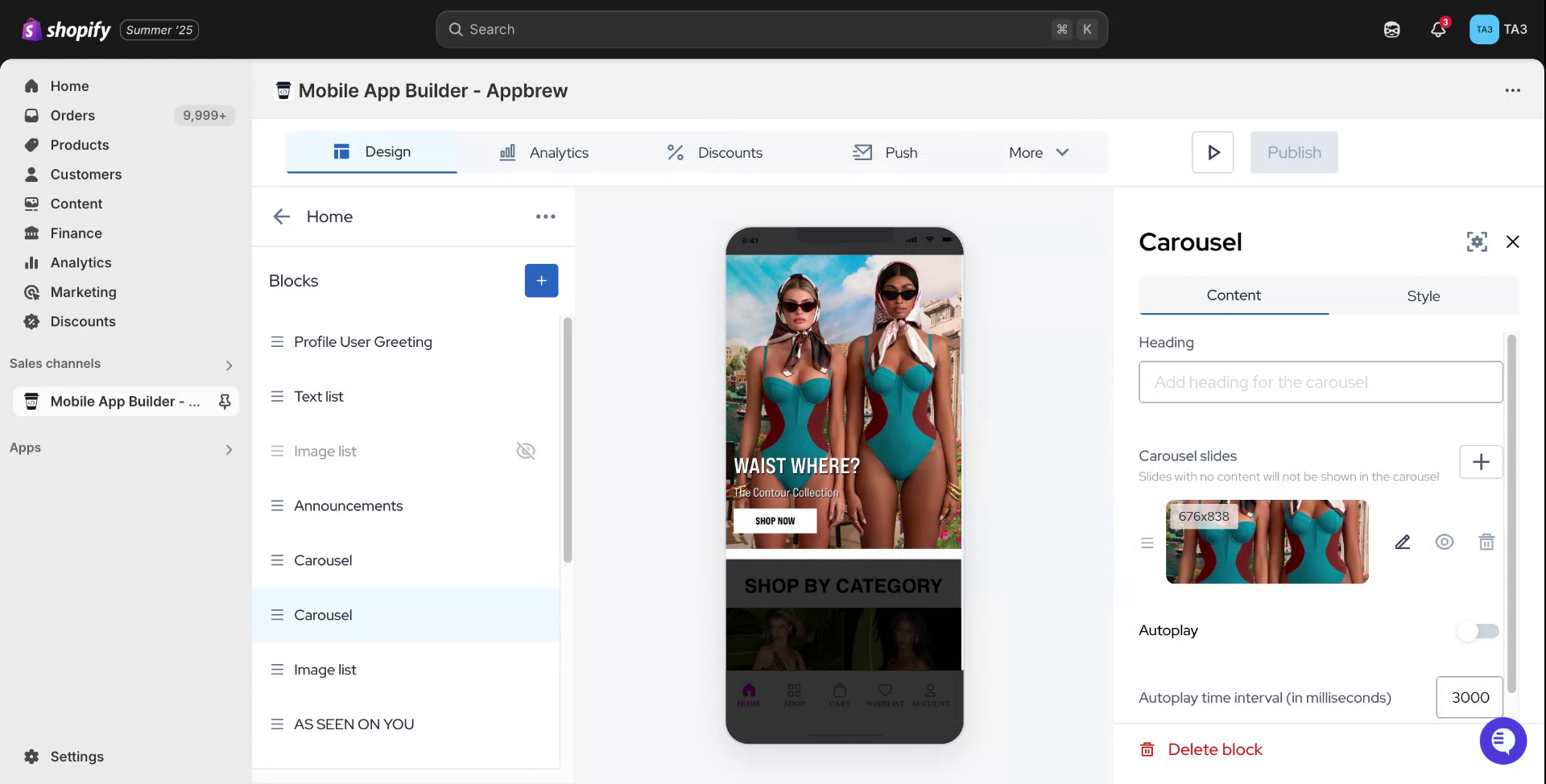
Begin by accessing your Content Management System (CMS). Navigate to the specific section you wish to edit and hover your cursor over it. An edit button will appear on the right-hand side.

Step 2
Upon clicking the edit button, the right-hand panel will display the uploaded image along with supported dimensions for that section. To choose an image, you have the option to upload a new media file or select an existing one from your file section.

Step 3
In this instance, choose a file from your existing collection. Scroll down to specify the URL you wish to associate with the banner.

Step 4
For example, you may want to link the banner to the sales page. Select the target landing page, verify your selection, and click on the Publish button. This action will automatically update and reflect in your application.

Step 5
We hope this guide was helpful. Thank you for following the instructions.