How to enable an Image Collage block for the app?
Last updated: July 13, 2025
Creating an Image Collage
This document outlines the process of adding an image collage using our platform. Follow these steps to effortlessly design and publish visually appealing image collages.
Step 1
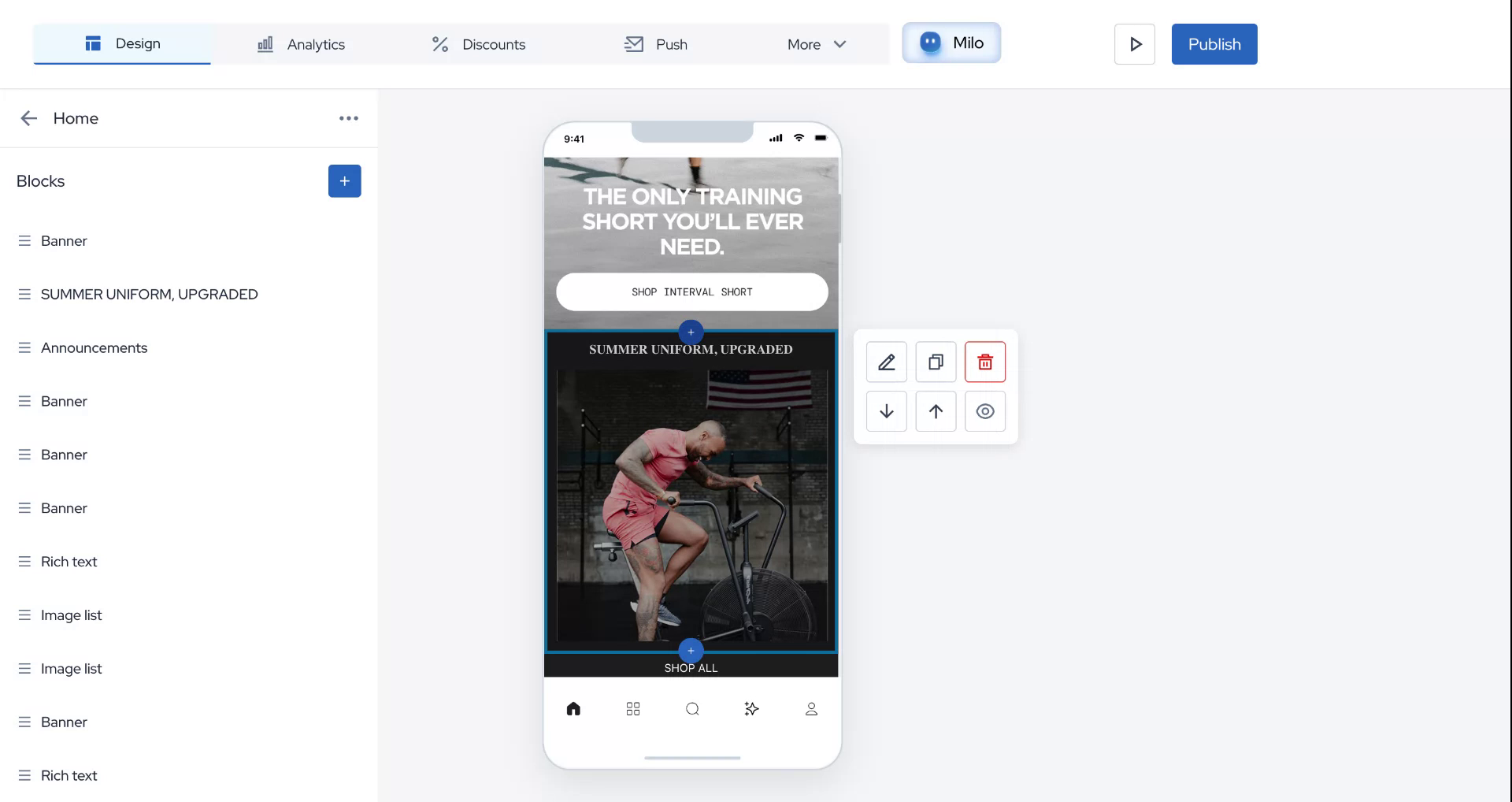
Start by clicking on the plus icon located on the image grid where you want to place your image collage.
Step 2
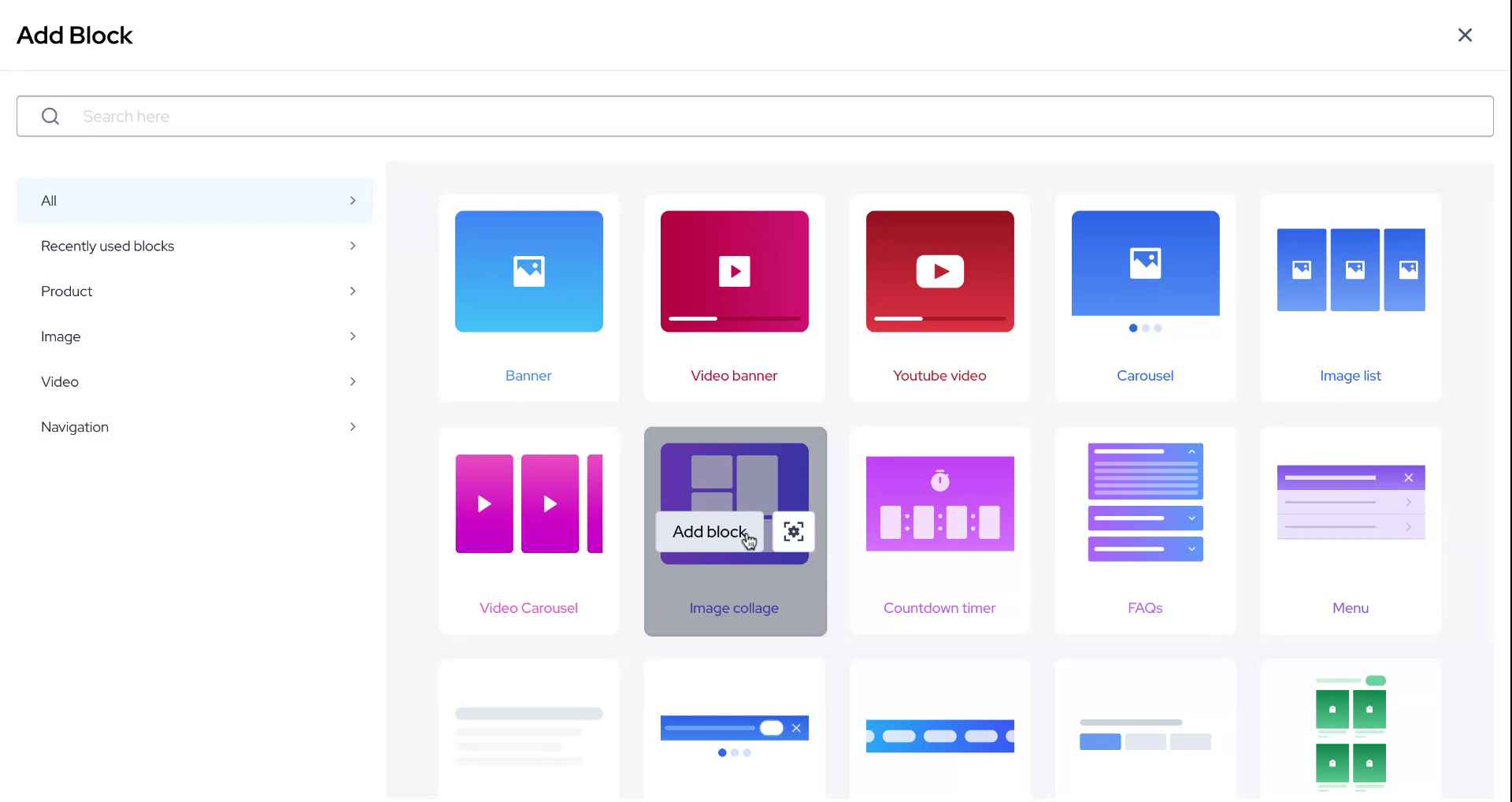
After clicking the plus icon, type "image collage" in the search bar and select "Add Block".
Step 3
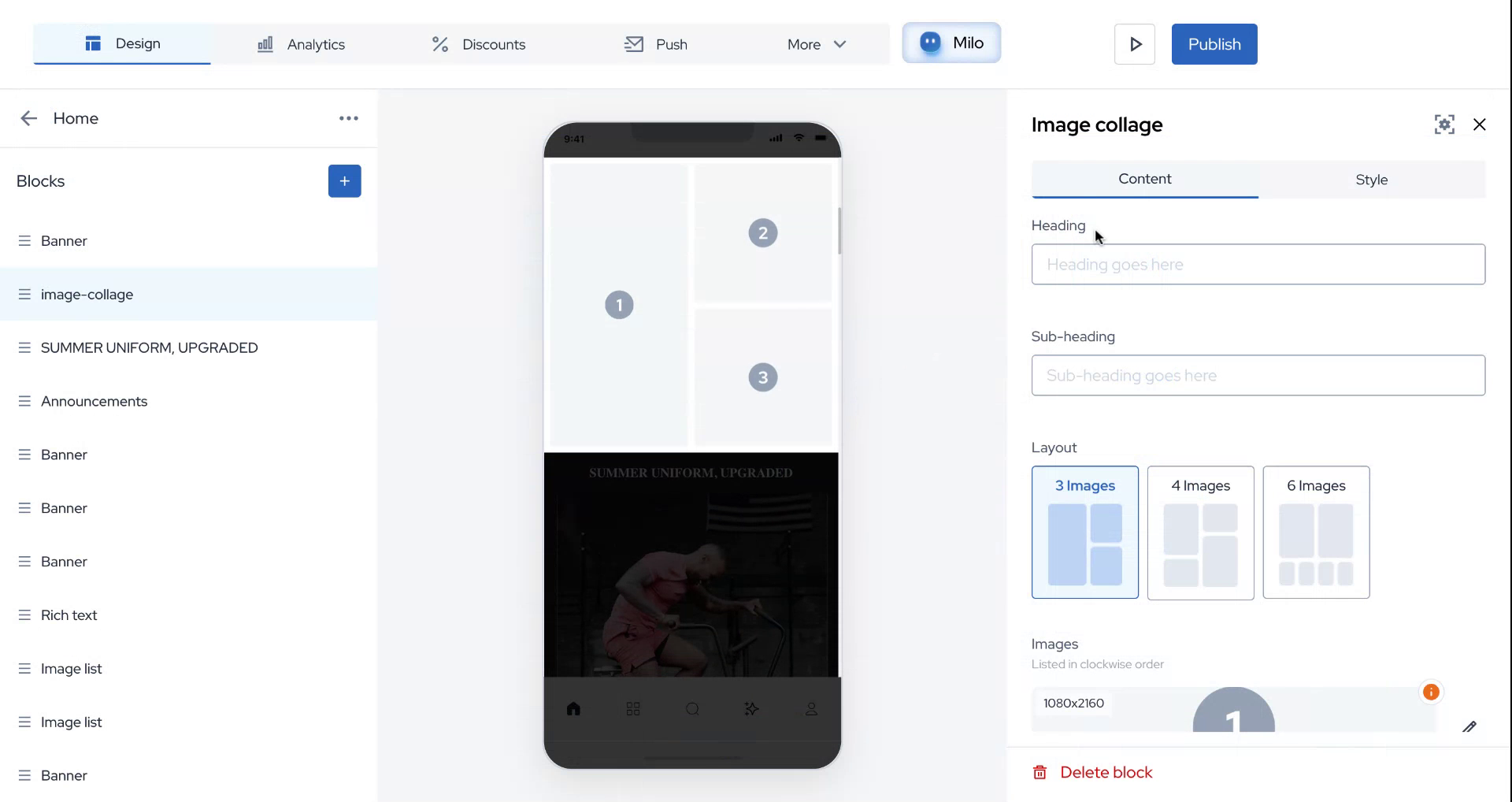
A pre-filled template of image arrangements will appear. You can choose whether or not to add a heading at the top.
Step 4
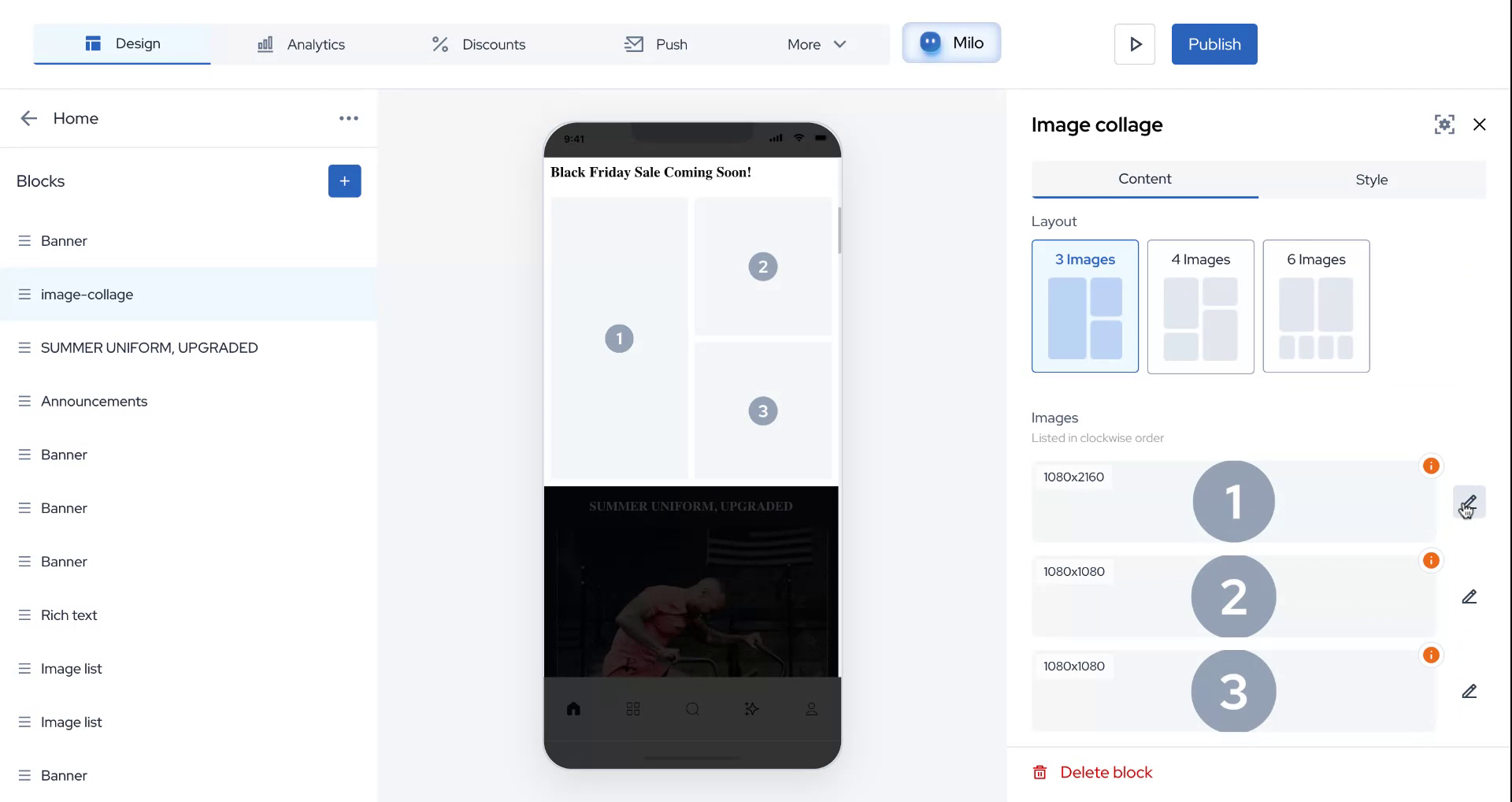
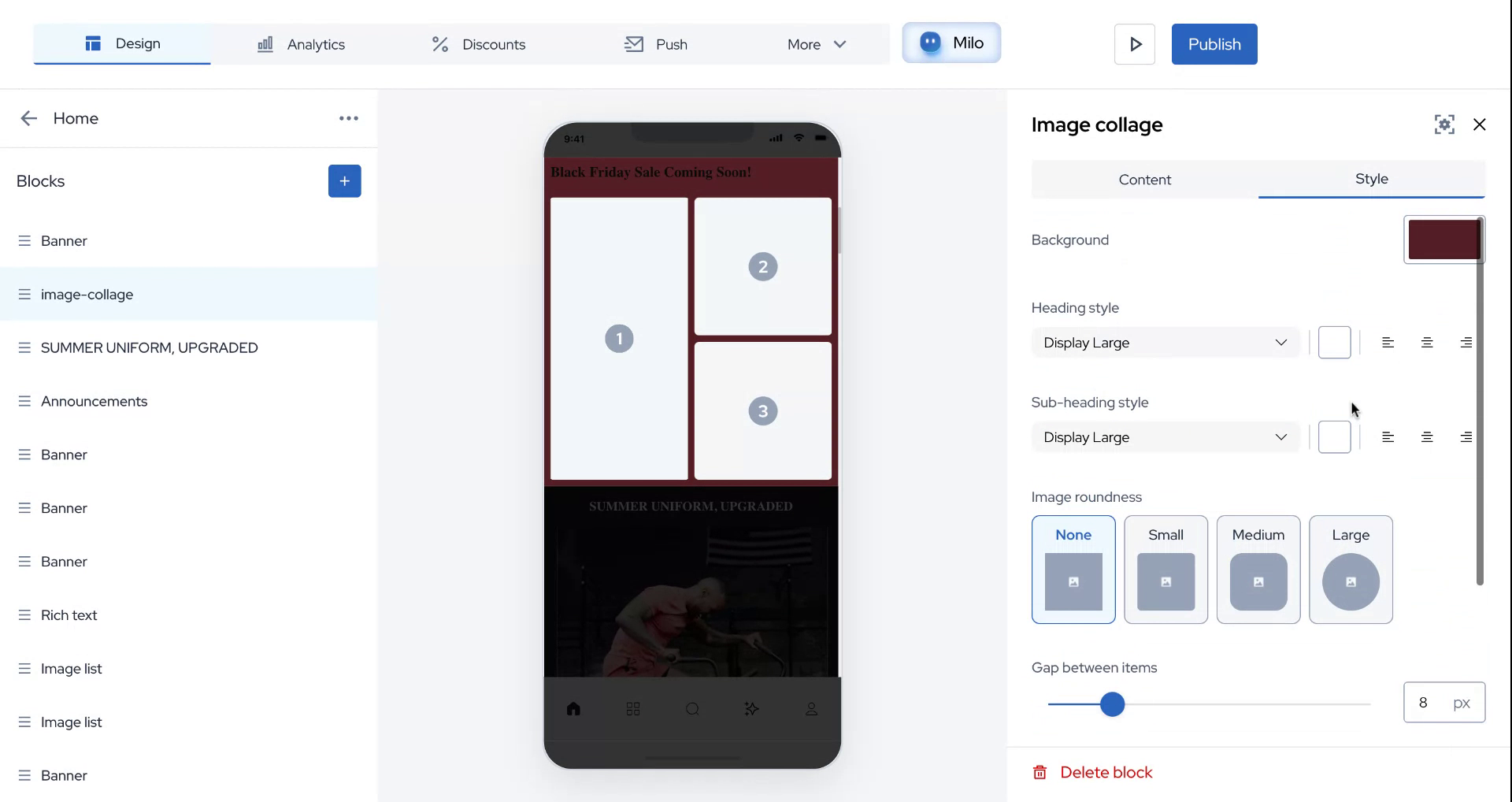
For this example, add a heading such as "Black Friday Sale Coming Soon". Next, choose a subheading for your image collage. You have three layout options: three images, four images, or six images. To modify the images, click on the "Edit" button.
Step 5
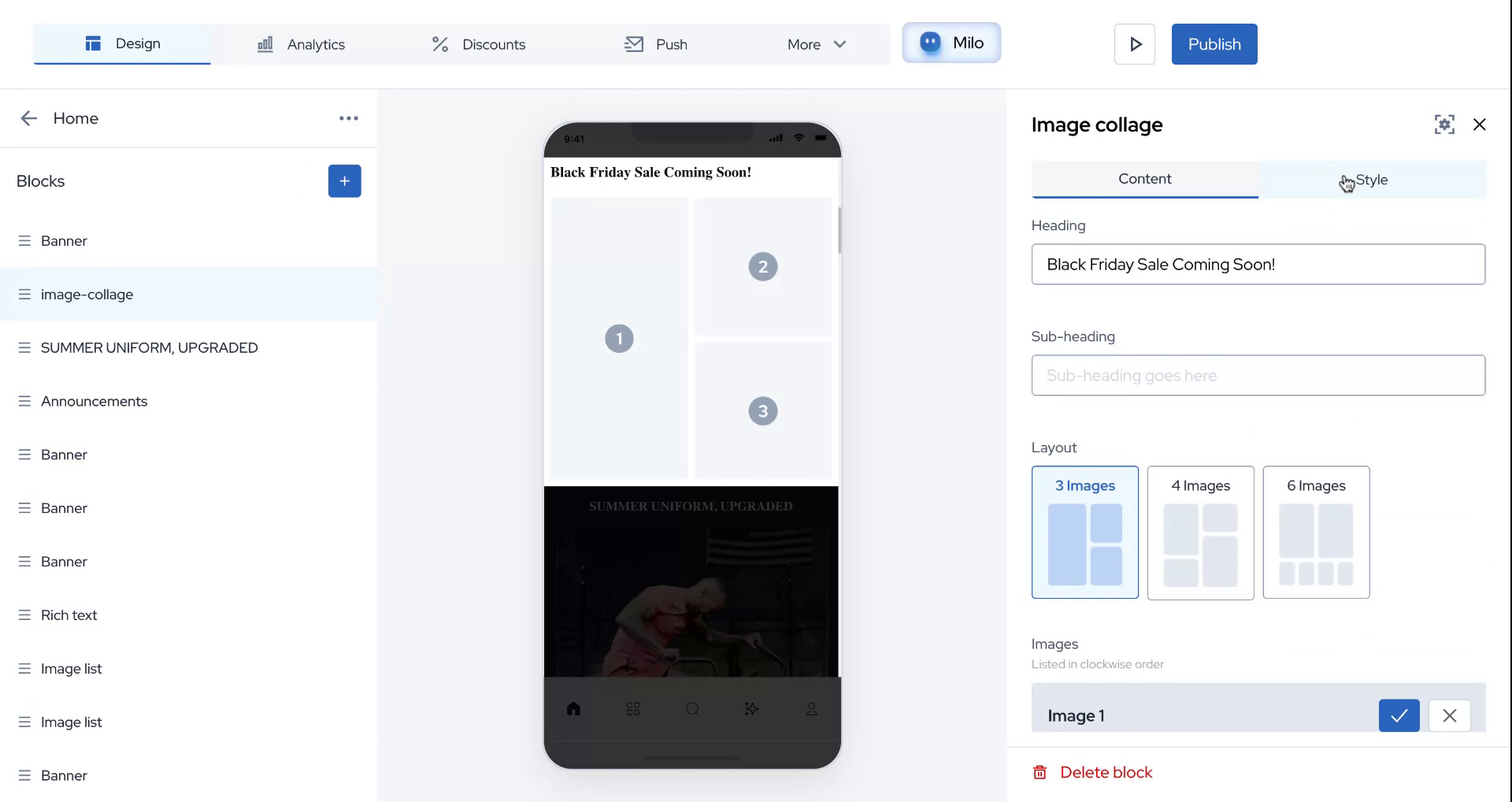
To make the image collages interactive, add a redirection link by selecting the link option for any image collage. Once linked, you can proceed to style the image collage.
Step 6
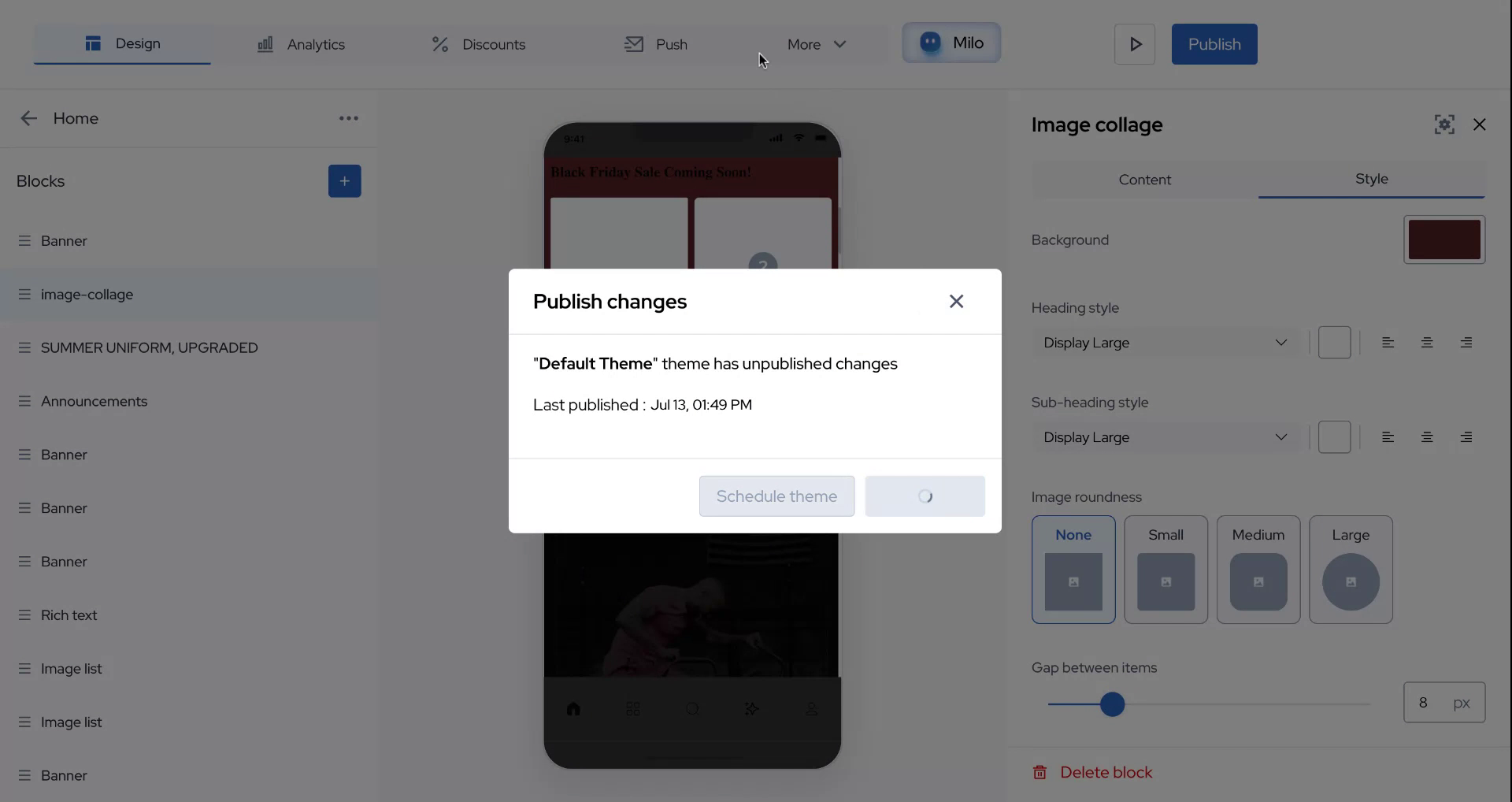
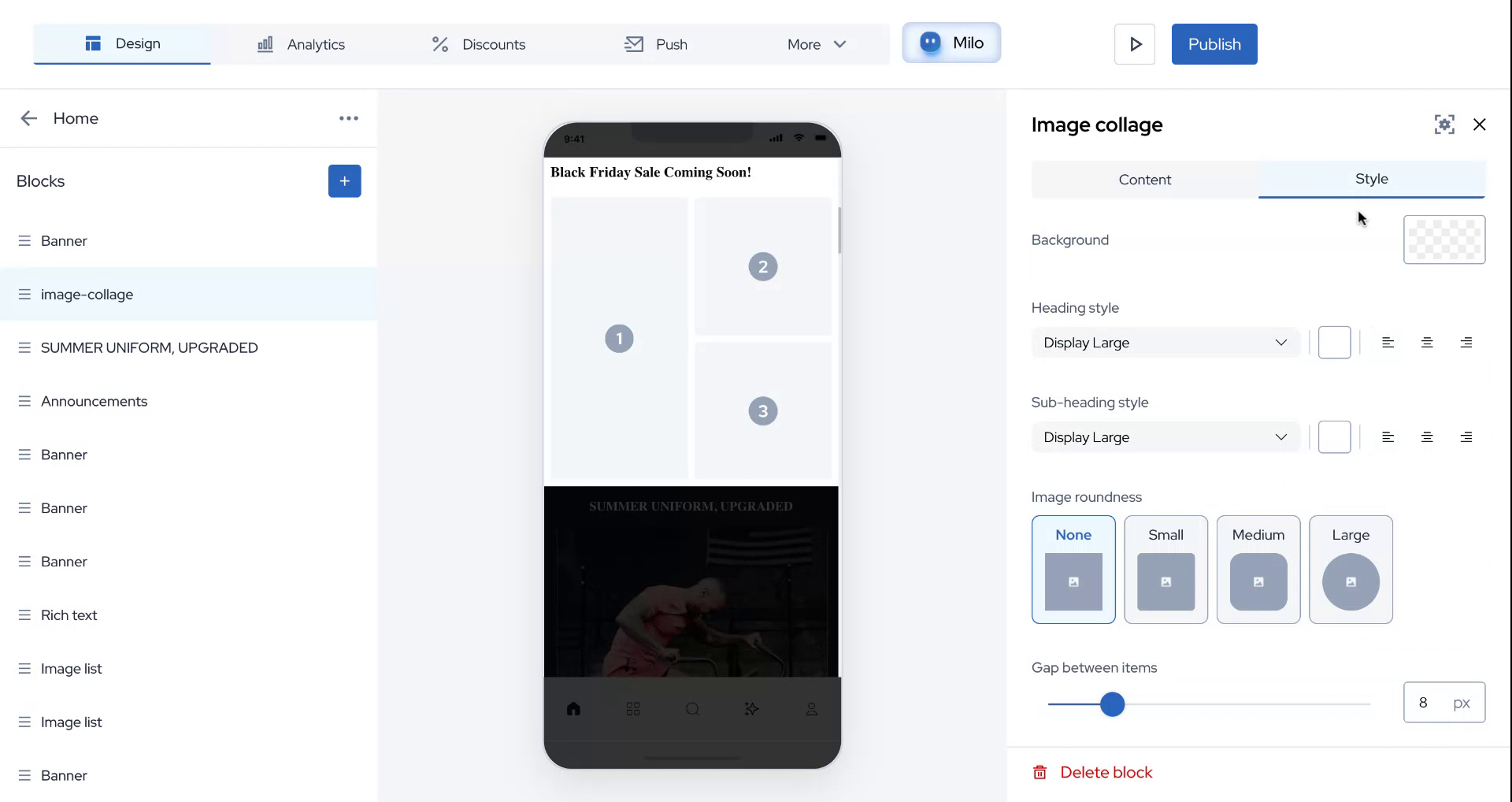
You have the option to change the background color of the images you have added.
Step 7
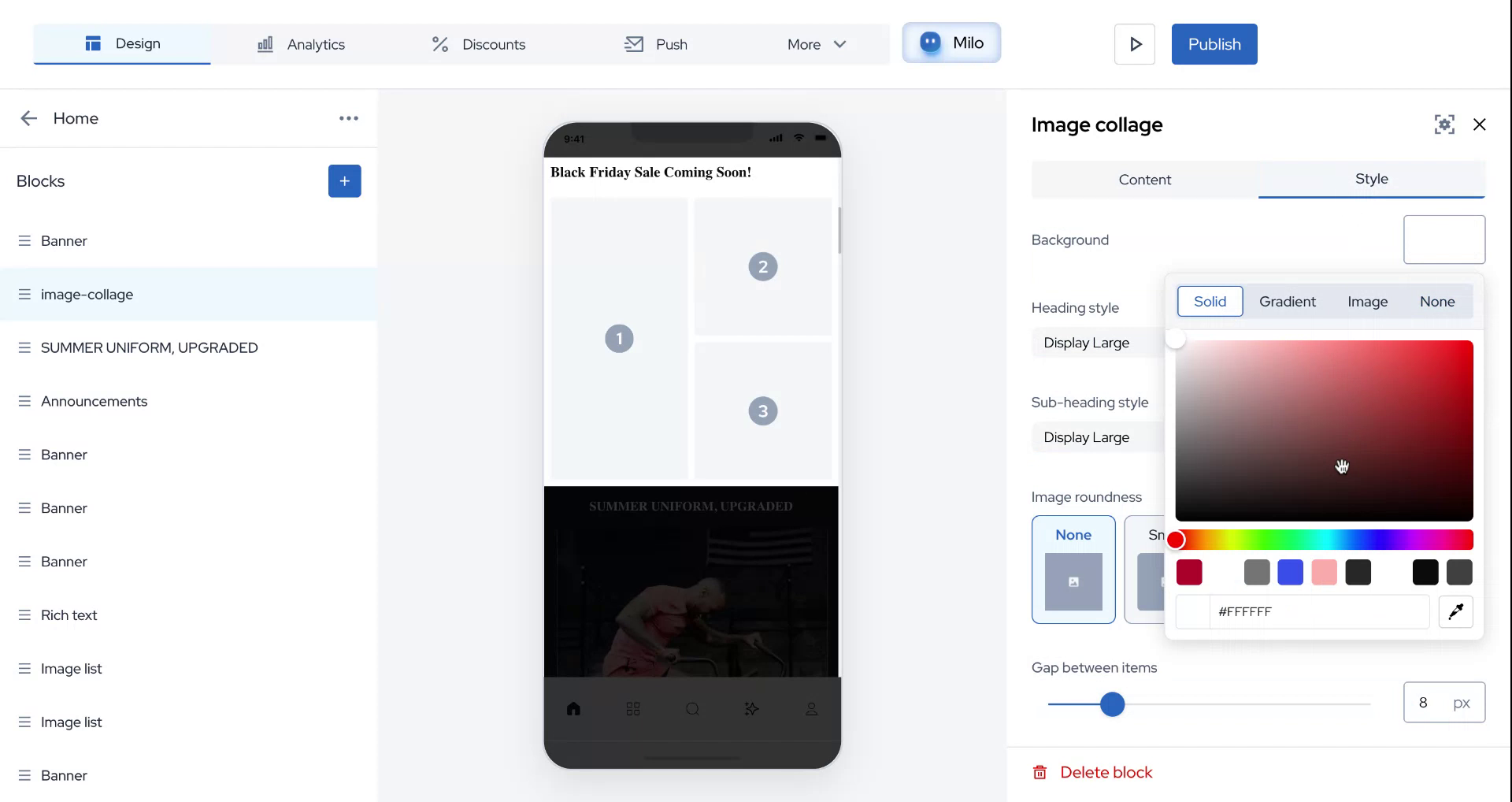
For this demonstration, select a random color to see how it appears.
Step 8
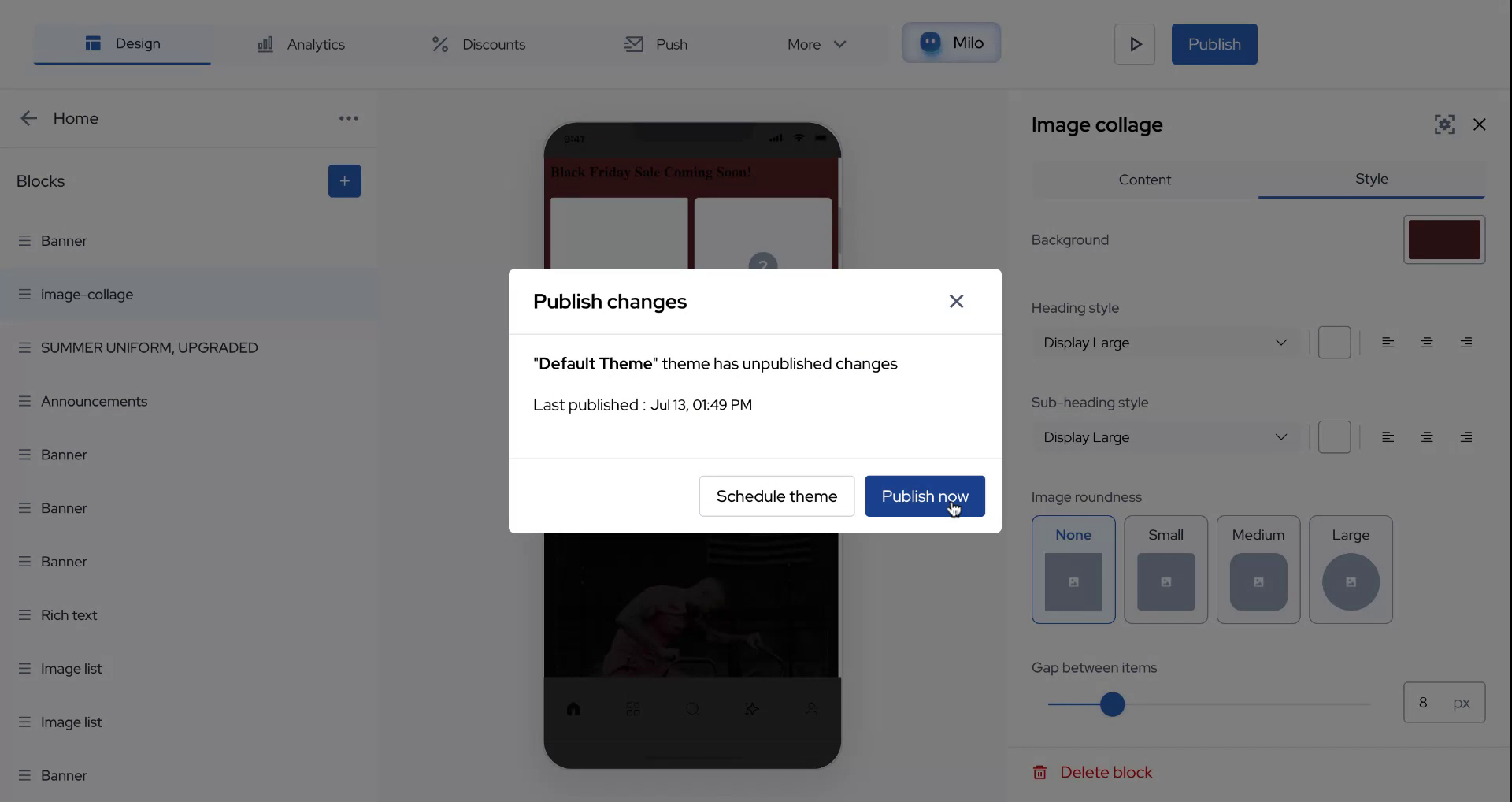
If the color choice looks good, proceed to adjust the heading and subheading styles as well as their placement on the image collage. Once satisfied, click on "Publish" to view the final result.
Step 9
Thank you for taking the time to explore this process.
Step 10
We hope this guide was helpful.