How to enable the product grid in app?
Last updated: July 13, 2025
This document provides a step-by-step process to enable and configure a product grid for your online store. By following these steps, you will be able to add, customize, and publish a product grid to showcase your collections effectively.
Step 1
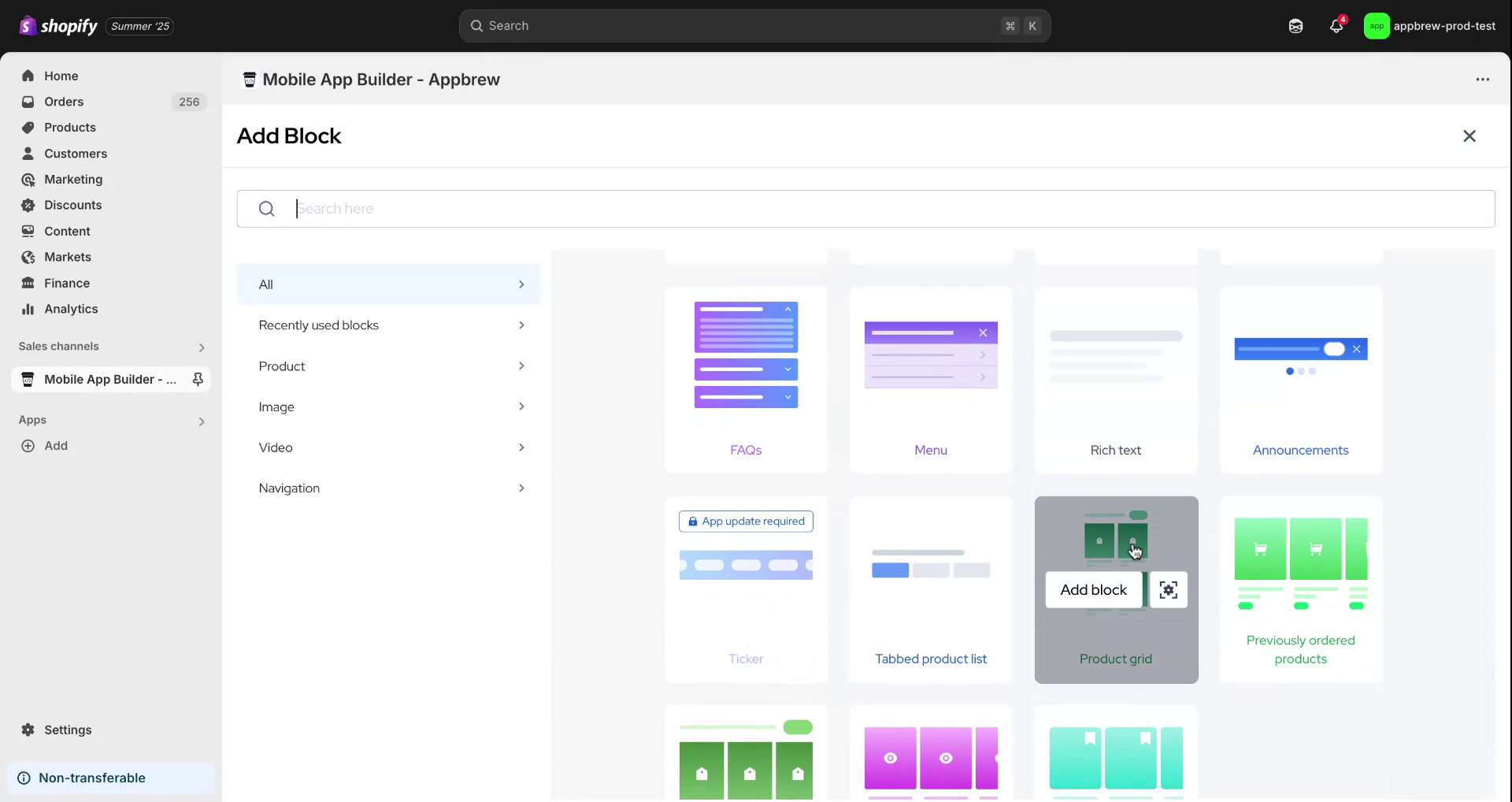
To enable a product grid, hover your mouse over any item block and click on the plus icon. After doing so, scroll down and find the product grid option.
Step 2
Upon locating the product grid option, click on "Add Block." At this stage, you will need to make two key decisions: content and style.
Step 3
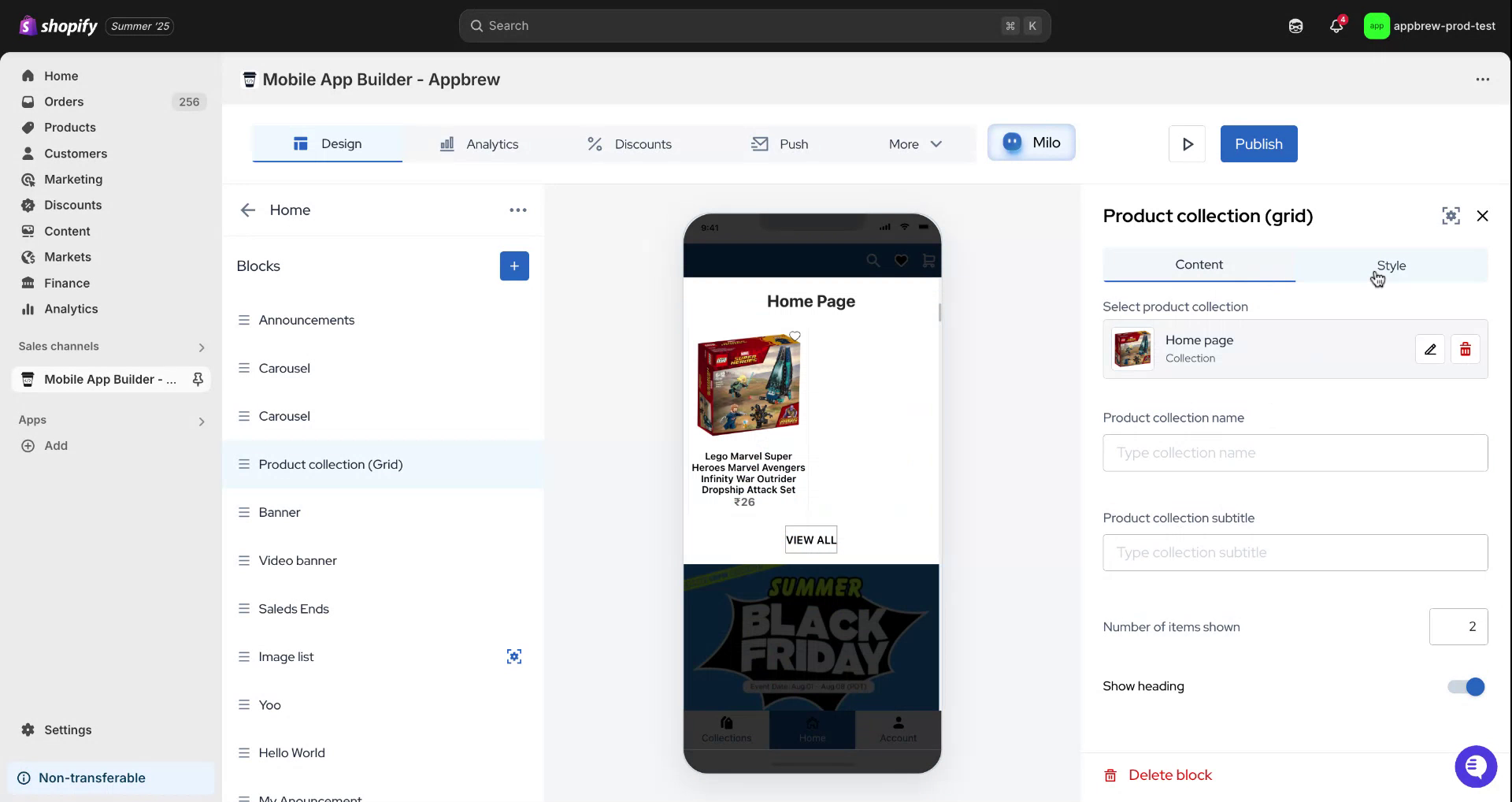
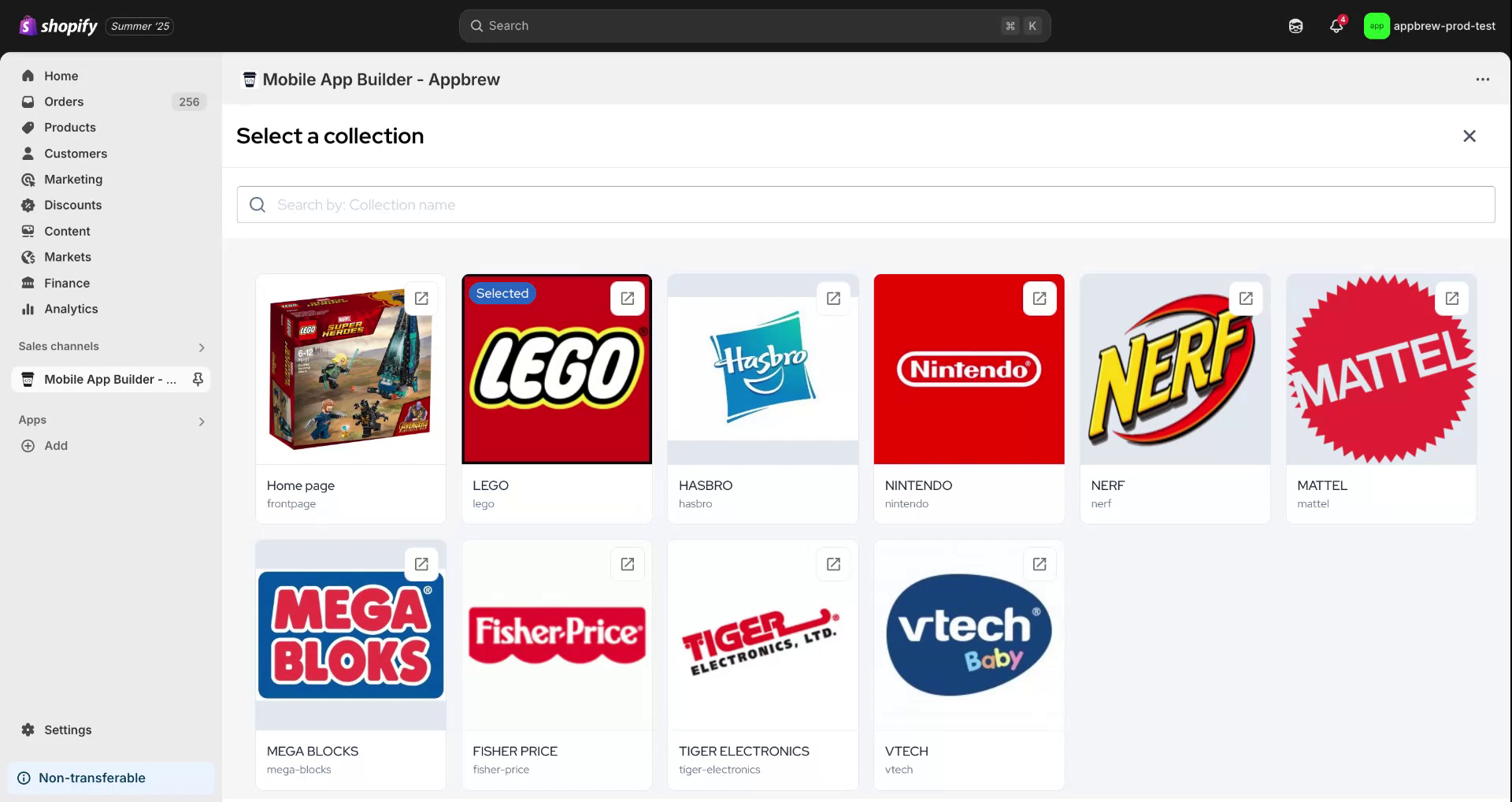
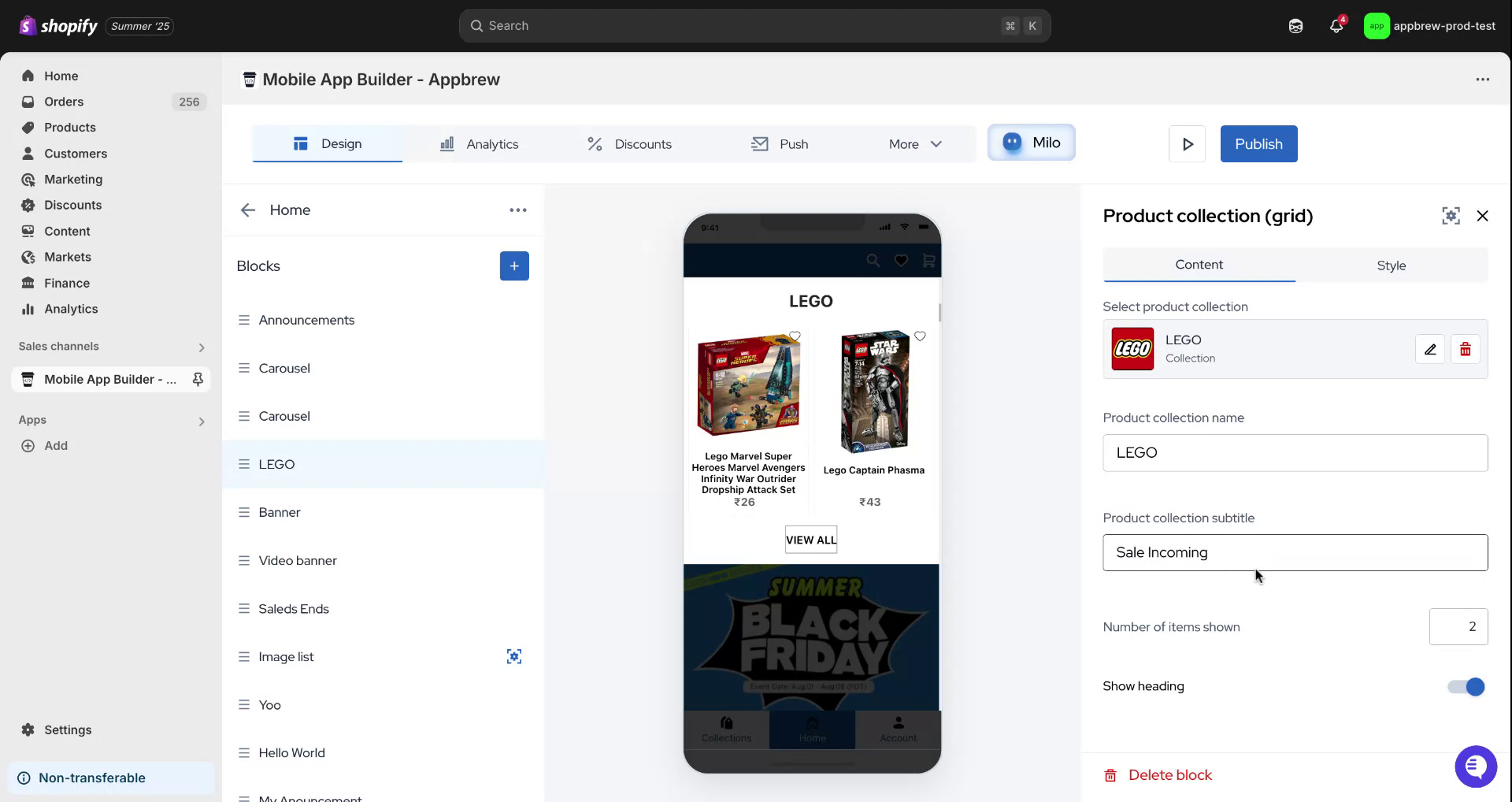
Initially, select the content option. Then, click on the edit button and choose the collection you want to display. In this example, we'll select the Lego collection.
Step 4
Once selected, the items will automatically fill your screen. You can also modify the products collection name and add a suitable title. Let's choose "Sale Incoming" for this demonstration.
Step 5
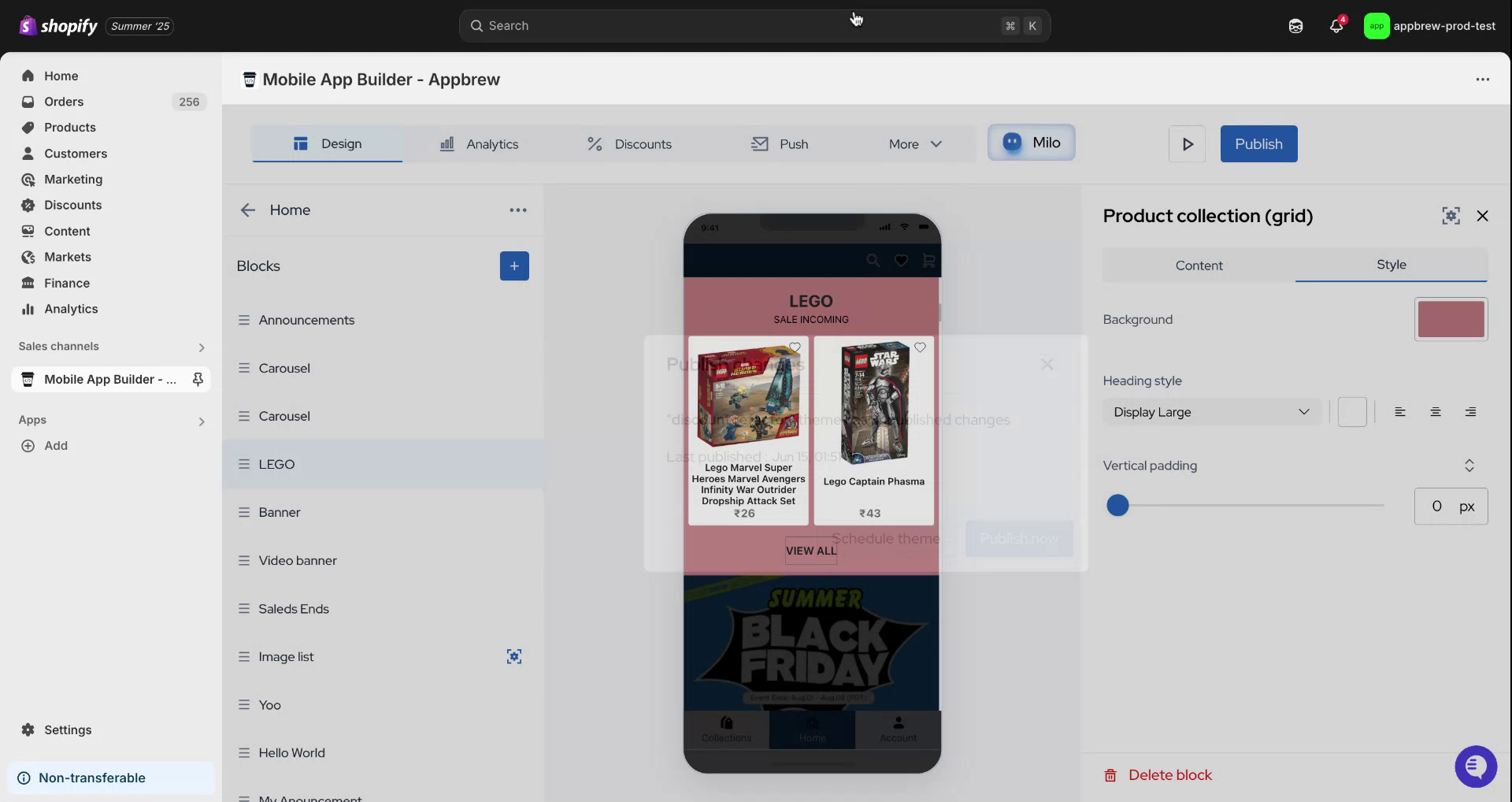
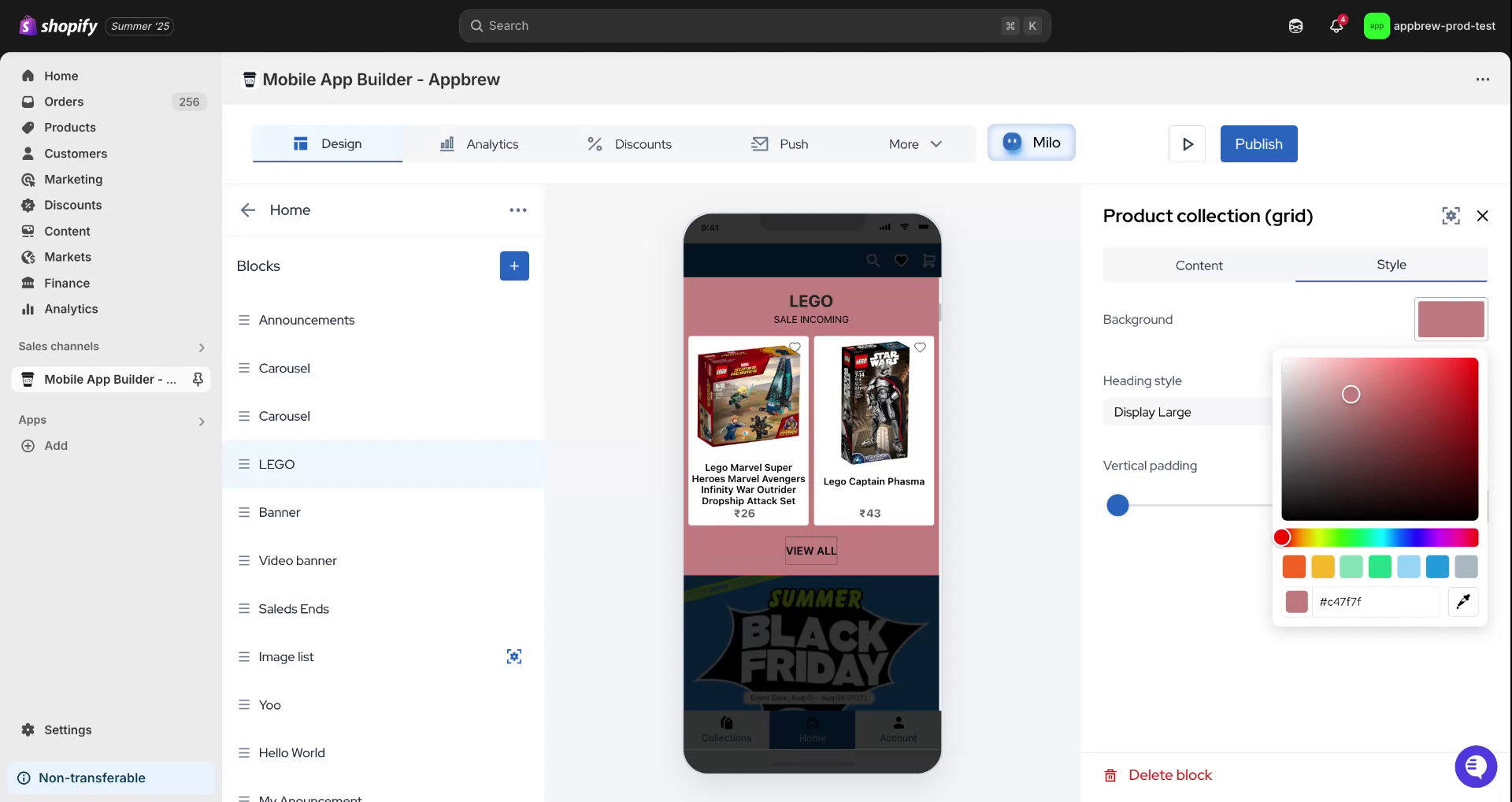
You have the option to select the number of items displayed on your screen and decide whether to show the heading. After clicking on style, you'll have multiple options to choose the background color. For this tutorial, let's choose a random color.
Step 6
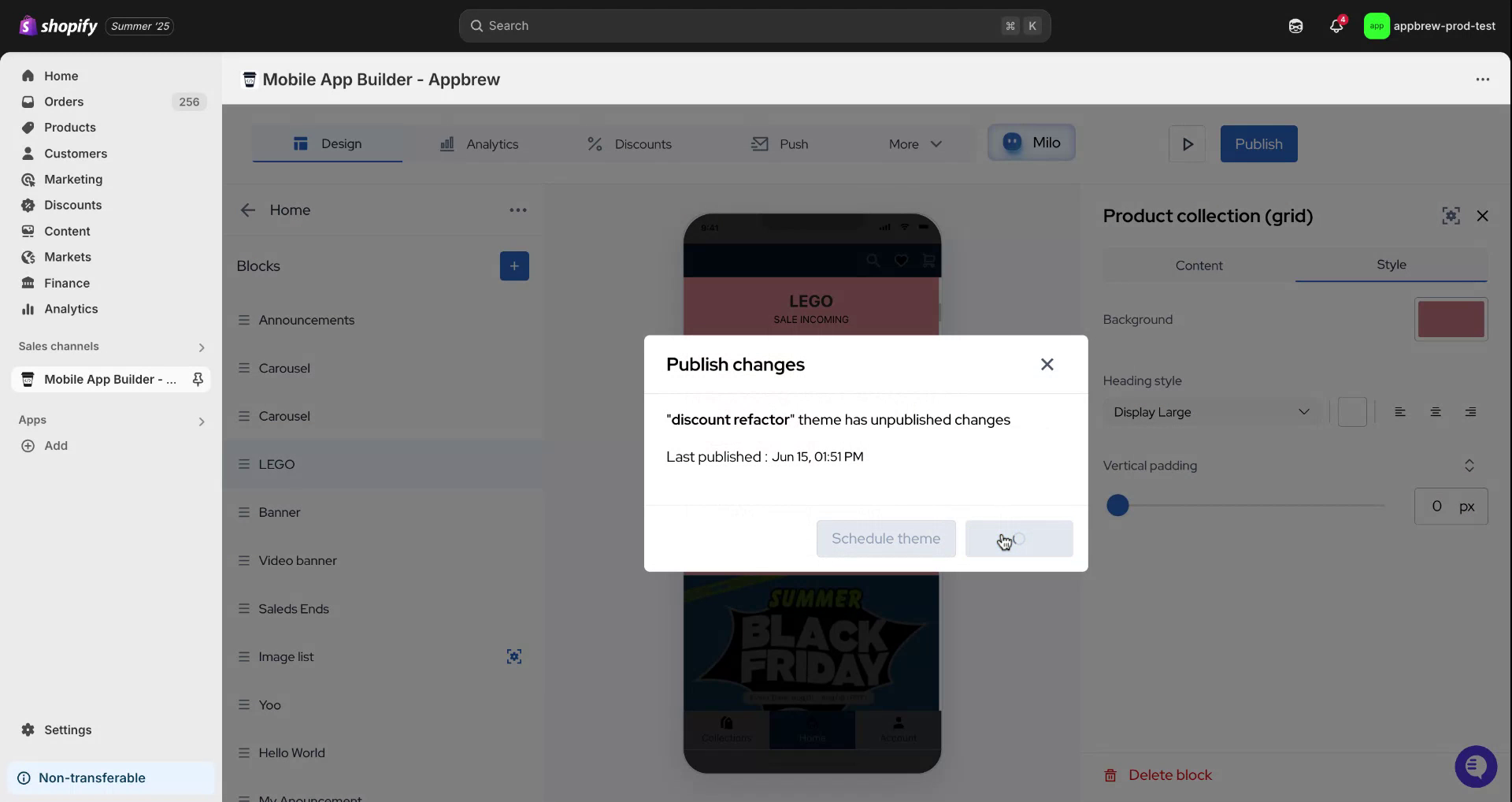
Review how it looks. Once satisfied, click on publish to finalize your product grid.
Step 7
Thank you for following this tutorial.