Finding Your D-U-N-S Number
Last updated: June 10, 2026
Step 1: Open Apple's D-U-N-S Lookup Tool
Go to: Apple D‑U‑N‑S Lookup Tool
Apple uses this tool to verify organizations enrolling in the Apple Developer Program.
Note: you will need to log in using an Apple account you have created for the business.
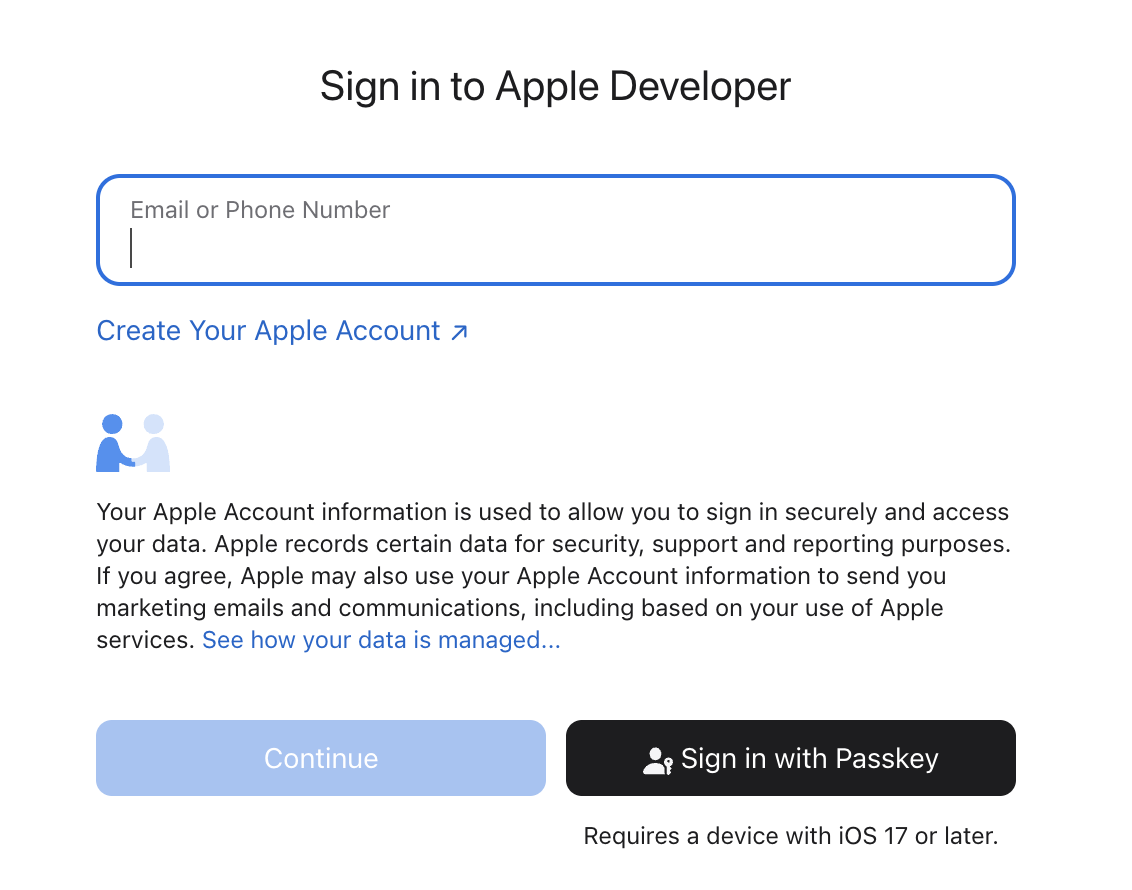
Step 2: Enter Your Organization Details
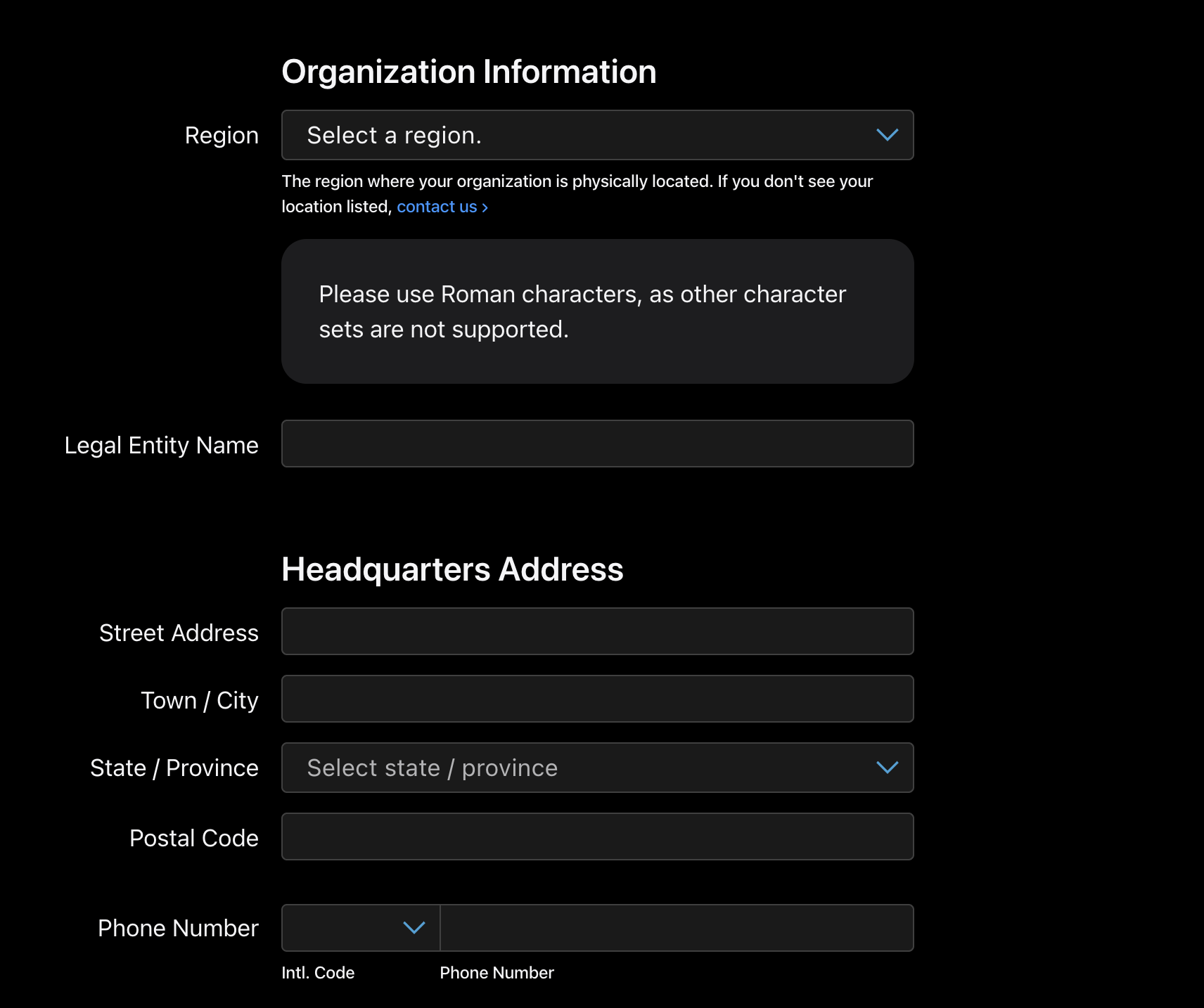
You'll be asked for:
Legal Entity Name (exactly as registered)
Headquarters Address
City
State/Province
Country/Region
Work Email Address
Work Phone Number
Make sure the company name matches your registration documents exactly. Apple checks this against Dun & Bradstreet's records.
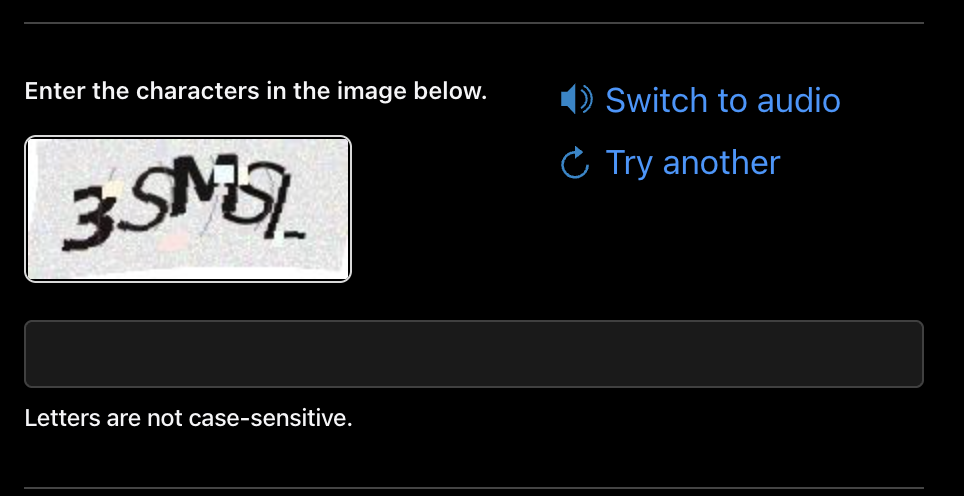
Step 3: Complete CAPTCHA
Enter the verification code shown on the page and click Continue.
Step 4: Review Search Results
Apple will search Dun & Bradstreet's database.
You may see one of two outcomes:
Option A: Company Found
If your company already has a D-U-N-S Number:
The company record will appear.
Select the correct company.
Click Continue.
Apple will send the D-U-N-S Number to your email address.
Option B: Company Not Found
If no matching company is found:
Select the option indicating your company isn't listed.
Submit your business information.
Apple forwards the request to Dun & Bradstreet to create a D-U-N-S Number.
Step 5: Wait for Verification
Typical timelines:
Existing D-U-N-S Number: immediate lookup.
New D-U-N-S Number request: usually up to 5 business days through Apple's enrollment process.
Please check the email address you shared under Contact Details. Apple will send your D-U-N-S number by email for the record.
Step 6: Verify Information Before Using It
Once you receive the D-U-N-S Number:
Ensure the company name and address exactly match the information you'll use in Apple Developer enrollment.
If details are incorrect, update them with Dun & Bradstreet before continuing. Apple may reject enrollment if records don't match.
Common Issues
❌ Company not found
Try the exact legal company name from your incorporation certificate.
Remove abbreviations or alternate spellings.
❌ D-U-N-S Number exists but Apple rejects it
Check whether your D&B profile name and address exactly match your Apple enrollment details.
❌ Sole Proprietorship
Apple generally requires a legal entity (Private Limited, LLP, Corporation, etc.) for Organization accounts. Sole proprietors should enroll as individuals.