App Related FAQs
Last updated: March 23, 2026
FAQ1: Why is my app not showing in the App Store and how do I resolve this?
Context
If your app is not visible in the App Store, this is typically due to an expired Apple Developer Program subscription or pending compliance requirements. When the subscription expires, your app becomes unavailable to users until the subscription is renewed and any required updates are completed.
Answer
To resolve app visibility issues in the App Store, follow these steps:
Renew your Apple Developer Program subscription - Only the account holder can renew the subscription. This is the primary reason apps become invisible in the App Store.
Accept the Paid Applications Agreement (PLA) - Log into App Store Connect and accept any pending agreements. This is required before any app updates can be released.
Complete any required compliance forms - Check for pending age rating questionnaires or other Apple requirements that need to be completed.
Push any pending app update (only if) - Once the subscription is renewed and agreements are accepted, contact your development team to push pending updates of your app.
Wait for Apple's review - App updates typically take 18-24 hours to complete Apple's review process before going live.
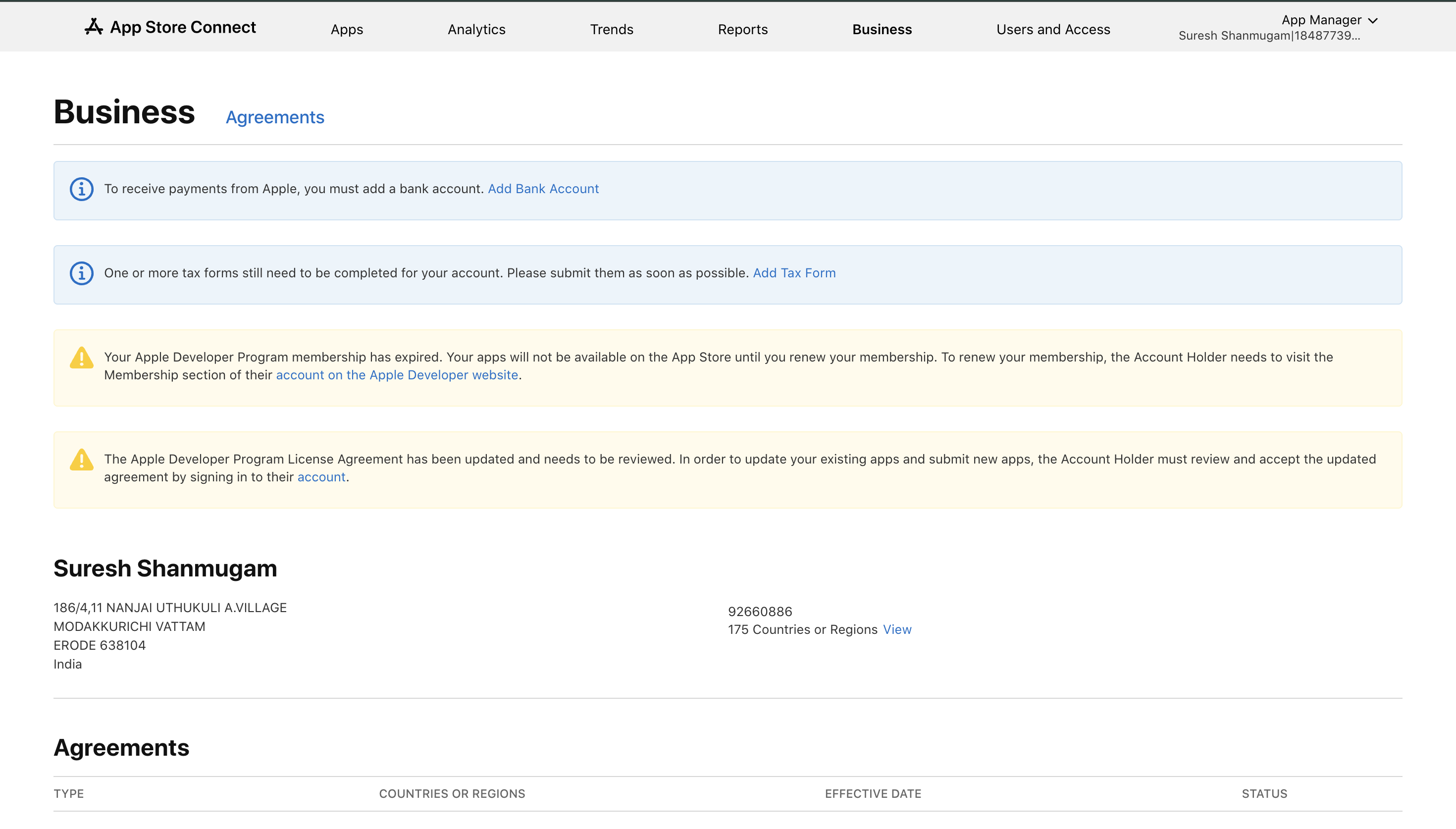
Important: Both the subscription renewal and PLA acceptance must be completed before any app updates can be processed. The app will remain invisible until these requirements are met and a new version is approved by Apple.
For Android apps experiencing similar issues, ensure your app targets the latest required API level as specified in Google Play Console requirements.
FAQ2: Why can international users access my India-only app?
Context
You may notice that users from outside India can download and access your app, even though you've configured it to be available only in India. This can result in international users making purchases or abandoning carts, which may not align with your business requirements for India-only operations.
Answer
App visibility and regional access are controlled directly by the app stores (Google Play Store and Apple App Store), not by the user's physical location. Even when your app is correctly configured to be available only in India, international users can still access it under certain circumstances.
Why this happens:
The app stores determine availability based on the user's account country/region settings rather than their physical location. This means:
A user physically located outside India can still see and download the app if their App Store or Play Store account region is set to India
Users may have installed the app while in India and continue using it after traveling abroad
Users may have their store account configured to India regardless of their current location
How to verify your app store settings:
Check that your app distribution settings are correctly configured:
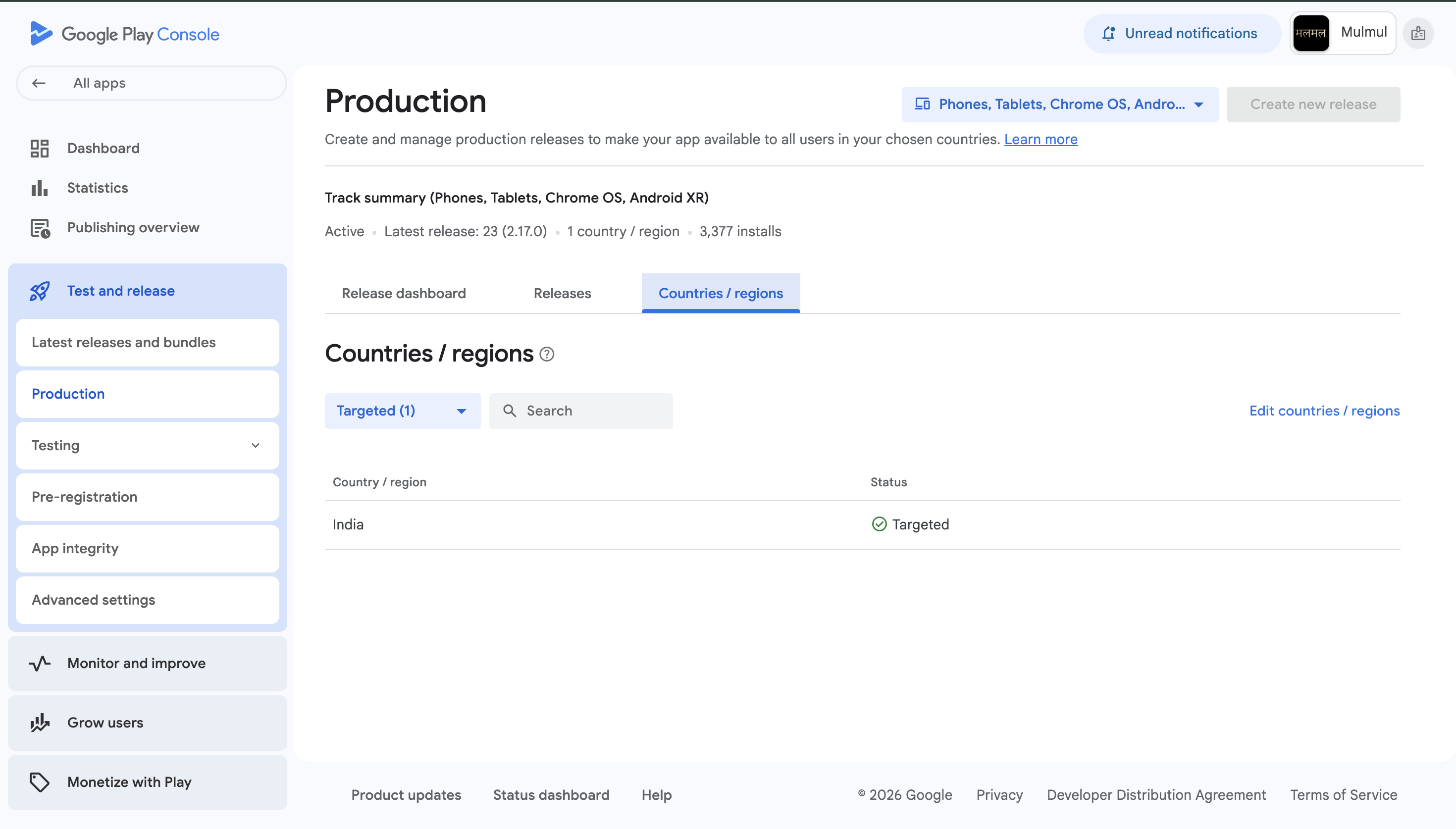
In Google Play Console: Ensure the country/region availability is set to India-only with no international regions enabled
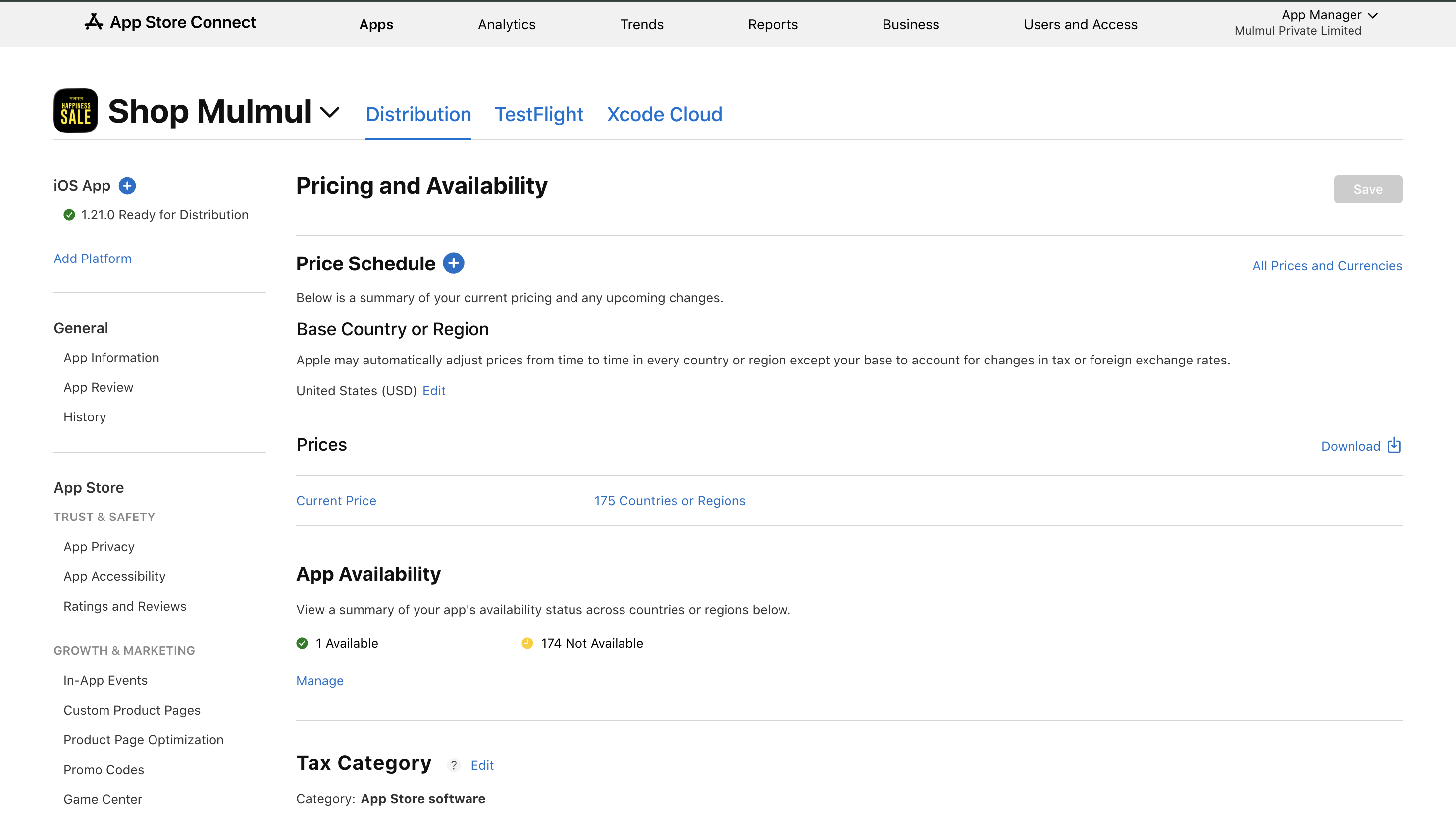
In App Store Connect: Verify that app availability is restricted to India in the Pricing and Availability section
Additional solution for preventing international purchases:
To prevent users from completing purchases from outside India, configure your checkout settings to allow orders only from pincodes/regions within India. This will effectively restrict users from completing purchases from other countries, even if they can access the app.
If you continue to see unexpected international access patterns, consider reaching out to Google Play and Apple App Store support to confirm how the user's store region is being resolved in specific cases.
FAQ3: How do I update my app for a brand name change?
Context
When planning a brand name change for your business, you'll need to update various aspects of your mobile app to reflect the new branding. This includes app store listings, configuration settings, and the app name that appears on users' devices.
Answer
Here are the key areas that need to be updated when changing your brand name in the app:
Areas requiring updates:
App Store and Play Store listings
Deeplinks
Appbrew dashboard configuration
App name as it appears on the device after installation
Process:
Update your website first - We recommend rolling out the new brand name on your website before making app changes
Contact Appbrew support - Our team can handle most of the app-side updates for you
Update Play Store listing yourself - You'll need to update the Play Store listing directly, as only an admin/account owner has access to make these changes
Submit new app update - These changes will require a new app update to be submitted to both app stores
Important notes:
Plan for the brand change timeline, allowing sufficient time for store review processes
Coordinate the website and app updates to maintain brand consistency
Ensure you have admin access to your Google Play Console for Play Store updates