How to Set Up Google Analytics for App
Last updated: September 5, 2025
To retrieve Click-Through Rate (CTR) data for collection pages and products in your Appbrew app using Google Analytics, you need to properly set up the integration between Firebase and Google Analytics. Follow these steps to ensure you can access the required data:
Prerequisites
Access to the Firebase account associated with your Appbrew app
Access to the Google Analytics account you want to use
The email used for Firebase should also have access to the Google Analytics account
Steps to Set Up Google Analytics Integration
Log in to your Firebase account.
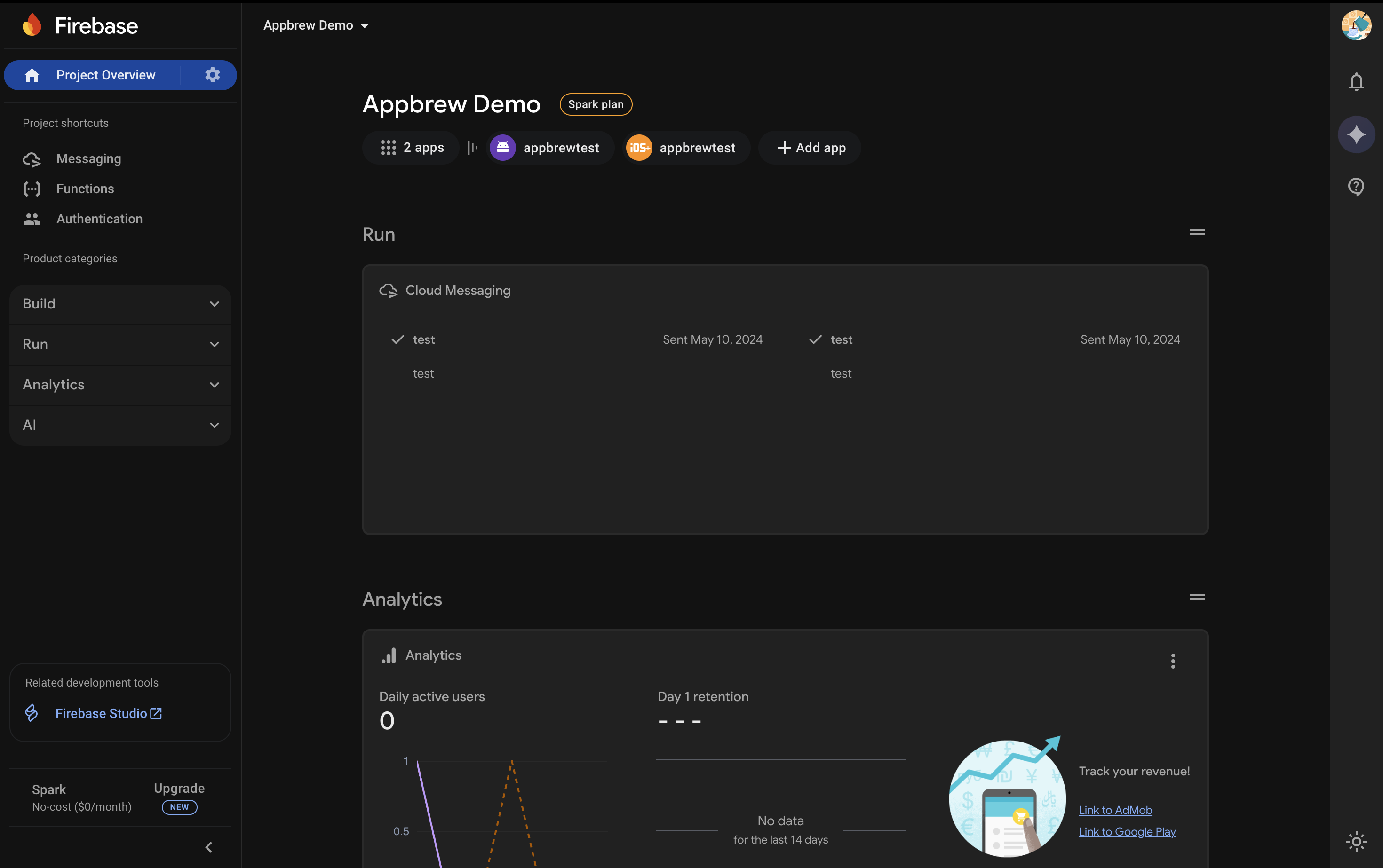
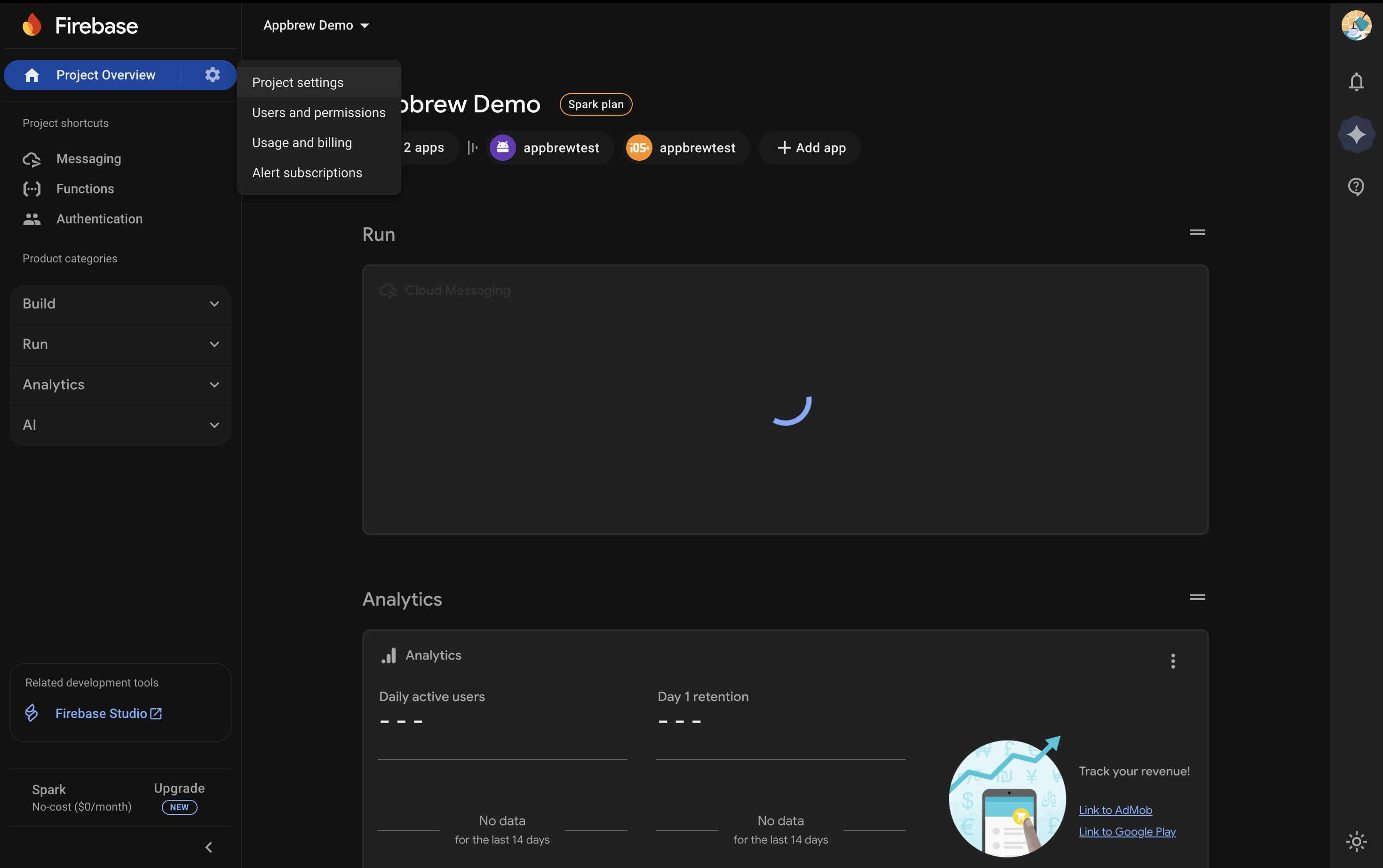
Navigate to Project settings.
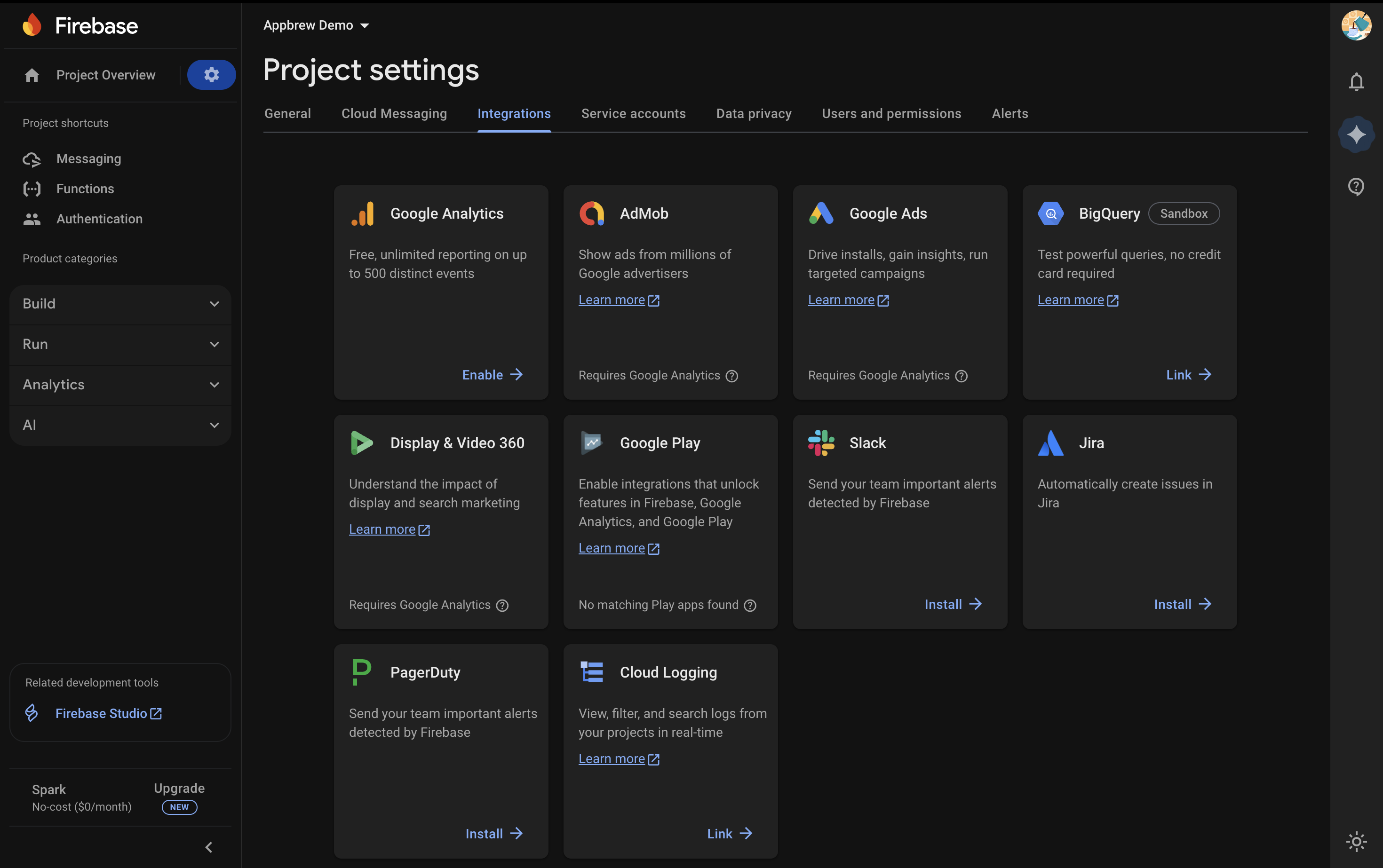
Go to the Integrations tab. Under Integrations, click on Enable/Manage in Google Analytics.
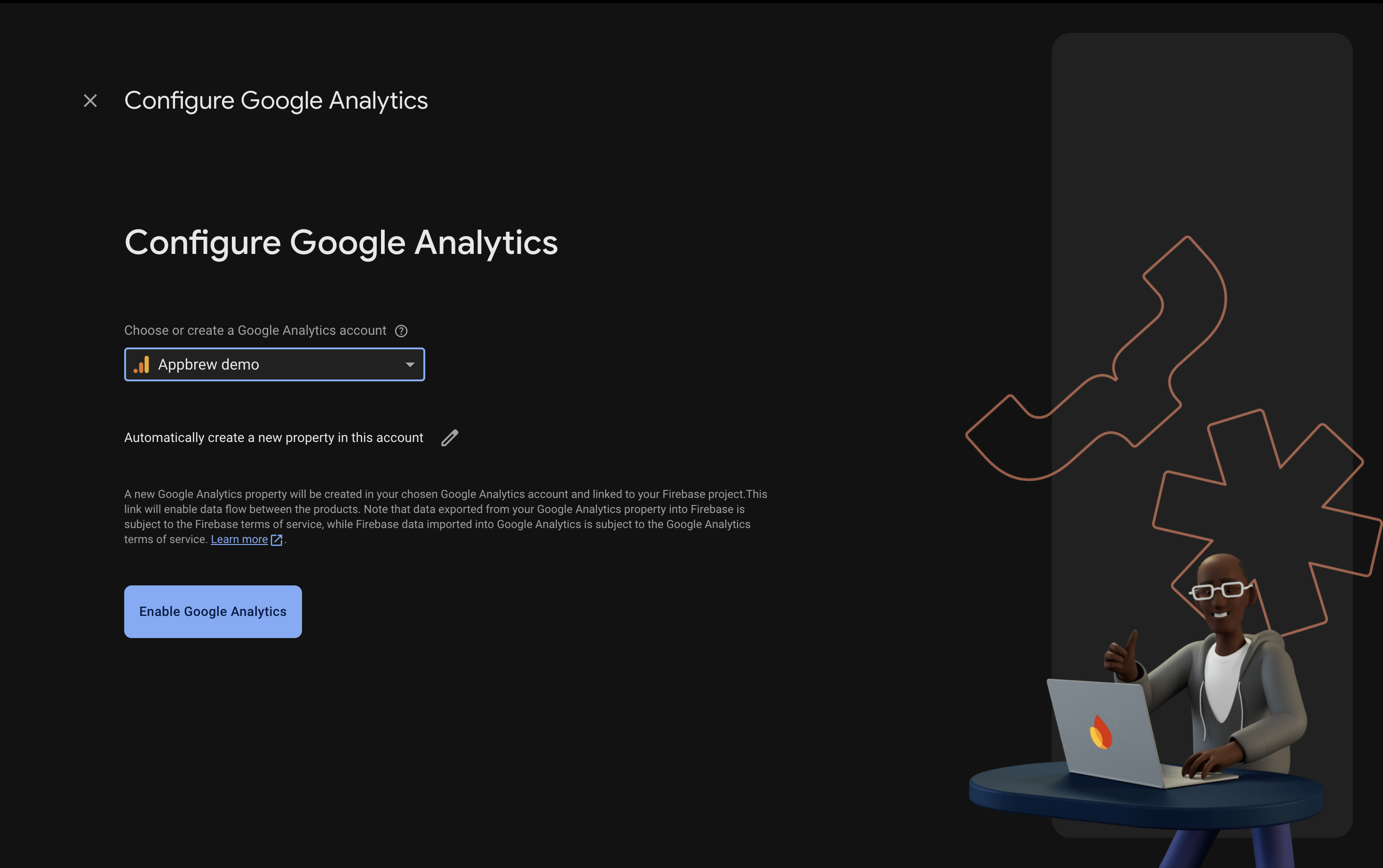
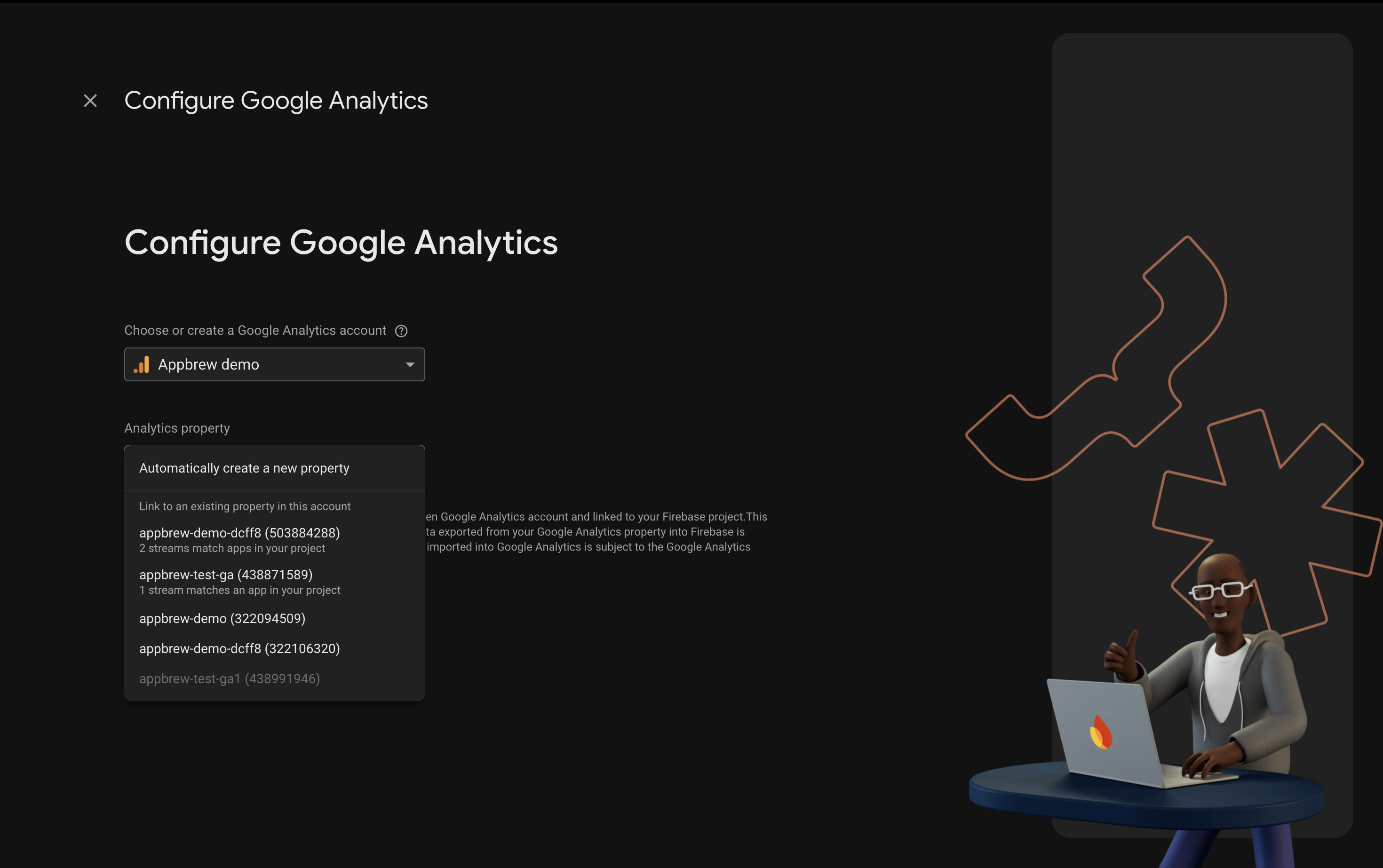
Select the Google Analytics account you want to link.
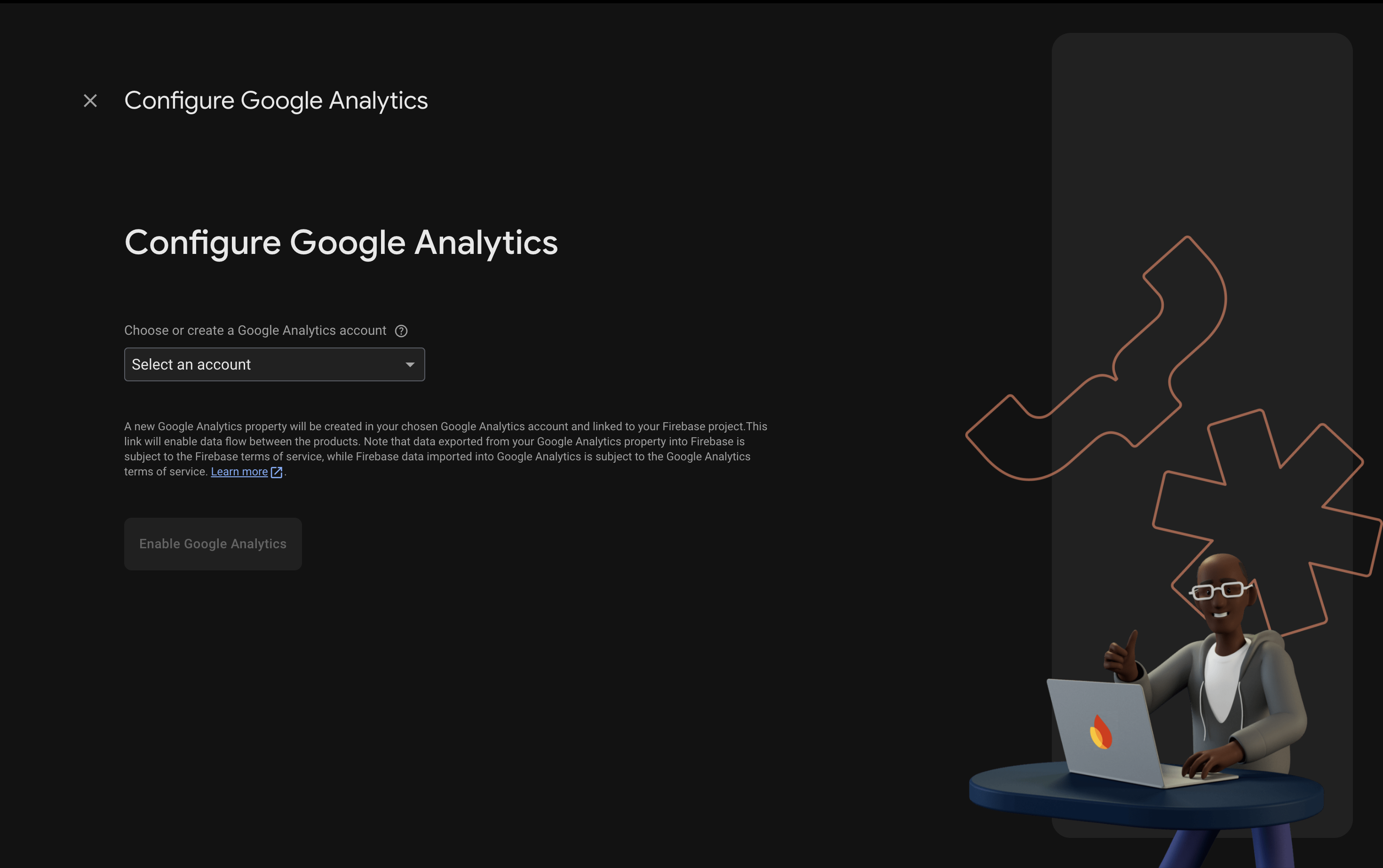
You can either create a new property or select an existing one. If you use a shared property for both the app and web, you can filter the data for the app. Click on Enable Analytics.
Click on Finish.
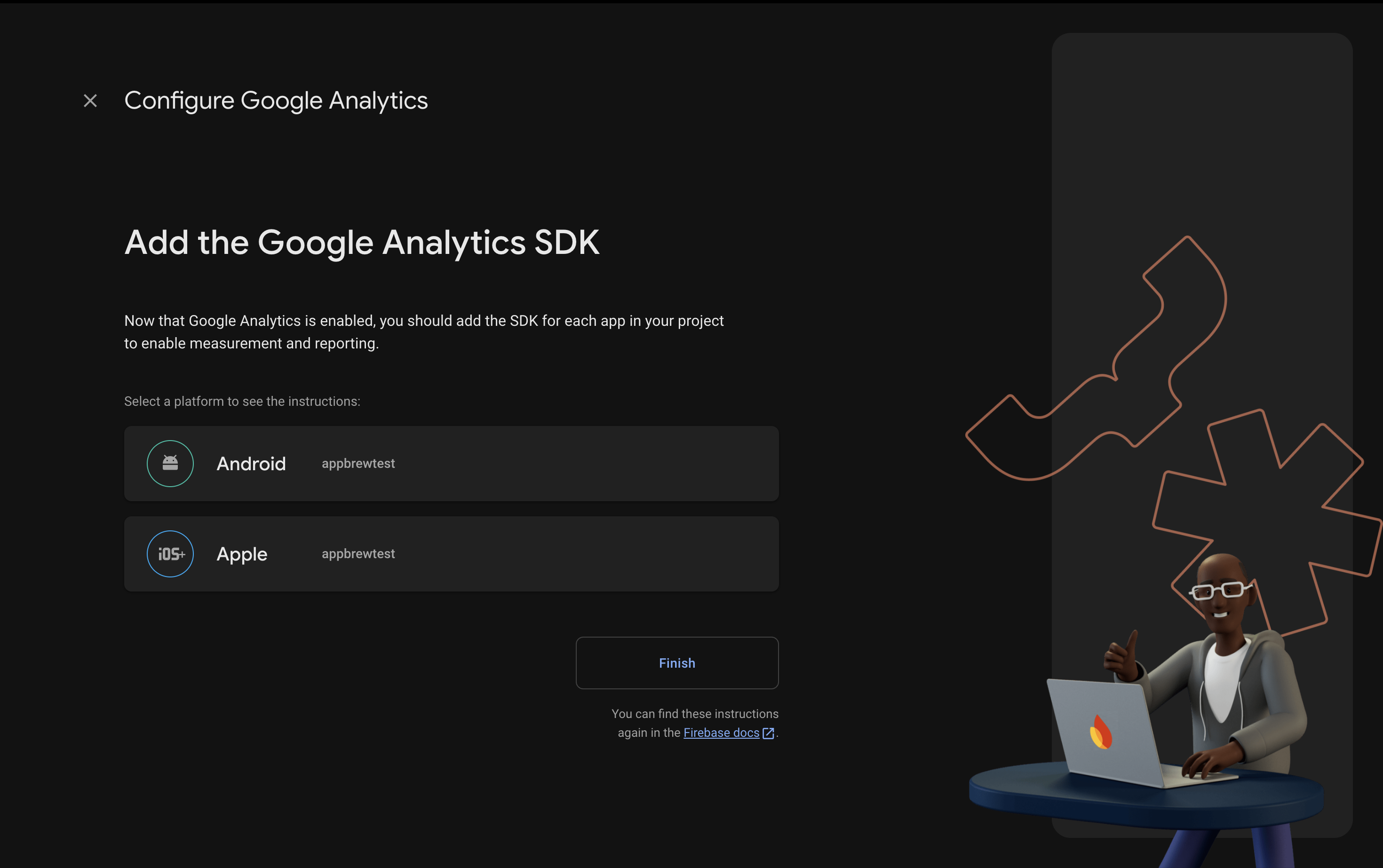
Once the integration is complete, you should see two data streams for iOS and Android.
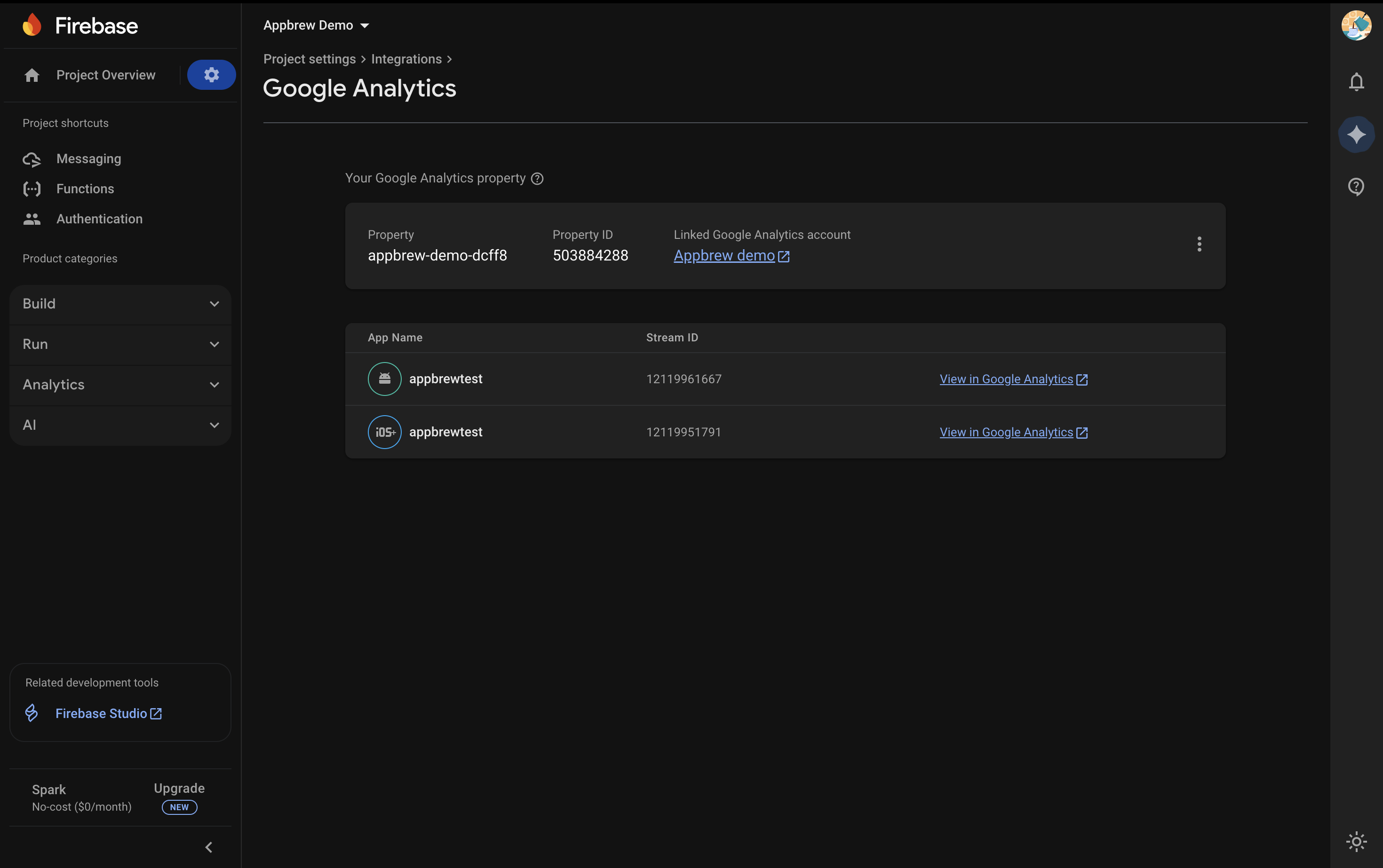
You are now all set! Google Analytics has been successfully integrated into your app. Please note that it may take up to 24 hours for data to start flowing.
Note: If you don't have access to the required Firebase or Google Analytics accounts, you'll need to contact the account owner or administrator to complete this setup.
For further assistance or if you encounter any issues during the setup process, please contact Appbrew support.