Policy Pages Not Loading in the App — Troubleshooting Guide
Last updated: January 20, 2026
If policy pages (such as Shipping Policy, Privacy Policy, etc.) appear blank or fail to load in your app, it’s usually because the policy content is not correctly configured in Shopify or the app builder.
Your app pulls policy content directly from Shopify or from the configured page source, so most issues can be resolved from your end without any app-side changes.
Before You Begin
Please ensure:
You have admin access to your Shopify store
You know how your policy page is currently being powered
Policy pages in the app can be set up in one of the following three ways.
How Policy Pages Are Powered in the App
1. Shopify’s Built-in Policy System
Policies are managed directly in Shopify Admin
The app fetches content automatically from Shopify
2. Custom Page Built Using App Builder
A custom page is created using the app’s builder
This page is linked to the policy option (for example, Shipping Policy) in the account or menu settings
3. Website Policy Page Embedded via WebView
The website’s policy page URL is embedded inside the app
The page opens in a WebView
How to Troubleshoot (Based on Setup)
If the Policy Is Powered by Shopify (Most Common)
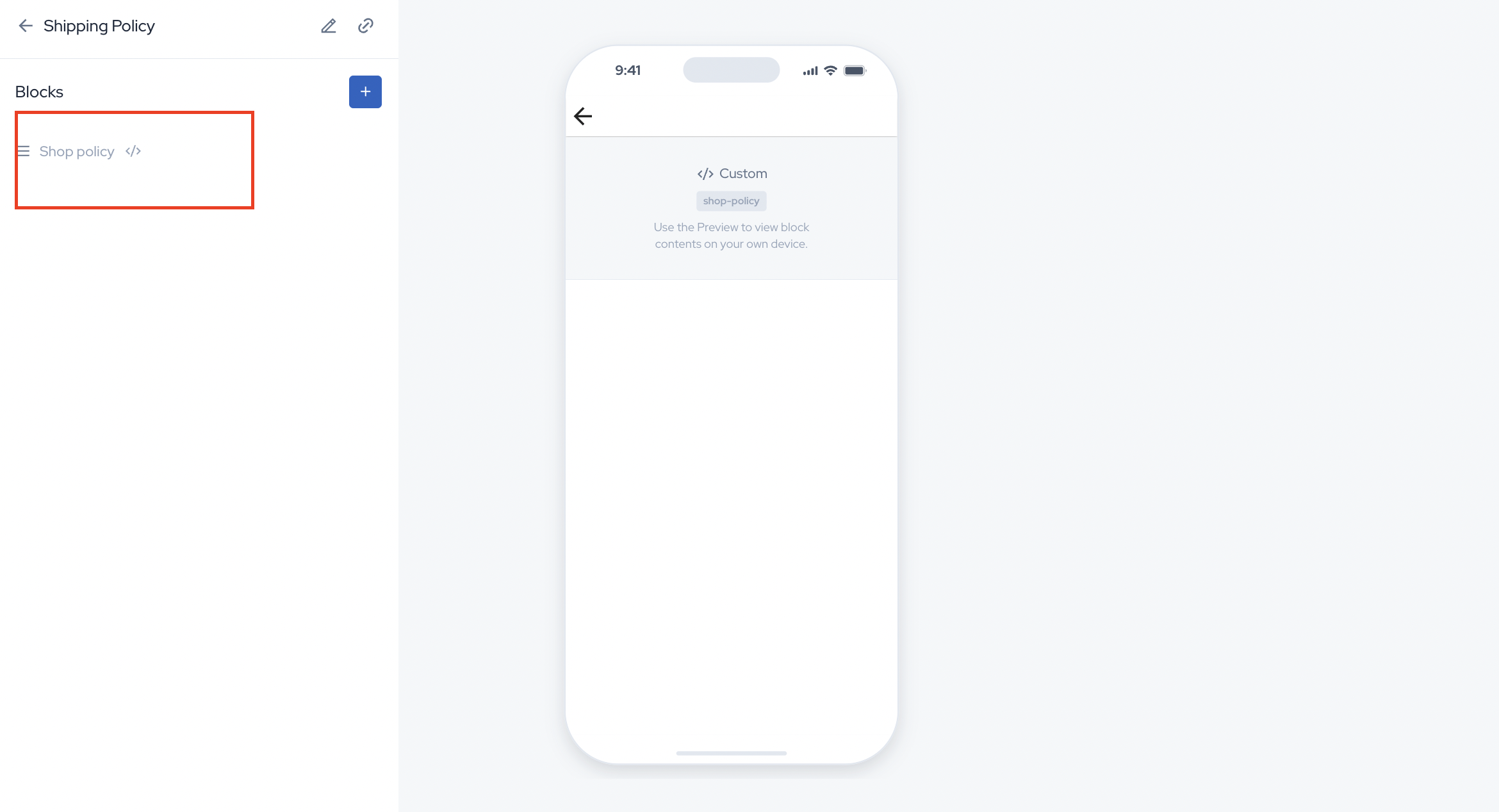
If your shipping or policy page uses Shopify policies (you’ll typically see a shop-policy block in the builder):
Steps to Fix
Log in to your Shopify Admin
Go to Settings → Policies
Locate the policy that isn’t loading (Shipping, Privacy, Refund, etc.)
Add or update the policy content
Click Save
Reopen the app and check the policy page again
✅ The updated content should appear automatically.
If the Policy Is a Custom Page (Builder-Based)
Open the app builder
Check which page is linked to the policy option
Ensure the page:
Exists
Has content added
Is correctly linked to the policy menu item
In case content is updated from your end > preview it after making changes. If everything looks good to go, then go ahead and publish the changes so as to reflect them in app.
If the Policy Is Embedded via WebView
Verify the website policy URL
Make sure the page:
Is publicly accessible
Loads correctly in a browser
Is not blocked by authentication, geo-restrictions, or redirects
FAQ
Q: Do I need to update or redeploy the app after changing Shopify policies?
A: No. The app automatically pulls the latest policy content from Shopify. Changes should reflect shortly after saving them in the Shopify admin.
Q: Can this be fixed without Appbrew/App support?
A: Yes. All three policy setups can be troubleshooted from your end by checking Shopify settings or the app builder configuration.
Still Facing Issues?
If you’ve verified the setup and the policy page still isn’t loading, feel free to reach out to us with:
The policy name
How it’s currently being powered (Shopify / Builder / WebView)
Screenshots (if possible)
We’ll be happy to help further.