Onelinks
Last updated: May 21, 2026
Onelinks are designed to automatically detect a user’s device and route them to the right destination. Instead of creating separate links for iOS and Android, you can use a single Onelink.
OneLinks can only be created and tested once your app is live on both the App Store and Play Store. Until the app is published, the links won't resolve correctly.
How Onelinks Work
When a user clicks an Onelink:
If the app is installed → The app opens directly at the specified content.
If the app is not installed → The user is sent to the App Store (iOS) or Google Play Store (Android) to install the app.
This ensures a seamless user journey, no matter the platform or app installation status.
Benefits of Onelinks
One link for all platforms – No need to manage separate iOS and Android links.
Seamless fallback – Automatically handles redirection to the right app store or web page.
Great for campaigns – Share a single link across ads, emails, SMS, or social media.
Improved user experience – Users never encounter broken or unsupported links.
How are Onelinks generated
You can generate the Play/App store redirection URL (or Onelink) from the Appbre
dashboard. Please find below steps for the same.
Log in to the Appbrew Dashboard.
Navigate to the More dropdown on the top Nav bar:
Go to the App links tab in the dropdown.
Select OneLink from the left menu bar.
Click on Create New button.
Add the required details to generate the Onelink. You can also add UTM parameters for tracking purposes.
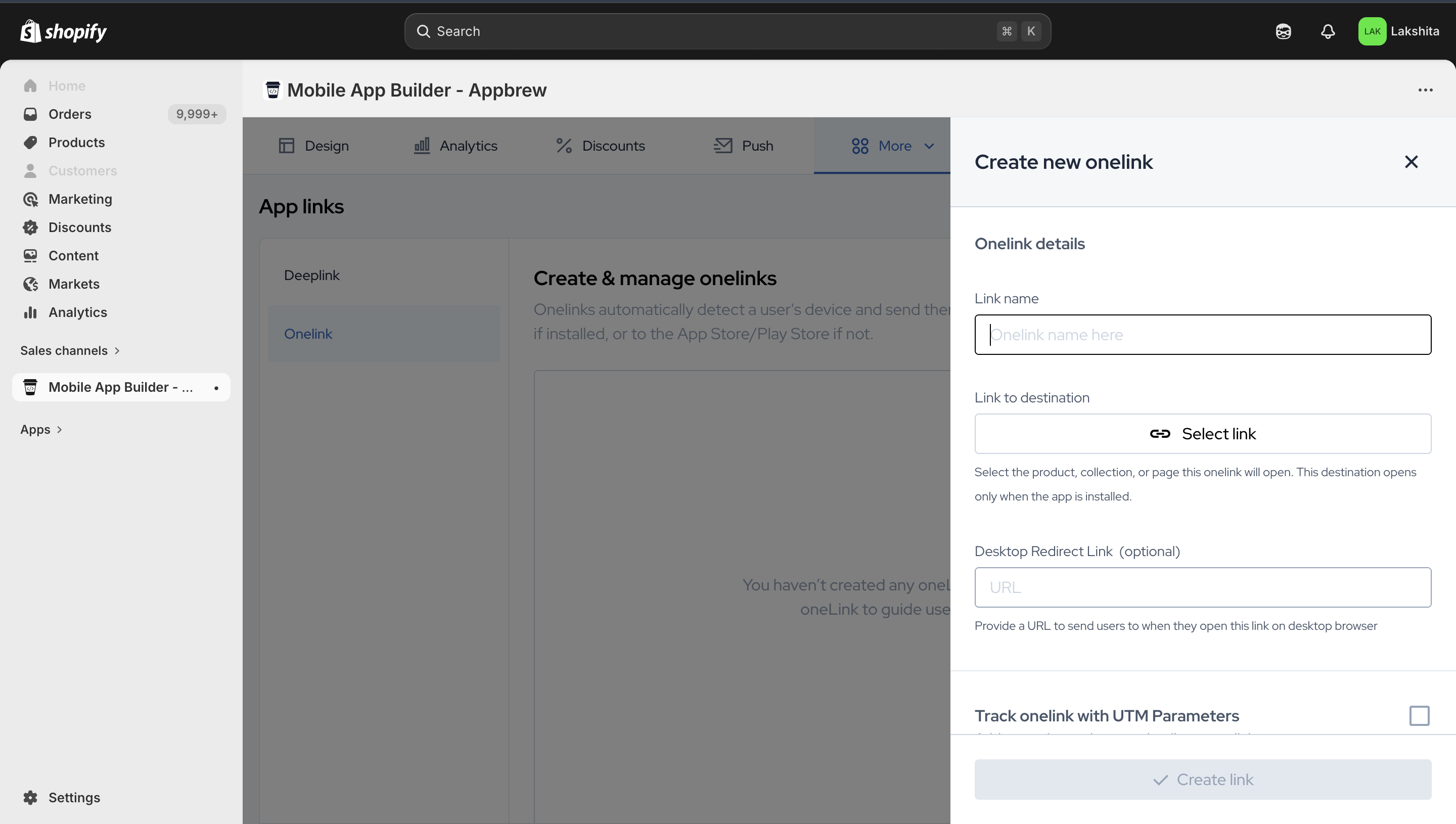
Once the details are added click on Create Link to generate the Onelink.
Generate a link to the QR code
Follow the tutorial below to generate a link for the QR code associated with your Onelink. You can use this link within Appbrew’s app download widgets or anywhere else you’d like to share it.
Frequently Asked Questions (FAQ) -
Why does this only work when the app is live?
OneLinks are smart deep links that detect a user's device and route them accordingly — if the app is installed, they open the relevant screen inside the app; if not, they redirect to the App Store or Play Store to download it. For this routing to work, the link needs valid store listings to fall back to, and the app's bundle ID / package name must be verified against live store entries. Until the app is published on both stores, there's nothing for the link to resolve to, which is why it fails.