How to Configure a Free Gift with Purchase Offer for the app?
Last updated: July 13, 2025
Configuring a Free Gift with Purchase Offer
This document provides a step-by-step process to enable a free gift with purchase offer in your application. Follow these instructions to seamlessly configure and apply discounts, select gift products, set purchase limits, and schedule the offer for maximum impact.
Step 1
To enable a free gift with purchase offer, hover over the designated section and click on the block.
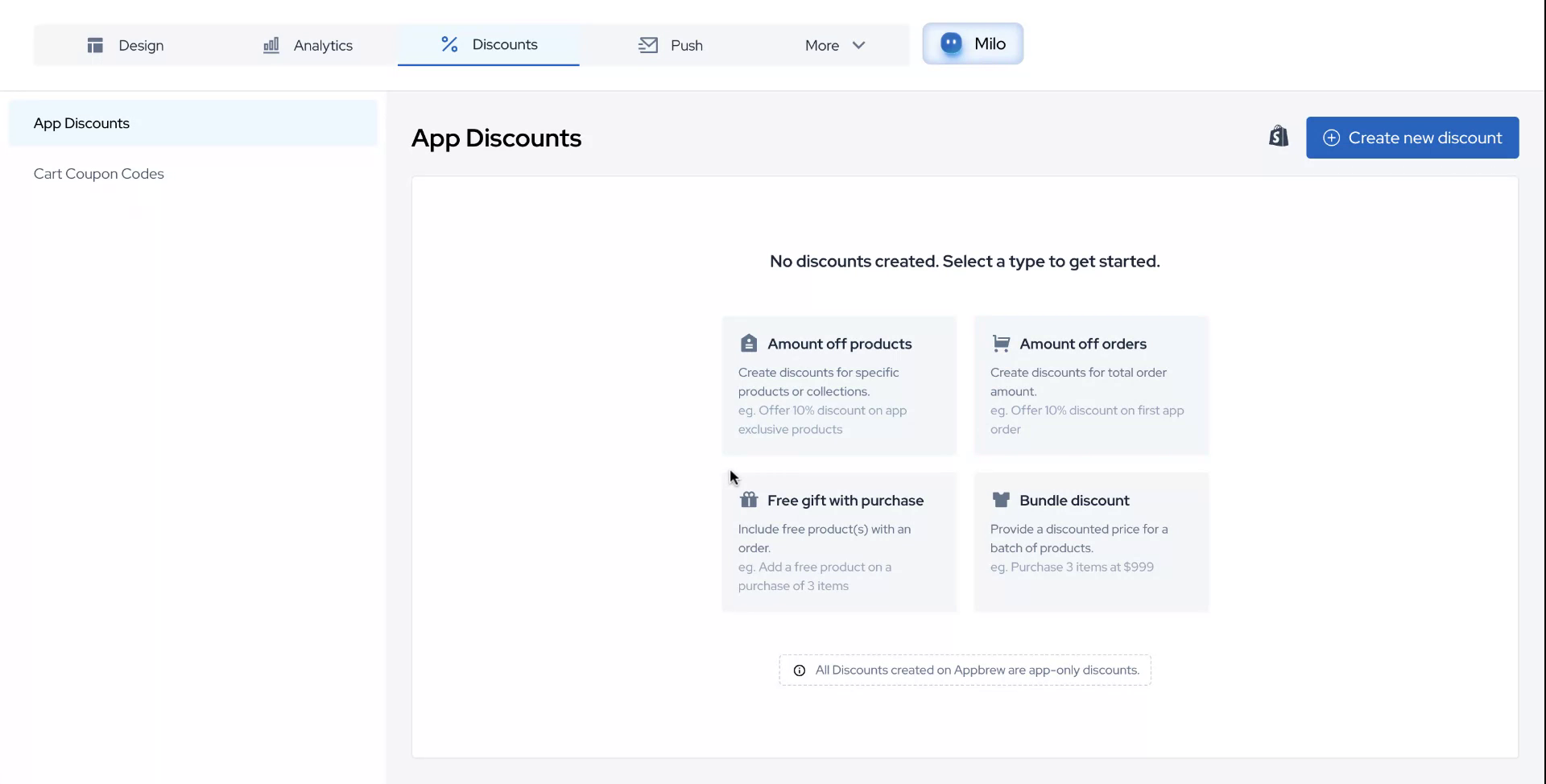
Step 2
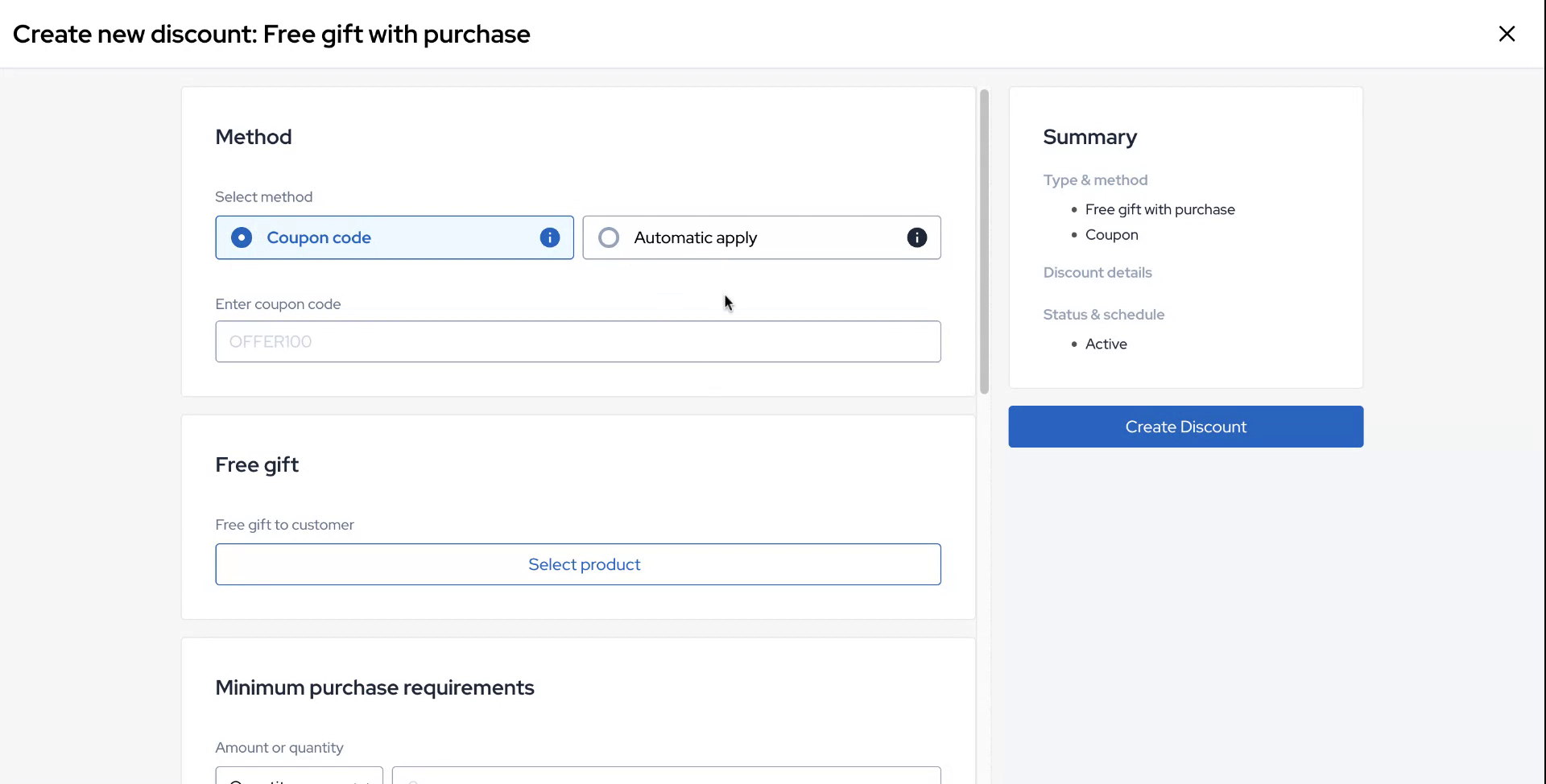
Upon accessing the block, you will find multiple options for configuring your discount. Choose whether to create a coupon code or automatically apply the free gift to the purchase. For this instance, select the option to automatically apply the gift.
Step 3
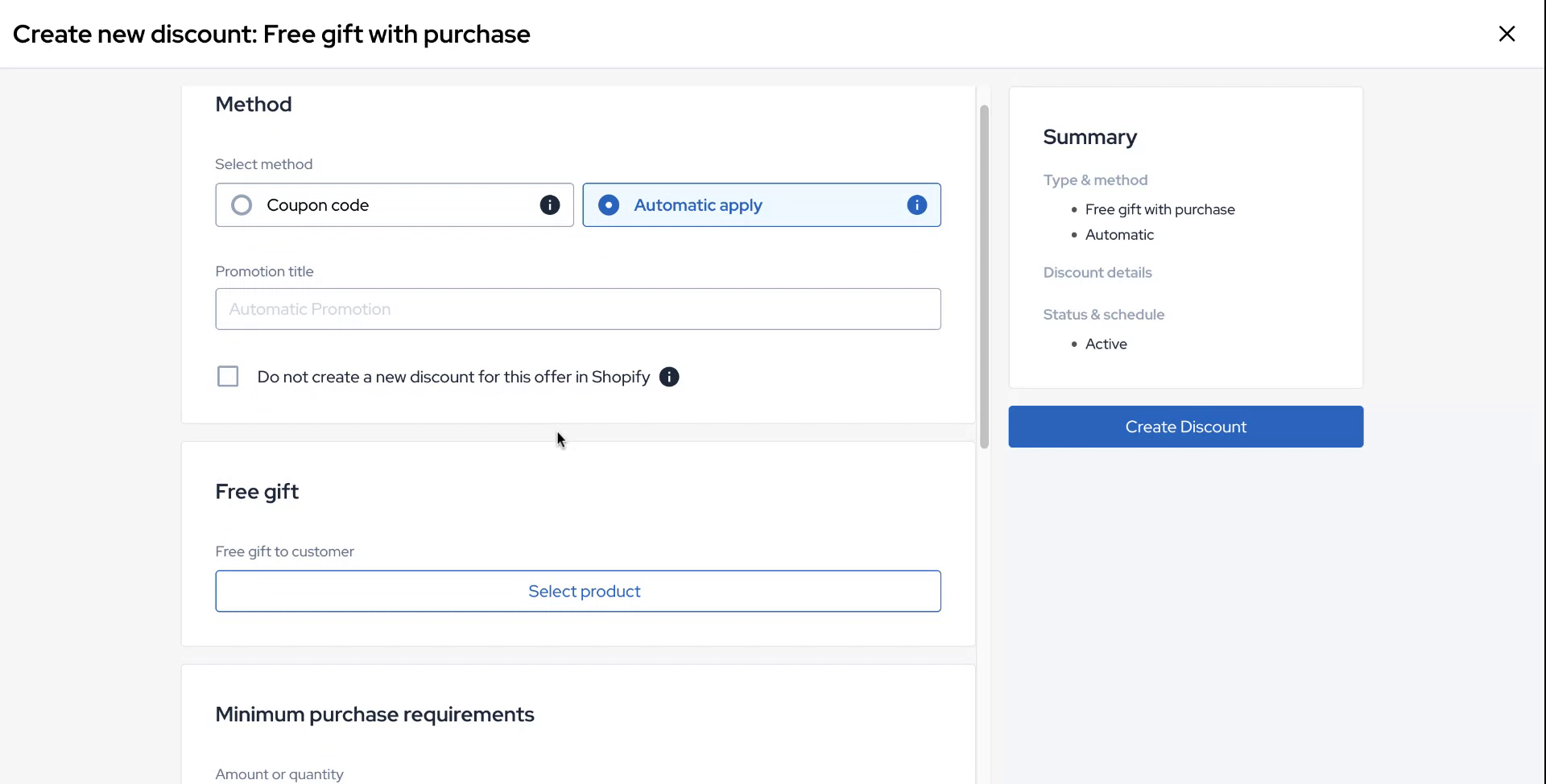
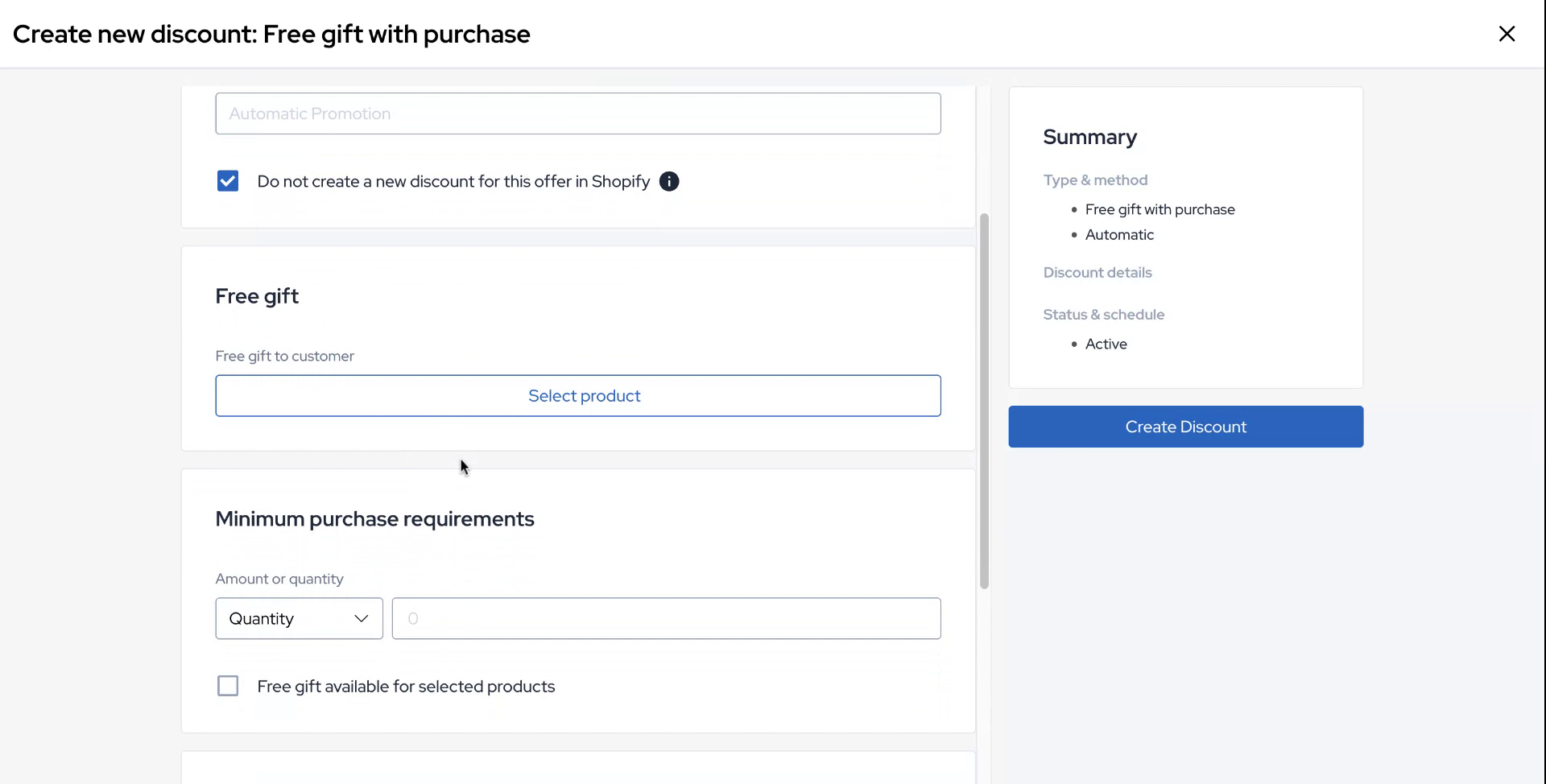
You have the option to refrain from creating a new account in your Shopify backend. Always select this option.
Step 4
Proceed by selecting the product you wish to configure as a free gift.
Step 5
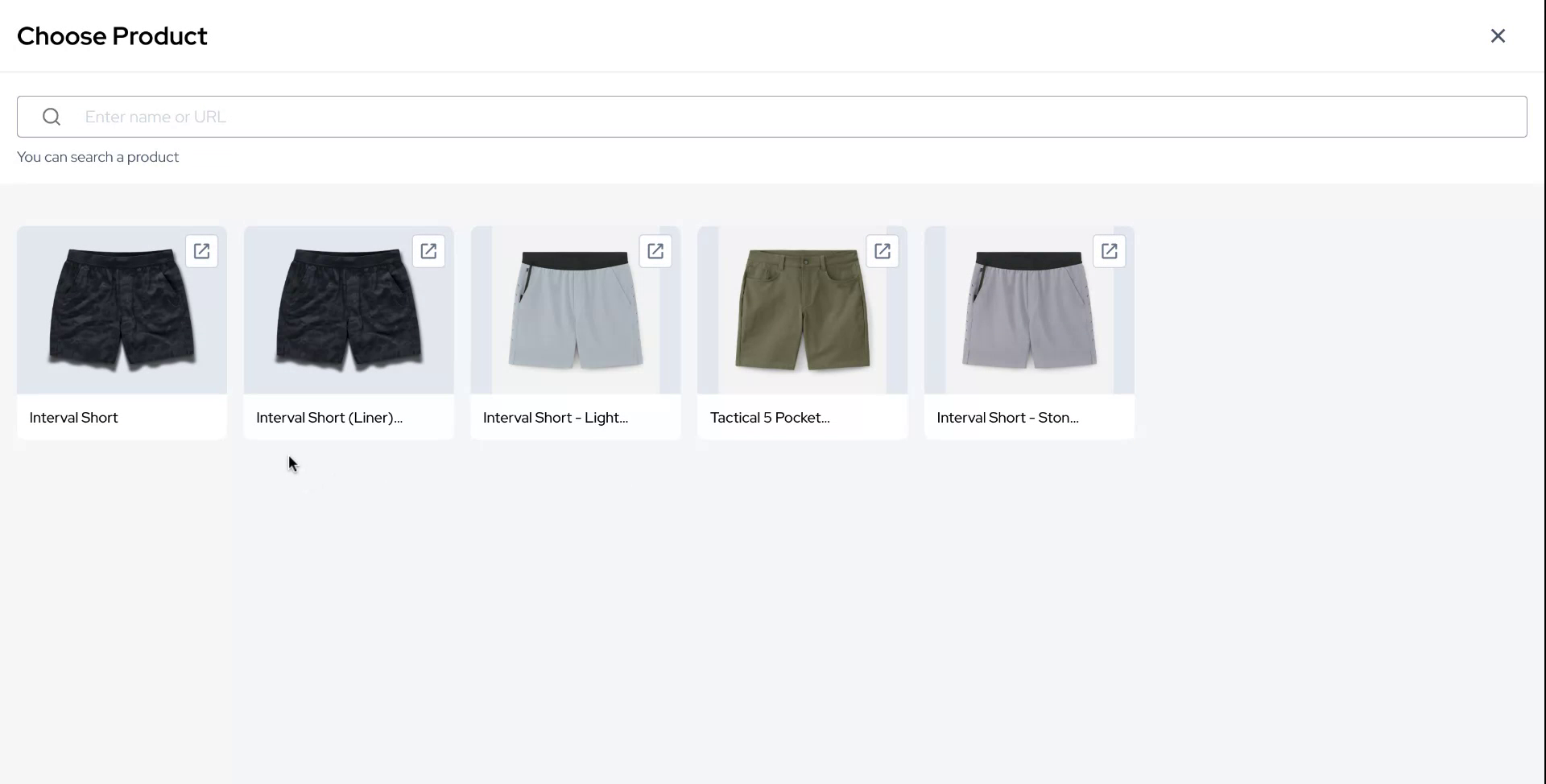
For this example, choose the sample product "Interval Short" and decide on the variant you want to offer.
Step 6
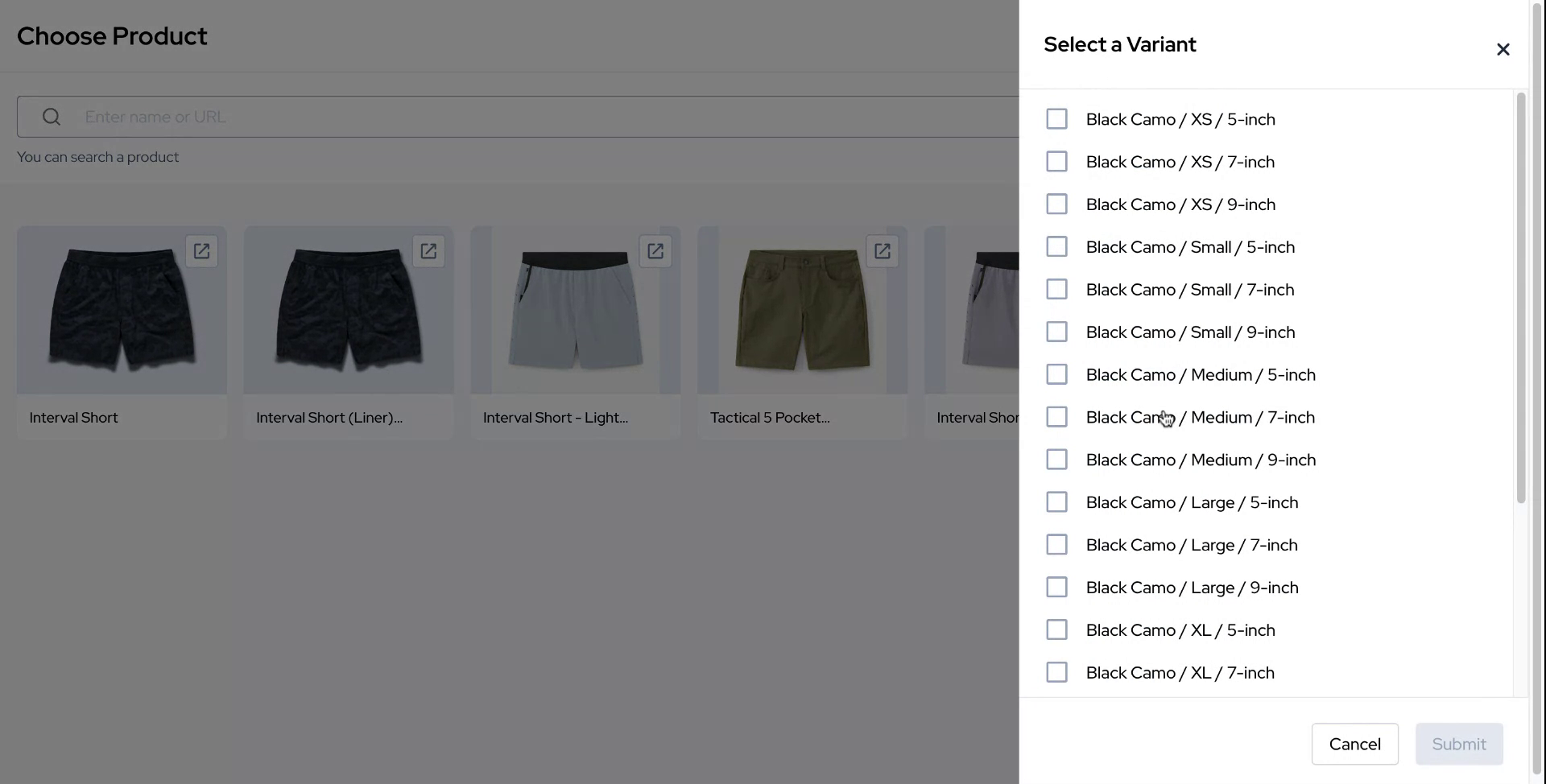
Select "Black Camo" as one of the variant options and click on Submit.
Step 7
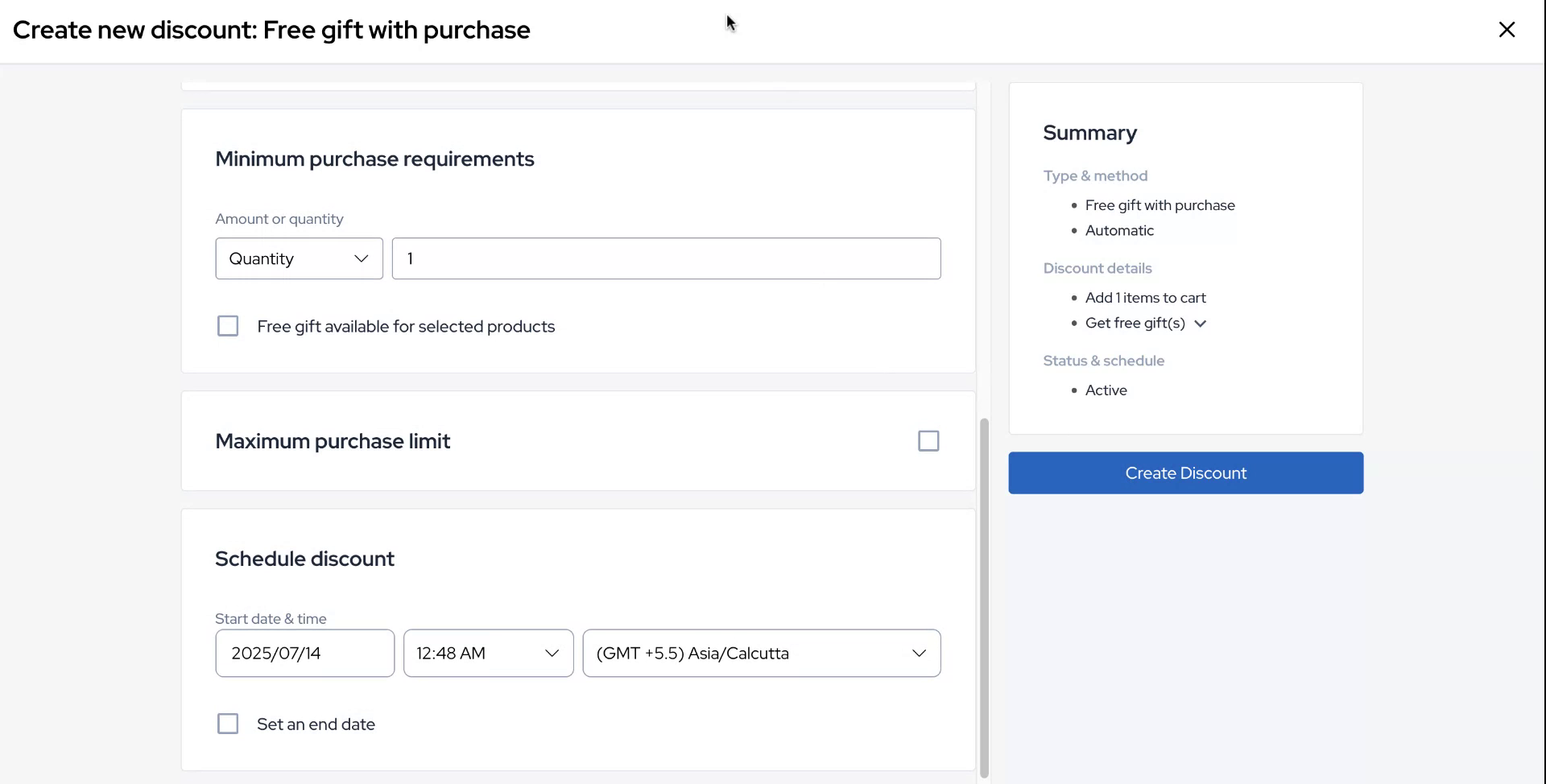
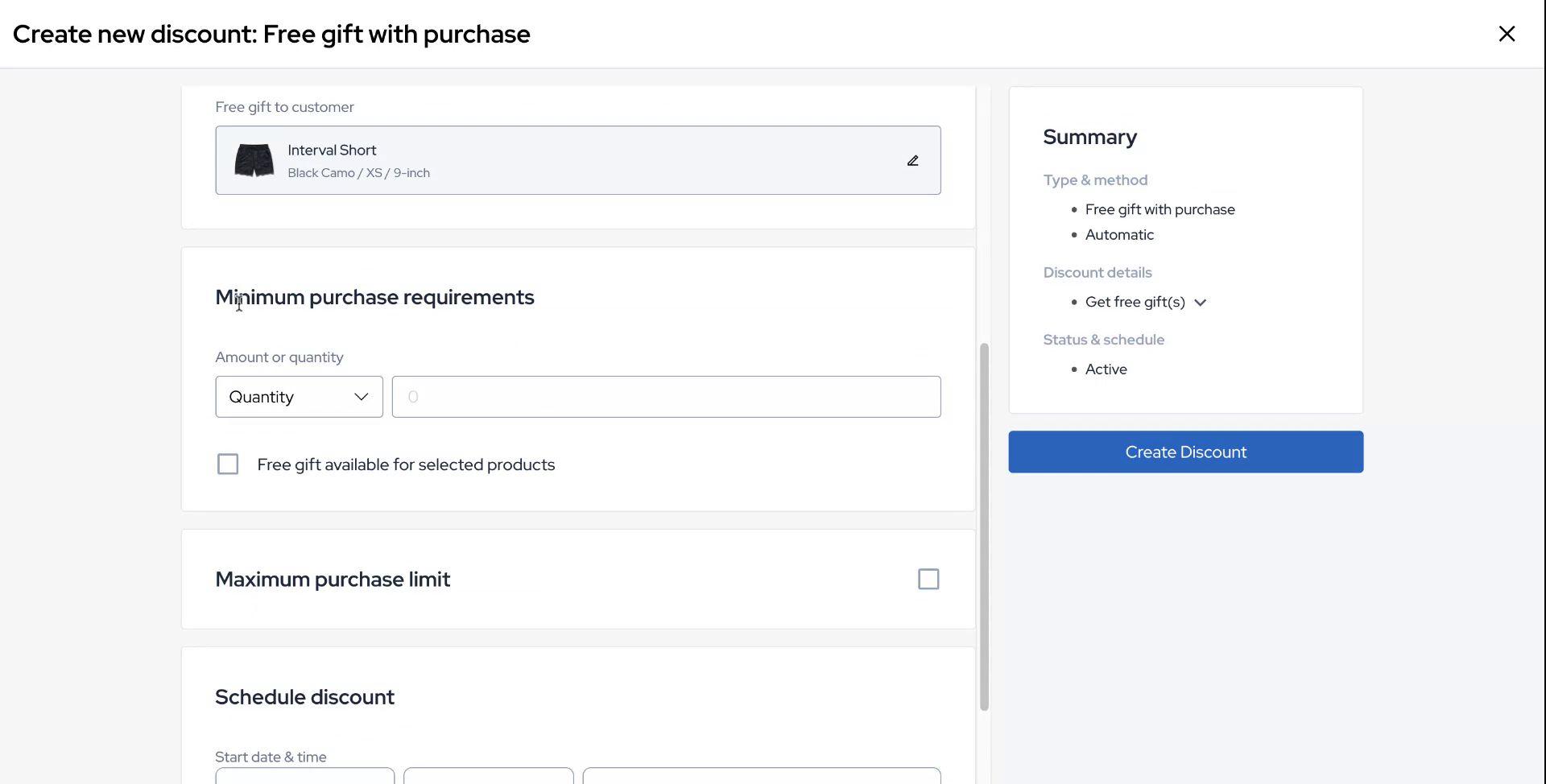
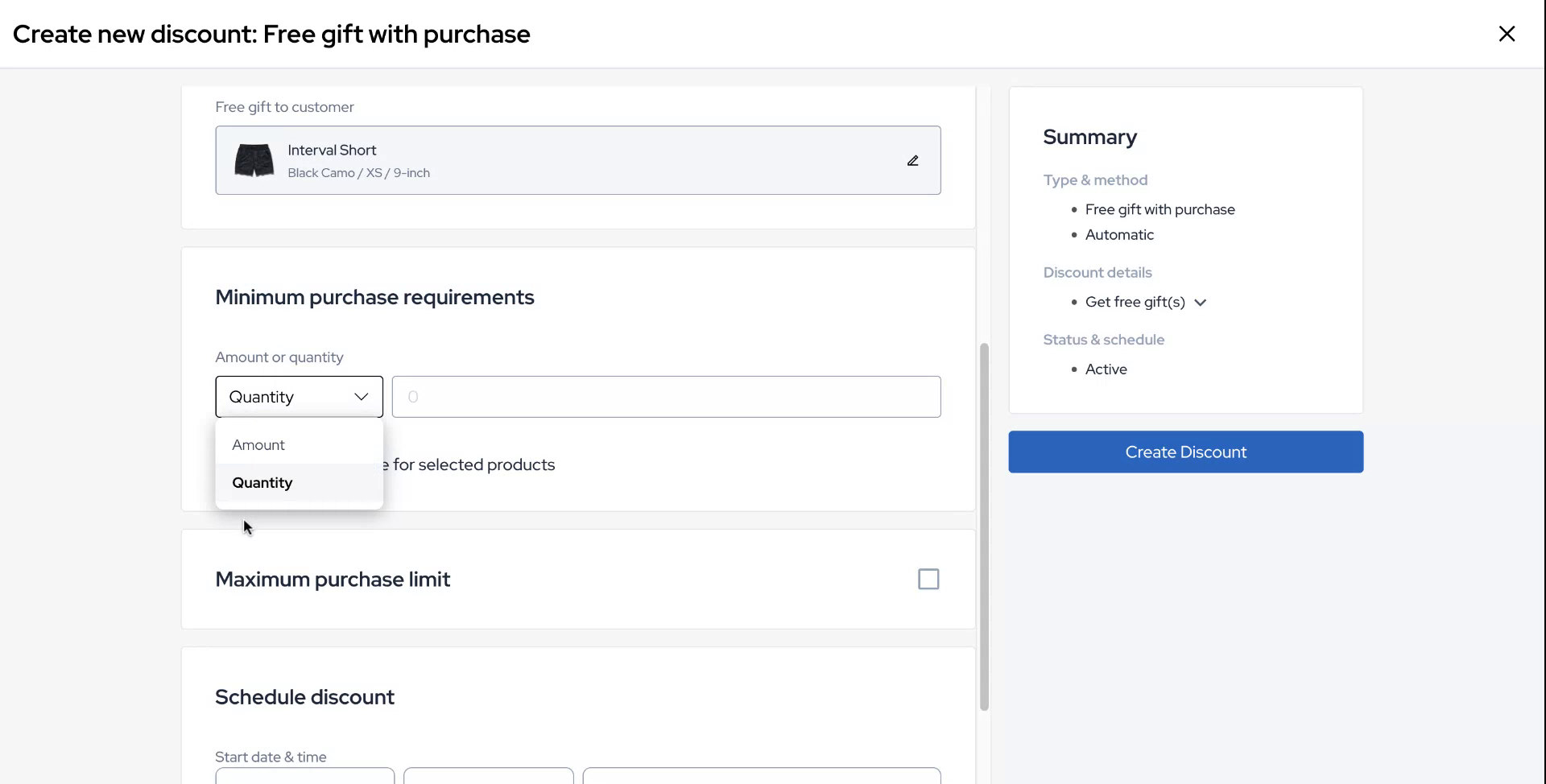
You will now have the option to configure the logic for a minimum purchase requirement, which can be set as either a quantity or an amount.
Step 8
For this instance, use "one" as the sample value for the minimum purchase requirement.
Step 9
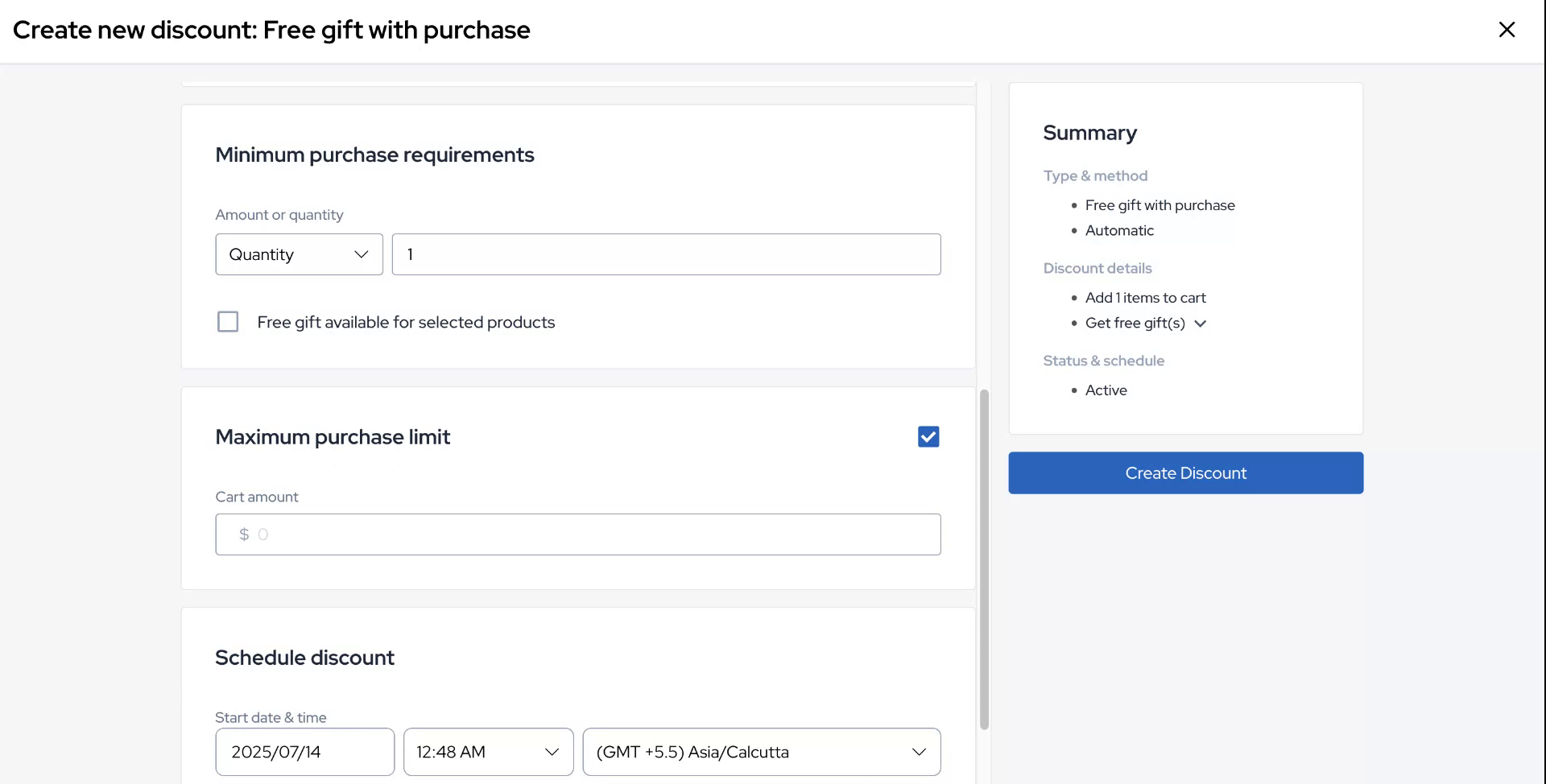
Next, configure the logic for a maximum purchase limit.
Step 10
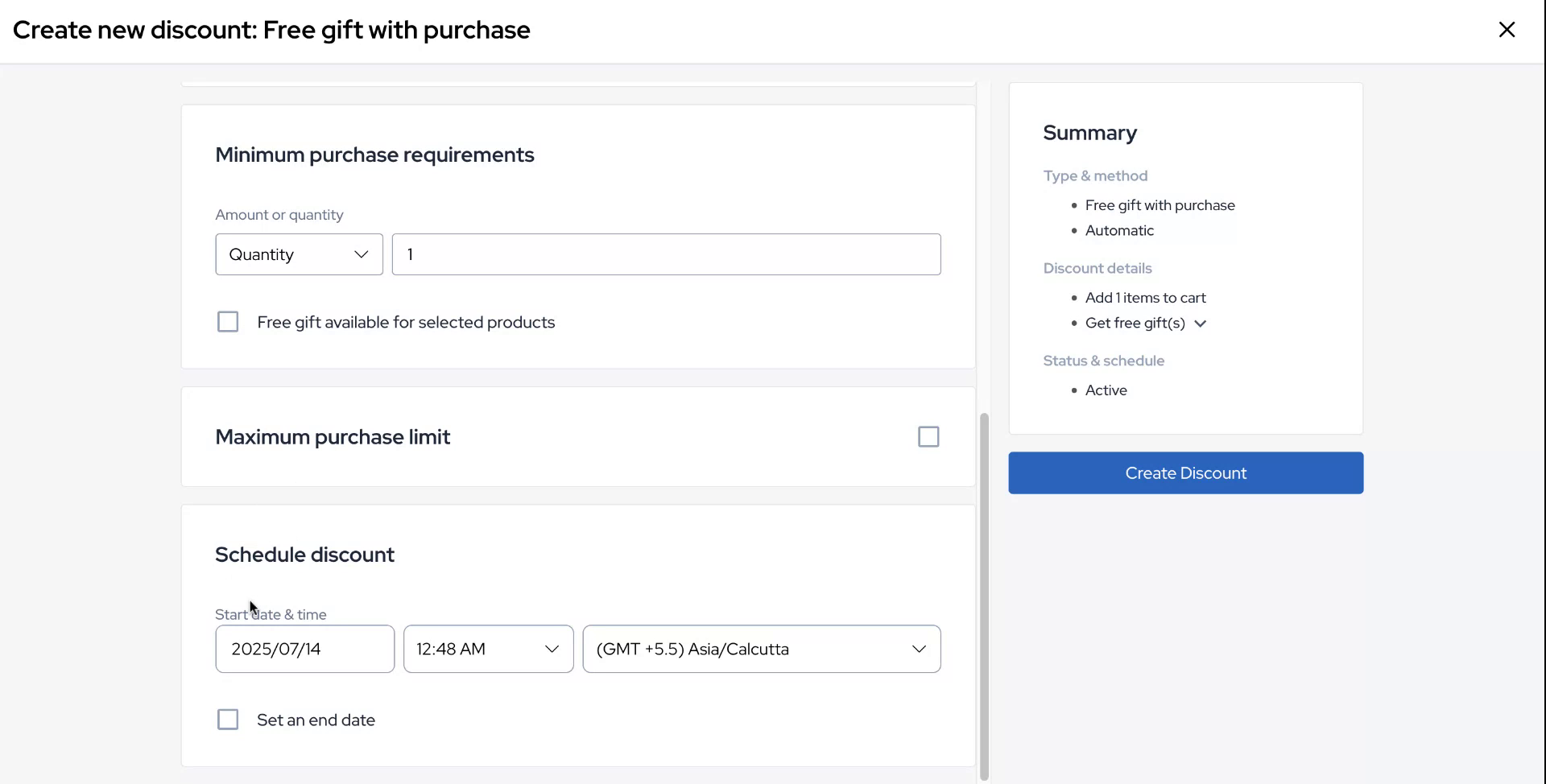
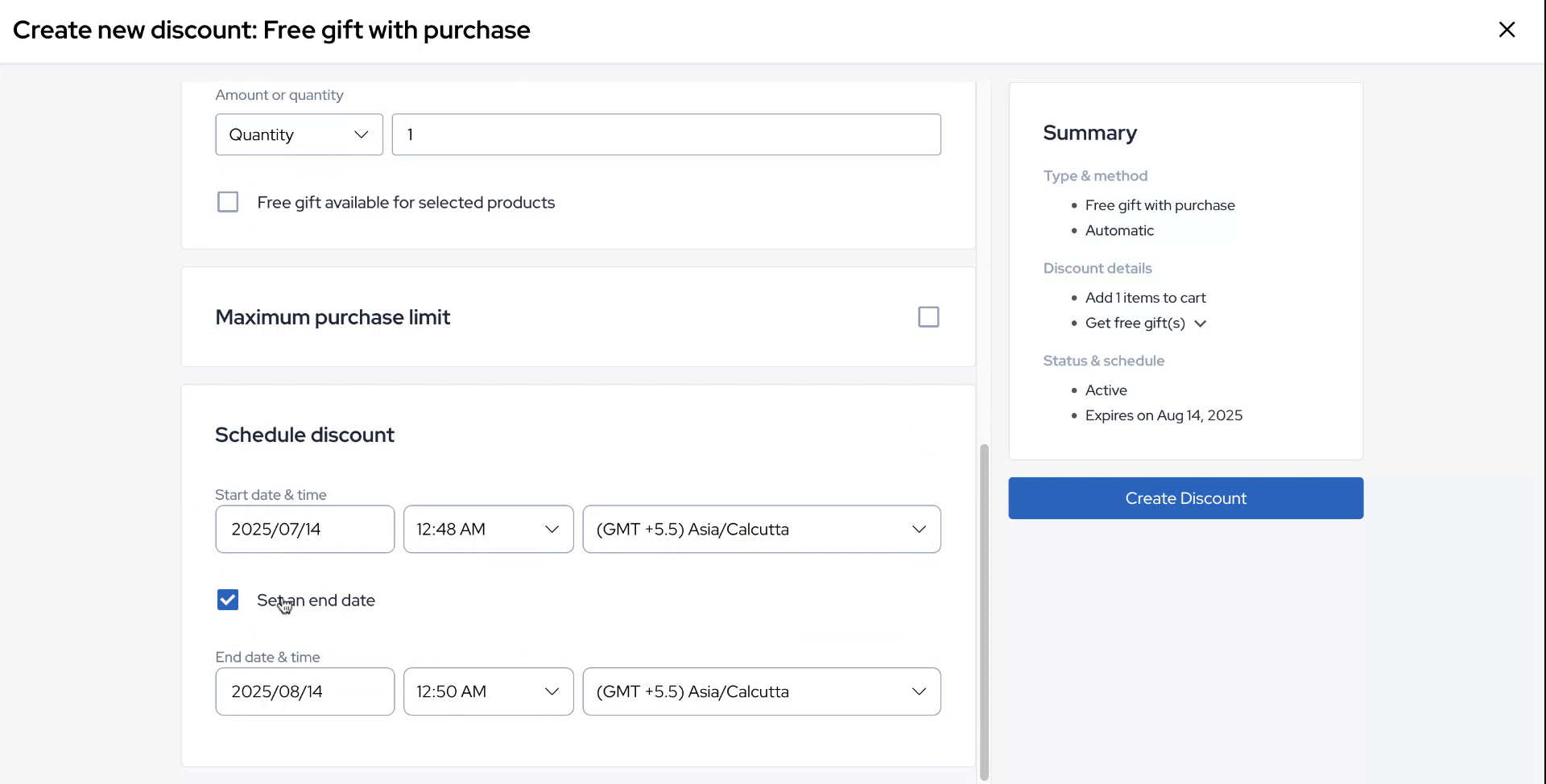
In the final configuration step, you can schedule your discount by selecting a start time and an end time for the offer.
Step 11
Once all configurations for your offer are completed, click on Create Discount.
Step 12
Your offer is successfully created.