How to enable Order Discounts for the app?
Last updated: July 13, 2025
Creating Order Discounts
In this process, you will learn how to create order discounts in your application using coupon codes or automatic application. Follow these simple steps to configure the discount logic, set conditions such as minimum purchase requirements, and schedule the offer as needed.
Step 1
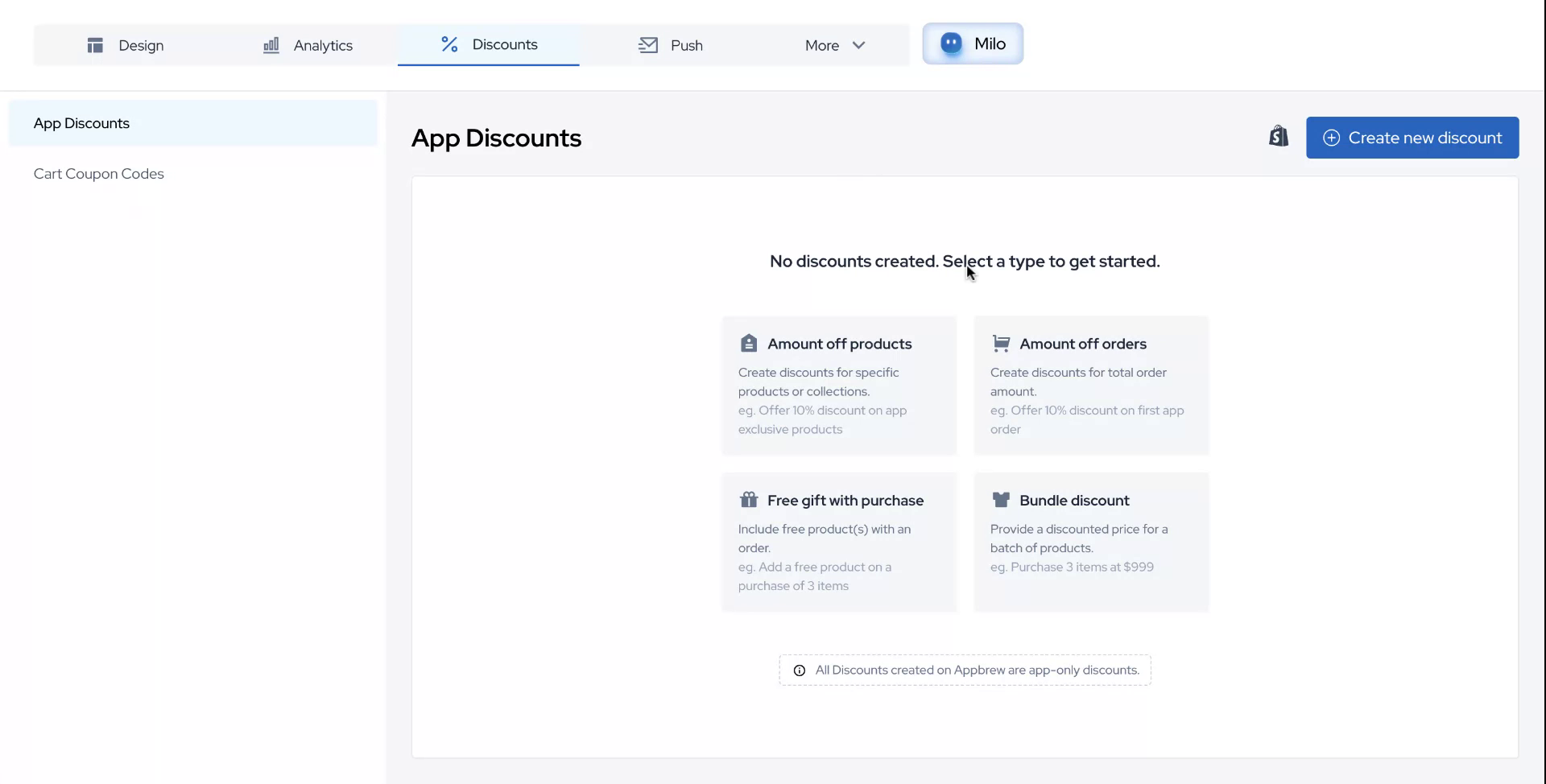
Begin by hovering over the discount block in your application. Select the option to configure the discount logic based on either a coupon code or automatic application.
Step 2
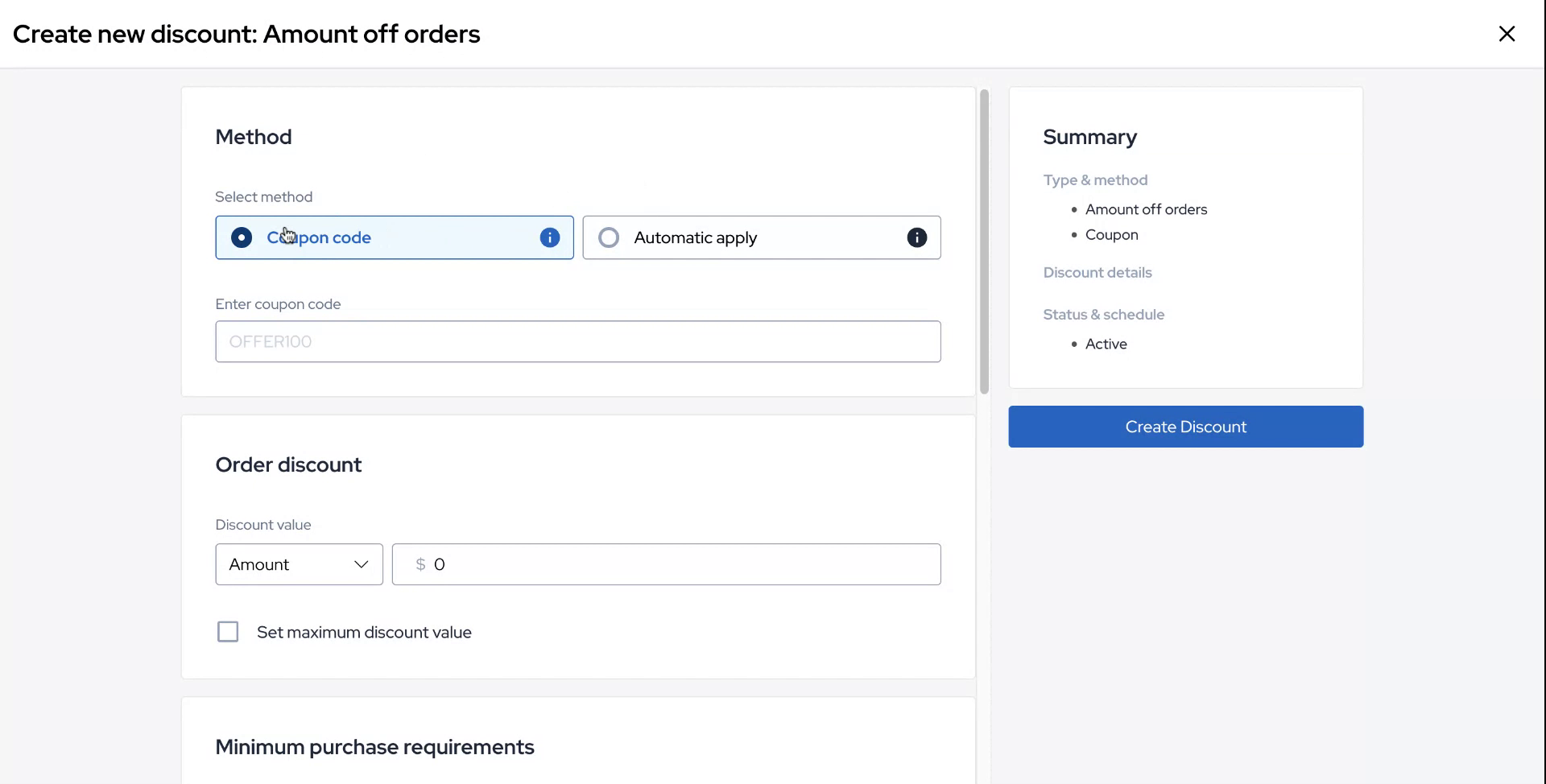
For this example, choose the coupon code option. Create a coupon code named APPRO10.
Step 3
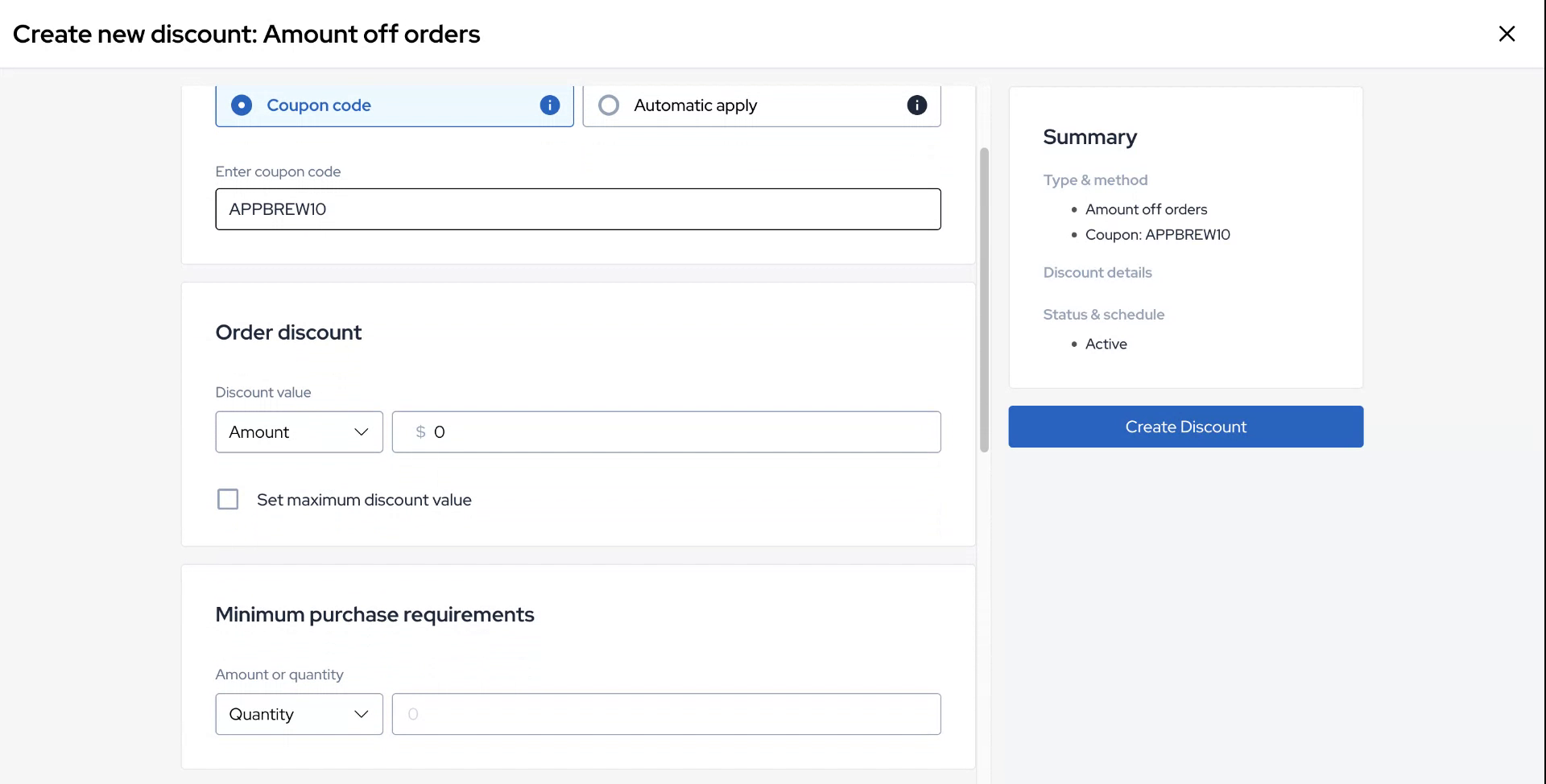
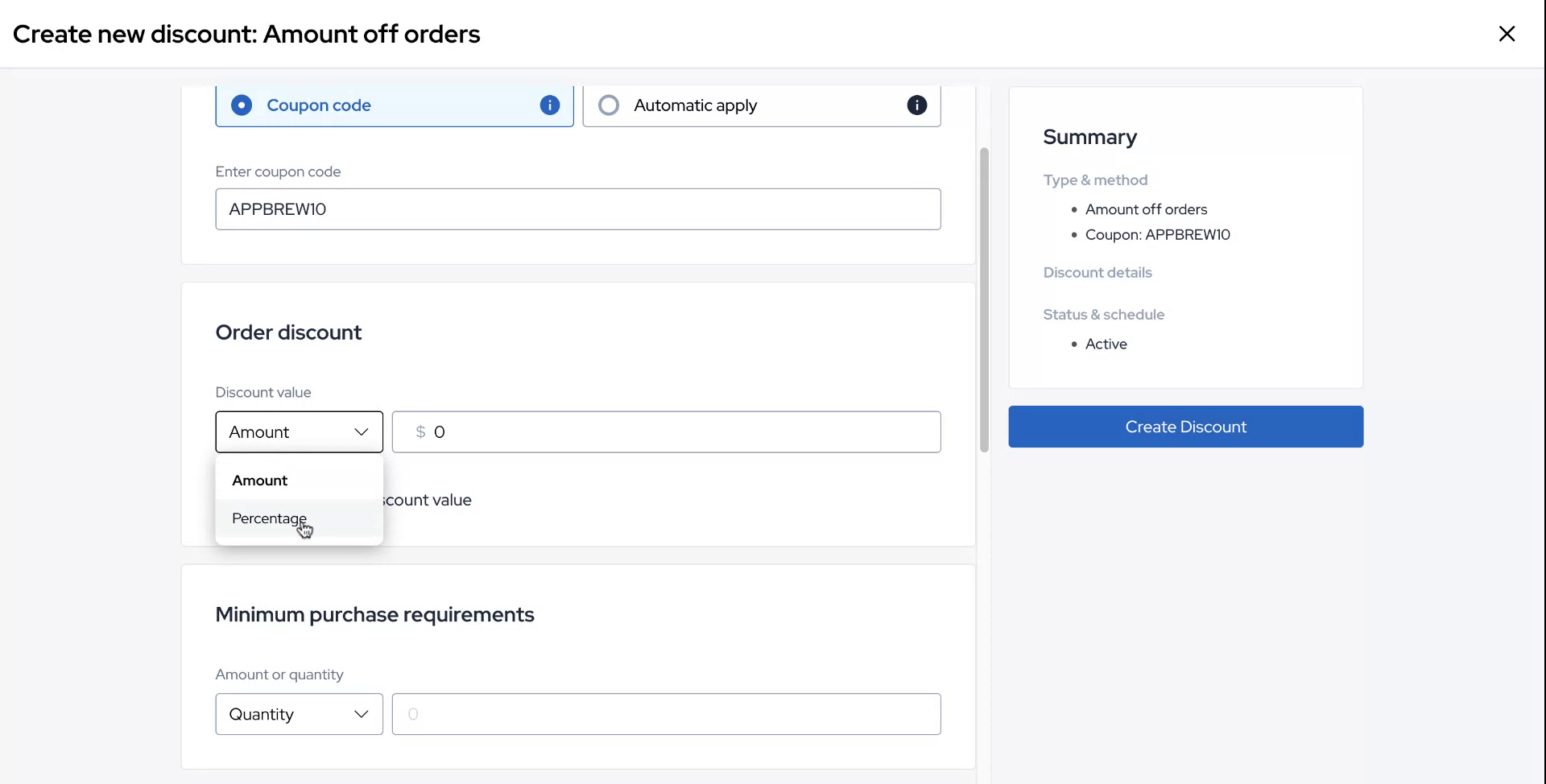
After creating the coupon code, you will see an option to configure the order discount. You can choose to apply the discount based on either a specific amount or a percentage.
Step 4
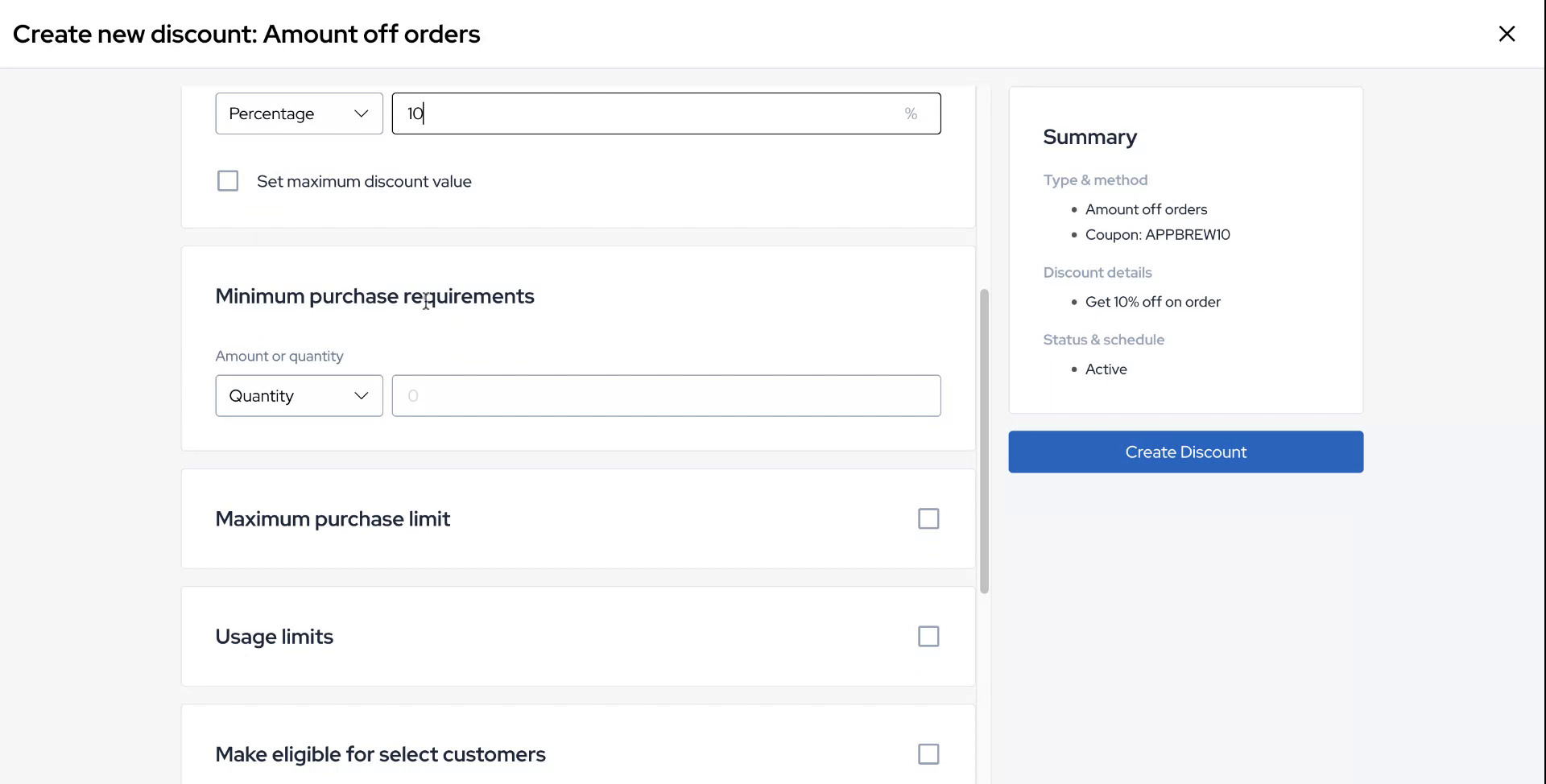
Select the percentage option for this example and set the discount logic to 10%.
Step 5
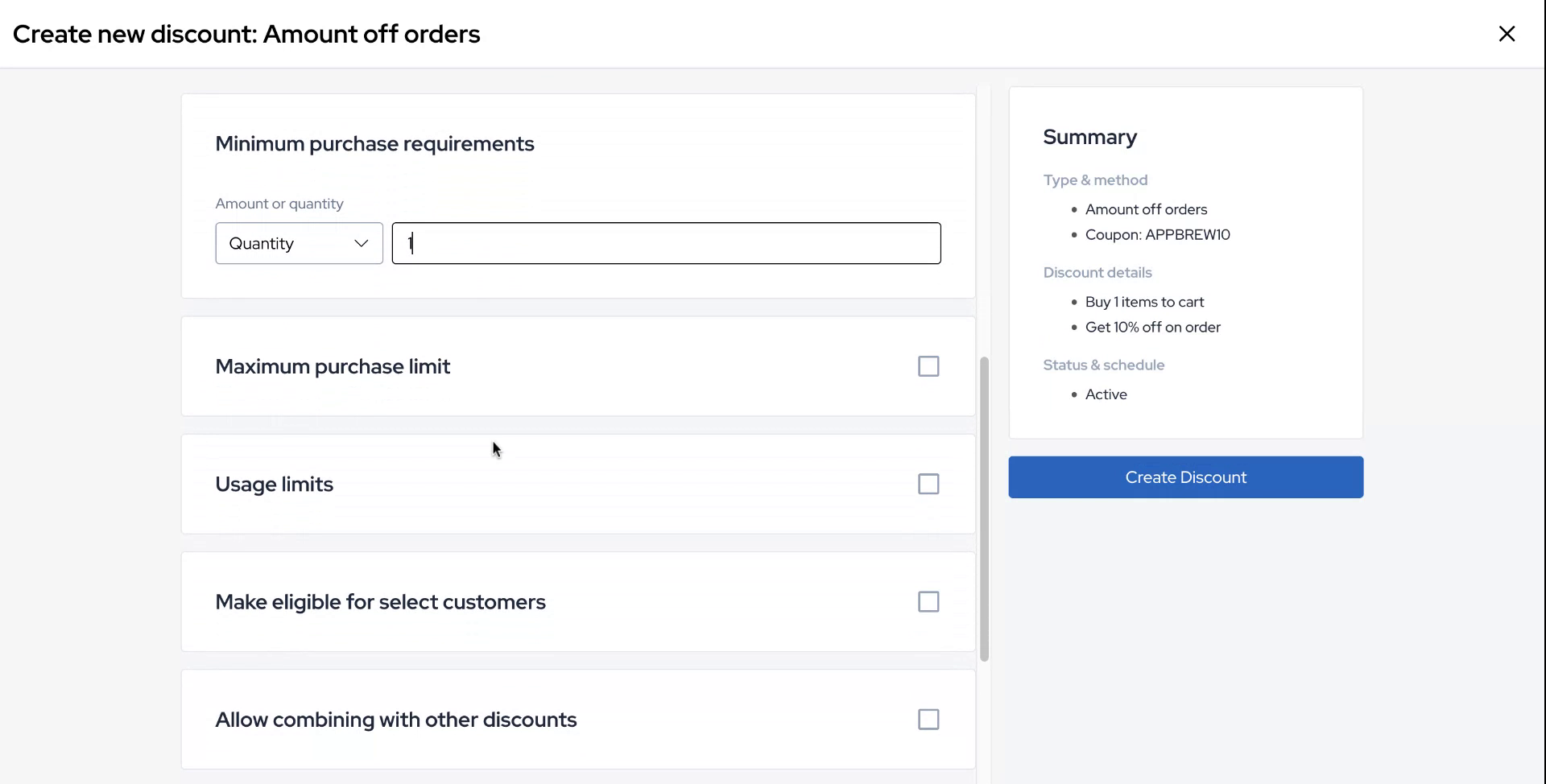
Next, configure the minimum purchase requirement. For this example, select quantity and set it to one.
Step 6
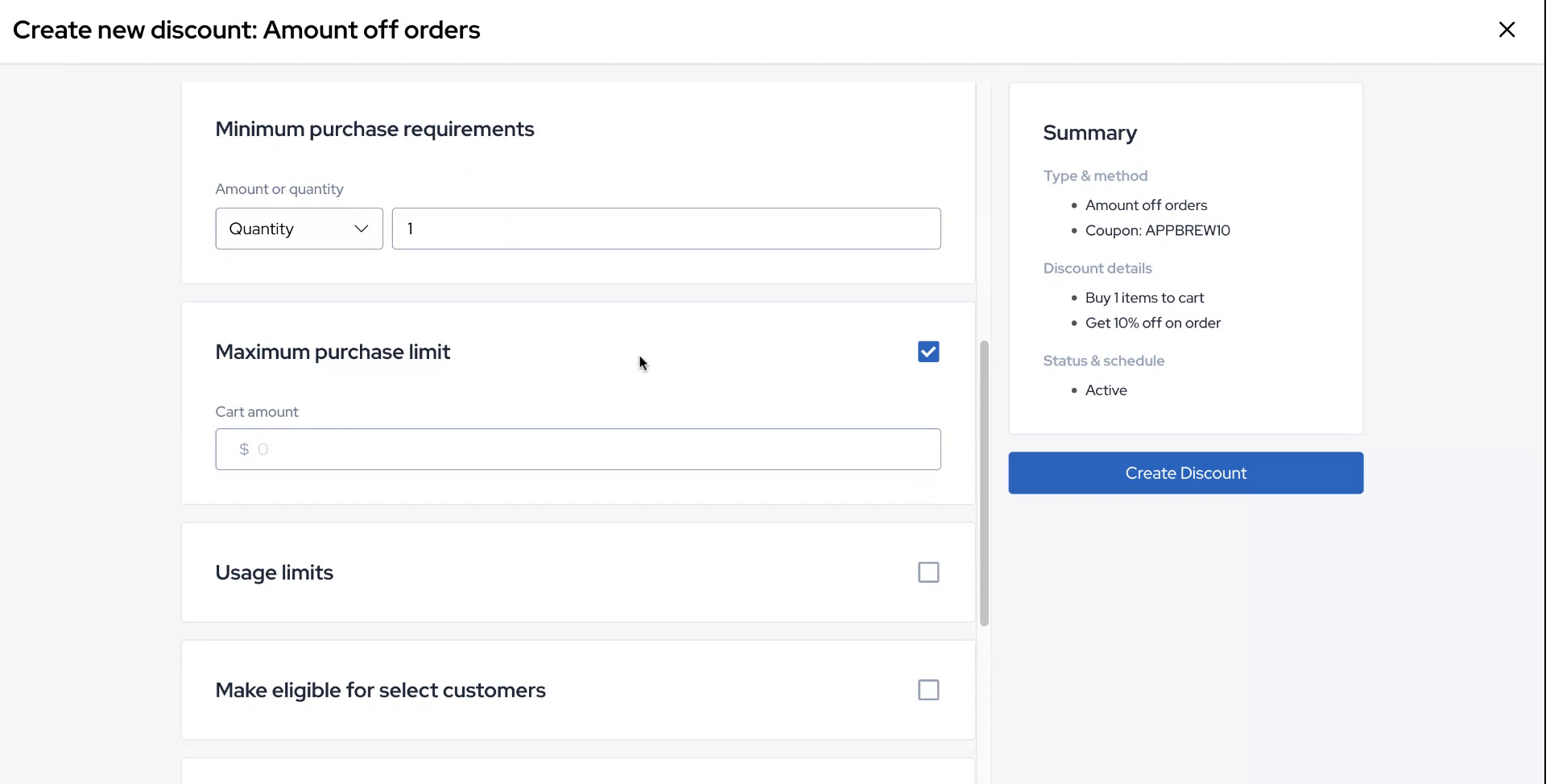
You also have the option to set a maximum purchase limit. Configure this logic as needed.
Step 7
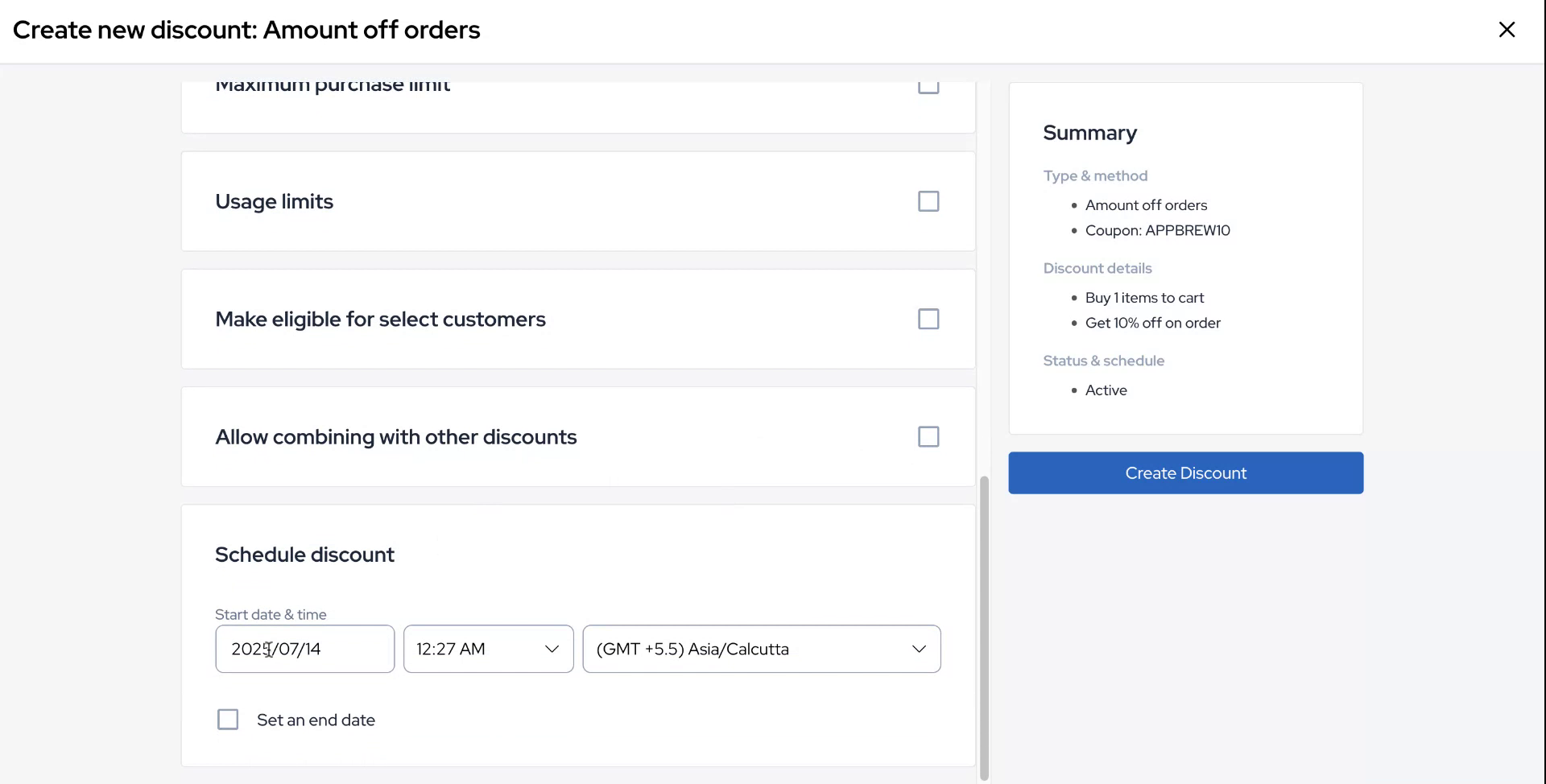
Additionally, configure usage limits and make the discount eligible for selected customers for targeted offers. You can allow the combination of this discount with other discounts such as product, order, or shipping discounts.
Step 8
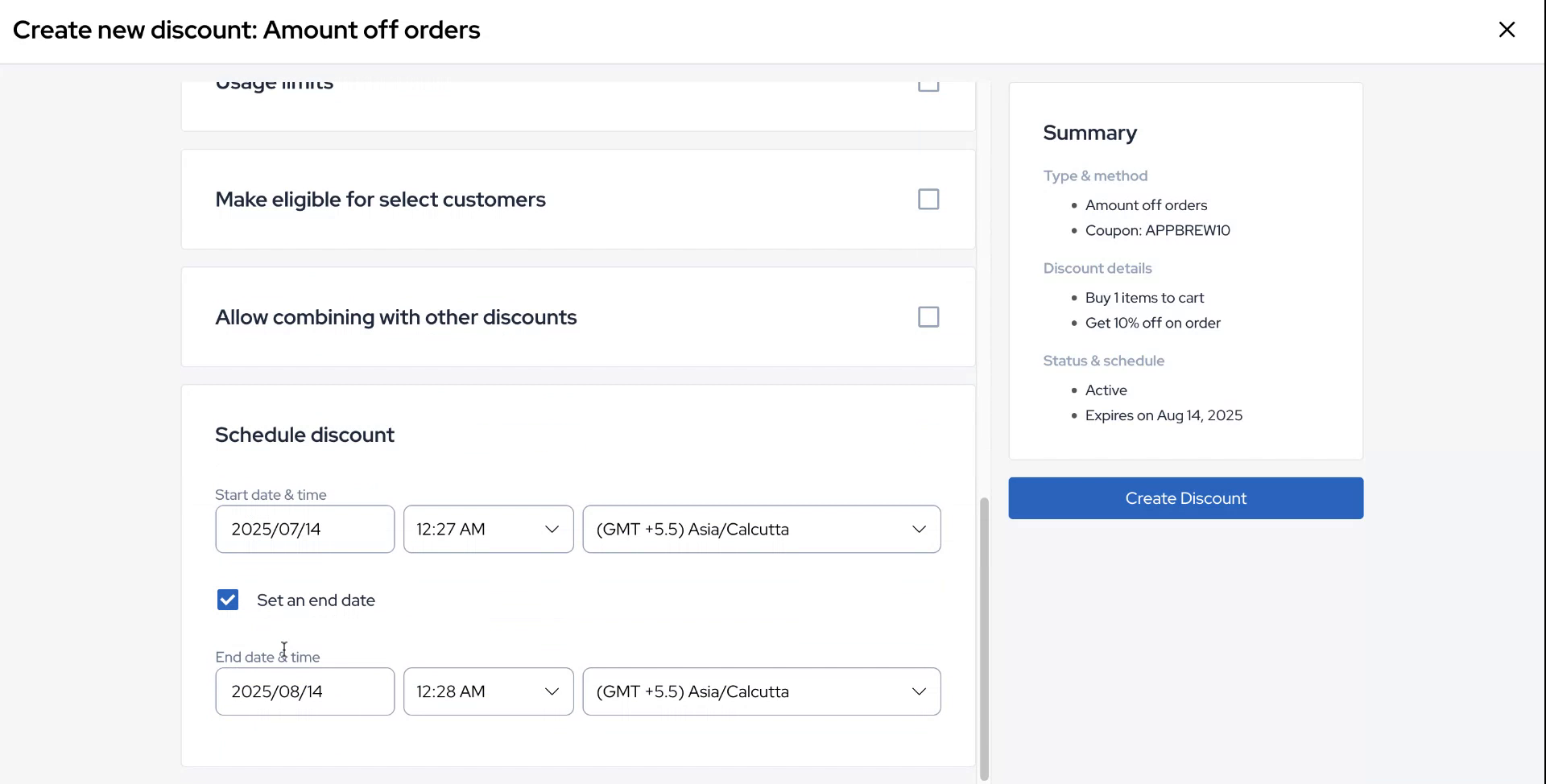
Finally, schedule the discount by setting a start date and an end date as desired.
Step 9
Once you have configured all the logic, click on "Create Discount" to finalize the setup.
Step 10
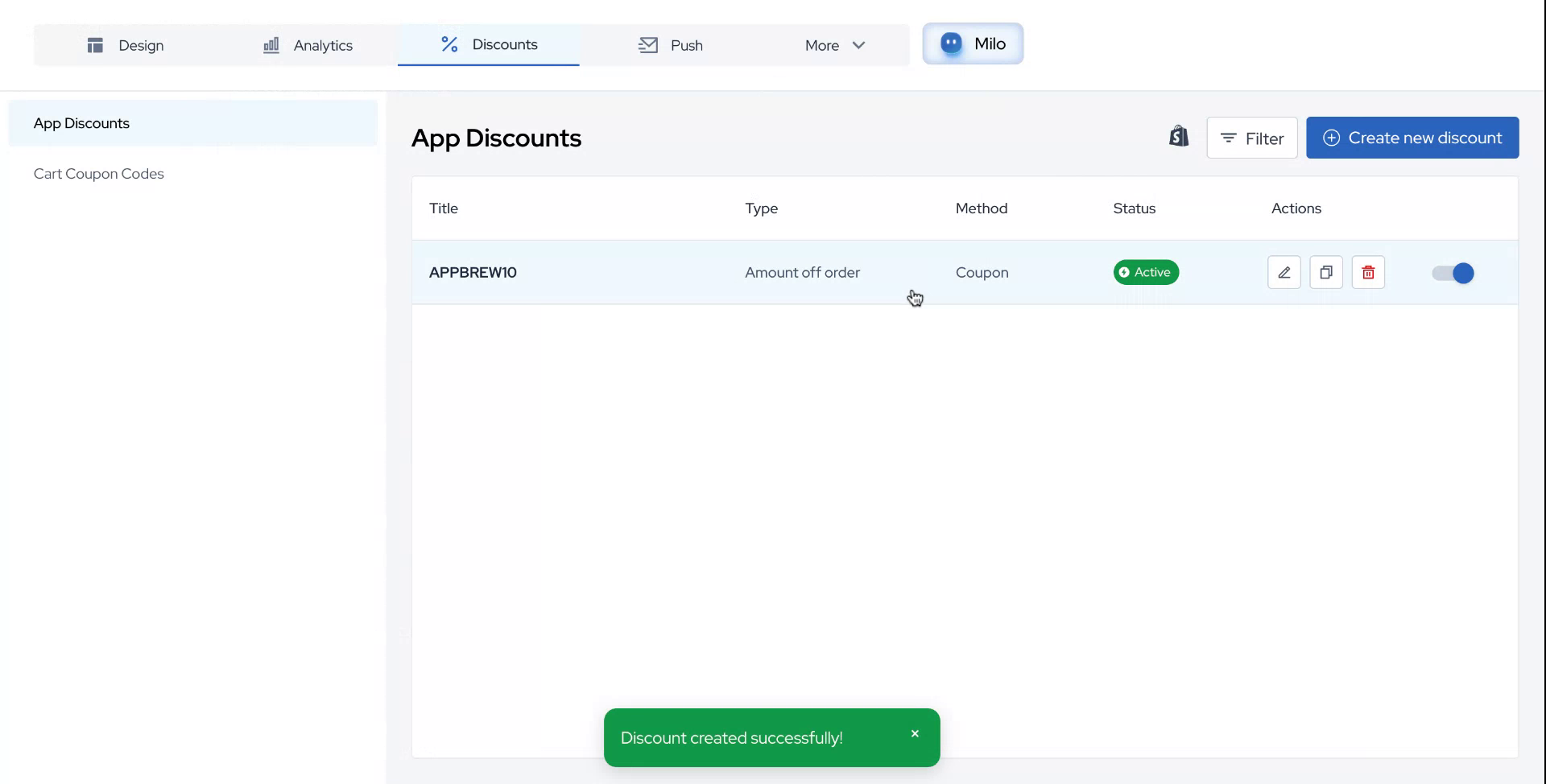
The discount is now ready to be applied.