Enabling Scheduled Push Notifications
Last updated: January 20, 2026
This document provides a comprehensive walkthrough of enabling scheduled push notifications. It covers the creation of notifications, selection of content and imagery, and finalizing the schedule. By following these steps, you can efficiently manage and automate your notification delivery.
Step 1
Begin by hovering over the Push icon and clicking on it. This action will automatically redirect you to the Scheduled option.

Step 2
Click on "Create and Schedule." At this point, you will need to fill out two primary pieces of information. The first is the Content section.
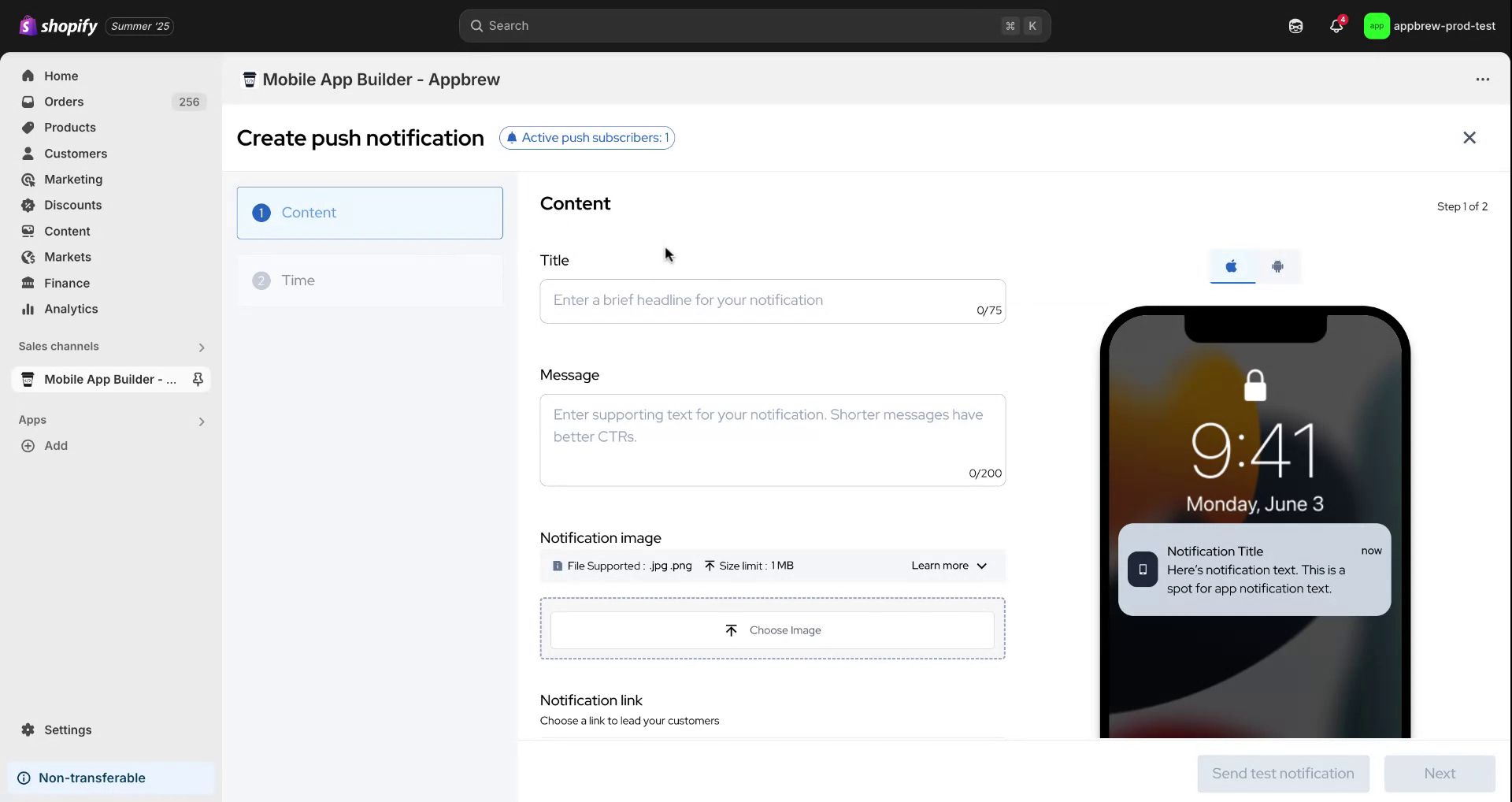
Step 3
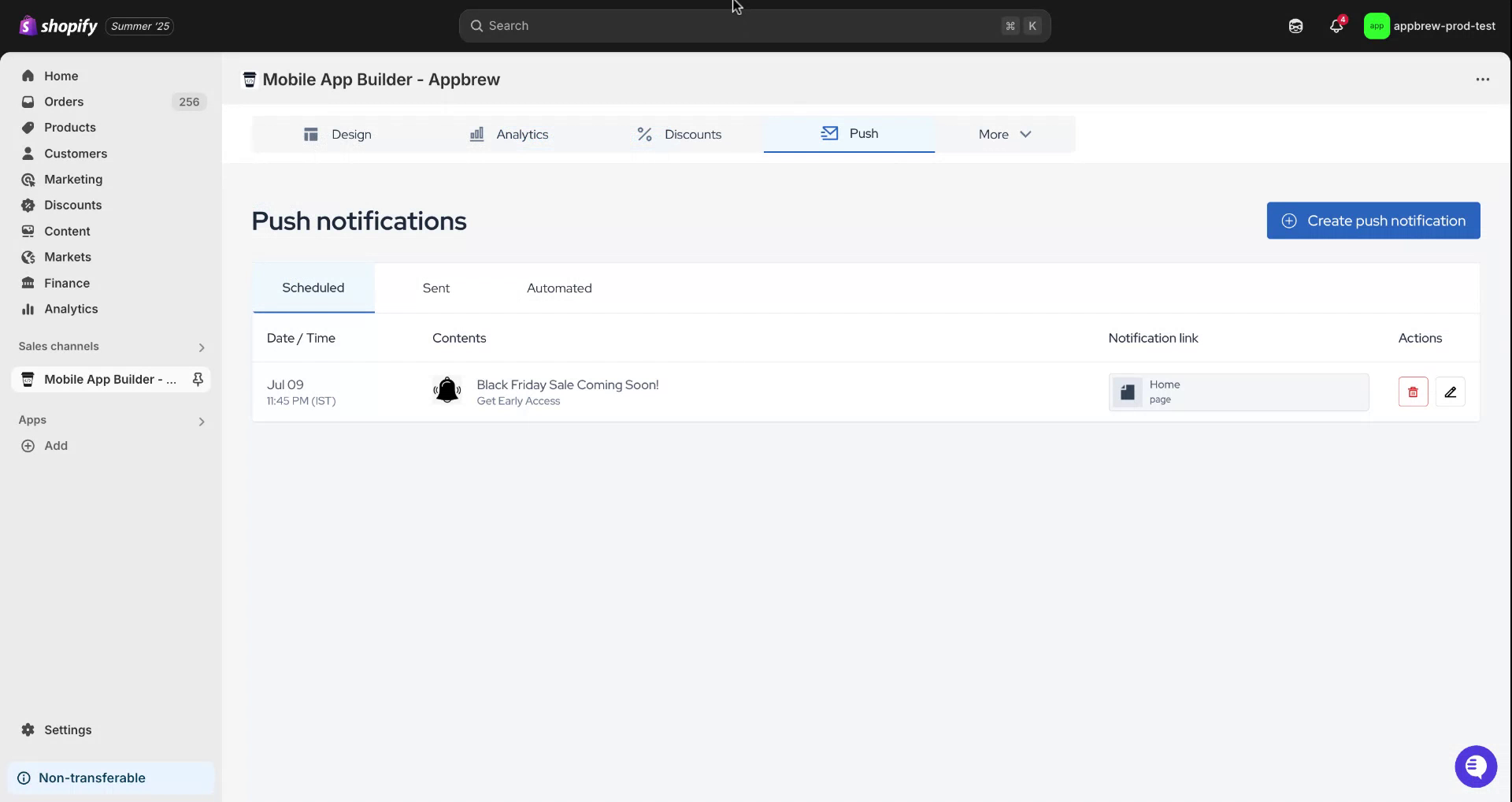
Start by entering a title for your notification. For demonstration purposes, use "Black Friday Sale Coming Soon." Next, compose the message you wish to send to your users.
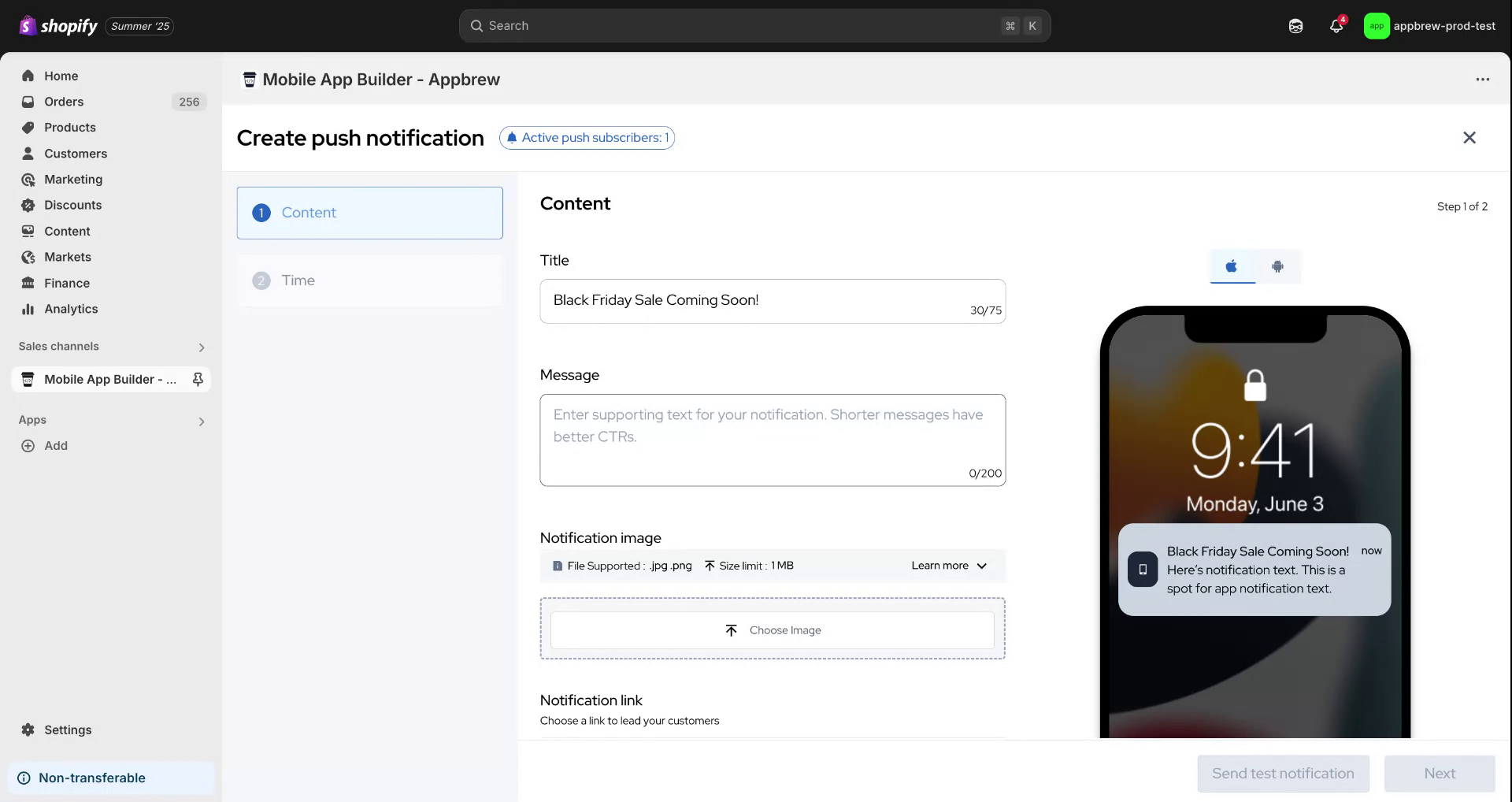
Step 4
For example, you might start with the message "Get Early Access."
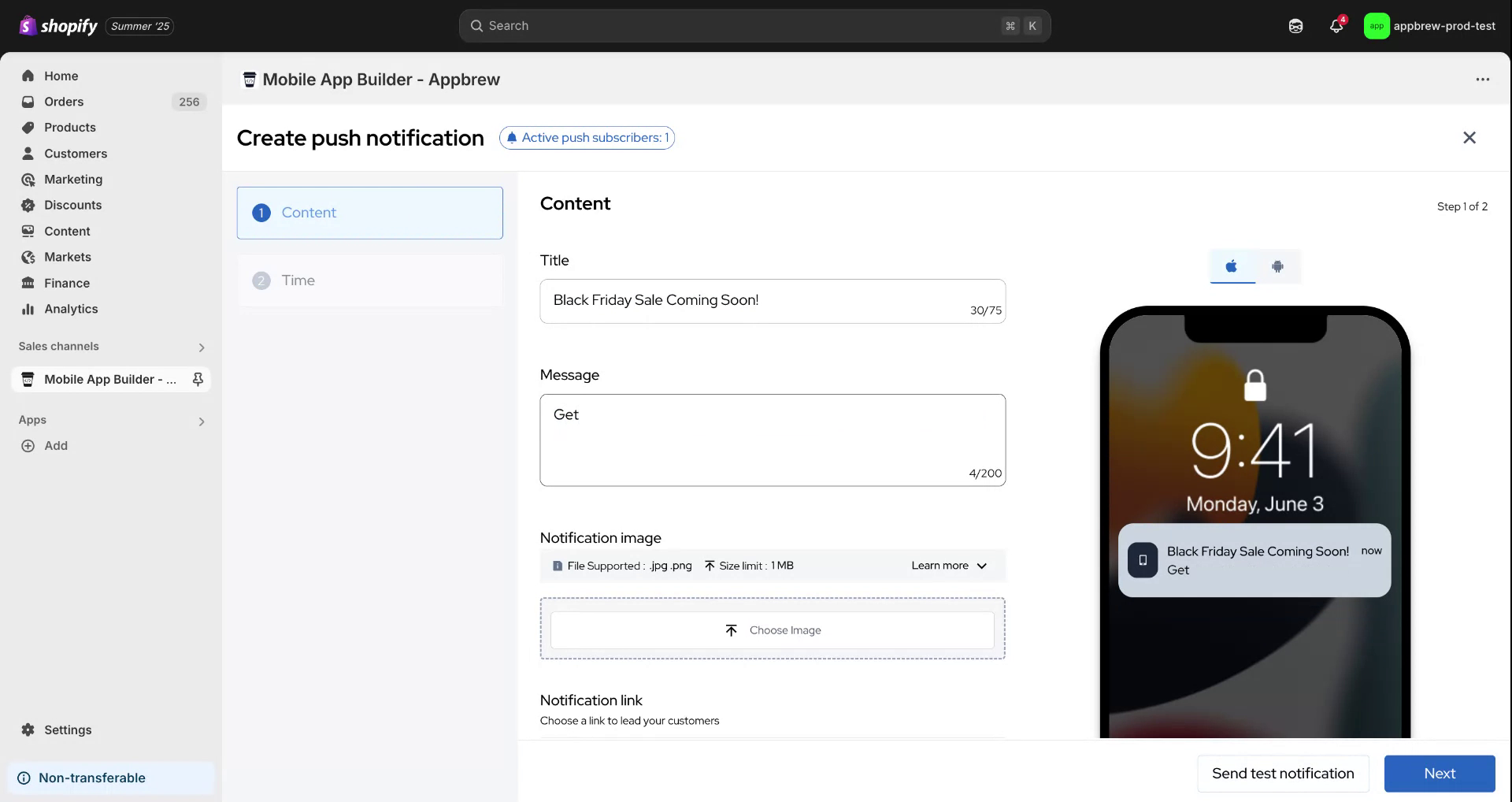
Step 5
Next, provide the notification image and specify the redirect link for your customers. You have the option to choose between iOS and Android devices. After completing these fields, click "Next" to set the notification schedule.
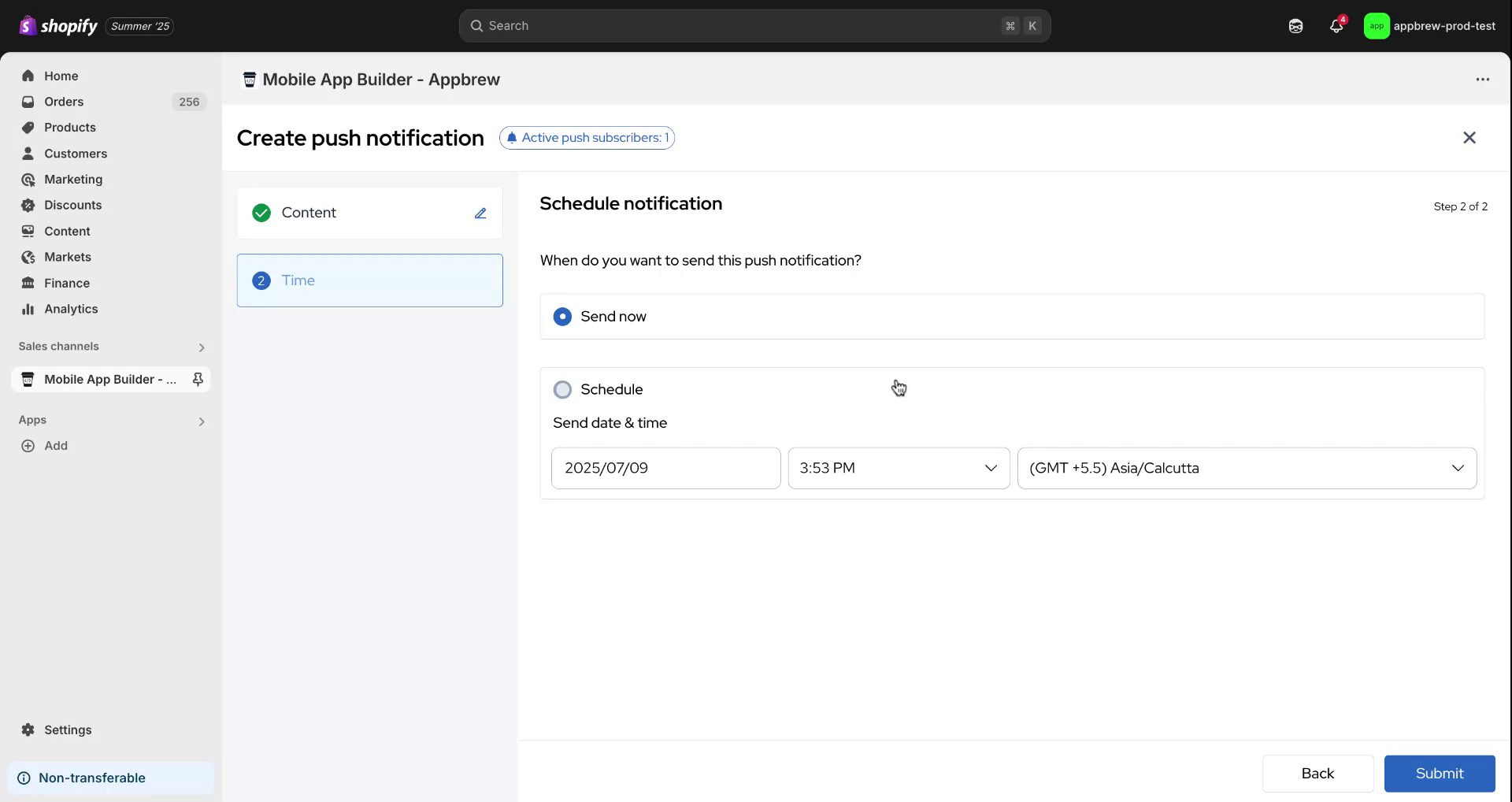
Step 6
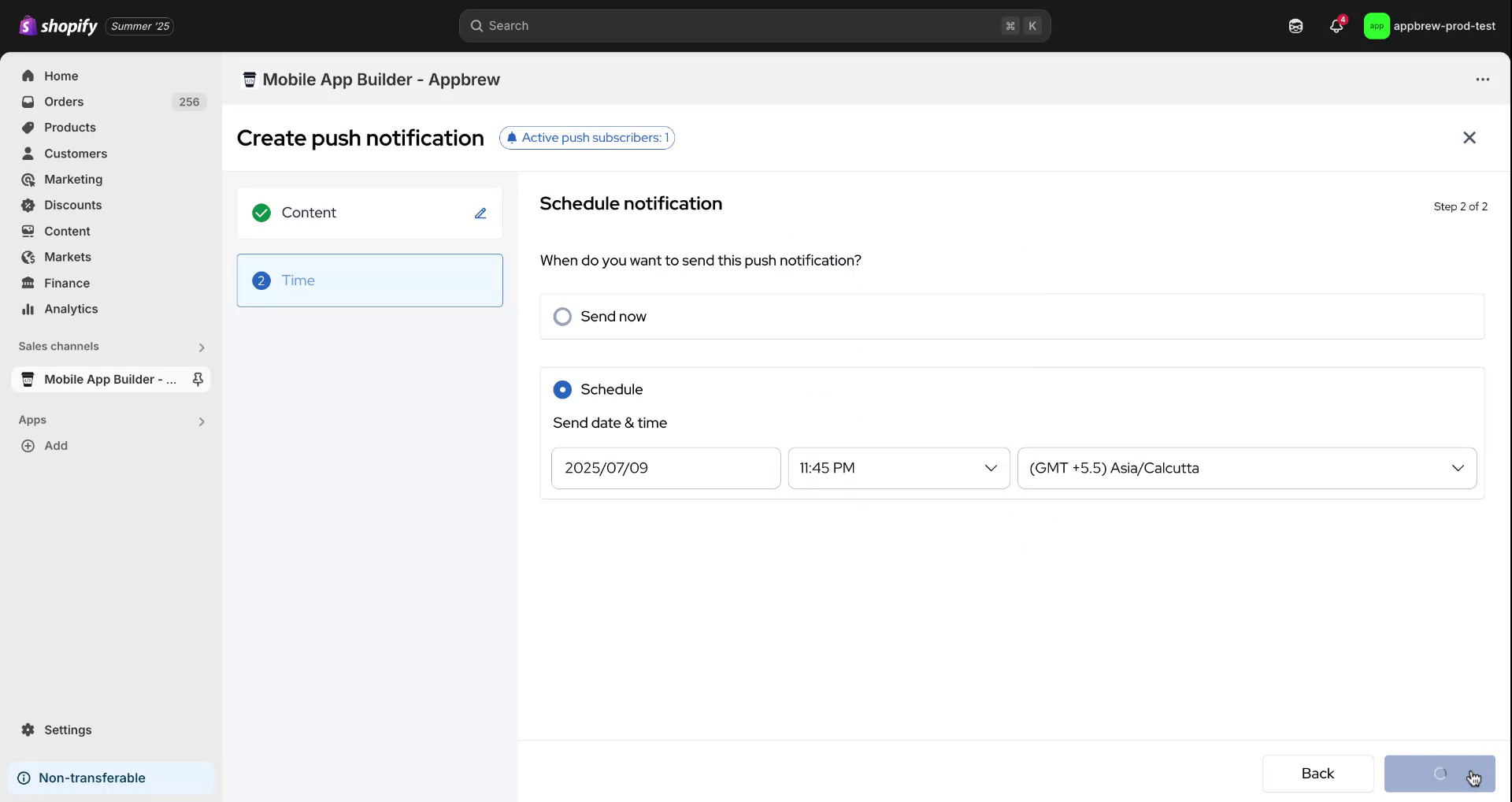
Select the desired time for the notification to be sent, such as 11:45 PM, and then click "Submit" to complete the process.
Step 7
We hope this guide was helpful. Thank you for your attention.
FAQ
How can user unsubscribe push notifications?
User can go to their phone settings, go to notifications section and turn off for the app they don't want push notifications. This way the user won't receive any push notifications from the said app.